
Quick wins for a faster PC:
Fix the driver behind crashes, sound loss and screen glitchesFind Drivers →Clear out junk files and repair common Windows errorsFree Scan →Scan for outdated or missing drivers - takes under a minuteDriver Scan →iTechGuides is reader-supported. When you buy through links on our site, we may earn an affiliate commission. As an Amazon Associate I earn from qualifying purchases. Learn more
Yes. A Raspberry Pi 5 can run a small language model entirely on the board, without sending prompts to a cloud service. The simplest route is Raspberry Pi’s Ollama-based setup with a modest model such as Gemma 2B, Phi, or TinyLlama. If you need the officially documented hardware-accelerated path, add a Raspberry Pi AI HAT+ 2 and use the Hailo Ollama server with a model from Hailo’s GenAI Model Zoo.
Keep expectations realistic: model size determines download time, storage use, memory pressure, and response speed. The instructions below separate the low-cost CPU experiment from the optional NPU setup, explain which hardware each requires, and show how to interpret Raspberry Pi’s published performance figures.
Choose the right way to run a model
There are two supported approaches for a Raspberry Pi 5. They solve different problems, so choose before buying accessories or downloading several gigabytes of model files.
Recommended Free Tools
| Route | Hardware | Software path | Best for | Main trade-off |
|---|---|---|---|---|
| CPU inference | Raspberry Pi 5 only | Ollama and a small model | Learning, experiments, local prototypes, and the lowest-cost setup | Uses the Pi’s own CPU and memory; larger models become slow or may not fit comfortably |
| Hailo acceleration | Raspberry Pi 5 plus Raspberry Pi AI HAT+ 2 | Hailo GenAI Model Zoo, Hailo Ollama server, and a supported model | Users who specifically want the documented NPU route and local LLM/VLM support | Requires an add-on board, its software stack, and compatible model files |
The AI HAT+ 2 is optional for Ollama CPU inference. It is needed for the official Hailo-accelerated setup. Do not substitute the older AI HAT+: Raspberry Pi’s comparison documentation lists AI HAT+ as not supporting LLM or VLM workloads, while AI HAT+ 2 is the model designed for them.
#1 Best Overall
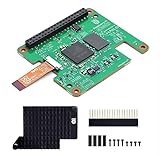
- Hailo-10H AI accelerator delivering 40 TOPS (INT4) inferencing performance.
- Performance for computer vision models comparable to the Raspbery Pi AI HAT+ (26 TOPS).
- Runs generative AI models efficiently using 8GB on-board RAM.
- Fully integrated into Raspbery Pi’s camera software stack.
- Conforms to Raspbery Pi HAT+ specification.
What you need before starting
Required for either route
- A Raspberry Pi 5 with a working Raspberry Pi OS installation and network access for downloading software and model files.
- A microSD card with at least 32 GB. This is Raspberry Pi’s minimum recommendation for the educational Ollama project; leave additional capacity for the operating system, updates, caches, and downloaded models.
- A stable power supply and a case or mounting arrangement that leaves the board’s cooling hardware unobstructed.
Additional hardware for the accelerated route
- A Raspberry Pi AI HAT+ 2 fitted to the Pi 5 using the board’s supported mounting and connector arrangement.
- The heatsink supplied with the AI HAT+ 2.
- A Raspberry Pi Active Cooler for the Pi 5. Raspberry Pi recommends it particularly for benchmarks and intensive workloads; it is a sensible addition when you expect sustained generation rather than occasional short prompts.
Do not assume that every model in an Ollama library will fit a particular Pi 5 memory configuration. The project guide’s starter examples are deliberately small, and it warns that larger models require more memory and disk space and take longer to download and run.
Route A: run a small model with Ollama on the Pi 5 CPU
This is the beginner route. It does not require an AI HAT, and it lets you learn the workflow before committing to an accelerator.
1. Prepare storage and cooling
- Install Raspberry Pi OS on the Pi 5 and complete its normal updates.
- Confirm that the microSD card has at least 32 GB. A card that barely meets that figure can fill quickly if you keep several models, so check free space before each download.
- Attach the Active Cooler if you plan to issue long prompts, generate repeatedly, or benchmark different runtimes. Short experiments can often begin without it, but sustained CPU work produces more heat and can reduce clock speed if the board cannot shed it.
- Connect the Pi to a reliable network. Model downloads are large compared with ordinary package updates and can take considerably longer on a slow connection.
2. Install Ollama using the current Raspberry Pi guide
Raspberry Pi’s educational project guide documents an Ollama installation for Raspberry Pi 4 and Raspberry Pi 5. Use the installation command currently shown in that guide rather than copying an old command from a forum post: installer syntax, package support, and model tags are living software details that can change.
After installation, confirm that the Ollama service starts normally and that its command-line client responds. If the client is not found, check that the installer completed, restart the shell or service as directed by the current guide, and verify that you are running a 64-bit Raspberry Pi OS environment supported by the software version you installed.
3. Start with a model that matches the Pi’s limits
The project guide names three starter choices:
| Model tag | Why start here | What to watch |
|---|---|---|
gemma:2b |
A small Gemma option explicitly recommended in Raspberry Pi’s guide | Generation speed and memory use still depend on the runtime, quantization, prompt length, and Pi configuration |
phi |
A compact model included among the guide’s examples | Check the current Ollama listing for the exact available tag and file size before downloading |
tinyllama |
A very small starting point for testing the end-to-end workflow | Small size does not guarantee that every task or language will produce useful answers |
Use the tag exactly as it appears in the current Ollama library and Raspberry Pi guide. The names above are the guide’s examples, not a promise that every tag or revision will remain unchanged. Download one model first, test it, and remove it before adding alternatives if storage is tight.
4. Download and run the model
- In the Ollama client, request one of the starter models, such as
gemma:2b. Ollama downloads the model before the first response can be generated. - Wait for the download to finish and check the client’s completion message. Interrupting a download can leave an incomplete or unusable local file; repeat the pull operation if the client reports an error.
- Start an interactive session with the model and enter a short prompt, for example a request to summarize a paragraph you provide locally.
- Measure the experience with several prompts of similar length. The first response may include model-loading time, while later prompts benefit from the model already being resident in memory.
- When you are finished, exit the interactive session using the client’s documented quit action. Keep only models you actually use.
The exact Ollama install and model-management commands are maintained in the living project documentation. Checking that page at setup time avoids a failed installation caused by an obsolete command or renamed tag.
5. Make the CPU route usable
- Keep prompts concise while learning. Long context consumes memory and increases the time spent processing the prompt before generation begins.
- Run one model at a time. Loading several models or other memory-heavy applications can push the Pi into swapping, making responses dramatically slower.
- Use the smallest model that meets the task. A tiny model can classify text, reformat notes, or answer simple questions locally; it will not have the broad capability of a large cloud model.
- Watch temperatures and responsiveness during repeated generations. If performance falls after several minutes, improve airflow or add the recommended cooler before changing software.
- Plan disk space before experimenting with larger models. The guide states that larger models require more storage and memory, but it does not assign a fixed footprint to each tag; current model listings are the authoritative place to check a download size.
Route B: use the Raspberry Pi AI HAT+ 2 and Hailo acceleration
AI HAT+ 2 adds a Hailo-10H neural processing unit rated at 40 TOPS INT4 and 8 GB of onboard memory. Raspberry Pi’s hardware documentation says it supports local LLMs and VLMs up to approximately six billion parameters. Those specifications describe the accelerator, not a guarantee that every model at that size will run with every prompt or software version.
Rank #2

- HIGH PERFORMANCE: Features 26 TOPS (Trillion Operations Per Second) AI acceleration capability through the Hailo AI Accelerator for advanced machine learning applications
- COMPATIBILITY: Specifically designed for the Raspberry Pi 5, connecting via PCIe interface for optimal data transfer and processing speeds
- COMPACT DESIGN: Measures 65mm x 56.5mm, offering a space-efficient solution while maintaining full functionality as an AI acceleration add-on board
- TEMPERATURE RANGE: Operates reliably in temperatures from 0°C to +50°C (32°F to 122°F), ensuring stable performance in various environments
- SEAMLESS INTEGRATION: Functions as a HAT (Hardware Attached on Top) add-on board, providing plug-and-play compatibility with Raspberry Pi ecosystem
1. Confirm that you have the correct HAT
Look for the “AI HAT+ 2” designation. The older AI HAT+ uses a different Hailo chip and is listed by Raspberry Pi as not supporting LLM or VLM use. They are not interchangeable revisions for this project. If your goal is local language-model inference, buying the older board will not provide the documented capability.
2. Fit the board and cooling hardware
- Power down the Raspberry Pi 5 and mount the AI HAT+ 2 according to Raspberry Pi’s hardware instructions.
- Fit the AI HAT+ 2’s included heatsink. Raspberry Pi specifically recommends this accessory for the board.
- Use the Raspberry Pi Active Cooler on the Pi 5, especially if you will benchmark, generate continuously, or run other workloads at the same time.
- Reconnect power only after the board and connectors are seated correctly. A loose connector can appear to be a software failure when the accelerator is simply not detected.
3. Install the documented Hailo software
Raspberry Pi’s AI software documentation specifies the Hailo GenAI Model Zoo Debian package version 5.1.1 for Raspberry Pi 5. Follow that page’s current package-install procedure and confirm the installed version before proceeding. Do not silently substitute a package intended for another Raspberry Pi model or an unrelated Hailo runtime.
Once the package is installed, use the documented hailo-ollama server. The server provides a local REST API for sending prompts, so an interactive desktop interface is not required.
4. Start the server and select a supported model
- Start
hailo-ollamausing the service or command shown in Raspberry Pi’s AI software documentation. - Ask the server to list the models available through the installed GenAI Model Zoo. This list is preferable to guessing a model name because availability can change with package releases.
- Pull a model from that list. Raspberry Pi’s example uses
qwen2:1.5b. - Wait for the model download and load operation to complete. Check the server output for a successful model-ready status before sending a prompt.
- Submit a test prompt through the local REST API using the request format in the current documentation. Start with a short prompt so that you can distinguish model-loading problems from long-context performance.
The model name, package version, and request syntax are version-sensitive. If the list command does not show qwen2:1.5b, choose a currently listed model rather than forcing an old tag.
Free tools Windows power users keep installed
One-click scans. No signup required.
5. Add a web interface only if you need one
Open WebUI is optional. Raspberry Pi’s documented WebUI path uses Docker, so it adds another service and another layer to troubleshoot. The REST API is sufficient for scripts, local applications, and command-line tests. Add the WebUI after the server works, not as part of the initial hardware diagnosis.
How fast is a Raspberry Pi 5?
Raspberry Pi’s published 2026 benchmark illustrates why test conditions matter. It used an 8 GB Raspberry Pi 5, four CPU threads, 1,024 prefill tokens, and 256 decode tokens. The figures below are vendor-published results for the named model files and runtimes; they are not a guarantee for another Pi, operating-system build, prompt, thermal condition, or quantization.
| Model and runtime | Prefill speed | Decode speed | Peak memory | Test conditions |
|---|---|---|---|---|
| Gemma 4 E2B with LiteRT-LM and QAT | 99 tokens/sec | 9 tokens/sec | 1,432 MB | 8 GB Pi 5, four CPU threads, 1,024-token prefill, 256-token decode |
| Gemma 4 E2B with llama.cpp and Q4_0 | 24 tokens/sec | 4 tokens/sec | 4,406 MB | 8 GB Pi 5, four CPU threads, 1,024-token prefill, 256-token decode |
Prefill is the rate at which the runtime processes the input context. Decode is the rate at which it produces new output tokens, so decode speed is usually the figure that most closely matches the pace you see while an answer appears. The benchmark’s large difference in memory use also shows why runtime and quantization belong beside the speed number whenever you compare results.
Rank #3

- ⚡ PoE HAT for Raspberry Pi 5 CM5: PoE HAT F is a Power over Ethernet expansion board for Raspberry Pi 5 and CM5, supporting network connection and power input through one Ethernet cable.
- 🔌 802.3af/at PoE+ Support: This PoE+ HAT supports IEEE 802.3af/at network standard and works with compatible PoE power sourcing equipment for compact wired deployment projects.
- 🧊 Active Cooling Fan and Metal Heatsink: The PoE HAT with cooling fan includes a metal heatsink and high-speed active fan, helping improve heat dissipation and operating stability during long-term use.
- 🔋 5V and 12V Output Headers: Onboard 5V and 12V header outputs provide power options for external peripherals, with up to 25W total output under suitable PoE input and cooling conditions.
- 🧩 40-pin GPIO Stackable Header: Standard 40-pin GPIO stackable header fits Raspberry Pi 5 and CM5 expansion, allowing users to connect compatible HATs and custom project interfaces.
Raspberry Pi also reports a comparison involving Gemma 3 270M. That is a different model family and workload, not a substitute for the Gemma 4 E2B test above. Do not use one result to rank every model, runtime, or Pi configuration.
Storage, memory, and thermal planning
Storage
Use 32 GB as the minimum starting point, not as a promise that every experiment will fit. The operating system, updates, logs, and one or more model files share the same card. Larger models consume more space, and keeping several revisions multiplies that cost. Before pulling another model, check available space and remove unused files through the model manager’s documented removal operation.
Memory
Model parameters are only part of the memory requirement. The runtime also needs space for the model’s working buffers, the prompt context, generated output, and the operating system. A model that technically downloads may still be impractical if it forces swapping or leaves too little memory for the rest of your application. Start with the guide’s small examples and increase size only after measuring a real task.
Temperature
Cooling is a performance and reliability consideration for sustained workloads. Raspberry Pi recommends the Active Cooler and the AI HAT+ 2 heatsink particularly for benchmarks and intensive use. A short CPU test is not the same as an all-day generation service: if the board becomes hot or slows over time, improve cooling and airflow before concluding that the model or runtime is unusable.
Troubleshooting common failures
The model will not download
- Check free space against the current model listing, not an old screenshot or blog post.
- Confirm network connectivity and allow the download to finish without putting the Pi to sleep or cutting power.
- Verify the tag exactly, including punctuation and capitalization. Model names can change.
- If a partial download is reported, repeat the operation using the current Ollama or Hailo documentation’s recovery procedure.
The Pi becomes unresponsive during generation
- Stop other memory-intensive applications and run only one model.
- Try one of the smaller starter models rather than increasing context length.
- Check memory and temperature while generating. Swapping and thermal throttling can look like a software hang.
- Add or improve cooling for sustained work, particularly when the AI HAT+ 2 is installed.
The AI HAT+ 2 is not detected
- Power off and reseat the board and its connectors.
- Confirm that the board is AI HAT+ 2, not the older AI HAT+, which Raspberry Pi does not list as LLM-capable.
- Verify that the Raspberry Pi 5 package version and Hailo GenAI Model Zoo installation match the current AI software documentation.
- Start
hailo-ollamaonly after the runtime reports that the accelerator is available.
The model list does not contain the example tag
Use the list returned by the installed Hailo GenAI Model Zoo or the current Ollama library. The example qwen2:1.5b demonstrates the workflow; it is not a guarantee that the same tag will be present in every future package release.
The Tool Desk
Outbyte PC Repair FREEClear out junk files and repair common Windows errorsFree Scan →Outbyte Driver Updater FREEScan for outdated or missing drivers - takes under a minuteDriver Scan →Responses are much slower than a published figure
Compare like with like before changing hardware. Raspberry Pi’s figures specify the Pi memory size, thread count, model, runtime, quantization, prefill length, decode length, and peak memory. A different model, longer prompt, fewer threads, cooler, operating-system build, or runtime can change the result substantially. Published tokens-per-second numbers should be treated as a reference point for that exact test, not as a universal Pi 5 specification.
What the Pi 5 is well suited to
A small local model is useful when the task is narrow, the data should remain on the device, or the application needs to continue working without an internet connection. Good first projects include classifying short text, extracting fields from notes, rewriting a paragraph, generating simple command explanations, or providing a local interface for a sensor or home-automation prototype.
Use a larger computer or a cloud service when the task needs long context, broad factual coverage, high-quality coding across a large codebase, multimodal capability without supported accelerator software, or many simultaneous users. The Pi 5 setup is an edge-computing experiment and a practical small-model host, not a replacement for a server-class inference machine.
Quick Recap
A sensible first-session checklist
- Confirm the board is a Raspberry Pi 5 and install current Raspberry Pi OS updates.
- Check that the microSD card has at least 32 GB and enough free space for the selected model.
- Attach the Active Cooler if you expect sustained CPU inference.
- Choose the CPU Ollama route unless you specifically need Hailo acceleration.
- Start with
gemma:2b,phi, ortinyllama, using the current tags shown by the documentation. - Run several short local prompts and observe memory, temperature, and response pace.
- If you need acceleration, power down, install the AI HAT+ 2 and its heatsink, then install Hailo GenAI Model Zoo Debian package version 5.1.1 as documented for Pi 5.
- Start
hailo-ollama, list the available models, pull a listed model such asqwen2:1.5bwhen available, and test the local REST API. - Record the model, runtime, quantization, prompt length, and cooling whenever you compare performance.
Product prices and availability are accurate as of the date/time indicated and are subject to change. Any price and availability information displayed on Amazon at the time of purchase will apply.
What’s actually slowing this PC down?
Pick the symptom - the matching free tool is one click away.

