
Windows Errors? Fix Them Before They Spread
Repair common Windows errors and clear accumulated junk for a smoother, more stable PC - no reinstall needed.Free scan · no reinstallCrashes, No Sound, or Screen Glitches?
Random freezes, missing sound and display glitches usually trace back to one bad driver. Find and replace yours safely.Free scan · under a minuteiTechGuides is reader-supported. When you buy through links on our site, we may earn an affiliate commission. As an Amazon Associate I earn from qualifying purchases. Learn more
When a game reports that it is out of graphics memory, start with the game’s own graphics settings: lower texture quality or overall detail, then reduce resolution if necessary. Close applications you do not need, and use the game’s VRAM meter when one is available. For Fortnite’s specific “Out of video memory trying to allocate a rendering resource” error, Epic Games also recommends checking the card’s minimum memory requirement, updating the graphics driver, and verifying the game files.
These changes can reduce memory pressure without immediately replacing the graphics card. They do not guarantee a fix: the message can result from a game exceeding the installed card’s limits, a system-memory constraint, a driver or file problem, or a title-specific bug. Work through the checks below in order so you can separate a settings problem from a hardware requirement you cannot meet.
What VRAM does and why a game can run out
Video RAM (VRAM) is memory on the graphics card. The GPU uses it for textures, render targets, frame buffers, shaders and other data needed to draw a scene. A game estimates how much space its selected settings require and allocates resources as you play. If the allocation cannot be satisfied, the game may show an out-of-video-memory message, stutter while loading assets, drop frames or close unexpectedly.
What’s actually slowing this PC down?
Pick the symptom - the matching free tool is one click away.
VRAM is separate from ordinary system RAM, although the two affect each other. Microsoft’s Windows game-development guidance notes that when a system has limited physical memory relative to the video card, much of the VRAM may not be effectively usable and lower detail settings should be configured. That means an “out of memory” message is not proof, by itself, that the graphics card has no physical capacity left; the game, driver and operating system all influence the available budget.
#1 Best Overall

- Axial-tech fans now feature a smaller fan hub that facilitates longer blades and a barrier ring that increases downward air pressure
- 2.5-slot design allows for greater build compatibility while maintaining cooling performance
- 0dB technology lets you enjoy light gaming in relative silence
- Dual BIOS switch lets you toggle between Quiet and Performance BIOS profiles
- Dual ball fan bearings last up to twice as long as sleeve bearing designs
There is no universal percentage by which a setting saves VRAM. The amount varies with the game, resolution, texture assets, quality preset, driver and scene. Treat every adjustment below as a way to reduce demand and test the affected title, not as a guaranteed fixed amount of memory.
First response: lower the settings that consume the most memory
Lower texture quality first
Texture quality is usually the most direct setting to change when the problem is a graphics-memory allocation. NVIDIA’s Destiny 2 guide explains that the texture setting scales mipmap resolution for nearby and distant surfaces, reducing VRAM requirements. Lower-quality textures look less sharp, especially on large surfaces and at close range, but they target texture data rather than reducing every aspect of the image.
505 Games likewise lists texture quality among the options to reduce when insufficient video memory causes stuttering, frame drops or an out-of-video-memory crash. The exact labels differ by title: look for Texture Quality, Texture Resolution, Texture Pool or a similar option.
- Open the game’s Settings or Options menu.
- Choose Graphics, Display or Video.
- Lower Texture Quality by one level rather than jumping immediately to the lowest value.
- Apply the change, restart the game if it requests one, and load the area that previously failed.
- If the game still exceeds its memory estimate, lower textures another level or continue with the settings below.
Do not assume a texture change has the same effect in every game. The mipmap behavior described by NVIDIA is specific to its Destiny 2 explanation; other engines may stream textures differently or reserve memory in another way.
Reduce overall detail and demanding effects
If the texture change is not enough, lower the overall quality preset or individual options such as environment, object, shadow, effects and view distance. These settings can reduce the number or size of resources the game keeps resident. Microsoft’s guidance supports using lower detail settings when memory is constrained, but it does not define a universal preset or threshold.
Rank #2

- AI Performance: 767 AI TOPS
- OC mode: 2632 MHz (OC mode)/ 2602 MHz (Default mode)
- Powered by the NVIDIA Blackwell architecture and DLSS 4
- Axial-tech fan design features a smaller fan hub that facilitates longer blades and a barrier ring that increases downward air pressure
- A 2.5-slot design maximizes compatibility and cooling efficiency for superior performance in small chassis
Change one group of settings at a time when possible. That makes it easier to identify which option solved the allocation and lets you restore visual quality elsewhere. A lower preset can also reduce CPU and GPU workload, although this article’s immediate goal is freeing graphics memory.
Use an in-game VRAM meter when provided
Some games show an estimated VRAM meter beside their graphics options. NVIDIA documents such a meter for Destiny 2. Select a setting, watch the estimate change, and keep the indicator below the available budget shown by the game. The meter is an estimate rather than a guarantee: loading a new area can require different assets, and the title may reserve memory for purposes not represented by the bar.
Lower resolution when textures and detail are not enough
Epic Games’ support guidance for Fortnite’s “Out of video memory trying to allocate a rendering resource” error specifically recommends trying a lower resolution. Resolution changes the number of pixels the game must render and can reduce the size of some render targets. The trade-off is a softer or less detailed image, particularly when a display scales a non-native resolution.
- In the game’s Graphics or Display menu, find Resolution.
- Choose a modestly lower value than the current setting.
- Apply it and test the same level, match or replay that triggered the error.
- If the game remains stable, decide whether the image-quality trade-off is acceptable; if not, combine the original resolution with a lower texture or detail setting only if the game’s memory meter allows it.
Epic’s advice does not prescribe one resolution for every monitor or system. Select a value the affected game supports and adjust in small steps rather than treating a particular number as universal.
Close applications that compete for memory
Close programs you do not need while the game is running. Epic recommends closing other applications for the named Fortnite allocation error, and Steam’s general performance guidance notes that memory available for graphics rendering affects game performance. Browsers with many tabs, launchers, recording tools and other 3D applications can consume system resources or reserve graphics resources.
Rank #3
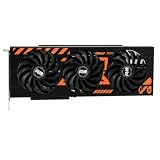
- GPU-Modell: Gefoce RTX 3080
- Memory Type: GDDR6X Memory Capacity: 20GB Memory Bus Width: 320bit Output Interfaces: 3*DP + HDMI Core Clock: 1710MHz Memory Clock: 19Gbps Power Interface: 8+8pin Recommended Power Supply: 850W or higher
- Save work in other applications.
- Exit unnecessary browsers, video players, editors, virtual machines and other games.
- Leave the game launcher running only if the title requires it.
- Restart the game after closing those programs so it receives a fresh allocation attempt.
This step costs no visual quality and is quick to test. It cannot make a card meet a game’s minimum VRAM requirement, however. If the game still fails with other applications closed, continue to the requirement and software checks.
Do these 3 things before closing this tab:
1Fix the driver behind crashes, sound loss and screen glitches2Repair Windows errors before they cause bigger problems3Scan for outdated or missing drivers - takes under a minuteCheck the game’s minimum graphics-memory requirement
Read the affected game’s current system-requirements page or launcher listing and compare its stated minimum graphics memory with the installed card. Epic explicitly recommends making sure the card has the minimum required memory for Fortnite’s error. Use the requirement for the exact game and edition; a recommendation for one title does not establish a safe limit for another.
Check the installed card in your operating system or graphics driver utility, then compare the capacity—not just the model name—with the game’s requirement. If the card is below the minimum, lowering settings may still help in some titles, but stable operation is not assured. If it meets the requirement, the message may still be caused by a high setting, a competing application, a driver issue, a damaged file or a title-specific problem.
Apply game-specific software fixes
Update the graphics driver
For the Fortnite allocation error, Epic lists updating the graphics driver as an official troubleshooting step. Install the current driver offered for your graphics card and operating system, then restart the computer if the installer requests it. Driver updates can correct compatibility and allocation defects, but they do not add physical VRAM.
Because driver controls and installation procedures differ by GPU vendor, follow the vendor’s instructions for your exact card. Avoid assuming that a driver update will resolve an error caused by hardware below the game’s minimum requirement.
The Tool Desk
Outbyte PC Repair FREERepair Windows errors before they cause bigger problemsFix Now →Outbyte Driver Updater FREEFix the driver behind crashes, sound loss and screen glitchesFind Drivers →Rank #4

- Powered by the NVIDIA Blackwell architecture and DLSS 4 OC mode: 2610 MHz/ Default mode: 2580 MHz(Boost clock)
- Quad-fan design boosts air flow and pressure by up to 20%. Compatibility: 357.6mm (14.1") length, 3.8 slots, 6.6 lbs. Confirm case clearance and slot spacing.
- Patented vapor chamber with milled heatspreader for lower GPU temperatures
- Phase-change GPU thermal pad ensures optimal heat transfer, lowering GPU temperatures for enhanced performance and reliability
- 3.8-slot design: massive heatsink and fin array optimized for airflow from the four Axial-tech fans
Verify the game files
Epic also recommends verifying game files for the Fortnite error. Use the verification or repair command in the launcher that installed the game. The process checks the local installation and replaces files that are missing or damaged. It can take time and may require a download; do not interrupt it while it is working.
File verification is a game-specific recommendation in this context, not a universal VRAM remedy. Use it when the affected title’s official support instructions include it, especially if the error began after an interrupted update or damaged installation.
Optional vendor control-panel settings
Driver control panels can expose additional memory-related options, but treat them as secondary experiments rather than required fixes. AMD describes Surface Format Optimization as a setting that lets the driver change rendering-surface formats where applicable and may lower video-memory usage. The wording matters: the benefit is conditional, and it is not established as a guaranteed improvement for every game or card.
- Open the graphics driver’s control panel.
- Find the game-specific profile or global 3D settings.
- Locate the vendor’s description of Surface Format Optimization, if the option exists.
- Record the original value before changing it.
- Enable or disable it only as a controlled test, then launch the affected game and check stability and image quality.
If the game behaves worse, shows visual corruption or gains no stability, restore the original value. Do not change several driver options at once, because you will not know which setting affected the result.
Choose the next step by effect and trade-off
| Action | How it can help | Cost or limitation |
|---|---|---|
| Lower texture quality | Directly reduces texture-resolution demand; NVIDIA describes mipmap scaling for this purpose in Destiny 2. | Textures appear less detailed. Savings vary by game. |
| Lower overall detail or effects | Reduces the resources required for scene detail and effects when memory is constrained. | Objects, shadows or effects may look simpler; no universal memory saving is established. |
| Lower resolution | An official Epic suggestion for its Fortnite allocation error and a way to reduce rendering demand. | Image sharpness and displayed detail decrease. |
| Close unnecessary applications | Releases competing system resources and graphics-related memory reservations. | No image-quality cost; cannot overcome a card below the game’s requirement. |
| Update the driver or verify files | Addresses game-specific compatibility, allocation or installation problems. | Requires a restart or download and is not a guaranteed fix for insufficient VRAM. |
| Change a vendor control-panel option | May reduce video-memory use where the vendor says it applies. | Product-specific, conditional and potentially visually disruptive. |
| Replace the graphics card | Increases the physical VRAM available when the installed card cannot meet the game’s requirement. | Largest cost; the correct model depends on the game, system and current market. |
A practical troubleshooting sequence
Use this order to avoid making an expensive change before testing the low-cost fixes:
Best Value

- 【Ultimate Triple Display Connectivity】: Features a versatile output array including HDMI, DisplayPort (DP), and DVI. Whether you're connecting a high-refresh-rate gaming monitor via DP or a standard office screen via HDMI, this card supports triple-monitor setups for maximum productivity.
- 【Compact Size & Wide Compatibility】: Measuring 240x135x45mm (9.45x5.31x1.77 inches), this dual-fan RX 580 fits perfectly into standard ATX Mid-Towers, Micro-ATX (M-ATX), ideal for compact desktop PC upgrades and space-saving gaming builds.
- 【Optimized Gaming Performance】: With 2048 Stream Processors and a 1206 MHz core clock, this card delivers solid frame rates in popular titles like Fortnite, GTA V, Apex Legends, and Valorant. It’s the ideal budget-friendly GPU for entry-level to mid-range gaming rigs.
- 【Advanced Thermal Management】: Engineered with a dual-fan cooling system and high-efficiency heat pipes to ensure stable performance under heavy loads. The intelligent fan control keeps your system quiet during light office work and provides maximum airflow during intense gaming sessions.
- 【Ready for Content Creation】: Supports DirectX 12, Vulkan, and OpenGL 4.6, making it more than just a gaming card. It provides hardware acceleration for video editing in Premiere Pro, 3D rendering in Blender, and smooth streaming for aspiring creators.
- Write down the exact error text, game version and activity that triggers it.
- Close unnecessary applications and restart the game.
- Lower texture quality one step and check the game’s VRAM meter, if present.
- Lower overall detail or demanding effects if the allocation still fails.
- Reduce resolution modestly and test the same scene again.
- Read the game’s current minimum graphics-memory requirement and compare it with the installed card.
- Follow the title’s official support steps, including driver updating or file verification when specified.
- Only then test an applicable vendor control-panel option.
- If the card is below the requirement and the game remains unstable, evaluate a graphics-card upgrade for that specific title and system.
How to tell which problem you are seeing
The game fails immediately at launch
An immediate allocation failure points you first toward the game’s minimum requirement, an unusually high default preset, a driver problem or damaged files. Check the requirement, lower settings from the launcher or configuration file if the title permits it, update the driver and verify files according to the game’s support instructions.
The game starts but crashes when entering a level
A crash during a level transition can occur when new textures or render targets are loaded. Lower texture quality, use the in-game meter if available, close other applications and retest the same location. If only one level or mode fails, report the reproducible location to the game’s support channel rather than assuming every title or card is affected.
The game stutters before the error appears
505 Games identifies stuttering and frame drops as possible symptoms of insufficient video memory. Reduce textures and detail, then test whether the pauses disappear. Stuttering can have other causes, so do not treat it as proof of a VRAM shortage when the game’s memory estimate remains within its stated budget.
When a graphics-card upgrade is justified
An upgrade becomes relevant when the installed card does not meet the affected game’s minimum graphics-memory requirement and settings, application cleanup and the game’s software checks do not make it usable. It is not an automatic remedy for every “out of video memory” message. A card with more VRAM can still be limited by the GPU’s processing performance, system memory, power supply, cooling, drivers or the game itself.
Choose against the specific game and the rest of the computer rather than buying from a VRAM number alone. Confirm the card’s physical fit, power connections, operating-system support and the game’s current requirements. The available evidence does not identify one universally suitable model or a guaranteed capacity for all games.
Quick Recap
What not to assume
- Do not assume the error always means the card is defective.
- Do not assume lowering resolution alone will fix a title whose card is below the minimum requirement.
- Do not transfer a VRAM-saving figure from one game to another; the cited sources provide mechanisms and recommendations, not a universal percentage.
- Do not present a vendor-specific driver option as a mandatory setting.
- Do not keep repeating the same failed launch without changing one controlled variable at a time.
Product prices and availability are accurate as of the date/time indicated and are subject to change. Any price and availability information displayed on Amazon at the time of purchase will apply.

