
iTechGuides is reader-supported. When you buy through links on our site, we may earn an affiliate commission. As an Amazon Associate I earn from qualifying purchases. Learn more
Prefer not to run the server on your own PC? Godlike.Host offers hosted Mindustry servers with free DDoS protection and up to three free backups a day.
The simplest way to play Mindustry with friends is to use the built-in multiplayer menu. If everyone is on the same Wi-Fi network or personal hotspot, one player starts a game, opens the pause menu, and chooses Host Multiplayer Game. Everyone else opens Play > Join Game and selects that server. When automatic discovery fails, the host can share the device’s internal IP address and friends can use Play > Join Game > Add Server.
Friends on different networks need a reachable server: port forwarding to the host, a public server, or a dedicated server. Mindustry supports cross-platform multiplayer when every device is running the same game version, so PC, Android, iOS, and other supported editions can play together under that condition.
Quick wins for a faster PC:
Fix the driver behind crashes, sound loss and screen glitchesFind Drivers →Repair Windows errors before they cause bigger problemsFix Now →Pick the right multiplayer method
Your network arrangement determines almost everything about setup. Use the table below before opening the game.
| Situation | Best option | Setup effort | What happens when the host closes the game? | Typical fit |
|---|---|---|---|---|
| Everyone is on the same home Wi-Fi | Built-in Host Multiplayer Game | One in-game button | The session ends | A few friends playing together |
| Everyone can share a phone hotspot | Built-in hosting over the hotspot | One in-game button, plus hotspot setup | The session ends when the host stops hosting or leaves | Travel, dorms, or networks that isolate devices |
| Same network, but the host does not appear | Join by internal IP with Add Server | Find the host’s local address and enter it | The session ends | Public or restricted Wi-Fi where discovery is blocked |
| Players are in different homes | Port forwarding, a public server, or a dedicated server | Moderate to advanced networking | Depends on the server type | Online groups that cannot share a LAN |
| You want an always-available world | Dedicated server | Java, server files, firewall, and administration | The server can remain online after the host client closes | Persistent or larger groups |
Mindustry’s official FAQ describes Wi-Fi or hotspot play as the easiest arrangement. The local host runs on the player’s device, so the game consumes that device’s CPU, memory, battery, and network resources. A dedicated server runs separately and is better when the world should stay available or when several people need to join without the original host’s game client running.
#1 Best Overall

- INGENIOUS CARD GAME: Experience the ingenious and highly addictive card game that's making waves everywhere. The Mind offers simple rules but a challenging test of your mental synchronization.
- ASCENDING ORDER CHALLENGE: Work together with your friends to play cards in ascending order, but here's the catch – no speaking or communication allowed. Can you beat the Mind's tricky levels.
- UNIQUE NON-VERBAL COMMUNICATION: Discover the art of non-verbal communication as you read each other's cues, invent silent languages with knowing glances, and synchronize your minds to conquer the game's challenges.
- WORLDWIDE BEST-SELLER: Join the worldwide community of players who have fallen in love with The Mind. This social card game is perfect for game nights, gatherings, and bonding with friends.
- HIGH PLAYER INTERACTION: The Mind is all about player interaction and cooperation. It's a fantastic addition to your game night, encouraging teamwork and fun social dynamics.
Check these requirements first
- Match the game version. Mindustry is cross-platform, but the official FAQ says all devices must be running the same version. Check the version shown on each installation before troubleshooting networking.
- Choose one host. The host starts the world and keeps the local or remote server reachable. Decide who will host before everyone searches for a game.
- Use a network that allows device-to-device traffic. Home Wi-Fi and a personal hotspot normally do. Guest and public Wi-Fi often prevents discovery even when every device has internet access.
- Keep the game updated consistently. Updating only one device can create a version mismatch that looks like a connection failure.
- Have the host’s address available if needed. On a LAN, this is the host device’s internal IP address. For an internet connection, it is the reachable public address or the address supplied by the server provider.
Mindustry’s source UI text summarizes local discovery this way: “Anybody on the same wifi or local network should be able to see your server in their server list.” If that assumption is not true on your network, use the manual-IP method rather than repeatedly restarting the game.
How to host a game on the same Wi-Fi or hotspot
Host steps
- Connect the host device and every friend’s device to the same home Wi-Fi network or personal hotspot. Do not use a guest network if you can avoid it.
- Launch Mindustry and start the map or game mode you want to play.
- Open the in-game pause menu.
- Select Host Multiplayer Game. This advertises the running game to devices on the local network.
- Leave Mindustry running while friends connect. If the host closes the game, the local session is no longer available.
Joining steps
- On a friend’s device, open Mindustry.
- Select Play > Join Game.
- Wait for the host’s game to appear in the server list.
- Select the server and join. The host may need to approve or manage players depending on the game’s current settings.
PC and mobile players can use this process together. The operating system does not need to match; the game version does.
The Tool Desk
Outbyte Driver Updater FREEFix the driver behind crashes, sound loss and screen glitchesFind Drivers →Outbyte PC Repair FREERepair Windows errors before they cause bigger problemsFix Now →What to do when the local server does not appear
Missing discovery usually means the network is filtering local traffic, not that the host failed to start the game. Work through these checks in order.
1. Confirm the network
Compare the exact Wi-Fi name on every device. A phone connected to cellular data, a laptop on a guest SSID, and a tablet on the main SSID are not necessarily on the same local network. If the router offers separate 2.4 GHz and 5 GHz networks, they normally can communicate, but a router’s client-isolation setting may prevent it.
2. Try a personal hotspot
The official FAQ recommends a personal hotspot when public Wi-Fi blocks server discovery. Have one device create a hotspot, connect all players to it, and repeat the host and join steps. Hotspot performance and data charges depend on the mobile plan, so monitor the connection if the session is long.
3. Use the host’s internal IP address
Ask the host to find the device’s local IPv4 address in its operating-system network details. It commonly looks like a private address beginning with 192.168., 10., or 172.16 through 172.31; the exact value is assigned by the router and changes from network to network.
What’s actually slowing this PC down?
Pick the symptom - the matching free tool is one click away.
Rank #2
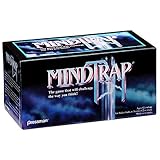
- Mind Trap Game
- On the joining device, open Play > Join Game.
- Select Add Server.
- Enter the host’s internal IP address.
- Save or connect using the in-game control shown on that screen.
Entering an internal address only works while both devices can reach the same local network. It is not the address to give someone playing from another home.
4. Check local firewalls
A computer’s firewall can allow web browsing while blocking game traffic. On the host, allow Mindustry through the operating system’s private-network firewall profile. Avoid turning the firewall off globally; create or enable a rule for the game instead. If the host is on Windows, the server guide notes that firewall rules may need to allow Mindustry’s server port for dedicated hosting.
5. Restart only after checking settings
Restarting can refresh a stale network lease, but it will not overcome guest-network isolation or a version mismatch. Verify the version and network first, then restart the game and reconnect if necessary.
How to join a Mindustry game by IP
Use Add Server when automatic discovery is unavailable. The menu path is Play > Join Game > Add Server. The address you enter depends on where the host is located:
| Host location | Address to enter | When it works |
|---|---|---|
| Same home network or hotspot | The host’s internal IP | Both devices are on the same reachable LAN |
| Different networks with port forwarding | The host’s public IP or configured hostname, with the server port reachable | The router forwards the game traffic to the host and the firewall permits it |
| Dedicated server or public server | The address supplied by the server operator | The server is online and accepting connections |
Do not give friends a private address such as 192.168.x.x when they are outside your home. Private addresses are valid only inside the local network. Conversely, do not use the public address for a device that cannot route back through the same router if the router lacks NAT loopback support; a local address is usually the safer choice at home.
Playing with friends on different networks
When players are in different homes, the host’s local network must expose a reachable server. The official FAQ identifies port forwarding as the standard approach and suggests public servers as an alternative.
Rank #3

- TRAIN YOUR BRAIN: Can you solve language and logic puzzles with your left brain or can you solve picture problems with your right brain?
- CHALLENGING: It’s a full brain workout that leaves no neurons behind. MindTrap: Left Brain Right Brain, will challenge the logical left side of your brain and the artistic right side too!
- BENEFITS: Playing trivia games can help improve cognitive skills and expand your knowledge.
- ONE OR MORE: The MindTrap series of brain challenging puzzles are great to play with a friend or on your own.
- INCLUDES: Left Brain Right Brain (for ages 14 and up)
Option 1: Forward the host’s port
The Mindustry server guide documents port 6567 for both TCP and UDP. That is an operational setting in the current documentation, not a guarantee that every router or internet provider will accept inbound connections.
- Give the host device a stable local address, preferably by creating a DHCP reservation in the router. This prevents the forwarding rule from pointing at the wrong device after a reboot.
- Open the router’s port-forwarding or virtual-server page.
- Create rules that forward external port 6567 TCP and 6567 UDP to the host’s internal IP and the corresponding Mindustry server port.
- Allow the same traffic through the host operating system’s firewall.
- Start the Mindustry host or dedicated server.
- Share the reachable public address with friends, then have them use Play > Join Game > Add Server.
Router menus use different labels, and some internet providers place customers behind carrier-grade NAT. In either case, you may be unable to accept inbound connections even when the forwarding rule looks correct. Do not assume that a public IP shown by a web page is directly assigned to your router.
Windows Errors? Fix Them Before They Spread
Repair common Windows errors and clear accumulated junk for a smoother, more stable PC - no reinstall needed.Free scan · no reinstallCrashes, No Sound, or Screen Glitches?
Random freezes, missing sound and display glitches usually trace back to one bad driver. Find and replace yours safely.Free scan · under a minuteOption 2: Use a public server
A public server removes the need for every friend to connect directly to the host’s home router. Find a server through Mindustry’s Join Game screen or use an address supplied by its operator. Check its rules, moderation policy, map rotation, and version before joining. Public servers can be busy, reset progress, or disappear without notice, so they are better for casual sessions than for a private long-running world unless the operator provides persistence.
Option 3: Run a dedicated server
A dedicated server is a separate Mindustry server process. It can continue running while the host’s normal game client is closed, making it suitable for persistent worlds and larger groups. You can run it on a spare computer or on a cloud virtual machine; the official guide gives Amazon AWS, Linode, and DigitalOcean as examples of infrastructure providers, not as required purchases.
Setting up a dedicated Mindustry server
The exact filenames and administration options vary by server release, so use the instructions packaged with the release you download. The documented workflow is consistent:
1. Prepare a machine
Choose a computer or virtual machine that can remain online. It needs a supported Java runtime, enough memory for the number of players and the map, and a stable network connection. A cloud machine avoids keeping a home PC powered on, but it introduces provider billing, account security, and operating-system maintenance.
Rank #4

- Five pursuit (polyomino) cards are available each round. You roll five dice to assign colors to those shapes. Then you have to decide which shape to draw on your brain board.
- Along the way, you can earn points by drawing green shapes or by completely filling in sections of your brain.
- After 12 rounds, the game is scored, and points can be earned by completing sections of the brain, achieving public goal cards, and meeting the organizational criteria of each color.
- Roll & Write Game, Samll Box Game, Quick to learn, Fast to teach.
- 30 Minute Play Time. 1-5 Players. Ages 11+
2. Install Java
Install the Java version required by the Mindustry server release. Verify that Java runs from the machine’s command line before launching the server. If the operating system cannot find Java, correct the installation or PATH configuration first.
3. Download and launch the server release
Download the official dedicated-server release and place its JAR file in a dedicated folder. Start the JAR with the Java command specified by that release’s guide. The first launch normally creates configuration and world data files; stop and restart only after those files have been written.
4. Create or load a map
At the server console, issue the documented host command followed by the map name you want to run, for example host <map-name> when that syntax is supported by the release. Use the release’s own command help if the command format differs. Confirm in the console that the map loaded and that the server is listening before asking friends to connect.
5. Open the network path
Allow port 6567 TCP and UDP through the machine’s firewall, then forward that port from the router to the server if the machine is at home. A cloud server normally needs an inbound firewall or security-group rule instead of home-router forwarding. Restrict administration ports separately; do not expose remote-management services more broadly than necessary.
6. Give friends the server address
Share the server’s public address and port as displayed or configured by the server. Friends select Play > Join Game > Add Server. Keep every client on the same Mindustry version as the server. If the server is intentionally private, distribute the address only to the intended group and use any access controls provided by the server release.
7. Maintain the server
- Back up world and configuration files before upgrades.
- Schedule restarts when the group is not playing.
- Apply server and operating-system security updates.
- Watch memory, CPU, disk space, and network usage as the player count grows.
- Document the server address, version, map, and administrator contact so friends know where to report problems.
Cross-platform multiplayer: PC, Android, iOS, and other editions
The official Mindustry FAQ states: “Yes, Mindustry is fully cross-platform. As long as all the devices are running the same version of Mindustry, any device can connect to any other device.” Steam’s listing also describes cross-platform multiplayer, online co-op, private sessions, public dedicated servers, and community servers.
Best Value

- Fast-paced arcade-style game where players trade prize tokens to work their way up to giant stuffed hippos.
- Combines set collection, strategy and hand management for engaging family gameplay.
- Includes trade cards, prize tokens and ultimate prize cards for exciting tiered rewards.
- Easy to learn with quick 20-minute playtime—great for family nights and group play.
- Strategy game for ages 6+ and 2–5 players; first to collect 3 hippos wins.
In practice, troubleshoot compatibility in this order:
- Compare the exact version number on every device and on the server.
- Update or roll back the outlier so all participants match.
- Confirm whether the group is using the same LAN, an IP-reachable server, or a public server.
- Check firewall and router rules if the address is correct but the connection times out.
- Only then investigate platform-specific installation or account issues.
Different screen sizes and control schemes do not prevent a connection. They can affect how comfortably players build and manage units, so agree on a map and difficulty that suit the group’s devices.
Why connections fail and how to fix them
| Symptom | Likely cause | Fix |
|---|---|---|
| The host is missing from Join Game | Different networks, guest-network isolation, or discovery blocked | Move everyone to one home network or hotspot; then try the host’s internal IP with Add Server |
| Add Server cannot connect on the same Wi-Fi | Wrong internal IP, host firewall, or client isolation | Recheck the host address, permit Mindustry on the private firewall profile, and test a personal hotspot |
| Friends outside the home time out | No port forwarding, wrong public address, blocked inbound traffic, or carrier-grade NAT | Forward 6567 TCP and UDP, permit the firewall, verify the public route, or switch to a public or dedicated server |
| Only one device can join | Version mismatch or server capacity/resource pressure | Match versions and inspect the host or server’s CPU, memory, and network load |
| Everyone was disconnected when the host quit | Local host-client session ended | Keep the host running or move the world to a dedicated server |
| Connection worked yesterday but not today | Local IP changed, router lease changed, update mismatch, or firewall profile changed | Recheck the address, versions, and firewall after the network or game changed |
Security and privacy when hosting
Port forwarding makes a service reachable from the internet, so treat it as a security change rather than a simple game setting.
- Forward only the documented Mindustry port, 6567 TCP and UDP; do not expose unrelated router or operating-system services.
- Use a dedicated machine or user account when practical, and keep Java and the operating system patched.
- Share the public address privately with friends. A public IP can reveal approximate network location and can attract unwanted connection attempts.
- Remove the forwarding rule when you are finished with an occasional session.
- Back up worlds before changing server versions or allowing unfamiliar players to administer the server.
If you cannot control the router, your provider blocks inbound traffic, or security administration is more work than the group wants, a public server or managed Mindustry server host is the more predictable choice.
Local hosting versus a dedicated server
Local hosting wins when you want to start immediately: it requires no Java installation, router configuration, or separate machine. Its trade-offs are equally clear: the host’s device must stay in the game, the session consumes local resources, and the world disappears when that session closes.
A dedicated server takes longer to configure because it requires Java, a server release, firewall rules, port handling, and ongoing administration. In return, the server can stay online without the host’s game client and can support a persistent community or a larger group. Choose based on persistence and maintenance tolerance, not simply on whether a friend owns a faster computer.
A reliable first-session checklist
- Write down the Mindustry version shown on every device.
- Choose the host and decide whether the session is local, hotspot-based, public, or dedicated.
- For local play, connect everyone to the same non-guest network.
- Host from the pause menu with Host Multiplayer Game.
- Have friends use Play > Join Game.
- If discovery fails, test a personal hotspot and then use Add Server with the host’s internal IP.
- For remote play, use a public or dedicated server unless the host can correctly forward port 6567 TCP and UDP.
- Before inviting the whole group, test one joining device. This isolates version and network problems quickly.
That sequence keeps the easy case easy and gives you a defined fallback when discovery or internet routing fails.
Quick Recap
Product prices and availability are accurate as of the date/time indicated and are subject to change. Any price and availability information displayed on Amazon at the time of purchase will apply.

