
Recommended Free Tools
iTechGuides is reader-supported. When you buy through links on our site, we may earn an affiliate commission. As an Amazon Associate I earn from qualifying purchases. Learn more
For more accurate TV color, start with the set’s Filmmaker Mode or its closest Movie, Cinema, or Professional preset, then choose the warm color-temperature option. Adjust the screen’s light output for your room, but leave Color, Tint, and white-balance controls alone unless you have a measured reason to change them. Menu labels differ by model, so treat these as starting points rather than universal settings.
1. Choose the most accurate picture mode
Open the TV’s Picture menu and select Filmmaker Mode if it is available. Otherwise, try Movie, Cinema, Professional, or the manufacturer’s equivalent. These modes are intended to present a less embellished image than vivid or dynamic presets, which can make colors look unusually intense or cool.
A picture mode can change several things at once, including color temperature, white balance, and motion processing. Starting with a more accurate preset is therefore more useful than trying to correct an image by changing isolated color controls. Exact names and behavior vary by TV.
2. Set color temperature to Warm
In the accurate picture preset, choose the Warm color-temperature setting, or the warmest option that looks natural to you. TV and film references are approximately 6500 K. A cooler setting adds a blue cast, while Warm can initially look yellow or red if you are accustomed to that blue cast. Give it time before deciding whether it suits your eyes.
#1 Best Overall

- All features of the first edition disc
- 3D stereoscopic calibration and evaluation patterns
- Audio tests for speaker setup, calibration, and A/V sync
- Motion patterns to evaluate 120Hz and 240Hz interpolation modes
- More patterns for the advanced user or professional calibrator
There is no need to enter a numerical color-temperature value: the menu’s Warm options are presets, not a promise that every television will produce the same measured result.
3. Match screen light output to the room
Set the display’s light output for the room and your comfort rather than using color controls to make the image seem brighter. On an LED/LCD television, look for Backlight or a similarly named control. On OLED, the setting may be called OLED Pixel Brightness or Brightness. Choose a comfortable level for your viewing conditions; there is no single level that fits every room.
Do not confuse panel light output with a black-level or signal-brightness control. Changing the latter can affect shadow detail, making dark parts of an image appear crushed or washed out.
What’s actually slowing this PC down?
Pick the symptom - the matching free tool is one click away.
Rank #2

- 8-brush carbon fiber system removes static build-upUser-friendly on-screen menu and instructionsDolby Digital 5.1 calibration and diagnostic systemTakes the guesswork out of system set-up
4. Leave fine color controls at their defaults
Keep Color and Tint/Hue at the defaults of the accurate picture mode unless you can identify a clear problem. Adjusting them by eye is difficult, and old blue-filter methods are not reliable for modern displays. White balance and color-space adjustments are more demanding still; RTINGS’ guide cautions, “Don’t adjust this without specialized equipment.” See RTINGS’ TV calibration guide.
Keep Sharpness modest. Excessive sharpness can emphasize outlines and create artifacts instead of adding detail that is present in the source. Reduce or disable other processing only if you can see that it changes the source in a way you dislike; settings and effects vary by model.
5. Treat SDR and HDR as separate picture contexts
Many TVs store picture settings separately by mode, input, or app, and may switch settings automatically when HDR content starts. Check the image while viewing the kind of content you actually use instead of assuming that one adjustment applies everywhere.
Rank #3
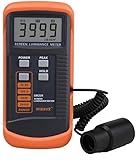
- SM208 Screen Brightness Meter Screen Brightness luminance meter 0.01-39990cd/m2 SM208 Mini light probe
For SDR, gamma around 2.2 is a useful reference for an average-lit viewing room. A brighter room or a dark viewing environment may call for a different option. HDR is a different signal context, so do not apply an SDR gamma target to it as if the two were interchangeable.
When basic adjustments are not enough
Test patterns can help you check signal levels and whether highlights or shadows are visibly clipping. They do not make visual white-balance adjustment precise. Measured calibration requires suitable instruments; it is an optional route for viewers seeking greater precision, not a prerequisite for getting a natural-looking image.
Avoid copying detailed white-balance numbers from a review or another owner. Panel-to-panel manufacturing variation means settings measured on one TV may make another unit less accurate. RTINGS’ SDR color-accuracy methodology explains how its lab evaluates white balance, color, and color temperature; its measurements describe tested units, not a universal recipe.
Rank #4

- Laser lens cleaner for DVD players having issues with discs that load slowly, skip, or freeze during playback
- Included Home Theater Sound Calibration Tools help maintain ideal audio playback settings, with on-screen and voice instructions available in English, French and Spanish
- Cleaning the laser lens can extend the life of the DVD player while improving sound and image quality
- Cleaning the laser lens can extend the life of the DVD player while improving sound and image quality
- Safe for DVD players, Computers (DVD), XBOX/XBOX360 and PS1/2 game systems. Not intended for use with Blu-Ray players, WiiU, XBOX ONE or PS3/PS4
How to interpret color-accuracy scores
RTINGS says its own SDR pre-calibration score weights white-balance dE at 40%, color dE at 40%, and color temperature at 20%. Those percentages describe RTINGS’ scoring method, not a universal industry formula.
RTINGS’ stated guide for noticeable white-balance and color dE differences categorizes values below 1 as unnoticeable, 1–3 as noticeable to professionals, 3–5 as noticeable to enthusiasts, and 5 or higher as noticeable to everyone. Treat that as RTINGS’ perceptual guide rather than a law that guarantees every viewer will perceive a difference the same way.
Crashes, No Sound, or Screen Glitches?
Random freezes, missing sound and display glitches usually trace back to one bad driver. Find and replace yours safely.Free scan · under a minutePC Slower Than It Used to Be?
A free scan shows the junk files, broken settings and background clutter dragging Windows down - then fixes them in one click.Free scan · Windows 10 & 11Quick Recap
Product prices and availability are accurate as of the date/time indicated and are subject to change. Any price and availability information displayed on Amazon at the time of purchase will apply.

