
Do these 3 things before closing this tab:
1Fix the driver behind crashes, sound loss and screen glitches2Clear out junk files and repair common Windows errors3Scan for outdated or missing drivers - takes under a minuteiTechGuides is reader-supported. When you buy through links on our site, we may earn an affiliate commission. As an Amazon Associate I earn from qualifying purchases. Learn more
You can make a Classic World of Warcraft client easier to play without turning it into a retail-style interface: identify one specific annoyance, adjust the built-in HUD or keybindings that address it, and stop before the change alters the information or visual language you enjoy. Add an add-on or extra-button mouse only when the built-in controls do not solve the actual problem.
“WoW: Forever” is not a name that Blizzard’s current mode documentation verifies as an official client. This guide therefore uses the phrase for the Classic experience you mean—most commonly Classic Era, or a community description of a long-running Classic ruleset. Blizzard describes Classic Era as the original World of Warcraft experience, while Season of Discovery uses that original experience with new content. Choose the exact client in the launcher before changing anything, because settings and add-on compatibility are not identical across Classic modes.
Start by naming the client and the friction
The safest way to preserve a Classic feel is to avoid “improving” everything at once. First write down two things:
The Tool Desk
Outbyte PC Repair FREERepair Windows errors before they cause bigger problemsFix Now →Outbyte Driver Updater FREEFix the driver behind crashes, sound loss and screen glitchesFind Drivers →- Client or mode: Classic Era, Season of Discovery, Hardcore, or another Classic-era realm shown in your launcher.
- Friction: the concrete moment that is slowing you down, such as missing an NPC interaction, failing to read a small status element, or reaching awkwardly for a frequently used ability.
A complaint such as “the UI feels old” is too broad to guide a reversible change. “I keep clicking an NPC instead of interacting while moving” points to an input setting. “I cannot read my resource bar at 1440p” points to scale, placement, or contrast. “I want every modern information panel” is a much larger visual and gameplay-information change.
#1 Best Overall

- Professional Gaming Mouse - Redragon M908 optical gaming mouse is designed with up to 12400 DPI, 5 adjustable DPI levels (500/1000/2000/3000/6200 DPI) meet your multiple needs, either for daily work or gaming. DPI can be adjusted freely by ±100 from 200 to 12400 via software. 1000 Hz polling rate, 30G acceleration and high-precision Pixart PAW3327 Sensor giving you a greater edge over your competition.
- RGB Backlight & Programmable Buttons - 16.8 million RGB LED color options (LED Backlight can be disabled). 18 programmable buttons, 5 memory profiles each with a dedicated light color for quick identification. Comes with 8-piece weight tuning set (2.4g x8), easy to change the weight to suit your games.
- Comfort & Precision At Your Hands - Redragon M908 gaming mouse is an essential computer accessory for die-hard with its aggressive design for hands! You will be amazed by the unmatched comfort, lethal accuracy and killer precision of our durable, desktop and laptop pro gaming mouse!
- High-end Design - Redragon M908 Mouse features 6 buttons and 12 MMO programmable side buttons. Durable smooth TEFLON feet pads for ultimate gaming control. 6ft braided-fiber cable with gold-plated USB connector ensures greater durability.
- Die-hard Players Choice - Whether you are targeting, aiming, slashing or attacking, a professional gaming mouse is your basic weapon! The mouse will be your ideal partner. Compatible with Windows 2000/ME/XP/03/VISTA/7/8/10 system for programmable using and Mac OS for normal using.
Take a screenshot of your current layout and write down any keybindings you rely on. That gives you a reference if a setting feels wrong and makes one-change-at-a-time testing practical.
What the current mode labels mean
| Label | What Blizzard’s description establishes | Why it matters for customization |
|---|---|---|
| Classic Era | The original World of Warcraft experience | Preserving the original visual rhythm may be your priority; verify every UI option in the Era client. |
| Season of Discovery | The original experience with new content | New abilities and content can make action-bar and readability needs different from Era. |
| Other Classic rulesets | Use the exact name shown by your launcher and current support notes | Do not assume a setting or add-on that works in one client works in another. |
The table reflects Blizzard’s mode definitions, not a promise that all Classic clients expose the same controls. A July 22, 2026 report from Blizzard Watch described interface changes affecting Classic Era, Season of Discovery, and Hardcore. Treat the interface as a moving target and check the current client rather than relying on an old screenshot or guide.
Use the built-in controls before adding anything
Blizzard’s official UI article says the updated interface is intended to modernize the player’s layout and view “while maintaining the charm and personality of World of Warcraft’s original design.” It also says that improving accessibility is a central design goal. Those statements describe Blizzard’s general UI direction; they do not guarantee that every feature appears in every Classic client. Open the settings in the client you actually play and confirm the labels there.
Reposition the HUD, not the entire visual identity
Look for the client’s HUD or Edit Mode control from the game menu. Where it is available, move only the element that causes the problem: your health and resource display, target frame, cast bar, or objective tracker. Keep the frame shapes, fonts, and art style that make the game feel familiar. A small move toward the center can reduce eye travel without replacing the Classic presentation.
- Open the in-game menu and choose the HUD, Edit Mode, or layout command shown by your client.
- Select the single frame that is difficult to see or reach.
- Drag it to a position that keeps it visible without covering the world view or nearby interaction points.
- Save the layout, then play for a short session before moving another element.
If your client does not expose an editor, leave the layout unchanged and address the same problem through scale, keybindings, or a compatible add-on instead of forcing a retail-style replacement.
Improve readability in the smallest useful increment
Search the interface, display, and accessibility sections for scale or readability controls. Increase the relevant frame or overall UI scale gradually; a large jump can make the screen feel crowded and may cover more of the world. If the client offers separate options, enlarge only the text or frame that you cannot read. Keep a note of the original value so you can return to it.
Rank #2
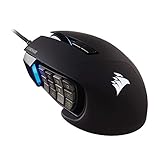
- 17 Fully Programmable Buttons: Built with Ideal for performing frequent actions and executing complex macros in MMOs and MOBAs.
- Patented Key Slider Control System: Reposition the 12 side buttons to comfortably fit your grip.
- Native 18,000 DPI Optical Sensor: Equipped with a custom PixArt PMW3391 sensor, adjustable in 1 DPI resolution steps, for highly accurate and customizable tracking.
- Ultra-Durable Construction: The SCIMITAR RGB ELITE’s 50 million click-rated Omron switches, sturdy scroll wheel, and braided cable ensure that it stands up to the wear-and-tear of extended gaming.
- Comfortable Contoured Shape: Sculpted to fit the contours of your palm, regardless of hand size or grip style, with a right-side finger rest for added support.
Readability changes are presentation changes. They do not inherently change combat decisions, but oversized panels can hide terrain, quest objects, or enemy telegraphs. After changing scale, check your normal questing view, an indoor space, and a group encounter before keeping it.
Set keybindings around your hands
Open the game menu, choose Options or System, and select Keybindings; the exact menu wording can vary by client. Bind actions you use constantly to keys you can press without moving your movement hand. Leave less frequent abilities on their existing keys until you know there is a real problem.
- Change one binding at a time and test it on a safe character or in a quiet area.
- Check for conflicts before saving; a new binding can silently replace another action.
- Keep a written or screenshot record of important bindings, especially on a Hardcore character.
- Use modifier combinations only when they remain comfortable and unambiguous for you.
Keybindings alter input, not the game’s art or rules. They are usually the lowest-impact way to reduce hand strain or missed abilities.
Try the Interact Key for mouse-heavy interactions
Blizzard documents an Interact Key that lets you interact with NPCs and objects by pressing a key instead of clicking them with the mouse. In the client’s keybinding or interaction settings, search for “Interact” and assign a convenient key if the option is present. Walk up to a vendor, quest giver, or object and test the binding before changing other controls.
The option is particularly useful when your annoyance is a missed click while moving. It does not automatically target every hostile creature or replace all context-sensitive actions, so keep your normal targeting and confirm keys available. If “Interact” is absent, disabled, or behaves differently in your mode, do not install an unrelated tool simply to imitate it; verify the client’s current notes first.
A restrained three-tier setup
Use the least invasive tier that solves the identified friction. The comparison below separates visual change, setup effort, maintenance, and the kind of decision the change affects.
Rank #3

- 19 PROGRAMMABLE BUTTONS — Armed with ergonomically positioned buttons that provide an arsenal of commands at the fingertips for mapping out the essentials or going all out with advanced macros
- RAZER HYPERSPEED WIRELESS (2.4 GHZ) AND BLUETOOTH — Unleash seamless, low-latency performance that's 25% faster than other wireless tech or switch to Bluetooth for longer hours of gaming
- POWERED BY RAZER HYPERSCROLL TECHNOLOGY — Perform repeated commands rapidly or blaze through content in free-spin mode, or activate tactile mode for enhanced precision and satisfying feedback
- LONG BATTERY LIFE — With up to 400 hours on Bluetooth and 250 hours of seamless low-latency gaming on Razer HyperSpeed Wireless (2.4GHz), last longer in the heat of battle with this mouse before having to replace its battery
- FOCUS PRO 30K OPTICAL SENSOR — Razer’s brand-new sensor provides flawless tracking performance on a wider variety of surfaces including glass —supported by intelligent functions for enhanced aim and control
| Tier | Typical changes | Visual change from Classic baseline | Setup and maintenance | What it changes |
|---|---|---|---|---|
| Built-in only | HUD placement or scale, keybindings, Interact Key where available | Low; you retain the client’s native art and frames | Lowest effort; settings are maintained by the game client | Presentation and physical input |
| Compatible add-on | A Classic-style layout or selected quality-of-life panels | Moderate; depends on which modules you enable | Requires compatibility checks and updates after patches | Presentation, and possibly the amount of information shown |
| Optional hardware | Extra physical buttons assigned to existing bindings | None on screen | Requires device software, a comfortable setup, and occasional profile maintenance | Physical input only; the binding still performs the game’s existing action |
Do not move to the next tier because it is more powerful. Move only when the previous tier failed to address the specific problem.
When a Classic-style add-on is justified
A third-party add-on can help when the native layout cannot place or scale the element you need. One current example is EraUI – Classic UI & QoL for Forever on CurseForge. Its listing presents separate Classic-look and quality-of-life options, which is the right design principle for a restrained setup: keep the familiar appearance and enable only the functional pieces you need.
That listing is not a guarantee of compatibility. Before installing any add-on, check its supported game version, most recent update, dependencies, comments, and whether the author specifically names your client. A package described as “Forever” may be community terminology rather than an official Blizzard mode.
What’s actually slowing this PC down?
Pick the symptom - the matching free tool is one click away.
Install and test in a reversible order
- Close the game and confirm that the add-on’s current listing names your exact Classic client.
- Install it through the add-on manager or manual method recommended by the listing; do not copy files from an unrelated retail installation.
- Launch the game with only that add-on enabled.
- Open its configuration and disable optional modules until you can identify which module addresses your original annoyance.
- Enter a low-risk area, check your normal questing and combat views, and confirm that the expected frames and interactions still work.
- Take a screenshot of the working configuration and keep a note of the version.
Do not enable several UI packages at once. Two add-ons that both move action bars, unit frames, or interaction prompts can overwrite one another or produce confusing defaults. If the add-on introduces information you did not ask for, turn that module off rather than accepting the whole package.
Decide whether the information cost is acceptable
A frame that merely relocates your health bar changes presentation. A panel that adds timers, alerts, recommended actions, or encounter instructions can change what you notice and which decisions you make. That may be useful, but it is no longer a purely cosmetic adjustment. Ask whether the new information helps with the original friction or simply makes the screen busier.
Use extra mouse buttons only for a real input limitation
An extra-button mouse is an optional hardware category, not a requirement for Classic play. It makes sense when you have several comfortable keybindings but cannot reach them reliably from your keyboard position. Assign the buttons to actions you already understand, such as an existing ability or modifier, and keep the on-screen interface unchanged.
Rank #4

- 【High-performance Gaming Mouse】UP 12400 DPI provides high sensitivity and smoothing movements. Adjustable DPI(100-12400) and Polling Rate(125Hz-1000Hz) ensure this professional gaming mouse is suitable for gaming or daily work. Attached the 40G Acceleration gives you a greater edge over your competition
- 【Real Customizable】You can remap the 19 buttons through macro editing to meet your usage habits under different conditions. Equipped with 5 Memory Profiles to save your settings, and 2 working modes that can be switched with one click. Redragon MMO Mouse is customizable for Any Scenario, always be one step ahead of others
- 【Balance & Weight at Your Control】Customize to your advantage. Arrange up to eight removable 2.4-gram weights inside the mouse for personalized weight and balance tuning, providing the best feel for every game
- 【Real RGB Gaming Mouse】16.8million color combinations bring an immersive gaming experience. 4 Lighting Modes can be easily switched to feed different gaming, and you also can adjust mouse lighting according to your preference using the software(download on redragonzone)
- 【Unique & Comfort Design】Ergonomic Design with Skin-friendly material, long gaming without fatigue or pain. The 12 side buttons can be remapped through macro editing, making keyboard combination functions realized through button clicks, allowing you to win efficiently in any game scenario
- Confirm that the mouse software can send ordinary keyboard inputs or the game’s supported bindings.
- Start with one or two buttons rather than moving your entire action bar.
- Use the same profile for the character or class only after testing it in a safe area.
- Keep a keyboard alternative for any action that would be dangerous to lose during a device or profile failure.
No particular model, price, compatibility guarantee, or measured ergonomic advantage is established here. Choose hardware only after you can describe the input problem it will solve.
Free tools Windows power users keep installed
One-click scans. No signup required.
Preserve the Classic feel deliberately
“Classic feel” is personal, but you can make the trade-off explicit. Before saving a change, classify it on four questions:
- Does it keep the native visual language? Moving a frame usually does; replacing every frame with a modern package may not.
- Does it change only presentation or also information? Larger text is presentation; additional timers and recommendations can influence decisions.
- Can you reverse it in one step? A saved native layout or a disabled add-on is easier to undo than many overlapping packages.
- Will it survive a client update? Built-in settings usually require less maintenance than third-party code.
A good stopping point is the first configuration in which you can read, target, and interact comfortably while still recognizing the original game at a glance.
Independent reader supportYour contribution helps us test, update, and keep practical guides available for everyone.Troubleshooting common failures
A setting is missing
Confirm the selected character is running the intended client, not another Classic realm or the retail client. Blizzard’s UI articles cover broad product changes, while individual modes can expose different controls. Check the current in-game menu and official support notes before assuming the option was removed.
The layout resets after an update
Record your working positions, scales, and keybindings. Disable nonessential add-ons, reload the interface, and restore the native layout first. Re-enable one add-on at a time so you can identify whether a compatibility update is required. Keep the add-on’s listing and version available when asking its author for help.
Quick wins for a faster PC:
Clear out junk files and repair common Windows errorsFree Scan →Scan for outdated or missing drivers - takes under a minuteDriver Scan →Repair Windows errors before they cause bigger problemsFix Now →Two interface packages conflict
Disable every package except the one you are testing, then re-enable them individually. If both packages control the same frame, retain the one whose function you actually need and turn off the overlapping module in the other.
Best Value

- 【Extensive Fully Programmable Buttons】16 customizable buttons can improve your gaming skills and performance by complex custom button macro coding of reconfiguration and assignment. The button custom function combines multiple keys into one button that reducing your arsenal of spells (actions) and response time. 12 of 16 thumb grip programmable buttons were designed by different inclination angles to fit for your thumb tip to click.
- 【Dual Modes with Ultra-Speed Wireless Technology】UtechSmart VENUS Pro RGB Wireless MMO Gaming Mouse is a new revolution of RGB MMO gaming mouse. It has 2.4 GHz data transmission technology with Mini signal receiver(Nano) and stable 1. 5m wire transmission that provides professional-level performance. VENUS Pro overcomes the traditional limitation of wireless latency and connectivity which offers stable and fast data transmission with 10-meter reception boundary. You can take this mouse anywhere!
- 【Endurable Battery Life】 UtechSmart Venus Pro Wireless RGB MMO gaming mouse has special auto sleeping mode and low power consumption mode or extending the battery life of wireless mode. Large battery (1000mA) capacity which offers to recharge over 300 times and single 2 hours fully charge. The wireless mode lasts up to 70 hours that fulfill your long-time gaming experience. Moreover, UtechSmart actuation software provides battery specify consumption monitoring for you.
- 【Customizable Mouse High Precision Optical Sensor】Thousands of customers and professional gamers have tested and verified its function. Venus Pro has an UtechSmart custom PixArt PMW3335 ultra-accurate Optical sensor. Up to 16000 DPI with 5 DPI switchable stages and 1000 Hz polling rate that offers you an incomparable MMO and FPS gaming experience. The huge adjustable DPI range from 100-16000 comes with UtechSmart user-friendly software that can perfectly tweak the performance of mouse accuracy.
- 【Ergonomic Design Ensures Your Comfortable】Great as a real mouse stuck in your hand. The UtechSmart Venus Pro Wireless RGB MMO gaming mouse is flawlessly designed to alleviate wrist fatigue while being able to firmly hold the mouse in your hand. The grinding coating on the mouse surface increases the friction between your hand and the mouse. Grinding coating also provides gamer a extra comfortable sweat-resistant and skin-friendly gaming mouse.
The new arrangement feels worse
Use your screenshot and notes to restore the previous layout or unbind the changed key. One-change testing makes this a normal rollback rather than a full interface reset. If the problem returns only in a particular mode, keep that mode’s configuration separate instead of copying settings blindly.
The Interact Key does not respond
Check that the binding exists in the current client, that the key is not assigned to a conflicting action, and that you are close enough to a valid NPC or object. Test a vendor or quest giver in a quiet area. If the option is not listed, rely on the client’s available interaction controls and avoid an unverified workaround.
A practical first-session checklist
- Read the launcher’s exact mode name and note whether you are playing Classic Era, Season of Discovery, Hardcore, or another ruleset.
- Write one sentence describing the annoyance you want to remove.
- Save a screenshot of the untouched interface and note important bindings.
- Try the native HUD or layout control for one element only.
- Adjust scale or readability only as far as needed.
- Check Keybindings and assign the Interact Key if your client provides it.
- Play long enough to encounter the original problem again.
- If it remains, evaluate one compatible Classic-style add-on and enable only its relevant module.
- Consider extra-button hardware only when the limitation is physical reach, not missing information.
- Keep the configuration that solves the problem with the fewest new panels, prompts, and maintenance tasks.
Interface details can change between patches and modes. Blizzard’s official UI article and current support pages are the appropriate places to verify a feature, while an add-on’s current listing is the appropriate place to verify compatibility. The goal is not the newest interface; it is a comfortable, readable version of the Classic client you intentionally chose.
Recommended Free Tools
Frequently Asked Questions
Is “WoW: Forever” an official Blizzard game mode?
Blizzard’s current mode documentation does not verify “WoW: Forever” as an official client name. Use the exact mode shown in your launcher—such as Classic Era or Season of Discovery—when checking settings and add-on compatibility.
Should I install an add-on before changing the native UI?
No. Start with the built-in HUD, readability, keybinding, and Interact Key options. Add one compatible add-on only if a specific problem remains.
Do I need a multi-button mouse for Classic WoW?
No. It is optional hardware for players who cannot comfortably reach existing bindings. No particular model or measured benefit is established here.
Quick Recap
Product prices and availability are accurate as of the date/time indicated and are subject to change. Any price and availability information displayed on Amazon at the time of purchase will apply.

