
iTechGuides is reader-supported. When you buy through links on our site, we may earn an affiliate commission. As an Amazon Associate I earn from qualifying purchases. Learn more
A Kindle jailbreak is not a single procedure that works across the product line. The safe approach is to identify the exact Kindle model and installed firmware, confirm that a current device-specific jailbreak guide supports that combination, back up your books and settings, and then install one modification at a time. Community software can add alternate readers, fonts, screensavers, or games, but it also changes software outside Amazon’s normal sandbox. Incorrect files or instructions can damage the device, and the reviewed sources do not establish a universal success rate, warranty outcome, account-access guarantee, or recovery method.
This guide shows how to evaluate compatibility, prepare, follow a current guide without guessing, install custom software such as an alternate reader, and recover from common problems without pretending there is one universal jailbreak recipe.
What jailbreaking a Kindle actually changes
Jailbreaking modifies the software environment that Amazon ships on a Kindle so that code outside the normal Amazon-controlled sandbox can run. Depending on the device and the software available for it, community projects may provide:
What’s actually slowing this PC down?
Pick the symptom - the matching free tool is one click away.
- Alternate reading applications, including projects readers commonly seek for expanded format or typography support.
- Custom fonts and font-management tools.
- Custom screensavers.
- Games or small utilities.
- A launcher or access layer that starts additional applications.
These are possibilities, not a compatibility promise. A package listed by a community project may work only on particular models, firmware releases, or installation frameworks. Some additions require a launcher before they can be opened; others may depend on a specific version of the jailbreak. Treat every feature as a separate compatibility question.
#1 Best Overall

- New Upgraded Design: FEMORO micro usb charger is made of quality aluminum alloy housing, high quality PVC insulated core wire, long tail design makes this micro usb more durable and robust than ordinary cables, effectively extending the service life
- Data Transfer and Fast Charging: The usb micro cable supports the usb 2.0 standard devices and provides data transfer rates up to 480Mbps, while also providing a current supply of up to 12W, allowing devices to both data tansfer and charge
- Multi-layer Strong Shielding: Micro usb charging cable adopts 22AWG copper core, internal aluminum foil + woven net, external PVC and cotton net woven multi-layer shieldingto resist external electromagnetic interference
- Wide Compatibility: The usb a to micro usb cable supports all micro usb devices, such PS4, Xbox One, old Kindle Reader, old android phones(Galaxy S7/S6 Edge/S5/Note 4/S4/Tab, HTC One, Xperia Z3, LG G Pro 2/G Flex2, Nexus 6/7), Raspberry PI, Fan, power bank and more
- 18 Month Warranty: When you get the micro usb data transfer cable, you will enjoy 18 months of after-sales service
The practical consequence is that “Kindle jailbreak” is not one product or one download. It is a chain of model-specific decisions. A guide written for one generation or firmware branch can be unsafe on another.
Start with an exact model and firmware check
Do not download a jailbreak package until you have recorded both identifiers. Amazon tells owners to identify their Kindle model before selecting software, and community jailbreak documentation is organized around device and firmware combinations.
Record the model designation
Open the Kindle’s settings and the page labelled Device Info, About, or a similar device-information name; wording varies by generation. Record the complete model description, not merely “Paperwhite” or “Oasis.” If the information screen shows a generation, storage size, or model code, keep those details together. When the software guide asks for a model number, use the exact value shown there rather than an approximate product name.
Quick wins for a faster PC:
Repair Windows errors before they cause bigger problemsFix Now →Fix the driver behind crashes, sound loss and screen glitchesFind Drivers →Clear out junk files and repair common Windows errorsFree Scan →Packaging, an order record, or the device’s original documentation can help confirm identity, but do not rely on appearance alone. Two Kindles can look similar while accepting different software.
Record the installed firmware version
Use the same information area to write down the complete software version, including any trailing build or revision characters. Firmware is part of the compatibility decision; a method that worked on an earlier release may be blocked or changed on a later one.
Keep a dated note or photograph of the information screen. If the device updates before you install anything, the compatibility check must be repeated against the new version.
Rank #2

- New Upgraded Design: FEMORO micro usb charger is made of quality aluminum alloy housing, high quality PVC insulated core wire, long tail design makes this micro usb more durable and robust than ordinary cables, effectively extending the service life
- Data Transfer and Fast Charging: The usb micro cable supports the usb 2.0 standard devices and provides data transfer rates up to 480Mbps, while also providing a current supply of up to 2.4A 12W, allowing devices to both data transfer and charge
- Multi-layer Strong Shielding: Micro usb charging cable adopts 22AWG copper core, internal aluminum foil + woven net, external PVC and cotton net woven multi-layer shieldingto resist external electromagnetic interference
- Wide Compatibility: The usb a to micro usb cable supports all micro usb devices, such PS4 controllers, Xbox One controllers, old Kindle Reader, old android phones(Galaxy S7/S6 Edge/S5/Note 4/S4/Tab, HTC One, Xperia Z3, LG G Pro 2/G Flex2, Nexus 6/7), Raspberry PI, Fan, power bank and more
- 18 Month Warranty: The package come with micro usb data transfer cable*2, and FEMORO offer 18 months of after-sales service.
Check current support immediately before proceeding
Consult a current, device-specific community jailbreak guide or FAQ and confirm that it explicitly names your model and firmware. Check the page’s revision or publication date and read its warnings and prerequisites in full. Historical tutorials, forum comments, and videos can describe an obsolete method even when their titles sound applicable.
No complete, permanent compatibility matrix covers every Kindle model and firmware release in the material available for this topic. If a guide does not clearly cover your exact combination, stop. “Close enough” is not a safe basis for installing low-level software.
Decide whether the modification is worth the trade-off
Before changing the device, define the feature you actually need. A jailbreak is a means, not the goal. The table below separates the questions that must be answered for each type of modification.
| Goal | What must be confirmed | Additional consideration |
|---|---|---|
| Alternate reader | The reader package and its launcher or access layer support the exact model and firmware. | Test with a nonessential document first; do not assume every Kindle format or feature is supported. |
| Custom fonts | The font-management method is listed for the same device and firmware. | Keep a copy of the original font configuration so you can revert if text becomes unreadable. |
| Custom screensavers | The screensaver package and activation method are current for the device. | Do not confuse a screensaver package with a general-purpose launcher; they may have different dependencies. |
| Games or utilities | The application, launcher, and any required framework are all compatible. | Installing several unrelated packages at once makes failures difficult to isolate. |
Community modifications can provide capabilities Amazon’s standard software does not expose, but they also add maintenance work. You may need to track package versions, recheck compatibility after firmware changes, and troubleshoot software that Amazon support did not ship.
Prepare the Kindle before installing anything
Make a recoverable backup
Connect the Kindle to a computer with a USB cable that supports data transfer, not charging only. Match the connector to the actual Kindle; the available connector varies by model. The evidence supports USB-storage transfer in jailbreak instructions, but no particular cable has been tested or verified as universally suitable.
- Wait for the Kindle to appear as removable storage.
- Copy your books, documents, notes, and any files you have added to a separate folder on the computer.
- Preserve the original folder names and keep the backup untouched.
- Safely eject the Kindle before disconnecting it.
A USB backup protects personal files; it is not a complete image of the Kindle’s operating system. Do not describe it as a guaranteed way to undo every software change.
Rank #3
![CableTurbo Micro USB Cable [2Pack 2FT] USB A to Micro USB Cable Fast Charging and Data Transfer Cord Compatible with Fire Tv Stick,Kindle,Power Bank,Smartphone,Tablet,Camera](https://m.media-amazon.com/images/I/41hwkVN2NsL._SL160_.jpg)
- 【Short Micro USB Cable】2FT Micro USB to USB Cable is the perfect length for charging smartphones, tablets, MP3/MP4 players, cameras, power banks, and TV sticks.
- 【3A Fast Charging & Data Transfer】Micro USB to USB cable adopts lower resistance value tinned copper wires inside, supporting 18W fast charging and 480Mbps data transfer speed.
- 【USB-A to Micro USB Cord】 This Micro USB charging cable is great for cable management when charging an item in the car or on a desk. It works well for charging stations.
- 【Flexible and Tangle-free】Sturdy cable with Aluminum case and nylon braided jacket. Solid construction, good solid construction, thick; do not have to worry about flexing and breaking. 2 feet good length is tangle-free.
- 【Wide Compatibility】Compatible with devices featuring a Micro USB port, including Android smartphones such as Samsung Note 1/2/4/5, Galaxy S3/S4/S6/S7/S7 Edge, Samsung Galaxy Tab, Moto X, Google Nexus 7, Kindle Reader, MP3/MP4, Fire TV Sticks, Power Bank, Camera, Speaker, and more.
Separate official updates from community changes
Amazon publishes model-specific software-update instructions and security-update information. Read the official update information for your model before installing community software. If the Kindle is scheduled to update, verify that the new firmware remains supported before allowing the update. Conversely, do not install an old community package merely to avoid checking the current firmware.
Amazon states that it will provide security updates for at least four years from the date a device is purchased new from Amazon, or until a later date stated for that specific device. This is Amazon’s support policy, not a guarantee that every model receives identical updates or that a jailbroken device will continue to receive them in the same way.
Charge the device and clear the work area
Start with a well-charged Kindle and a stable computer connection. Use a short, known-good data cable where possible, avoid hubs that intermittently disconnect, and close file-management windows that could be writing to the Kindle while an installer is running. These are precautions against interrupted transfers, not proof that a particular cable or computer configuration is required.
Free tools Windows power users keep installed
One-click scans. No signup required.
Read the complete device-specific guide first
Read the guide from prerequisites through recovery before copying a file. Identify:
- The exact supported model and firmware range.
- Required files and their release versions.
- Whether a launcher or access layer is mandatory.
- The expected transfer location and activation step.
- How to verify success.
- How to remove or recover from the modification.
If any of these points is missing or contradictory, do not improvise. Find a more current guide that documents them.
A safe installation workflow
The following workflow is intentionally conditional. It describes how to follow a current guide safely without inventing a universal exploit sequence.
Rank #4

- [END THE FRAYING CYCLE] Original plastic cords inevitably split at the connector. We engineered an extended strain relief joint encased in a space grey aluminum shell and high-density nylon braid. Withstands 25,000+ bends without tearing.
- [SECURE CLICK-LOCK FIT] Tired of loose Micro USBs falling out? Precision stainless steel pins lock firmly with an audible click. The stepped connector bypasses thick rugged cases. Zero dropouts during intense gaming or constant recording.
- [ZERO LATENCY PLAY & CHARGE] Built with a 22 AWG copper core and double-layer shielding to block interference, delivering stable 2.4A power for lag-free gaming. The aluminum housing actively dissipates heat to prevent battery degradation.
- [PET-PROOF & TANGLE-FREE ARMOR] Is your setup a graveyard of chewed wires? This heavy-duty braided jacket resists sharp pet teeth. Toss it into a crammed backpack—it unrolls perfectly straight without knotting, built for daily abuse.
- [24/7 CONTINUOUS POWER] Flawlessly powers outdoor security cameras and dash cams continuously without unexpected power drops. Revives PS4 controllers and classic Androids. Backed by a 3-year responsive care plan for complete peace of mind.
- Freeze the compatibility record. Write down the model, firmware, guide version, and date you checked them. If any value changes, restart the compatibility check.
- Download only the files named by that guide. Use the project’s current release location and read its notes. Do not substitute a similarly named package from a random mirror or a video description.
- Verify prerequisites before transfer. Confirm whether the guide requires a launcher, an access application, a particular order of installation, or a specific computer operating system. A missing prerequisite can make a later package appear broken.
- Connect with a data-capable USB cable. Wait until the Kindle is mounted as storage. If it does not appear, stop and solve the connection problem rather than repeatedly reconnecting during a write operation.
- Copy files exactly as documented. Preserve names, extensions, and folder locations. Do not open, edit, unzip, or rename a file unless the guide explicitly tells you to do so.
- Eject cleanly. Use the computer’s safe-eject command and wait for the Kindle to leave USB-storage mode before disconnecting.
- Perform the guide’s on-device activation step. The exact trigger is firmware- and project-specific. Follow the current instructions verbatim; do not apply a key sequence or menu path remembered from another model.
- Install the access layer if required. Some additional applications need a launcher or other access software. Install and verify that layer before adding an alternate reader, font package, screensaver, or game.
- Test one change. Restart only as instructed, open the newly installed component, and test it with a nonessential document or setting. If it fails, you will know which package to remove or report.
- Document the working state. Record package versions, installation order, and any settings you changed. This record is valuable if a future firmware update or package causes trouble.
Never continue past an error message by guessing. A warning that a file is unsupported, missing, or intended for another firmware branch is a stop condition.
Installing an alternate reader such as KOReader
Readers often ask whether a jailbreak allows KOReader or another alternate reading application. The accurate answer is conditional: an alternate reader can be installed only when a current package and launcher explicitly support the exact Kindle model and firmware. The name of the application alone does not establish compatibility.
Use the dependency chain
- Confirm that the jailbreak itself is supported.
- Confirm that the launcher or access layer required by the reader is supported.
- Confirm that the reader package is built for that launcher and firmware.
- Install the launcher first when the guide requires that order.
- Install the reader, launch it, and test one document before changing fonts, screensavers, or other components.
If the reader does not appear, check the guide’s expected menu or launcher location and verify that the files were copied to the documented folder. Do not copy a package from a different Kindle family simply because the application name matches.
Keep the stock reader available
Do not remove the standard reading software while evaluating an alternate reader. Maintaining the original path gives you a known comparison point and a way to open a document if the custom application fails. Whether a particular package can be removed safely depends on its guide; follow that project’s uninstall instructions rather than deleting folders by hand.
Official software and community modifications: a practical comparison
| Consideration | Amazon’s official software path | Community-modified path |
|---|---|---|
| Compatibility | Model-specific information is published by Amazon. | Must be checked against the exact model and firmware in a current community guide. |
| Features | Uses the functions included in the shipped software. | May add alternate readers, fonts, screensavers, games, or utilities when packages support the device. |
| Installation | Uses Amazon’s documented update process. | May require USB transfer, a jailbreak, and a launcher or access layer. |
| Maintenance | Amazon publishes software and security-update information. | You must track project releases and recheck compatibility after firmware changes. |
| Failure risk | Follows the vendor’s supported path. | The KindleModding repository warns that improperly coded or incorrectly used changes outside Amazon’s sandbox can damage the device. |
| Support outcome | Covered by the limits of Amazon’s normal support policy. | Universal account, warranty, or recovery consequences are not established; do not assume they are preserved or forfeited in every case. |
This is a decision framework, not a ranking. If the desired feature is minor, the maintenance and compatibility burden may outweigh it. If an alternate reader or accessibility feature is essential, the extra control may justify the work provided your exact device is supported and you accept the recovery risk.
The Tool Desk
Outbyte Driver Updater FREEScan for outdated or missing drivers - takes under a minuteDriver Scan →Outbyte PC Repair FREERepair Windows errors before they cause bigger problemsFix Now →Common failure modes and safer responses
The computer does not see the Kindle
- Try a different data-capable cable and another USB port.
- Confirm that the Kindle is unlocked and has finished starting.
- Restart the computer and Kindle only when no file transfer is in progress.
- Do not begin installation until the device mounts reliably as storage.
The copied files do not appear
- Recheck the guide’s required folder and exact filename.
- Confirm that the file was fully copied before ejecting.
- Check that the package is for the recorded model and firmware.
- Do not rename files or move them to a different folder unless the guide says to.
The launcher or custom application will not start
- Verify that the jailbreak completed successfully before testing the application.
- Check for a missing access layer or an installation-order requirement.
- Remove or roll back only according to the project’s documented procedure.
- Test the stock reader to determine whether the problem is limited to the custom package.
The Kindle repeatedly restarts or behaves abnormally
- Disconnect it from USB and allow the device to finish one restart cycle.
- Follow the current guide’s recovery section for your exact firmware.
- Do not apply recovery files from another model.
- If the guide provides no recovery path, stop experimenting and consult the project’s current support channel before copying more files.
An official firmware update arrives
Pause before accepting it. Record the current working state, check whether the jailbreak and every installed package support the new firmware, and follow the community project’s update guidance. An update can change the conditions on which a modification depends; the correct response is a fresh compatibility check, not an assumption that the old installation will remain intact.
Best Value
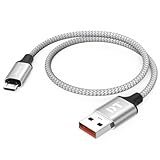
- Short & Tangle-Free: This 1ft (12 inch) Micro USB cable saves desk space with non-tangle design, compact for travel and car use, and ideal for power banks, Fire Stick, Raspberry Pi and gaming consoles
- Durable Silver Braided Design: Our usb a to micro usb Premium aluminum shell with silver braided nylon, Can withstand over 10,000 bends, ensures maximum flexibility and wear resistance for daily use
- 15W Fast Charging Performance: The usb to micro usb cable supports up to 15W charging for compatible devices, safe and stable output for smartphones, tablets, and accessories
- Reliable USB 2.0 Data Transfer: Micro usb charging cable Equipped with full 480Mbps data lines for quick file transfer, firmware flashing, and seamless sync between devices
- Universal Compatibility: Short micro usb cable Fits devices with Micro USB port including Old Android phones, Nokia, PS4 controllers, cameras, Power Banks, Bluetooth speakers, Kindle, TV Sticks and more; single pack for convenient everyday use
Security and long-term maintenance
Jailbreaking expands what code can run on the device. Install only packages whose origin and compatibility you can verify, and keep a written inventory of every added component. Avoid mixing files from unrelated guides. If a project stops publishing updates for your firmware, treat that as a maintenance warning rather than searching for an unverified replacement.
Review Amazon’s official security-update information for your model separately from community release notes. Official support and a community jailbreak are different software paths. A device may remain usable while a custom package becomes obsolete, but that does not make an obsolete package safe to retain.
Keep your USB backup current after major changes, but remember that a file backup is not a guaranteed operating-system image. Preserve the original guide and recovery notes alongside your package-version record so that you can reproduce the working state or explain it when seeking help.
When not to jailbreak
- Your model or firmware is not explicitly listed by a current guide.
- You cannot make a reliable USB backup or obtain a stable data connection.
- The desired feature is available through Amazon’s standard settings or an official update.
- The guide has no documented verification or recovery procedure.
- You need uninterrupted vendor support and cannot accept uncertain account or warranty consequences.
- You are following a tutorial whose date, firmware assumptions, or file sources are unclear.
Waiting is safer than forcing an unsupported combination. Jailbreak availability changes quickly, so an unsupported device today may receive a documented method later; an improvised installation can leave you with fewer options.
A final pre-install checklist
- Exact model and complete firmware version recorded.
- Current guide explicitly supports that combination.
- Guide date, prerequisites, verification, and recovery steps read in full.
- Books, documents, notes, and personal files copied to a separate backup.
- Correct USB data cable available for the Kindle’s connector.
- Device adequately charged and connection stable.
- Desired feature identified, with launcher dependencies understood.
- Only current, guide-listed files downloaded.
- Plan to install and test one component at a time.
- Official firmware updates will be checked for compatibility before installation.
The safe method is disciplined verification, not a clever shortcut: identify the device, match the firmware, follow a current guide exactly, change one thing at a time, and stop whenever the documentation no longer matches what is on your screen.
Quick Recap
Product prices and availability are accurate as of the date/time indicated and are subject to change. Any price and availability information displayed on Amazon at the time of purchase will apply.

