
Do these 3 things before closing this tab:
1Scan for outdated or missing drivers - takes under a minute2Repair Windows errors before they cause bigger problems3Fix the driver behind crashes, sound loss and screen glitchesiTechGuides is reader-supported. When you buy through links on our site, we may earn an affiliate commission. As an Amazon Associate I earn from qualifying purchases. Learn more
To install Realtek Audio Console on Windows 11, first install the Realtek audio package made for your exact laptop, desktop, or motherboard. Then install the Microsoft Store app currently listed as Realtek Audio Control. “Realtek Audio Console” is the older name people still use when searching for it.
The Store app is not a universal Realtek control panel. If the correct driver and hardware-specific extension are missing, the app may not appear, may show an unavailable Install button, or may install but fail to open.
Before you start
Have the exact computer or motherboard model available. Do not download a Realtek package simply because it contains the words “Realtek HD Audio.” The driver must match your hardware and Windows installation.
For a branded computer, use the support page for manufacturers such as Dell, HP, Lenovo, ASUS, Acer, MSI, or Gigabyte. For a custom-built PC, use the support page for the exact motherboard model. The manufacturer’s audio download is usually an executable containing an installer named Setup.exe.
#1 Best Overall
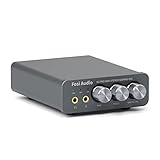
- The upgraded version of Fosi Audio Q4 adds microphone function, K5 Pro headphone DAC amp combo, next-generation audio converter with unrivaled internals, more outstanding performance, and richer audio details. Born for Gaming. K5 Pro stereo DAC headphone amplifier is perfect for your home gaming system, equivalent to an external sound card, suitable for PS5/Computers/PC/MAC/active speakers, etc
- K5 Pro USB DAC converts USB Type C/Optical/Coaxial signals to 3.5MM AUX and RCA signals with low distortion and great dynamic range. Unique design: 2-in-1 USB Type C interface charging port and audio input means K5 Pro is compatible with your phones(Note: Your audio source must be connected to the USB-A/C port.). RCA output can be connected to an amplifier or powered speakers on your desktop. 3.5 MM AUX and microphone interface can drive 16 Ohm to 300 Ohm headphones
- K5 Pro headphone DAC adopts the Texas Instruments NE5532 op-amp chip. The circuit design implementing this DAC has been optimized for a low-noise floor and clean sound. K5 Pro has noticeably improved on overall sound quality, so you can get immersed in your music even more easily. Volume button and on button are combined into one, long press to switch on
- Product Specifications: K5 Pro with master volume/bass/treble control and input mode switch. USB Type C rate: up to 24 bit/96 kHz, Optical/Coaxial sampling rate: up to 24 bit/192 kHz, THD ≤0.003%, SNR ≥110dB. Output power: 1000mw@16Ω, 500mw@32Ω, 300mw@64Ω, 150mw@128Ω, 80mw@300Ω
- What You Get: K5 Pro DAC amp x1, 3.5MM headphone splitter x1, 2-in-1 USB Type A/C to Type C cable x1, User Manual x1, Optical Cable x1
Step 1: Find your exact device model
- Press
Windows key + R. - Enter
msinfo32and press Enter. - Note the values beside System Manufacturer and System Model.
If you are using a custom-built desktop, check the motherboard model instead. You can find it in the manufacturer’s support utility, BIOS/UEFI, or by pressing Windows key + R, entering msinfo32, and checking BaseBoard Manufacturer and BaseBoard Product when available.
Step 2: Install the manufacturer’s Realtek audio driver
- Open the manufacturer’s official support website.
- Search for the exact model, not just the brand name.
- Select Windows 11 and open the Audio or Sound driver category.
- Download the Realtek audio package.
- Extract the download if it is a ZIP file, then run the included
Setup.exe. - Follow the installer and restart Windows when prompted.
Running the supplied installer matters. Modern Windows audio packages can include a driver, an extension INF, and software components that Device Manager may not install when you use only Update driver. Installing a generic driver or a package for a different model can leave Windows without the component that makes Realtek Audio Control applicable.
After restarting, check whether the driver is present:
What’s actually slowing this PC down?
Pick the symptom - the matching free tool is one click away.
- Right-click Start and select Device Manager.
- Expand Sound, video and game controllers.
- Look for a Realtek audio device.
The exact device name varies by manufacturer. If Windows shows an unknown multimedia device or only a generic audio device, return to the manufacturer’s support page and install the correct package.
Step 3: Install Realtek Audio Control from Microsoft Store
Once the correct driver is installed:
- Open Start > Microsoft Store.
- Search for Realtek Audio Control. Searching only for “Realtek Audio Console” may not find the current listing.
- Select the app published in Microsoft Store and choose Get or Install.
- After installation, open it from the Store or search for Realtek Audio Control in Start.
You can also open the product page directly using its Microsoft Store product ID: apps.microsoft.com/detail/9p2b8mcsvpln. The Store product is currently titled Realtek Audio Control, although Windows guides and search results often still call it Realtek Audio Console.
Rank #2

- Versatile Entry-Level: The Fosi Audio Q4 is an entry-level DAC and headphone amp, featuring USB, Optical, and Coaxial inputs, plus RCA and 3.5mm outputs. It drives headphones from 16Ω to 200Ω, enhances audio quality, and connects to speakers or amplifiers
- Plug-and-Play Convenience: Instant HiFi audio with no driver installation. Connect to TVs, computers, speaker systems, or DVD players. Compact design fits anywhere, offering ultimate audio freedom
- Bass and Treble Controls: Adjustable bass and treble knobs for fine-tuning sound. Natural feel with smooth volume adjustment. High-quality metal knobs for a premium experience. Optimize audio for any source
- Compact and High-Quality: Compact DAC converter with full metallic shell. Supports 24-bit/192kHz HD audio with low jitter. Includes output protection circuit for system safety
- Complete Accessories: Includes USB charging cable, optical cable, and PC-USB to Type-B cable. Ensures hassle-free setup and immediate use. Seamless connectivity for various devices. (Note: No microphone input.)
What the app controls
The available options depend on your computer and driver. Common controls include speaker and headphone output selection, jack detection, microphone settings, playback volume, recording volume, equalizer presets, and audio effects. Some systems expose only a few of these options.
If the app opens with fewer controls than expected, that is usually a limitation of the hardware or OEM driver rather than an installation failure.
The Tool Desk
Outbyte Driver Updater FREEFix the driver behind crashes, sound loss and screen glitchesFind Drivers →Outbyte PC Repair FREEClear out junk files and repair common Windows errorsFree Scan →If Realtek Audio Control is missing from Microsoft Store
This normally means Windows does not detect the required Realtek hardware-support component. Work through these checks:
| Symptom | Likely cause | What to do |
|---|---|---|
| The app does not appear in search | The Store listing is being searched under its old name, or the driver does not qualify the device. | Search for Realtek Audio Control, then install the OEM audio package for the exact model. |
| The Store shows Install, but installation fails | A required Realtek extension driver is missing or mismatched. | Uninstall or replace the incorrect audio package only if the manufacturer provides instructions, then run the exact OEM Setup.exe package and restart. |
| The app installs but will not open | The installed driver does not match the app’s hardware dependency, or the Store app is damaged. | Update Windows and the Store, then repair or reset the app. Reinstall the OEM driver if necessary. |
| Only a generic audio driver is listed | Windows has not installed the manufacturer’s Realtek package. | Download the audio driver from the computer or motherboard manufacturer, not from a different model or random driver site. |
Specific dependency errors can contain an INF name or error code. For example, one historical Microsoft Q&A report mentioned Realtek-RealtekRS5HSA.inf, version 12.0.6000.348, and error 0x80073cfd. Do not treat that version as a universal requirement; it illustrates that the Store app can fail when its required device component is absent.
Repair or reset the app in Windows 11
If Realtek Audio Control was installed but is broken:
Rank #3

- StepSense Footstep Radar – Gain the Competitive Edge: The Fosi Audio C3 is a new model based on the K7 that incorporates StepSense. Hear footsteps sooner with StepSense technology, which enhances enemy movement while balancing gunfire and explosions. This gaming USB DAC amp helps you react faster and dominate every FPS match.
- 7.1 Surround Sound with Precise Positional Audio: Native 7.1 surround sound and HRTF processing create immersive 360° audio through any stereo headset. This USB sound card for PC helps you pinpoint footsteps, vehicles, and enemy locations with confidence.
- HiFi USB DAC Amp with Powerful Headphone Output: Featuring the flagship CS43131 DAC, supporting 32-bit/384kHz PCM and DSD256. Delivers 320mW ×2 output to drive 16–300Ω headphones with exceptional detail for gaming, music, and movies.
- Intelligent Noise Cancellation & Custom EQ: Reduce keyboard and background noise with Intelligent mic processing. Fine-tune your sound using browser-based controls with presets and custom EQ profiles for gaming, music, and streaming.
- Premium Aluminum Design for PC, PS5 & Switch: Compact CNC aluminum body with ergonomic controls and a single USB-C connection for a clean desktop setup. Switch between UAC 1.0 and 2.0 for seamless gaming and HiFi playback across PC, PS5, Switch, and Mac.
- Open Start > Settings > Apps > Installed apps.
- Find Realtek Audio Control.
- Select the three-dot menu and choose Advanced options.
- Select Repair.
- Test the app. If it still fails, return to the same page and select Reset.
Repair attempts to fix the installation while preserving app data. Reset removes the app’s local data and returns it to its initial state.
Update Microsoft Store and reinstall the app
Microsoft recommends updating the Store before troubleshooting a Store app:
- Open Microsoft Store.
- Select Library.
- Choose Get updates.
- When updates finish, locate Realtek Audio Control in the Library.
- Select Install if the app is no longer installed.
Also check Start > Settings > Windows Update > Check for updates, install available updates, and restart the computer.
Reset the Microsoft Store cache
If Microsoft Store itself is not loading or the download is stuck, reset its cache:
- Press
Windows key + R. - Type exactly:
wsreset.exe- Select OK.
A blank Command Prompt window should open for roughly ten seconds, close automatically, and then launch Microsoft Store. This resets the Store cache only. It does not install the Realtek driver or its extension components, so it will not fix a missing or incompatible OEM audio package by itself.
Quick wins for a faster PC:
Fix the driver behind crashes, sound loss and screen glitchesFind Drivers →Repair Windows errors before they cause bigger problemsFix Now →Scan for outdated or missing drivers - takes under a minuteDriver Scan →Rank #4
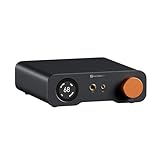
- An all-in-one desktop HiFi DAC/headphone amp/preamp: With premium chipsets and self-developed fully balanced circuitry, low noise and low distortion. Perfect for HiFi headphones or active speakers, it's the ultimate desktop audio solution
- Exceptional Sound Quality: Premium chipset with AKM4493SEQ DAC, XMOS XU316 processor, and four OPA1612 amps supports up to PCM 768kHz/32bit & DSD512. A self-developed dual-power balanced amp circuit with multiple ultra-low-noise LDOs and capacitors keeps noise as low as 1.9μV
- High Output Power: Equipped with both 6.35mm single-ended (640mW@32Ω x2) and 4.4mm balanced (2570mW@32Ω x2) outputs. The 3-level gain switch supports headphones ranging from 16Ω to 300Ω, making it perfect for almost in-ears and over-ear headphones
- Versatile & Flexible: With coaxial, optical, USB, and RCA inputs, plus 4.4mm, 6.35mm, RCA, and XLR outputs, it connects to diverse audio sources and devices. Functions as a DAC/amp/preamp for desktop HiFi. UAC mode switching ensures full compatibility with game consoles for both music and gaming
- Rich Customization: Features bass/treble EQ adjustments and 6 filter types, including Bypass mode and two swappable op-amps, allowing you to customize the sound to match your preference. All functions are integrated into the screen for a clean, premium look that continues the Z-Series design language
Why Device Manager may not be enough
Device Manager can sometimes find and install a basic audio driver, but that process is not always equivalent to running the manufacturer’s package. The OEM installer may add an extension INF and related software components that identify the audio hardware to Microsoft Store.
For that reason, use Device Manager mainly to inspect or roll back a device—not as the preferred way to obtain the complete Realtek package. If a recent driver update broke the app, install the current audio package from the exact manufacturer support page.
If Microsoft Store is not installed
If Microsoft Store does not appear when you search Start, Microsoft lists several possible explanations:
- You are signed in with a local account rather than a Microsoft account.
- The Store has been disabled by an administrator on a work-managed computer.
- The Store is installed but has only been unpinned from the taskbar.
On an organization-managed PC, contact the administrator instead of attempting to bypass the policy. On a personal PC, sign in with a Microsoft account and check Windows settings and updates.
Windows 10 note
The installation principle is the same on Windows 10, but the Store menus differ. To update Store apps, open Microsoft Store > See more (…) > Downloads and updates > Get updates. To reinstall an app, use Microsoft Store > See more (…) > My Library.
Best Value
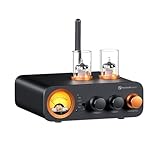
- All-in-One DAC Amp: A DAC, amplifier, preamplifier, and headphone amplifier are all integrated into the Fosi Audio MC331. You can easily switch between audio sources with the help of the remote control, ensuring a seamless and enriched listening experience
- Amazing Combination: As an integrated tube DAC amp with a VU meter, the visual aesthetics of the vacuum tubes and VU meter add a nice warm and soft effect to not only the appearance but the sound as well, giving the modern look a retro feel
- Setup Flexibility: It supports Bluetooth, USB, coaxial, optical, and RCA inputs, making it compatible with a variety of sources such as computers, phones, CD players, turntables with built-in phono preamps, etc., allowing you to build various systems
- Compact Yet Powerful: The MC331 only takes up minimal desktop space but boasts a maximum power output of 105W x2@4Ω, effectively driving your bookshelf speakers. Additionally, it has a pre-out and a 3.5mm headphone output, making it versatile enough
- User-Friendly Design: The MC331 comes with a remote control, allowing you to adjust bass and treble from the comfort of your listening chair. Its replaceable tube design lets you customize the sound signature to suit your personal preferences
Microsoft ended normal free support for Windows 10 on October 14, 2025. If the computer supports it, moving to Windows 11 gives you a currently supported operating system and the newer Store troubleshooting paths.
FAQ
Is Realtek Audio Console the same as Realtek Audio Control?
Yes, they refer to the same type of Realtek control app in this context. Realtek Audio Control is the current Microsoft Store title; Realtek Audio Console is the older and still common name.
Can I download Realtek Audio Console as a normal EXE?
Usually no. The current control app is distributed through Microsoft Store. The EXE you download from your computer or motherboard manufacturer is normally the Realtek device driver package, not the Store control app.
Recommended Free Tools
Why does Realtek Audio Control say it is not compatible with my device?
The required Realtek driver or hardware-specific extension is missing, or the installed package is for another computer or motherboard. Install the audio package published for your exact model, using its supplied Setup.exe installer.
Will wsreset.exe install Realtek Audio Control?
No. wsreset.exe clears the Microsoft Store cache. It can help when Store downloads are stuck, but it cannot install a missing Realtek driver or extension component.
Can I install the app manually from an APPX or AppxBundle file?
Manual package installation does not replace the required OEM audio driver. If the device dependency is missing, the package can fail with a dependency error even when the file downloads successfully. The supported approach is to install the manufacturer’s driver first and then use Microsoft Store.
The Bottom Line
The reliable order is exact device model → manufacturer’s Realtek audio package → OEM Setup.exe installation → restart → Microsoft Store → Realtek Audio Control. If the app is unavailable, focus on the driver and extension match before repeatedly resetting the Store. Installing a generic Realtek driver or clearing the Store cache cannot substitute for the correct hardware-specific package.
Quick Recap
Product prices and availability are accurate as of the date/time indicated and are subject to change. Any price and availability information displayed on Amazon at the time of purchase will apply.

