
iTechGuides is reader-supported. When you buy through links on our site, we may earn an affiliate commission. As an Amazon Associate I earn from qualifying purchases. Learn more
Start with the physical route, not the saved map. Open the room door, remove cords and loose objects, clean the sensors specified in your model’s manual, and let a complete mapping run finish without moving the robot or dock. Only after those checks should you edit room boundaries, add a Keep Out Zone, or rebuild the map. A room drawn by LiDAR is not necessarily reachable: glass, a stair opening, or a blocked threshold can appear on the map even when the robot has no safe path into it.
The exact controls differ by robot, app version, and software. The steps below separate general checks from documented procedures for Roborock, iRobot ClearView models, and ECOVACS T8/T8+ devices so that you do not apply one brand’s recovery method to another.
Identify what “missed” means
Different symptoms point to different causes. Watch one complete run, then classify the problem before changing anything in the app.
The Tool Desk
Outbyte PC Repair FREERepair Windows errors before they cause bigger problemsFix Now →Outbyte Driver Updater FREEFix the driver behind crashes, sound loss and screen glitchesFind Drivers →The room is absent from the map
The robot may never have had a usable entrance. Check the door, threshold, furniture clearance, and any cable or fabric that could stop the wheels. During mapping, a closed door is simply an unexplored space. If the robot has never reached the opening, deleting the map will not solve the underlying access problem.
#1 Best Overall
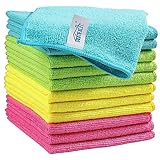
- Effective Streak-Free Cleaning: Clean kitchen countertops, windows, mirrors, bathroom surfaces, stainless steel, car interiors, glass, and other delicate surfaces with just water or your favorite cleaner—these microfiber cloths deliver streak-free, neat results with minimal effort, making daily cleanup fast and simple
- Lint-Free & Scratch-Safe: Soft to the touch and completely lint-free, these cloths won't scratch or damage delicate finishes like glass, ceramic, coated metals, car paint, or polished surfaces—clean with confidence on everything from household appliances to auto trim and electronics screens
- Ultra-Absorbent for Spills, Polishing & Drying: Designed to quickly soak up liquids, grease, and grime, making them ideal for drying dishes, wiping spills, polishing stainless steel, buffing car surfaces, and tackling everyday messes around the house, garage, or workshop—efficient cleaning without extra effort
- Reusable, Washable & Long-lasting: Machine washable and reusable hundreds of times with reinforced edges that hold up wash after wash—a durable replacement for disposable paper towels that cuts down on waste and repeat purchases for families, pet owners, detailers, and busy households
- Versatile Across Home, Auto & Beyond: Equally suited for general household cleaning, interior car detailing, exterior buffing, polishing wheels, wiping down tools, workshop surfaces, electronics, eyeglasses, screens, and more—simply rinse after use or toss in the washing machine; a practical all-around choice for homes, garages, shops, and small businesses
The room appears, but the robot never enters
LiDAR and cameras can detect spaces through glass or around open stairwells. iRobot explains that the bottom of stairs and rooms seen through glass may be represented even though the robot cannot travel there. Treat the drawing as a sensor interpretation, not proof of a passable route. Look for a transparent barrier, a raised threshold, or a narrow approach that the robot cannot align with.
The robot enters but leaves patches
This can be a cleaning-route choice rather than a damaged map. A fast route may intentionally reduce coverage, and a dirty wall sensor can also produce abnormal paths. Record whether the same patch is missed in a normal, room-targeted run before remapping.
The robot repeatedly gets trapped
Note the precise location and the trigger: a cord, a low sofa, a rug edge, a shiny surface, or a tight turn. Remove the hazard first. If the location is unsuitable for cleaning, isolate it with a model-supported Keep Out Zone or a safe physical boundary. Never place an object where it can create a trip or fall hazard.
Free tools Windows power users keep installed
One-click scans. No signup required.
Restore physical access before changing the map
Mapping works only when the robot can drive a complete route. Open every door to the rooms you want included and leave the dock in its normal position. Pick up charging cables, shoelaces, clothing, toys, and other loose items that can wrap around a roller or stop a wheel. Clear the approach to thresholds and check that the robot can turn into the doorway without scraping furniture.
Low-clearance areas deserve special attention. A robot can enter a gap and then fail to reverse, or its lidar tower can contact the underside of furniture. Move the furniture if practical; otherwise mark the area as off-limits in the app if that feature is supported. Do not test a suspected fall hazard by leaving the robot unattended.
After clearing the floor, run a targeted room clean. If the robot reaches the room and follows a sensible route, the saved map may be usable. If it still cannot cross the entrance, the obstacle or threshold—not the map geometry—is the limiting factor.
Rank #2

- 10x GRIP-ROOT WEAVE - TRAP MORE, WORK LESS: Ultra-absorbent microfiber towels for car Grip Root weave works like PLANT ROOT FOLLICLES, sucking up & LOCKING AWAY 8x to 10x its weight in liquid, particulates, moisture, grime and dirt in far LESS TIME than traditional ‘Heavy Duty’ Cleaning Rags. Each towel features a 2.5mm thick design, providing enhanced durability and better grip during use.
- WON’T LINT, SCRATCH, PILL, SWIRL, SHED, or BLEED like thin, cheaply made microfiber towels for cars. RAPID DRY release layers make these the ideal microfiber towels for cars, creating that spectacular, SWIRL-FREE MIRROR SHINE with our cleaning rags. With a solid 2.5mm thickness, these towels are built to prevent damage while ensuring optimal performance.
- LASTS 1200+ WASHES - That’s 3.27 YEARS worth of use in this 12-pack of COMMERCIAL GRADE 300 GSM Reuseable Cleaning Cloth. The 2.5mm thickness and OVERLOCK BRAIDED STITCHING makes the ideal SUSTAINABLE SOLUTION for cleaning every SURFACE, crack, and CREVICE in your home, garage, or office.
- SOAK IT UP FASTER - 4X’s MORE ABSORBENT than COTTON cloths, these are the microfiber cleaning cloth for cars to get if you want an ALL PURPOSE cleaning towel, crafted with 2.5mm thickness to scoop up your messes, oils, and liquids FASTER than a SPONGE
- UNRIVALED POWER - TEST THIS GRIP-ROOT technology risk-free for 30 full days. With a 2.5mm thick design, it LOCKS AWAY dirt, dust, grime, spills, and messes better than any other high-performance cleaning rags you’ve tried.
Clean sensors using the exact model guidance
Sensor locations and approved cleaning methods vary. Follow the manual for your specific robot rather than assuming that a sensor on one model has the same position on another.
Do these 3 things before closing this tab:
1Clear out junk files and repair common Windows errors2Scan for outdated or missing drivers - takes under a minute3Repair Windows errors before they cause bigger problemsRoborock wall-sensor check
In its support guidance for missed areas and abnormal paths, Roborock identifies dirt on the wall sensor on the right side of the robot as a common cause. The prescribed action is to wipe that sensor with a damp cloth and run another cleanup. Roborock Support states: “Second, most missed areas and abnormal cleaning paths are caused by dirt on the wall sensor on the right of the robot.” This is model-specific guidance, not evidence that every robot places its wall sensor on the right.
Use a soft, clean cloth that is only slightly damp; do not spray liquid into the robot. If your manual specifies a different sensor, location, or cleaning material, use those instructions instead. A generic soft microfiber cloth is sufficient for the described wipe; a special branded accessory is not established as necessary. Inspect wheels, the main brush, and the side brush as well, because hair or debris can make a navigation problem look like a mapping fault.
Let a complete mapping run finish
For iRobot models that use the ClearView LiDAR mapping workflow, prepare the home first: open the doors, remove obstacles, and place the dock where it normally operates. Start map creation from the app, then leave the robot and dock in place. Do not pick up the robot, move the dock, or press buttons while it is building the map.
iRobot’s guide says ClearView map creation can take up to 30 minutes depending on home size, may require recharging between rooms, and is saved when the robot finishes and returns to the dock. The time is a manufacturer estimate for the supported workflow, not an industry-wide performance figure. Interrupting the run can leave an incomplete map, so allow the robot to recharge and continue rather than assuming that a partial drawing is final.
If the robot stops before returning to the dock, resolve the physical obstruction and restart the supported mapping process. Do not carry it to another room midway through an exploratory run. If you must move it because of an emergency, expect that the map may need to be rebuilt according to the model’s instructions.
Rank #3

- Strong Absorbent & Streak-Free: Crafted with premium microfiber, these cleaning rags quickly absorb water and wipe away spills, dust, grease, and dirt without leaving streaks. Ideal for drying dishes, cleaning countertops, or polishing surfaces in the kitchen, car, or around the home.
- Soft & Lint-Free on Delicate Surfaces: Made from a non-abrasive blend of 85% polyester and 15% nylon, our microfiber cloths are gentle yet effective. They won’t scratch paint, glass, or delicate surfaces, and leave no lint behind—perfect for cleaning mirrors, electronics, stainless steel, and other smooth surfaces.
- Durable Construction for Long-Term Use: Designed with reinforced stitching, these cleaning cloths are not only reusable but also resist wear and tear even after frequent washing. A reliable alternative to disposable paper towels for everyday cleaning.
- Multi-Color Convenience for Any Task: Available in 4 assorted colors—Pink, Green, Blue, and Purple—for easy color-coding. Use different cleaning towels for the kitchen, bathroom, car, or electronics. Stay organized and keep your cleaning tasks clearly separated.
- Machine Washable & Quick-Drying: Each microfiber cloth measures 11.8" x 11.8", making them compact and easy to store. They can be washed by hand or machine. Quick-drying and always ready for your next cleaning job.
Use map editing to contain repeatable problems
When the robot can navigate the home but repeatedly enters an unsafe or uncleanable location, app-level controls are less disruptive than deleting the entire map.
Merge or split room boundaries
On supported iRobot models, the map editor can merge adjacent rooms or split one room into separate areas. Correct boundaries make room-specific cleaning commands more reliable, but editing is not a substitute for opening a blocked door. iRobot notes that merging or splitting rooms can return cleaning settings to their defaults. Check each room’s schedule, suction, water, or pass settings after saving an edit.
Add a Keep Out Zone
Draw a Keep Out Zone around a recurring snag point, a fragile display, or a route that leads toward a stair edge. Make the zone large enough to account for the robot’s body and turning radius; a line placed directly beside an obstacle may still allow contact. Keep Out Zones are available only on supported models and app versions, so confirm the control in the current app before planning around it.
Quick wins for a faster PC:
Clear out junk files and repair common Windows errorsFree Scan →Scan for outdated or missing drivers - takes under a minuteDriver Scan →Validate the edit
Run the smallest useful test: select the affected room or area, start a clean, and watch the first approach. Confirm that the robot respects the boundary and that the app records the expected path. If the map changes unexpectedly after a relocation or reboot, stop editing and follow the model’s map-recovery procedure instead.
Correct misleading geometry from reflective surfaces
Mirrors, windows, and shiny furniture can reflect or scatter LiDAR beams. iRobot says this can produce inaccurate navigation, apparent barriers, missing sections, or a confusing layout. A map that looks rotated or contains a phantom room may therefore reflect the environment rather than a software defect.
Choose the least disruptive remedy that fits the room:
Rank #4

- 【Microfiber Towels Bulk】One pack of 50 microfiber towels for cars and home, measuring 12x12 inches, Made of 87% polyester and 13% polyamide, 210gsm microfiber cloth, is vacuum-packed to reduce greenhouse gas emissions. Please allow a few minutes for the towels to expand fully after unpacking to achieve optimal fluffiness and absorbency.
- 【Super Absorbent】 TEAWOO microfiber cleaning cloths quickly soak up moisture and dry rapidly, making them ideal for both automotive and household cleaning tasks. They efficiently remove dirt, grime, and liquids with ease.
- 【Soft and Lint-Free】TEAWOO microfiber towels bulk supply of ultra-soft, non-abrasive microfiber towels ensure a scratch-free cleaning experience on surfaces, paint, glass, and coatings. Perfect for cleaning tough grease and dirt from your car, kitchen, and windows, leaving no traces behind.
- 【Reusable and Washable】These reusable and washable microfiber towels cleaning for cars can be used hundreds of times without shrinking, shedding, or losing their cleaning effectiveness. They are a cost-effective alternative to disposable towels, ideal for car and household cleaning.
- 【Easy Maintenance and Use 】Our bulk microfiber towels come in 5 colors and are crafted with high-quality fabric and sewn edges, providing a soft and scratch-free feel. They are easy to maintain and perfect for keeping both your car and home spotless.
- Place a physical marker in front of a large mirror or glass panel during mapping so the robot receives a stable, non-reflective reference.
- For systems that use vision as well as LiDAR, improve lighting and remove deep shadows during the mapping run.
- After the map is saved, use a Keep Out Zone around a reflective area that repeatedly causes false geometry, if the exact model supports that control.
These measures are not guaranteed for every sensor design. If the same distortion appears after a clean, uninterrupted run with the reflective surface addressed, consult the model’s support instructions before deleting the map.
What’s actually slowing this PC down?
Pick the symptom - the matching free tool is one click away.
Check dock placement when the map is angled or misaligned
A dock that is not level with adequate approach space can give the robot a poor starting reference. For the Roborock issue concerning a map displayed at the wrong angle, support recommends at least 0.5 metres of clearance on each side of the dock and 1.5 metres in front. Measure those clearances in the robot’s normal operating area, not behind a chair that is usually moved out of the way.
After correcting the dock, Roborock’s guidance suggests turning the Map Saving option off and back on, then creating a new map during a subsequent cleanup. This reset is specific to the described Roborock workflow. Save or preserve an existing map first if the app offers that option, because rebuilding can remove room labels, schedules, or zones.
Recover a map after the robot is relocated
Moving a robot by hand or powering it off and on can break its positional reference. ECOVACS’s T8/T8+ guidance warns that relocation may require relocalization and that a temporary map can appear when recovery fails.
For those models, the documented immediate recovery is to carry the robot back to its charging dock. Once it recognizes the dock, the saved map can be restored. Do not assume this procedure applies to another ECOVACS series or to a different brand. If the T8/T8+ still shows a temporary map after returning to the dock, use the model’s app instructions rather than repeatedly starting new mapping runs, which can create additional map versions.
Check whether a fast route is deliberately reducing coverage
Roborock’s support FAQ explains that its fast zig-zag route, on the models listed in that FAQ, can skip some room boundaries and spots as a time-saving choice for daily cleaning. A missed patch during a fast run does not automatically mean that the saved map is corrupt.
Best Value

- Microfiber 16 x 12-inch cleaning cloth (24-pack); ideal for cleaning cars, trucks, boats, and more
- Ultra-soft and non-abrasive car drying towels; will not scratch paints, vinyl, glass, finishes, or other surfaces
- Effectively cleans either dry or with liquid cleaners for streak-free results and a lint-free shine
- Durable and absorbent; soak up 8 times their own weight
- Can be reused hundreds of times
Switch to the standard or higher-coverage cleaning option available on your model and run the same room again. Compare the recorded path or coverage display if the app provides one. If the area is covered in the normal mode, keep the map and use fast mode only when its reduced coverage is acceptable. The exact mode names and availability depend on model and software.
A model-aware troubleshooting sequence
- Classify the symptom. Decide whether the room is absent, visible but unreachable, partly cleaned, or associated with a repeatable trap.
- Make the route safe. Open doors, clear cords and loose objects, and remove or isolate low-clearance and fall hazards.
- Perform the specified maintenance. Clean accessible sensors and brushes using the manual; for the documented Roborock case, wipe the right-side wall sensor with a damp cloth.
- Complete a mapping run. For supported iRobot ClearView models, leave the robot and dock untouched until it returns and saves the map; allow for the manufacturer’s estimate of up to 30 minutes and possible recharging.
- Inspect geometry. Address mirrors, windows, shiny furniture, and dock clearance before interpreting an angled or distorted map as a software failure.
- Use the smallest app correction. Edit room boundaries or add a Keep Out Zone when the problem is repeatable and the feature is supported. Recheck room settings after merging or splitting.
- Recover from relocation. If an ECOVACS T8/T8+ was moved and shows a temporary map, return it to its charging dock and follow that model’s relocalization guidance.
- Test the cleaning mode. Repeat the run outside a fast or reduced-coverage mode before rebuilding a map that may be healthy.
How to choose between cleaning, editing, and remapping
| Observed cause | First remedy | Change scope | Risk to existing settings |
|---|---|---|---|
| Closed door, clutter, cord, or threshold | Open the route and remove the obstruction | Physical room change | Low |
| Dirt on a documented sensor | Clean it as the manual directs and rerun cleaning | Maintenance | Low |
| Interrupted map creation | Restart mapping and let the robot return to the dock | New mapping run | Existing map may be replaced |
| Repeatable snag location | Create a supported Keep Out Zone or safe physical boundary | App or room change | Usually reversible |
| Wrong room boundaries | Merge or split rooms, then verify settings | Map edit | iRobot warns that cleaning settings can revert to defaults |
| Reflective false geometry | Address the reflection, improve lighting where relevant, or isolate the area | Environmental or app change | Usually reversible |
| Relocation or temporary map on ECOVACS T8/T8+ | Return the robot to its charging dock | Position recovery | Model-specific |
| Patch missed only in fast mode | Run the model’s standard or higher-coverage mode | Cleaning setting | Low |
Prevent the problem from returning
Keep the dock in a permanent location with the clearance required by your model. A dock that is repeatedly moved forces the robot to re-establish its reference and can make saved maps unreliable. Store charging cables and loose fabric outside the normal cleaning path, and inspect brushes and wheels when a route changes suddenly.
Before a full remap, photograph or record room names, schedules, suction settings, water settings, and Keep Out Zones. Some map editors reset settings after a merge or split, and a new map may not preserve every label. If the app provides map backup or multi-map storage, use it before destructive edits.
PC Slower Than It Used to Be?
A free scan shows the junk files, broken settings and background clutter dragging Windows down - then fixes them in one click.Free scan · Windows 10 & 11Crashes, No Sound, or Screen Glitches?
Random freezes, missing sound and display glitches usually trace back to one bad driver. Find and replace yours safely.Free scan · under a minuteRun a normal-coverage test after maintenance and after any map edit. A single fast-mode pass is not a reliable test of map completeness. Compare the robot’s actual route with the app’s coverage record, and note whether the same location fails under identical conditions.
When a map still fails after these checks
If a clean, unobstructed, uninterrupted mapping run repeatedly omits a physically reachable room, document the model, firmware and app version, dock position, room layout, and the exact failure point. Include whether the robot was moved, whether reflective surfaces are present, and whether the failure occurs in every cleaning mode. Those details help the manufacturer distinguish a sensor fault, localization failure, drive problem, or unsupported layout.
Do not keep deleting a map as a first response. Remapping erases useful evidence and may discard carefully edited zones. Preserve the working map when possible, apply reversible changes first, and use the model’s support channel when the same failure survives access, sensor, dock, geometry, and cleaning-mode checks.
Quick Recap
Product prices and availability are accurate as of the date/time indicated and are subject to change. Any price and availability information displayed on Amazon at the time of purchase will apply.

