
iTechGuides is reader-supported. When you buy through links on our site, we may earn an affiliate commission. As an Amazon Associate I earn from qualifying purchases. Learn more
Do not repair the original disk first. A “corrupted disk” may have file-system damage, failing hardware, malware effects, or another cause. If files may have been exfiltrated, ordinary repair, recovery, or even routine startup can change timestamps, overwrite deleted data, trigger malware, or destroy evidence. Preserve the scene, decide whether volatile data must be collected, acquire the device in a controlled way, verify the acquisition, and analyze a copy. Only after that should you consider repair or user-facing file recovery.
What to do first when a corrupted disk may contain exfiltration evidence
Treat this as an incident-response and evidence-preservation problem, not a normal disk-maintenance job. NIST’s Guide to Integrating Forensic Techniques into Incident Response (SP 800-86) recommends identifying evidence sources, planning acquisition, preserving integrity, documenting handling, and using copies for examination where possible.
- Stop discretionary activity. Do not run disk repair, defragmentation, “cleanup,” antivirus remediation, file-recovery scans, or repeated reboot cycles on the original unless the incident lead has approved that action.
- Record the situation. Note who found the problem, the date and time, device make and model, serial number, asset identifier, operating system, visible error messages, connected devices, network status, and every action already taken.
- Notify the incident-response lead. Include security, IT operations, and—when employment, regulatory, contractual, or court proceedings are possible—organizational counsel. NIST SP 800-86 is guidance, not jurisdiction-specific legal advice.
- Protect the device from further access. Prevent well-meaning users from opening files or reconnecting the disk to ordinary workstations. If remote access or malware is suspected, isolate network connectivity according to the response plan.
- Choose the acquisition method before touching the media. The plan should state who is collecting it, what evidence is in scope, what tool and version will be used, how errors will be logged, where the image will be stored, and how integrity will be verified.
Whether to shut down immediately is not universal. A live system can contain volatile evidence—such as running processes, memory contents, open network connections, mounted encrypted volumes, or active malware—that disappears at shutdown. Conversely, leaving a compromised or failing system powered on can alter files or worsen hardware damage. The incident lead should make and document that decision; do not improvise a “best” shutdown rule.
What’s actually slowing this PC down?
Pick the symptom - the matching free tool is one click away.
Why “corrupted” does not identify the problem
Users commonly call a disk corrupted when an operating system cannot mount a volume, files have unreadable names, applications report damaged documents, or the drive repeatedly disconnects. Those symptoms can arise from very different conditions:
#1 Best Overall

- Supports Standard Desktop 2.5"/3.5" SATA Hard Drives or SSD.
- Supports hard drives up to 10TB.
- Plug and play, no drivers needed.
- Supports Offline Cloning up to 60Mbps.
- Supports Transfer Speeds up to 5Gbps (USB 3.0),480Mbps (USB 2.0), 12Mbps (USB 1.1)
- Logical damage: a damaged partition table, file-system metadata, directory records, or boot structures.
- Physical failure: failing heads, flash translation errors, controller problems, overheating, or unreadable sectors.
- Malware or unauthorized activity: encryption, deletion, tampering, or altered permissions after an intrusion.
- Connection or power faults: a bad cable, enclosure, port, or power supply that resembles media failure.
These causes require different handling. A command that “fixes” a file system can write new metadata over remnants of deleted files. A recovery scan can change access times or create large temporary files. Repeated attempts to read a physically failing disk can consume the remaining operating time of the device. The symptom alone cannot justify a repair procedure.
How do I recover files from a corrupted hard drive without destroying evidence?
Recover from an image or a verified working copy, not from the original, whenever the evidence can support that approach. NIST distinguishes a bit-stream image from a normal file backup:
| Acquisition | What it captures | Forensic value | Trade-offs |
|---|---|---|---|
| Bit-stream image | Sector-level contents, including allocated files plus free space and slack space; it may preserve deleted files and fragments. | Supports later examination of remnants, file-system structures, and unallocated areas. | Requires more time and storage; unreadable sectors must be identified and documented. |
| Logical backup | Existing files and directories accessible through the operating system. | Useful when business continuity or system constraints prevent full imaging. | Usually omits free space, slack space, deleted data, and some metadata; it is not equivalent to a forensic image. |
A logical copy may be the only practical option if taking a system offline would cause unacceptable business impact. Document that limitation and what evidence it excludes. If proceedings are possible, ask counsel and the responsible forensic examiner what collection standard is appropriate.
Recommended Free Tools
Plan acquisition and chain of custody
Before acquisition, make an evidence plan that connects each action to a person, time, device, and destination. NIST’s evidence-preservation guidance (NISTIR 8387) emphasizes maintaining context and documenting handling. Your organization’s policy or the applicable jurisdiction may impose additional requirements.
Minimum handling record
- Case or incident identifier and a concise description of the suspected exfiltration.
- Collector’s name, role, organization, date, time, time zone, and location.
- Device manufacturer, model, serial number, capacity, interface, asset tag, and physical condition.
- Photographs or notes describing seals, labels, damage, cables, adapters, and connected equipment.
- Whether the device was powered on, locked, encrypted, network-connected, or showing errors when found.
- Every transfer, storage location, access event, and person responsible.
Keep the original media secured and labeled. Analysis should occur on a copy whenever possible so the original acquisition can be preserved and a fresh working copy can be created if an analyst makes a mistake.
Rank #2

- SATA DRIVES ONLY — 2.5in & 3.5in: Works with SATA I/II/III hard drives and SSDs. Does NOT support IDE/PATA, M.2 NVMe, M.2 SATA, SAS, or drives already in a USB enclosure. Check your drive's connector before ordering — a bare SATA drive has a wide flat L-shaped edge connector, not a ribbon cable or a small M.2 gold-finger card.
- USB TYPE-A HOST CABLE — NOT A USB-C PORT: The included host cable ends in USB Type-A and plugs into a USB 3.0 Type-A port. If your computer has only USB-C ports, you will need a USB-C to USB-A adapter, which is not included. For stable operation plug directly into the computer — USB hubs and USB 2.0 ports may cause intermittent disconnections.
- REAL-WORLD SPEED, NOT INTERFACE MATH: USB 3.0 with UASP support (UASP-capable host required). Typical mechanical HDD transfer speeds are 100-160 MB/s, which is the drive's own limit, not the port's; SSD speeds vary up to the USB interface maximum. Backward compatible with USB 2.0 and USB 1.1.
- 12V POWER ADAPTER INCLUDED — REQUIRED FOR 3.5in DRIVES: A 12V/2A AC power adapter is in the box and a wall outlet is needed. 3.5in HDDs cannot run on USB power alone — without the adapter the drive will fail to spin up or drop out during use. 2.5in drives are generally bus-powered, but the adapter is recommended for stability.
- PLUG AND PLAY, TOOL-FREE, HOT-SWAP: No drivers on Windows 10/11, macOS, or Linux. Lay-flat bay accepts a bare drive without tools, swaps without rebooting, and an LED shows power and activity. Note: S.M.A.R.T. diagnostics are not passed through the USB bridge, and on macOS a drive may need remounting after sleep. Drive not included.
Use a write blocker, then verify the acquisition
A write blocker is designed to prevent the computer performing the acquisition from writing to the source media. NIST describes the intended one-way flow as data moving from the seized device to the copying computer, not in the reverse direction. A compatible hardware write blocker is preferable when the workflow and interface support it, but a blocker is not proof that the collection is complete, accurate, or properly documented.
Connect the source through the blocker, attach a destination with enough capacity for the image and logs, and use an acquisition process that records read errors and other exceptions. Record the blocker’s make, model, firmware or version when available, connection type, acquisition software and version, operator, start and end times, and destination identifiers.
After imaging, compare cryptographic message digests generated for the source and the acquired image when the method supports that comparison. Record the algorithm, values, time, and verification result. Access the image read-only where possible. If sectors could not be read, preserve the error map and state exactly what was not acquired; do not describe the image as a complete copy.
Step-by-step controlled acquisition
- Freeze the plan. Confirm scope, authority, volatility decisions, evidence labels, and the destination storage before connecting the source.
- Prepare clean equipment. Use a controlled examination workstation, a compatible write blocker, adequate destination storage, and a separate location for logs. Avoid mounting the source read-write.
- Identify the source. Read and record make, model, serial number, capacity, interface, partition information visible without altering it, and physical condition.
- Acquire the image. Select a bit-stream method when deleted data, slack space, or remnants may matter. Configure the tool to log unreadable sectors and continue safely according to the examiner’s procedure.
- Watch for failure signs. Repeated resets, clicking, overheating, disappearing devices, rapidly increasing read errors, or a stalled head position indicate that continued attempts may worsen the device. Stop and escalate rather than repeatedly retrying.
- Complete verification. Generate and compare message digests, preserve the acquisition report, and note any mismatch, skipped region, or tool error.
- Seal and store the original. Label it, restrict access, and record its storage location and custody transfer.
- Create a working copy. Mount the image read-only or duplicate it under the examiner’s controlled process. Perform file-system inspection, malware analysis, timeline work, and recovery on that copy.
What to do when imaging produces errors
Do not assume that a second run with a different consumer utility will solve unreadable sectors. NIST-hosted research by James R. Lyle and Mark R. Wozar, published in 2007, found that tested imaging approaches could miss accessible neighboring sectors on drives with faulty sectors. The study is not a ranking of current tools, but it demonstrates why damaged-media acquisition is an evidence risk rather than a routine copy operation.
Escalate when the media may be physically failing
- The device is not consistently detected or drops off the bus.
- Read errors increase, the drive repeatedly resets, or mechanical noises appear.
- Imaging stalls at the same location or cannot produce a documented error map.
- The data may be material to litigation, regulatory reporting, employment action, or a major security investigation.
A qualified forensic examiner or specialist recovery laboratory can select a controlled, error-tolerant acquisition strategy and preserve records of what could and could not be read. No provider is automatically suitable: verify credentials, jurisdiction, confidentiality controls, evidence-handling procedures, and whether the provider will return the original, image, logs, and verification data.
Rank #3
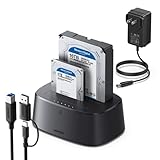
- Offline cloning: This External hard drive docking station supports wireless cloning mode, which allows you to clone the contents of two hard drives at once without connecting to a computer. Note: The capacity of the hard drive must meet A≤B
- Large capacity and wide compatibility: This hard drive enclosure supports the simultaneous use of two 2.5-inch and 3.5-inch 7+15-pin SATA III hard drives and is backward compatible with SATA II/SATA I; it supports a maximum capacity of 32TB x 2
- Lightning Transmission:This hdd docking stationt uses the USB 3.0 protocol, with a maximum transfer speed of 5Gbps, and is backward compatible with USB 2.0/USB 1.1, allowing for fast file transfers without waiting. In addition, it comes with a 1-meter USB B to USB C data cable, eliminating the hassle of short cables.
- Excellent Heat Dissipation & Safety: The hard drive reader features 360° surround cooling, eliminating your worries about hard drive safety. It also includes a dust cover to better protect the contact points and extend the product's lifespan when not in use. Additionally, anti-slip pads prevent the product from falling, making your use safer.
- Universal Compatibility & Reliability: This External hard drive dock is compatible with Windows XP / Vista / Windows 7 / Windows 8 / Windows 8.1 / Windows 10 and Mac IOS 10.4 to 10.11 Linux Kernel 2.4.2 or greater versionscomes.
Analyze the copy for exfiltration evidence
Once a verified working image exists, analysis can address both “what was corrupted?” and “what may have left the system?” Preserve the original image and keep an audit trail for every exported artifact.
Crashes, No Sound, or Screen Glitches?
Random freezes, missing sound and display glitches usually trace back to one bad driver. Find and replace yours safely.Free scan · under a minutePC Slower Than It Used to Be?
A free scan shows the junk files, broken settings and background clutter dragging Windows down - then fixes them in one click.Free scan · Windows 10 & 11File-system and deleted-data review
Examine partition and file-system metadata, recently modified files, deleted entries, slack and unallocated space, archive containers, temporary directories, browser or synchronization artifacts, and access-control changes. A recovered file is not automatically an original, complete, or user-created file; record its source location, metadata, recovery status, and any gaps.
Timeline and user activity
Correlate file timestamps with logon events, process execution, removable-media connections, archive creation, and account or permission changes. Timestamps can be altered or interpreted differently by file systems and applications, so preserve the time zone and clock context and avoid treating one timestamp as proof of an action.
Network and cloud correlation
Disk artifacts alone rarely establish the full path of an exfiltration. Compare findings with firewall, proxy, VPN, endpoint, identity, email, cloud-storage, and data-loss-prevention records that your organization lawfully retains. Look for matching accounts, hosts, destinations, file names, hashes, transfer windows, and volumes. A missing disk artifact does not prove that no transfer occurred.
Independent reader supportYour contribution helps us test, update, and keep practical guides available for everyone.What recovery can—and cannot—prove
NIST’s scientific foundation review (NISTIR 8354) cautions that not all evidence is necessarily discovered or recovered, and deleted-file recovery can include extraneous material. Therefore:
Do these 3 things before closing this tab:
1Fix the driver behind crashes, sound loss and screen glitches2Clear out junk files and repair common Windows errors3Scan for outdated or missing drivers - takes under a minuteRank #4

- OFFLINE CLONER, NO COMPUTER NEEDED: Copy one SATA drive to another at the press of a button, up to 60MBps, with the dock unplugged from any PC. Target drive must be the same size as the source or larger.
- READS AND WRITES TWO DRIVES AT ONCE: Both bays mount as separate drives when connected to a computer over USB, so you can move files between them or work off both. Hot-swappable, tool-free, with an HDD access LED per bay.
- SATA ONLY, 2.5in AND 3.5in: Fits bare 2.5in and 3.5in SATA hard drives and SATA SSDs. It does NOT support IDE/PATA drives, drives with a 4-pin Molex power connector, M.2 or NVMe drives, and drives are not included.
- WHAT COMES IN THE BOX: Docking station, power adapter and a USB Type-C cable. The cable is USB-C on the dock end - check your computer has a USB-C port or add your own USB-C to USB-A cable before you order.
- USB 3.0 SPEEDS UP TO 5GBPS: Plug and play on Windows and Mac with no drivers to install. Real-world speed is set by the drives you fit - a mechanical hard drive will not reach 5Gbps, and offline cloning runs up to 60MBps by design.
- Do not promise a recovery percentage or claim that an image contains every historical file.
- Do not equate a recovered file with proof that it was exfiltrated.
- Do not equate the absence of a file with proof that it never existed or never left the system.
- Separate observed artifacts, examiner interpretation, and hypotheses in the report.
- Corroborate disk findings with independent logs, endpoint telemetry, and account records.
The result should state the acquisition scope, unreadable areas, tools and versions, verification outcome, time limits, and conclusions that the evidence actually supports.
Common mistakes that destroy or weaken evidence
- Running automatic repair first: metadata changes can overwrite clues and make later reconstruction harder.
- Scanning the original in a normal workstation: the operating system may write logs, indexes, or other metadata.
- Relying on a file backup: it may omit deleted data, free space, slack space, and useful metadata.
- Treating a write blocker as the whole process: you still need documented handling, error recording, and digest verification.
- Repeatedly powering a failing disk: additional reads can worsen mechanical or electronic failure.
- Discarding the original after an image is made: preserve it so the acquisition can be independently checked or recreated.
- Making unsupported legal claims: admissibility and notification duties depend on jurisdiction, policy, contracts, and facts.
A practical decision checklist
Use this short gate before any repair or recovery action:
- Is exfiltration suspected, or could the disk be relevant to an investigation?
- Have the device identity, symptoms, current state, and prior actions been recorded?
- Has the incident lead decided whether volatile collection is required before shutdown?
- Is a documented acquisition plan approved, including scope and authority?
- Can a bit-stream image be made without unacceptable business impact?
- Is a compatible write blocker and controlled destination available?
- Will the process record unreadable sectors, tool versions, timestamps, and message digests?
- Is the original secured, with analysis restricted to a verified copy?
- Have physical-failure signs or acquisition errors triggered specialist escalation?
If the answer to these questions is no, pause before “fixing” the disk. The safest next action may be to preserve the device and obtain forensic guidance, not to make it usable again.
When ordinary repair is finally appropriate
After the evidence plan is complete, the original is secured, and the responsible investigators agree that preservation requirements are satisfied, IT can decide whether to repair, reimage, replace, or retire the disk. That operational decision should use a separate, non-evidentiary copy whenever possible. Keep the forensic image and acquisition records under the retention policy, and document any later repair as a new action rather than mixing it into the original acquisition record.
Quick Recap
Product prices and availability are accurate as of the date/time indicated and are subject to change. Any price and availability information displayed on Amazon at the time of purchase will apply.

