
iTechGuides is reader-supported. When you buy through links on our site, we may earn an affiliate commission. As an Amazon Associate I earn from qualifying purchases. Learn more
Clear cached data first, then uninstall apps you no longer use, and retry the update from the Chromecast itself. If internal storage is still too full, add portable storage through a compatible USB-C hub with Power Delivery—but setup reformats that drive. Use the supplied power adapter and cable whenever possible, because inadequate or incompatible power can make an update fail or take much longer than Google’s typical 10–12 minutes.
What to do when Chromecast with Google TV says there is not enough storage
Chromecast with Google TV does not publish one universal “free space required” number for every system update. The amount needed can vary by update and device state, so do not rely on a fixed threshold. Instead, work through the least disruptive cleanup actions in order:
- Clear cached data.
- Uninstall apps you do not use.
- Check for the update on the television at All settings > System > About > System update.
- If storage remains tight, attach portable storage using a compatible, powered USB-C setup.
Cache clearing is reversible and does not remove your accounts. Uninstalling an app releases its internal space but removes the app until you install it again. External storage involves hardware, additional power requirements and a reformat, so it belongs at the end of the sequence.
Outdated Drivers Are Slowing You Down
One free scan finds every outdated or missing driver and matches the right update for your exact hardware.Free scan · exact hardware matchWindows Errors? Fix Them Before They Spread
Repair common Windows errors and clear accumulated junk for a smoother, more stable PC - no reinstall needed.Free scan · no reinstallCheck these conditions before changing storage
Keep the Chromecast powered from a suitable adapter
Use the adapter and cable supplied with the Chromecast whenever possible. Google’s power troubleshooting documentation identifies a replacement adapter rated at 5 V / 1.5 A when a replacement is necessary. A USB-C hub, switch or other intermediary can change how much power reaches the device or whether Power Delivery negotiates correctly.
#1 Best Overall
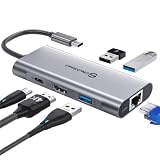
- 【Cost-Effective】 UtechSmart USB C Hub has a 1000M Ethernet port, a 4K HDMI port, 3 USB 3.0 up to 5 Gbps and a USB C charging port with 100W power delivery to make a perfect all-in-one solution for your connectivity needs.
- 【Stay Cool, Stable Connected】 With our advanced technology, the USB C adapter features advanced heat dissipation and safe connections to keep your devices safe and your data secure.
- 【Experience Lightning-Fast】 Upgrade your connectivity with our USB-C hub's 5Gbps data transfer and 1000M Ethernet port. With lightning-fast transfer speeds and reliable internet connectivity, you can seamlessly stream movies, download large files, and more.
- 【100W Power Delivery】UtechSmart USB Type C Hub with 100W Power Delivery lets you charge your laptops, Chromecast with Google TV, Steam Deck, and other Type C devices with Blazing-fast speed and uninterrupted power.
- 【Immersive Viewing】The 4K resolution of USB to HDMI adapter ensures that the video output is crystal clear and sharp, making it ideal for streaming, gaming, and video editing.
During an update, avoid moving the Chromecast between ports, unplugging it or changing the hub. A television’s USB port may not provide the same power capability as the supplied adapter. If you later add a hub, connect the charger to the hub’s power-delivery port rather than assuming every USB-C port supplies power.
Make sure you can use the remote and television menus
The cleanup and update controls are on the Google TV interface. The update is not presented in the Google Home mobile app. Leave the Chromecast connected to the television, switch to its input and keep the remote available before beginning.
Understand what cache data is
Cache files are temporary copies an app uses for faster loading. Removing them is different from clearing app data or uninstalling the app. Google states: “Clearing your app cache only removes temporary data. You’ll remain signed in to your apps, and media will load faster.” The first launch after cleanup may recreate some temporary files, but your sign-in status remains.
Recommended Free Tools
Step 1: clear cached data from internal storage
This is the safest first action because it does not remove an app, its account or its saved configuration.
- On the Google TV home screen, select your profile icon.
- Open Settings.
- Choose System.
- Select Storage.
- Open Internal shared storage.
- Select Cached data.
- When the confirmation prompt appears, choose OK.
Wait for the storage view to finish updating before leaving the menu. If the available-space figure changes only slightly, that does not mean the operation failed; an app may have had little cached content, or another category may be using most of the space. Do not select an option that clears all app data when your goal is only temporary-file cleanup.
Step 2: uninstall apps you no longer use
If cached data is not enough, remove applications that are no longer needed. This is the built-in way to reclaim internal storage without attaching hardware.
Rank #2

- 5-in-1 USB-C Hub: Experience comprehensive connectivity featuring a Power Delivery input, two USB-A 2.0 ports, a USB-A 3.0 port, and an HDMI port. (Note: The USB-C power delivery input port is only for connecting an external wall charger to power your laptop and cannot power peripheral devices.)
- 90W Pass-Through Charging: Achieve optimal charging with 90W pass-through power to your laptop, supported by a total input of 100W, with the hub reserving 10W for operational efficiency. (Note: Wall charger not included.)
- Quick Data Transfers: Accelerate your productivity with rapid data transfers using a high-speed 5Gbps USB 3.0 port and two 480Mbps USB 2.0 ports.
- 4K HDMI Display: Enhance your visual experience with a hub capable of delivering 4K resolution at 30Hz in both mirror and extend modes. Please note that this hub is compatible with MacBook (macOS 12 and newer), Windows 10 and 11, ChromeOS, and laptops equipped with DP Alt Mode and Power Delivery. Note: This device is not compatible with Linux.
- What You Get: Anker USB-C Hub (5-in-1, 4K HDMI), welcome guide, 18-month warranty, and our friendly customer service.
- Select your profile icon on the Google TV home screen.
- Open Settings.
- Choose Apps.
- Select See all apps.
- Choose an app you are willing to remove.
- Select Uninstall.
- Confirm with OK.
Choose removals deliberately
- Start with apps nobody in the household opens. Removing several small, unused apps can be more useful than deleting one app you still need.
- Check the app’s name carefully before confirming; the uninstall action applies immediately after confirmation.
- Record any app you remove if you may need it later. Reinstalling requires downloading it again and signing in if the app asks for authentication.
- Do not remove an app merely because it appears in the list if you do not understand its role. Leave system components and services alone.
Uninstalling is less reversible than cache clearing: the application and its locally stored information are removed, while the app’s service account—if it has one—still exists with its provider. You can install the app again later, but the Chromecast must have enough space for the download and installation.
Do these 3 things before closing this tab:
1Clear out junk files and repair common Windows errors2Fix the driver behind crashes, sound loss and screen glitches3Repair Windows errors before they cause bigger problemsStep 3: retry the system update on the Chromecast
After clearing cache and uninstalling anything unnecessary, check the update directly from Google TV:
- From the Google TV home screen, choose All settings.
- Open System.
- Select About.
- Choose System update.
Google’s documented path is exactly All settings > System > About > System update. The update check does not appear in the Google Home app, so looking there will not provide an alternative update control.
What to expect while it installs
Google says a system update typically takes 10–12 minutes. During that period, the streaming device is unavailable for casting. Keep power and network connections undisturbed, and do not interpret a temporarily blank or restarting screen as permission to unplug the device.
If the process runs substantially longer than the typical duration, treat it as a connectivity or power issue first. Confirm that the Chromecast is still receiving power and that your network connection is available. If you are using a USB-C hub, its power-delivery behavior is an additional variable; reconnecting later with the supplied adapter and cable can remove that variable.
Step 4: expand storage with a USB drive or SD card
When cleanup does not create enough room, Google documents storage expansion through a compatible USB-C hub. The hub must include a power-delivery port, and the Chromecast must receive power from a USB-C charger rated higher than 1.5 A / 7.5 W. You also need portable storage, such as a USB stick or an SD card used through the hub. Google specifies USB 2.0 or faster for USB storage.
Rank #3

- VERSATILE CONNECTIVITY: 5-in-1 USB-C hub featuring 4K 60Hz HDMI output, 2 USB-C ports, and 2 USB-A ports for comprehensive device connectivity
- POWER DELIVERY: Supports up to 90W power pass-through charging, keeping your laptop powered while using the hub's multiple ports
- DISPLAY OUTPUT: HDMI port supports crystal-clear 4K resolution at 60Hz for stunning visual quality on external displays
- PLUG & PLAY DESIGN: Simple setup with no drivers required - just connect and start using immediately with compatible USB-C devices
- TRAVEL-FRIENDLY: Compact and lightweight silver grey design with a sleek profile makes it perfect for on-the-go productivity
Hardware checklist
- A USB-C hub that is compatible with the Chromecast and has a USB-C Power Delivery input.
- A USB-C charger rated above 1.5 A / 7.5 W for the hub’s power input.
- A USB stick or an SD card and, when required by the hub, an SD-card slot or reader.
- The Chromecast’s normal HDMI connection to the television.
Accessory compatibility is not determined by the connector alone. A hub can physically fit and still fail to deliver the required Power Delivery behavior. If the Chromecast does not recognize the drive, check the hub’s power connection and try the supplied power arrangement before assuming the storage itself is defective.
Connect the expansion hardware
- Turn off or disconnect the Chromecast from power before changing the cabling.
- Connect the USB-C hub to the Chromecast.
- Plug the charger into the hub’s Power Delivery port. Use a charger above 1.5 A / 7.5 W as specified by Google.
- Insert the USB 2.0-or-faster flash drive or the SD card into the appropriate hub slot.
- Reconnect the Chromecast and wait for Google TV to detect the storage.
Expect a reformat prompt
Google’s setup flow prompts you to reformat the attached storage. Reformatting erases the data already on that drive or card. Before accepting, copy anything you need to another device and verify that you selected the intended storage. If the drive contains irreplaceable files and you have not made a copy, cancel the setup and back up the files first.
Once formatted for use with the Chromecast, the storage is no longer a drop-in archive for your existing files. Treat the formatting step as a data-loss event, not as a harmless initialization. The exact amount of usable space will be less than the capacity printed on the drive, and the Chromecast’s software manages the formatted storage.
When expansion is the right choice
External storage makes sense when you regularly install several large apps or when cache cleanup and uninstalling leave too little internal room for the update. It is less attractive for a one-time update if removing a few unused apps solves the problem, because expansion adds a hub, a charger connection and a storage device that must remain compatible with the Chromecast.
Compare the cleanup choices before you act
| Option | Reversibility | How quickly it frees internal space | Cost | Setup complexity | Power requirement | Data-loss risk |
|---|---|---|---|---|---|---|
| Clear cached data | Temporary files can be recreated; accounts remain signed in | Immediate, but the amount depends on each app’s cache | No additional hardware | On-screen menu only | Normal Chromecast power | Low; removes temporary data |
| Uninstall unused apps | App can be installed again later | Immediate after each uninstall; depends on app size | No additional hardware | On-screen menu and confirmation | Normal Chromecast power | Local app data is removed; save anything important first |
| USB or SD expansion | Hardware can be disconnected, but setup changes the drive’s format | Available after detection and formatting | Requires a compatible hub, charger and portable storage | More involved cabling and setup | USB-C PD hub and charger above 1.5 A / 7.5 W; USB storage must be USB 2.0 or faster | High during reformatting because existing drive contents are erased |
The table’s “cost” column refers only to extra hardware: Google’s documentation does not establish a universal accessory price. Compatibility and retailer availability must be checked for the specific hub, charger and storage device you choose.
Independent reader supportYour contribution helps us test, update, and keep practical guides available for everyone.Troubleshoot the common failure points
The update still says there is not enough storage
Return to Settings > System > Storage > Internal shared storage > Cached data and confirm that the cache action completed. Then revisit Settings > Apps > See all apps and remove another app you no longer need. Because Google does not publish a universal free-space requirement for every update, continue by removing clearly unnecessary content rather than trying to reach an invented number.
Rank #4
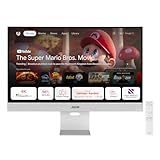
- Google TV Entertainment Platform: Features over 10,000 apps and personalized recommendations for streaming movies, TV shows, and live content
- High-Resolution 4K Display: 31.5-inch UHD (3840 x 2160) IPS HDR display with 98% DCI-P3 wide color gamut for vibrant and accurate colors
- Premium Audio Quality: Two 5-watt speakers certified by Harman Kardon deliver rich and immersive sound experience
- Extensive Connectivity Options: USB-C with 90W Power Delivery, HDMI, DisplayPort, and USB hub for versatile device connections
- Wireless Display Support: Compatible with Miracast and Chromecast for seamless wireless screen mirroring from your devices
If you need the apps you have installed, storage expansion is the documented next option. Back up the portable drive, connect the powered hub, and accept formatting only after you understand that the drive’s existing contents will be erased.
The Chromecast does not detect the USB drive or SD card
- Verify that the hub is compatible and that the charger is connected to its Power Delivery port.
- Check that the charger is rated above 1.5 A / 7.5 W.
- Confirm that the USB storage is USB 2.0 or faster.
- Disconnect other USB accessories while testing, so the hub has fewer variables to power and identify.
- Reconnect the supplied power adapter and cable if the hub’s power behavior is uncertain, then test the hub again with the charger firmly seated.
The update takes much longer than 10–12 minutes
Ten to twelve minutes is Google’s typical duration, not a guaranteed deadline. If the device remains unavailable for substantially longer, check that the charger, hub and cable have not loosened and that the network connection is working. USB-C hubs or switches can affect power capability or Power Delivery compatibility, so test without an unnecessary intermediary when possible. Do not repeatedly unplug the Chromecast while it is actively installing.
The Chromecast loses power or repeatedly restarts
Reconnect the supplied adapter and cable directly where possible. If you must replace the adapter, Google’s troubleshooting guidance specifies 5 V / 1.5 A. A hub that cannot negotiate Power Delivery correctly can produce symptoms that resemble an update problem; correcting the power path should come before repeating the update.
Use a low-risk order for future updates
Before starting another update, review installed apps and remove only those you recognize and no longer use. Then clear cached data and leave the Chromecast connected to stable power while you check All settings > System > About > System update. If the device frequently runs short of room, keep portable storage dedicated to the Chromecast and maintain a separate backup of anything on it before any reformat prompt.
This sequence separates reversible maintenance from destructive changes: temporary files first, app removal second and formatted external storage last. It also keeps power troubleshooting distinct from storage troubleshooting, making it easier to identify whether the update is blocked by capacity, connectivity or the power-delivery path.
The Tool Desk
Outbyte PC Repair FREERepair Windows errors before they cause bigger problemsFix Now →Outbyte Driver Updater FREEFix the driver behind crashes, sound loss and screen glitchesFind Drivers →Quick Recap
Product prices and availability are accurate as of the date/time indicated and are subject to change. Any price and availability information displayed on Amazon at the time of purchase will apply.

