
The Tool Desk
Outbyte Driver Updater FREEFix the driver behind crashes, sound loss and screen glitchesFind Drivers →Outbyte PC Repair FREEClear out junk files and repair common Windows errorsFree Scan →iTechGuides is reader-supported. When you buy through links on our site, we may earn an affiliate commission. As an Amazon Associate I earn from qualifying purchases. Learn more
Start with the reversible checks: push the plug fully into the jack, remove any case that blocks it, wipe the plug with a dry cloth, and inspect the cable and earbud meshes. Then check volume, mono/stereo output, and left/right balance. Finally, test the earbuds on another device and test a known-working pair on the original device. That cross-test tells you whether to troubleshoot the playback device or service or replace the earbuds.
Use this sequence before buying anything
A one-sided audio problem can come from the earbuds, the connector, the device jack, an adapter or extension, an inline remote, an app, or an audio setting. Treat the first diagnosis as a process of elimination rather than assuming the earbud is broken.
- Reseat the plug and inspect the complete earbud assembly.
- Check volume, stereo or mono output, and left/right balance.
- Remove extra links in the audio path, such as an extension cable or inline remote, and test another app or audio item.
- Cross-test the earbuds on a second playback device and a known-working pair on the original device.
- Clean the plug and meshes cautiously, using dry materials only.
- Choose service or replacement only after the fault has been isolated.
Do not begin by cutting the cable or applying liquid. Those actions can turn a connection or settings problem into permanent damage.
Recommended Free Tools
1. Reseat the plug and inspect every connection
Make a firm connection
Stop playback, unplug the earbuds, and insert the plug again until it is fully seated. A plug that is only partly inserted can leave one channel disconnected. If the device is in a case, remove the case temporarily; a thick case opening can prevent the plug from reaching the jack’s full depth. Apple includes unplugging and reconnecting the headphones among its troubleshooting steps, and Sony likewise says to make sure the plug is inserted firmly (Apple Support’s headphone troubleshooting steps; Sony’s one-sided sound guidance).
#1 Best Overall

- 3.5mm Aux Jack Wired Earbuds : L shaped right angle 3.5mm audio jack earbuds for PC/Laptop/Kindle Fire,compatible with Samsung A25/A15/S10/S9/S8/Note 9/Note 8/A13/A14/A23/A21/A30s,A52/A42/A32/A71/A51/A21,A11/A50/A20,for iPhone SE/6s/6 plus/6s Plus/6/5s/5c/5,for iPad Mini/Air,for iPod touch 5,for Android phone/tablets/Chromebook/Windows devices,for Switch/MP3/MP4 and other devices with 3.5mm audio jack
- 3 Size In-Ear Earbuds : Come with 3 sizes soft silicone eartips (L/M/S), you can choose your size for comfortable fit. Ergonomic semi in-ear earbuds design, no earpress feeling ,no pain in ears after long time wear.45 degrees into the ear, not easy to fall
- Stereo Sound Wired Headphones : Built-in high quality DAC chip 3.5mm headphones, high-amplitude, low-distortion speaker driver, carefully adjusted to bring bass details and clear mid-high pitch. Enjoy your music with it
- In-Line Control & Built-in Mic : In-line control function,you can pause/play, volume up/down, answer/ hang up the phone, wake up the voice assistant and press the shutter without picking up the phone. It is very suitable for use in multiple scenes such as work, sports, outdoor activities, etc. Newly-upgraded high-sensitivity microphone, multi-directional accurate radio, enhanced voice, and let you enjoy a clearer call
- Wired Earbuds with Case: Comes with a small pouch for storing the wired ear buds and other small items
After reconnecting, play a stereo track and check both sides. If the silent side returns when you push or slightly reposition the plug, the connection is not reliable. Do not hold the plug at an angle as a “fix”; clean the plug and inspect the jack, then repeat the cross-test below.
Inspect the plug, cable, remote and housings
Look along the cable from the plug to each earbud. Check for crushed sections, splits in the insulation, exposed conductors, or sharp bends near the plug, the inline control, and the earbud housing. Examine the inline remote or microphone housing for impact damage and make sure any detachable connection is fully joined. Inspect both speaker meshes for lint or wax that could make one side sound very quiet rather than completely silent.
Visible wear does not prove that a particular internal conductor has failed. It does, however, give you a reason to handle the cable gently and to compare behavior on another device before deciding what to repair.
2. Check the device’s audio settings and signal path
Verify volume and channel balance
Raise the device volume to a comfortable level and open its sound or accessibility settings. Look for a left/right balance control and place it in the center. A balance slider moved to one side can make the other earbud appear dead. Also check whether the device is set to mono or stereo. Sony notes that a mono source may output only through the left side and recommends checking channel levels (Sony’s wired-headphone troubleshooting guidance).
Menu names differ by operating system and device model, so use the settings search for terms such as balance, audio balance, mono audio, or left/right. If you change a setting, replay the same stereo material and note whether both channels return.
Try another app or audio item
Play a different recording, video, or local audio file. One-sided sound in a single app or recording can be part of that app’s output path or the source material, not a hardware failure. If another app plays both channels, check the first app’s own audio, accessibility, or channel controls.
Remove accessories from the path
Disconnect an extension cable, splitter, adapter, or inline remote if one is present. Connect the earbuds directly to the device. Every additional plug and socket is another possible poor contact. Sony specifically recommends trying a different source and checking the channel levels; a direct connection makes that test easier to interpret (Sony support).
If a direct connection works but the extension or adapter does not, the earbuds may be fine. Inspect or replace that accessory with one that matches the device connector and the features you need.
3. Cross-test before blaming the earbuds
The fastest reliable diagnosis uses two tests: your earbuds on a second device, and a known-working pair on the original device. Use the same stereo audio where practical, keep the volume at a safe level, and connect directly without an extension or splitter.
| Test result | Most useful interpretation | Next action |
|---|---|---|
| Your earbuds work normally on a second device. | The original device, jack, adapter, or its settings is the likely source. | Recheck balance and mono settings, remove the case or adapter, and seek service for the original device if another known-working pair also fails there. |
| A known-working pair works on the original device, but your earbuds fail on the second device too. | The original earbuds or their plug, cable, remote, or meshes are the likely source. | Clean them safely, check warranty or model-specific service, and compare repair cost with a compatible replacement. |
| Both pairs fail on the original device. | The playback device, jack, adapter, or settings remain the leading suspects. | Test another source, remove accessories, restore the channel settings, and arrange device support if the problem persists. |
| The side changes or returns only when the cable or plug moves. | The connection is intermittent somewhere in the plug, cable, remote, or jack path. | Stop flexing it to force sound; inspect for wear and use the cross-test to identify which item needs service. |
Apple states the principle directly: “To see if you need a replacement, try a second pair of headphones” (Apple Support). The second pair is a control, not merely another listening test.
4. Clean the plug and earbud meshes without adding damage
Clean the plug
Unplug the earbuds first. Wipe the metal plug with a clean, dry, lint-free cloth. Sony’s one-sided sound guidance identifies a dirty plug as a possible cause of poor connection and recommends keeping it clean with a dry cloth (Sony Support). Reconnect it fully and repeat the audio test.
PC Slower Than It Used to Be?
A free scan shows the junk files, broken settings and background clutter dragging Windows down - then fixes them in one click.Free scan · Windows 10 & 11Outdated Drivers Are Slowing You Down
One free scan finds every outdated or missing driver and matches the right update for your exact hardware.Free scan · exact hardware matchDo not pour cleaner onto the plug or jack. Do not scrape contact surfaces with a blade, pin, or other sharp object. Abrasives can damage the finish and leave particles inside the connector.
Clean the speaker meshes
For Apple EarPods, Apple instructs users to use a soft, dry, lint-free cloth and to clean the speaker meshes gently with a dry cotton swab or a clean, dry soft-bristled brush. Apple says not to run EarPods under water, let liquid enter openings, or use sharp or abrasive materials (Apple’s wired-headphone use and care instructions).
Rank #2
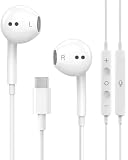
- 【Built to Last, Built for Control】: Reinforced cord resists fraying and tangling through daily use. The in-line remote puts volume, track skip, pause, and call answer/end/reject right at your fingertips — no fumbling with your phone while driving, working out, or on the move.
- 【Works with All Your USB-C Gear】: Plug-and-play with iPhone 15/16/17/18/Duo series (Pro / Pro Max / Plus), iPad Pro / Air / Mini, MacBook Pro, Galaxy S20–S26 series, Pixel series, and any device with a USB-C port. No drivers, no apps, no hassle.
- 【Secure Fit, Clear Sound】: Sleek ergonomic shape locks comfortably in your ears — no slipping mid-workout. Enhanced acoustic drivers deliver rich bass and crisp highs, while the built-in mic picks up your voice loud and clear for calls, music, and gaming.
- 【DAC Chip Zero Audio Glitches】: Built-in high-res DAC chip pumps out crystal-clear sound with no buzzing, static, or popping. Metal-plated connector resists poor contact and corrosion, and the 3.3 ft (1 m) cord gives you room to move.
- 【2-Pack Value + 36-Month Peace of Mind】:You get 2 pairs of USB-C earphones — keep one at home, one at work, or share with family. If anything goes wrong within 36 months, we replace it free. Message us on Amazon anytime; we reply fast and make it right.
For another brand or model, follow that model’s care instructions. Hold the earbud with the mesh facing downward when practical, brush lightly, and stop if debris will not loosen easily. Never push material deeper into the mesh. Cleaning can restore a muffled channel, but it cannot repair a severed conductor or a failed speaker.
5. Separate “silent” from “much quieter”
If one side is completely silent
Prioritize the plug and jack seating, balance and mono settings, the cross-test, and the condition of the cable and inline control. A fully silent channel can be caused by a bad contact at any point in the path, so the two-device test is more informative than repeatedly plugging and unplugging the same pair.
If one side is only quieter
Check the balance control first, then inspect and clean the quieter earbud’s mesh with dry tools. Try another audio item to rule out source material. If the imbalance follows the earbuds to another device while a known-working pair is balanced on both devices, treat the earbuds as the likely fault.
Do not compensate indefinitely by moving the balance slider. That masks the symptom and leaves you without a centered stereo image when you use another pair.
6. Decide whether the device needs help
If your earbuds work normally on another phone, player, or computer, concentrate on the first device. Recheck its balance and mono settings, test without its case, and connect directly rather than through an adapter or extension. Then try a known-working pair on that device. If both pairs behave incorrectly there, the jack, adapter, or device audio path needs attention.
A device jack can be obstructed or mechanically worn, but do not insert sharp tools or liquid into it. Use the device maker’s cleaning and service instructions. If the fault remains after the settings and cross-tests, arrange support for the device instead of buying another earbud pair.
What’s actually slowing this PC down?
Pick the symptom - the matching free tool is one click away.
7. Decide whether the earbuds need service or replacement
When service is the sensible next step
If the fault follows the earbuds across devices, check the manufacturer’s warranty and model-specific service options. Keep the purchase information and model number available. Manufacturer support may be able to confirm whether the model is serviceable and what inspection or repair involves. Sony says unresolved one-sided sound may require service; Apple advises contacting support if its troubleshooting steps do not solve the problem (Sony Support; Apple Support).
Why generic soldering instructions are a poor default
Wired earbuds use small conductors, strain reliefs, molded housings, and model-specific wiring. The cited manufacturer guidance does not establish a universal internal-cable repair method. Opening a housing can destroy water or strain protection and can void warranty coverage. Unless you have model-specific documentation and the equipment and skill to work safely, compare an authorized repair with replacement rather than following a generic soldering diagram.
When replacement is reasonable
Replacement makes sense after the cross-test shows that the earbuds are the failing item and service is unavailable, uneconomical, or impractical. Choose a compatible model rather than assuming every wired earbud will work with every device. Preserve the working pair until the replacement is confirmed; it remains useful as a control for future troubleshooting.
8. Match the replacement to the device
Check the physical connector and the functions you need before ordering. Apple documents wired EarPods with 3.5 mm, Lightning, and USB-C connectors, and it documents adapters that connect 3.5 mm headphones to compatible Lightning or USB-C devices (Apple’s wired-headphone documentation). Those examples do not mean that every connector or adapter works with every device; verify the requirements for your specific hardware.
Do these 3 things before closing this tab:
1Clear out junk files and repair common Windows errors2Scan for outdated or missing drivers - takes under a minute3Repair Windows errors before they cause bigger problems| Connection choice | What to verify | Feature check |
|---|---|---|
| 3.5 mm earbuds | That the device has a compatible 3.5 mm jack, or that its adapter supports 3.5 mm headphones. | Confirm microphone and inline-control support if you use calls, playback buttons, or volume controls. |
| Lightning earbuds | That the device has a compatible Lightning port and supports the intended accessory. | Check whether the model provides the microphone and controls you require. |
| USB-C earbuds | That the device’s USB-C port supports the required audio accessory behavior. | Verify microphone, remote, and control compatibility rather than relying on the plug shape alone. |
| 3.5 mm earbuds through an adapter | That the adapter matches the device port and is intended for audio output. | Confirm whether the adapter passes microphone and inline-control signals. |
The evidence available here does not establish any individual listing, price, stock status, or product performance. Treat connector fit and feature compatibility as requirements to verify, not as guarantees from the connector name alone.
9. Prevent a repeat failure
- Insert and remove the plug by its connector, not by pulling the cable.
- Keep the plug dry and wipe it with a dry cloth when it becomes dirty.
- Store the cable in loose loops instead of tight bends, especially near the plug and inline remote.
- Keep earbud meshes dry and clean them with the gentle, dry method specified for the model.
- Use a case opening that allows the plug to seat fully; remove a restrictive case during diagnosis.
- When an adapter or extension is necessary, check both ends for a firm connection and test it separately if sound becomes intermittent.
These habits reduce stress and contamination, but they cannot guarantee that a small internal component will never fail.
10. A compact decision checklist
- Reseat: unplug, remove a blocking case, and insert the plug fully.
- Inspect: check the plug, cable, inline remote, earbud housings, and meshes for wear or debris.
- Settings: center left/right balance, check mono or stereo output, and raise volume safely.
- Source: try another app or audio item and connect directly without an extension or remote.
- Cross-test: use the earbuds on a second device and a known-working pair on the original.
- Clean: use only dry, soft materials and never add liquid, sharp tools, or abrasives.
- Act: pursue device support when the fault stays with the device; pursue earbud warranty, service, or a compatible replacement when the fault follows the earbuds.
This sequence answers the central question—how to fix wired earbuds that work in only one ear—without guessing which component failed. It also prevents a working pair of earbuds from being discarded because of a balance setting, dirty plug, blocked case opening, or faulty adapter.
Quick Recap
Product prices and availability are accurate as of the date/time indicated and are subject to change. Any price and availability information displayed on Amazon at the time of purchase will apply.
Quick wins for a faster PC:
Clear out junk files and repair common Windows errorsFree Scan →Fix the driver behind crashes, sound loss and screen glitchesFind Drivers →
