
Recommended Free Tools
iTechGuides is reader-supported. When you buy through links on our site, we may earn an affiliate commission. As an Amazon Associate I earn from qualifying purchases. Learn more
Most WH-CH720N connection problems come from a busy or stale Bluetooth connection rather than a failed headset. Start by putting the headphones and the intended phone or computer within 1 m, stopping any connection to another device, and restarting the source. If that does not work, remove the saved WH-CH720N entry and pair again. Only after those steps should you initialize the headphones, because initialization restores factory settings and erases every saved pairing.
Understand what is failing: pairing or connection
Pairing is the one-time exchange that saves the WH-CH720N in a phone, tablet, or computer’s Bluetooth list. Connection is the active Bluetooth link used for calls and audio. A headset can appear in a saved-device list yet fail to connect, or it can connect briefly and then drop.
The headphones can also be connected to a different source than the one you are trying to use. While the WH-CH720N is connected to one source, another source may not be able to take over until the first connection is canceled. Turn Bluetooth off on the other phone, tablet, or computer, or disconnect the headset there before troubleshooting the intended device.
Do these 3 things before closing this tab:
1Clear out junk files and repair common Windows errors2Scan for outdated or missing drivers - takes under a minute3Repair Windows errors before they cause bigger problemsUse this least-disruptive troubleshooting order
| Step | What it targets | What gets erased | When to use it |
|---|---|---|---|
| Check distance, power, and competing connections | Basic range, source, and connection conflicts | Nothing | Every problem |
| Restart the phone or computer | Temporary Bluetooth or audio-routing faults | Nothing | Pairing fails or the headset is missing |
| Forget the WH-CH720N and pair again | Corrupted or stale source-side pairing data | The saved entry on that source | It was paired before but will not reconnect |
| Reset or check connection settings | Abnormal operation and dropout conditions | Depends on the operation | Simpler pairing steps did not help |
| Initialize the headset | Persistent software or setting problems | All headset settings and pairing information | Last self-service step before support |
After forgetting a device or initializing the headphones, pairing is required again. Deleting a Bluetooth entry does not repair the headset by itself.
#1 Best Overall
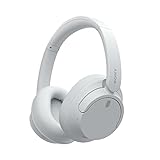
- SONY’S LIGHTEST WIRELESS NOISE CANCELING HEADBAND EVER: Weighing just 192g, our lightest overhead wireless headphones with Noise Canceling yet, for incredible comfort without compromising on technology.
- DUAL NOISE SENSOR TECHNOLOGY: Take noise canceling to the next level with Sony’s Integrated Processor V1, so you can fully immerse yourself in the music.
- ALL DAY COMFORT: Super comfortable and lightweight design.
- SMART FEATURES: Adjustable Ambient Sound mode and Adaptive Sound control features tailors sound to suit the environment around you.
- LONG BATTERY LIFE: Up to 35-hour battery life with quick charging (3 min charge for up to 1 hour of playback).(USB Type-C Cable included)
1. Check the connection context first
Keep both devices close while pairing
- Turn on the WH-CH720N and the phone or computer.
- Enable Bluetooth on the source device.
- Place the headphones within 1 m (about 3.2 ft) of the source while pairing.
- Move away from busy wireless environments and other nearby Bluetooth devices while you test.
The 1 m instruction is Sony’s troubleshooting distance for pairing, not a published maximum Bluetooth range or a guarantee of performance at any particular distance.
Cancel a connection to another source
Think about every device that has used the headphones recently. A phone in a bag, a tablet, and a work computer may all have the WH-CH720N saved. On each unwanted source, disconnect the headphones or switch Bluetooth off temporarily. Then try connecting from the device you actually want to use.
If the headphones connect to one device but not another, that pattern points first to the second device’s saved Bluetooth record, Bluetooth service, or audio settings. It does not by itself prove a hardware fault in the headset.
Restart the source device
Restart the phone, tablet, or computer before deleting anything. A restart clears a temporary Bluetooth service failure and is especially useful when the WH-CH720N does not appear in the scan list, connects without audio, or drops immediately after the source wakes from sleep.
Check the computer’s audio endpoint
On a computer, Bluetooth can show the headset as connected while the operating system sends sound to built-in speakers, a monitor, or another output. Open the computer’s sound-output selector and choose the WH-CH720N headset or headphones endpoint. Menu names differ among Windows, macOS, and individual Linux environments, so use the current audio-output control for your operating system rather than assuming a particular label.
For calls, also check the calling app’s microphone and speaker selections. A successful Bluetooth connection does not automatically make every application use the headset.
2. Put the WH-CH720N back into pairing mode
Pairing a second or later device
When the headphones have already been paired with another device, hold the WH-CH720N power button for about five seconds to enter pairing mode. Keep the intended phone or computer within 1 m and open its Bluetooth device list. Select the WH-CH720N when it appears.
A short press turns the headset on; it does not necessarily start a new pairing attempt. The approximately five-second hold is the model-specific procedure Sony gives for pairing another device.
If the name never appears
- Confirm Bluetooth is enabled on the source and that the headphones are powered on.
- Turn Bluetooth off on another source that may still be connected.
- Restart the source and repeat the approximately five-second power-button hold.
- Move within 1 m and temporarily separate the setup from other active wireless equipment.
If the source still shows an old WH-CH720N entry but will not connect, continue with the forget-and-pair procedure instead of repeatedly tapping the old entry.
3. Forget the old Bluetooth entry and pair from scratch
Remove the saved record
Open the source device’s Bluetooth settings, select the saved WH-CH720N entry, and choose the option labeled Forget, Remove, Unpair, or equivalent. The exact wording varies by operating system. Remove only the WH-CH720N record you are troubleshooting; other Bluetooth accessories do not need to be deleted.
Rank #2

- SONY’S LIGHTEST WIRELESS NOISE CANCELING HEADBAND EVER: Weighing just 192g, our lightest overhead wireless headphones with Noise Canceling yet, for incredible comfort without compromising on technology.
- DUAL NOISE SENSOR TECHNOLOGY: Take noise canceling to the next level with Sony’s Integrated Processor V1, so you can fully immerse yourself in the music.
- ALL DAY COMFORT: Super comfortable and lightweight design.
- SMART FEATURES: Adjustable Ambient Sound mode and Adaptive Sound control features tailors sound to suit the environment around you.
- LONG BATTERY LIFE: Up to 35-hour battery life with quick charging (3 min charge for up to 1 hour of playback).(USB Type-C Cable included
Restart the source after removing the entry. This gives the operating system a clean Bluetooth discovery session.
The Tool Desk
Outbyte PC Repair FREEClear out junk files and repair common Windows errorsFree Scan →Outbyte Driver Updater FREEFix the driver behind crashes, sound loss and screen glitchesFind Drivers →Pair again
- With the WH-CH720N switched on, hold the power button for about five seconds to enter pairing mode.
- Keep the headset and source within 1 m.
- Open the source’s Bluetooth list and select WH-CH720N.
- Accept the pairing request if the source displays one.
- Play a short audio clip and verify that the output is routed to the headphones.
After this process, the source has a new pairing record. If you initialized the headset, repeat these steps for every phone, tablet, or computer you want to use; initialization removes all headset-side pairing information.
Why this step matters after repair or initialization
Sony notes that a source-side record saved before initialization or repair can prevent pairing again. The headset may have returned to factory settings while the phone or computer still holds outdated information. Removing the old entry on the source and creating a new pairing resolves that mismatch.
4. Fix repeated disconnections and dropouts
Test at close range
Use the headphones next to the source for the first dropout test. If the connection is stable nearby but fails as you move through a room, distance, obstructions, or local radio congestion may be contributing. Do not use a crowded public space as the only test environment: Sony identifies crowded places and nearby wireless sources as situations where Bluetooth interference can occur.
Temporarily move away from Wi-Fi access points, other active Bluetooth equipment, and densely occupied wireless areas. This is a diagnostic change, not a promise that every dropout has an interference cause.
Free tools Windows power users keep installed
One-click scans. No signup required.
Check whether two-device use is involved
The WH-CH720N can be used with two devices, but simultaneous connections can make it unclear which source currently owns the audio link. Stop playback and close the media application on the first device when you need audio from the second. Also check which device is shown as connected before pressing play.
For a clean test, disconnect the headset from the second device and use only one source. If dropouts stop, reconnect the devices one at a time and observe which connection or playback transition triggers the problem.
Review Sound Connect’s connection-quality setting
Sony’s Sound Connect app includes a connection-quality setting intended to favor a more stable connection. If the app is installed and the headphones are connected, open the WH-CH720N controls and check that setting. Treat it as an option to test, not a guaranteed cure: the setting cannot correct a source that is out of range, connected elsewhere, routing audio incorrectly, or retaining damaged pairing data.
Separate Bluetooth loss from audio-app problems
When a dropout occurs, look at the source’s Bluetooth status. If the WH-CH720N remains connected but the app pauses or becomes silent, test another app and verify the selected output. If the source reports that the headset disconnected entirely, focus on range, competing connections, pairing records, and initialization instead.
Quick wins for a faster PC:
Repair Windows errors before they cause bigger problemsFix Now →Scan for outdated or missing drivers - takes under a minuteDriver Scan →5. Reset before you initialize
Reset and initialization are not interchangeable. A reset is the less disruptive recovery action for abnormal operation. Initialization is the factory-restore procedure and deletes pairing information. Sony’s WH-CH720N Help Guide directs owners to initialize if the headset still does not operate correctly after resetting.
Rank #3
- This Certified Refurbished product is manufacturer refurbished, shows limited or no wear, and includes all original accessories plus a 90-day limited hardware warranty.
- Dual Noise Sensor Technology and an Integrated Processor V1 takes noise cancelling to the next level. Now you can fully immerse yourself in the music.
- Featuring a slimmer, lightweight headband, these headphones have been re-structured to create more space and comfort for the ears.
- Adjustable Ambient Sound mode offers 20 level settings. You’ll be able to listen to your music with incredible sound quality while still hearing sounds like traffic noise, café conversations, and transport announcements.
- Keep your music playing all day with a battery life that delivers up to 35 hours of power.
Because the exact reset action can depend on the symptom and the guide version, follow the reset instruction in the WH-CH720N Help Guide for your region. Do not substitute a button combination from a different Sony headphone model.
Independent reader supportYour contribution helps us test, update, and keep practical guides available for everyone.6. Initialize the WH-CH720N only when simpler steps fail
What initialization changes
- Headset settings return to factory defaults.
- Pairing information stored in the headset is deleted.
- Every phone, tablet, or computer must be paired again.
- The USB-C cable must be disconnected during the procedure.
Initialization is appropriate when the headset remains abnormal after source restart, fresh pairing, and the applicable reset. It is not the first response to a single computer’s audio-selection mistake.
Model-specific initialization procedure
- Switch the WH-CH720N off.
- Disconnect the USB-C cable. Do not perform the procedure while the headset is charging.
- Press and hold the power button and the play/call button together for about 10 seconds or longer.
- Release the buttons after the indicator flashes blue four times, which indicates completion.
The WH-CH720N uses the power-plus-play/call combination described above. Do not use a generic noise-canceling-button combination copied from another Sony model.
Pair again after initialization
- On each phone or computer that previously used the headset, remove the old WH-CH720N Bluetooth entry.
- Restart the source device.
- Hold the WH-CH720N power button for about five seconds to enter pairing mode.
- Keep the devices within 1 m and select WH-CH720N in the Bluetooth list.
- Play audio and make a test call before adding another source.
If pairing succeeds with one source but fails with another, troubleshoot the second source separately rather than initializing the headset repeatedly.
Check firmware and app listings without assuming an update is the fix
Sony’s US model-support listing showed WH-CH720N firmware version 1.1.4, with a release date of December 9, 2025, when checked on October 13, 2026. The same US listing showed Sony | Sound Connect dated September 30, 2026. These are support-page listings, not evidence that installing an update will resolve every connection failure.
Firmware and app availability can vary by country and region. Open the support page for your own WH-CH720N model and region to see the current versions and installation instructions. Keep the headset charged and follow Sony’s update requirements if you choose to update. Do not interrupt an update or disconnect the headset during the process.
Use the symptom to choose the next step
| Symptom | Most useful next action | Reason |
|---|---|---|
| The headset does not appear in Bluetooth search | Cancel other connections, restart the source, then hold power for about five seconds | The headset may not be in pairing mode or may be occupied by another source |
| The source shows WH-CH720N but connection fails | Forget the saved entry, restart the source, and pair again | The source record may be stale |
| It connects but there is no sound | Select WH-CH720N as the computer or phone audio output | Bluetooth connection and audio routing are separate |
| Audio cuts out near other wireless equipment | Move close to the source and test away from crowded wireless areas | Local interference can affect Bluetooth |
| It drops when switching between two devices | Stop playback on the first source and test one device at a time | The active connection may still belong to the first source |
| It remains faulty after fresh pairing | Use the model-specific initialization procedure | Initialization clears headset settings and pairing data |
| It still fails after initialization and fresh pairing | Contact Sony support or arrange service | Further diagnosis requires the device and purchase details |
When to stop troubleshooting and contact Sony
Escalate when the WH-CH720N still will not operate correctly after initialization and a clean pairing attempt, especially if the same behavior occurs with more than one known-good phone or computer. Sony provides model support, repair information, and contact options for this headset.
Describe the steps already completed, whether the headset appears in Bluetooth scans, whether it works with any source, and whether the indicator showed four blue flashes during initialization. Keep your purchase information available. Do not assume a failed Bluetooth chip, battery, or warranty outcome without an inspection.
Common mistakes that make the problem persist
- Trying to pair while another source remains connected: disconnect the other source first.
- Using the old saved entry after initialization: forget it and create a new pairing.
- Holding the wrong button combination: the WH-CH720N initialization uses power plus play/call.
- Checking only the Bluetooth list on a computer: select the headset as the active audio endpoint too.
- Repeating initialization without removing the source record: the phone or computer can continue presenting stale information.
- Calling every brief silence a Bluetooth disconnect: check whether the operating system still reports the headset as connected and test another app.
- Assuming an update guarantees a cure: firmware and app updates are worth checking, but Sony’s listings do not promise a fix for every individual connection problem.
Final decision path
For a WH-CH720N that will not connect, start within 1 m, verify Bluetooth and power, cancel other connections, restart the source, and enter pairing mode with a roughly five-second power-button hold. If the headset was previously paired, forget its entry and pair it again. For recurring dropouts, test one source at a time, reduce nearby wireless congestion, and review Sound Connect’s connection-quality setting. If those measures and the model-specific reset do not restore normal operation, initialize with the power-plus-play/call procedure, remove the old source record, and pair afresh. Persistent failure after that sequence is the point to use Sony support or repair rather than guessing at a hardware diagnosis.
Quick Recap
Product prices and availability are accurate as of the date/time indicated and are subject to change. Any price and availability information displayed on Amazon at the time of purchase will apply.

