
iTechGuides is reader-supported. When you buy through links on our site, we may earn an affiliate commission. As an Amazon Associate I earn from qualifying purchases. Learn more
A quiet Astro microphone is often caused by a muted or loose connection, the wrong input selection, an incompatible MixAmp mode, or microphone settings that suppress speech. Check the physical mute and cable first, then record a test outside your usual chat app. That comparison helps show whether the problem follows the headset or is limited to the MixAmp, platform, or app.
1. Check mute state and cable connections
- Check the boom mic. Make sure it is in its active, unmuted position. On models with a flip-to-mute boom, move it into the speaking position.
- Check any inline mute control. Make sure it is not engaged. Logitech’s A40 TR and MixAmp TR troubleshooting guidance says the inline mute button should not be showing red.
- Reseat the plugs. Unplug and reconnect the headset and MixAmp connections, where applicable, until they are fully seated. The A40 TR troubleshooting guide recommends checking that cable ends have clicked into place.
Make a short recording after these checks. If the mic is still quiet, move on to isolating the source rather than changing several settings at once.
2. Test the headset outside your usual chat setup
When your model allows it, disconnect the headset from the MixAmp and connect it directly to another suitable device. Use a voice memo or call, or record a short sample on a computer and listen back. Follow the A40 TR guide’s recording check: speak with the boom active, then switch it to mute during the recording to confirm that the mic responds.
What’s actually slowing this PC down?
Pick the symptom - the matching free tool is one click away.
If a direct test sounds clear but people hear you quietly in one game or chat app, check that app’s selected microphone and input level. If the mic remains quiet in direct tests on more than one compatible device, inspect the boom and cable for damage and, where possible, try another compatible headset with the MixAmp. These comparisons help narrow down which part of the setup the fault follows; they do not, by themselves, prove a component is defective.
#1 Best Overall
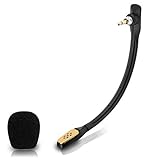
- Compatible with Astro A40 / A40 TR gaming headset on PlayStation 5, PlayStation 4, PC, Mac, computer, phone
- A40 TR mike allows you to position the microphone closer to the mouth for maximum voice clarity
- Detachable Boom mic with a wind foam replace your broken or lost gaming headphone microphone
- Gold plated plug - reduce loss and improve sound quality
- Soft silicone covers the metal hose - Bendable, durable, and not easy to break
3. Adjust microphone input and noise gate, if supported
Astro microphone controls vary by headset generation and software. Logitech’s Astro Series Software page lists Astro Command Center for full configuration of MixAmp Pro TR Gen 3 and Gen 4 and A50 Gen 3 and Gen 4. Check the current software information for your exact device rather than assuming every Astro headset uses the same utility.
Set input level for clear speech
Where the software offers a microphone input control, raise it only enough for normal speech to register clearly. Listen to a test recording as you adjust it: excessive input can distort your voice, while too little can leave it hard to hear. Sync or apply the configuration to the device if the software provides that option for your model.
Rank #2

- Genuine Astro Gaming part. In original manufacturer's packaging.
- Replacement microphone for black A40 TR headsets.
- All A40 TR headsets ship with this microphone, so this should only be purchased if you need a replacement.
Use a noise gate that does not cut off words
A noise gate suppresses quieter sound. If it is too aggressive, it can suppress quiet words or the beginnings of words, making speech sound choppy. Logitech identifies this as a possible cause of unclear speech on supported A50 and A50 X setups in its A50/A50 X microphone guidance.
Do not assume one preset is right for every headset or room. The A40 TR troubleshooting guide specifically instructs MixAmp Pro users to open the Microphone tab, select the “Streaming” Noise Gate, and sync the setting. Treat that as a model-specific instruction, not a universal recommendation for every Astro mic.
Rank #3

- Mic accessories parts compatible with Astro A40 and Astro A40 TR wireless gaming headphone
- Omnidirectional microfono, built-in noise cancellation, high sensitivity
- Attachment game mic with TR 2 conductors gold-plated plug; Removable foam cover pop filter
- Flexible, bendable, and kept in the stable boom, the length is 5.9 inches (15 centimeters)
- Come with 1pcs black 3.5mm microphone and 1pcs mic windscreen
4. Confirm MixAmp mode and microphone routing
Match MixAmp mode to the platform
For the A40 TR and MixAmp TR configurations covered by Logitech’s support guidance, use Console Mode for console use and PC Mode for PC use. Check the power-button light against the instructions for your model; mode indicators and behavior may not apply to other Astro generations.
Select the Astro mic in both the system and app
On a computer, verify that the intended Astro device is selected as the microphone in the operating system and separately in the game or voice-chat app. Many apps have their own input-device setting, so a system default alone may not determine which mic the app uses. Menu names vary across platforms and app versions.
Rank #4

- Genuine Astro Gaming part. In original manufacturer's packaging.
- Replacement microphone for white A40 TR headsets.
- All A40 TR headsets ship with this microphone, so this should only be purchased if you need a replacement.
5. Decide whether a component needs attention
| What the test shows | Where to focus next |
|---|---|
| The mic becomes clear after changing mute state or reseating a plug | The mute control or connection was affecting the signal; use the setup normally and check that the plugs remain seated. |
| The mic works directly on another device but is quiet through the MixAmp | Check the MixAmp mode, connections, and supported microphone settings. |
| The mic is clear in a direct recording but quiet in one app | Check that app’s selected input device and microphone level. |
| The mic stays quiet in direct tests across suitable devices | Inspect the removable mic and cable for damage, and test another compatible device or headset if available before replacing parts. |
If testing points to a failed removable A40 microphone boom, a replacement may be appropriate, but compatibility depends on the exact headset generation and connector. Confirm both before buying; the troubleshooting guide’s removal instructions do not establish compatibility across generations. If the evidence instead points to the MixAmp or the fault remains unresolved, use the official support route for your model.
Do these 3 things before closing this tab:
1Repair Windows errors before they cause bigger problems2Fix the driver behind crashes, sound loss and screen glitches3Clear out junk files and repair common Windows errorsThese instructions are conditional because “Astro mic” can mean different A40 or A50 generations, with or without a MixAmp, and different platforms and chat apps. Logitech’s software information and support pages were checked on October 7, 2026; software availability and platform menus can change.
Quick Recap
Best Value

- Astro A40 TR Wired Mic Boom: Fit perfectly for Logitech Astro A40 TR Wired Headsets Headphones.
- 100% Brand New: The replacement gaming mic 3.5mm is made of high quality materials, gold 3.5mm on the end. It's a good choice to replace your broken or lost gaming headphone mics.
- Non-original but a replacement: Please note it's NOT original but the detachable Replacement 3.5mm microphone boom.
- Package Included: 1 X 3.5mm Astro A40 TR Mic Replacement.
- After Service: WE CONTINUE TO develop more professional headphone accessories for Logitech Astro. Please contact us for replacements or refunds if there is an issue with your purchase.
Product prices and availability are accurate as of the date/time indicated and are subject to change. Any price and availability information displayed on Amazon at the time of purchase will apply.

