
Free tools Windows power users keep installed
One-click scans. No signup required.
iTechGuides is reader-supported. When you buy through links on our site, we may earn an affiliate commission. As an Amazon Associate I earn from qualifying purchases. Learn more
A choppy screen is not automatically a defective display. First confirm that your exact phone model supports 120 Hz, then check its high-refresh setting, Battery Saver or Power saving, display resolution, and whether the problem is limited to one app. A phone can support 120 Hz yet use a lower rate automatically for static content, restricted battery modes, unsupported resolutions, or apps that do not render frames quickly enough.
Use the sequence below before considering repair. It separates a normal adaptive-refresh change from a configuration problem, an app problem, and a possible hardware fault.
Understand what “120 Hz” actually means
Refresh rate is how often the display panel can update its image. A 120 Hz panel can refresh up to 120 times per second, which can make scrolling and animations look smoother than on a 60 Hz panel. Frame rate is different: it is how many new frames the phone’s processor and software actually render. If an app produces 60 frames per second, a 120 Hz panel cannot create the missing motion detail.
Modern Android phones may use adaptive refresh. The system changes the display rate according to content, power conditions, and the phone’s implementation. A static page may therefore run below 120 Hz by design, while a fast scroll can trigger a higher rate. Android’s adaptive-refresh documentation describes this behavior as dependent on supported hardware and software implementations. A reading below 120 Hz is not, by itself, proof of failure.
#1 Best Overall

- Carrier: This phone is locked to Tracfone, which means this device can only be used on the Tracfone wireless network. Tracfone plan required, activating is easy, just 3 steps.
- DISPLAY: Immersive viewing on a 6.7-inch super-bright 120Hz display with powerful stereo speakers and Bass Boost for cinematic entertainment.
- CAMERA SYSTEM: Advanced 50MP Quad Pixel camera captures sharp, detailed photos and videos in any lighting condition
- PERFORMANCE: Lightning-fast 5G connectivity paired with a powerful processor and RAM Boost for smooth multitasking.
- BATTERY LIFE: Long-lasting 5000mAh battery with TurboPower charging technology delivers hours of power in minutes.
Touch response is another separate issue. A screen protector or touch-sensitivity setting can matter when taps or swipes are not registered, but it does not make a supported refresh mode run at 120 Hz. Diagnose visual stutter and unresponsive touch as separate symptoms.
1. Verify the exact phone model and its maximum rate
A 120 Hz setting cannot be enabled on a phone whose panel does not support it. Check the model name in Settings > About phone, on the original packaging, or in the manufacturer’s support information. Include the storage, carrier, and regional variant when the manufacturer lists different capabilities by version.
Official support pages provide examples rather than a complete catalog. Samsung identifies selected Galaxy models, including the Galaxy S24, as supporting up to 120 Hz. Google’s Pixel specifications show that Pixel 7 and Pixel 7a support up to 90 Hz, Pixel 7 Pro supports up to 120 Hz, Pixel 8 supports 60–120 Hz, and Pixel 8 Pro supports 1–120 Hz. Those figures are model-specific examples; verify your own model before treating a missing option as a fault.
| Phone example | Documented display range or maximum | What it means for troubleshooting |
|---|---|---|
| Galaxy S24 | Up to 120 Hz | Look for the model’s Motion smoothness controls; the available choices depend on the device and software. |
| Pixel 7 | Up to 90 Hz | A 120 Hz option is not expected on this model. |
| Pixel 7a | Up to 90 Hz | A choppy appearance cannot be fixed by enabling 120 Hz because the panel’s documented maximum is lower. |
| Pixel 7 Pro | Up to 120 Hz | Check Smooth Display and power restrictions. |
| Pixel 8 | 60–120 Hz | The system can select a rate in that range rather than staying at 120 Hz constantly. |
| Pixel 8 Pro | 1–120 Hz | The very low minimum is part of its variable-refresh design; lower readings during static content can be normal. |
Do not infer capability from a retailer listing, a benchmark screenshot, or another phone with a similar name. The exact panel, software build, and region determine which controls appear.
2. Turn on the phone’s high-refresh mode
Samsung Galaxy: Motion smoothness
Open Settings and search for Motion smoothness. On supported Galaxy devices, Samsung describes choices such as Standard, High, and Adaptive. Standard is described as 60 Hz; High or Adaptive can provide a higher rate when the model supports it. The names and available choices vary by Galaxy model, software version, and region.
If Motion smoothness is missing, greyed out, or offers only Standard, return to the model check first. A power-saving mode or a resolution selection can also remove the higher-rate choice. Do not assume that selecting High forces every application to deliver 120 frames per second: the app still has to render frames, and the system can adjust an adaptive mode.
Google Pixel: Smooth Display
On a compatible Pixel, open Settings > Display & touch and inspect Smooth Display. Turn it on, then test scrolling in Settings itself. Pixel menu labels can change with Android releases, so use Settings search if the item is not where expected.
Smooth Display is a policy, not a promise that every frame will be 120 Hz. A Pixel with a documented 60–120 Hz or 1–120 Hz range may lower the rate for static content or power management while still operating normally.
3. Disable power restrictions while testing
Power-saving features are one of the quickest explanations for a phone that suddenly looks less smooth. Samsung says Power saving can set the display to Standard. Google says Battery Saver disables Smooth Display on Pixel phones.
Rank #2
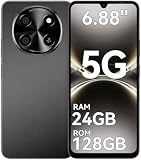
- 【Love at First Sight · Ultra-thin Flagship】 Packing a 6.88" giant screen into an 8.45mm, 209g "supermodel body"—we're 11% thinner and 18% lighter than ordinary smartphones, yet give you a larger viewing area. The aerospace-grade aluminum frame and double-sided hot-bent glass create a mirror-like finish when light shines through. It won't bulge in your jeans pocket. Among phones weighing over 200g, it's the lightest large-screen flagship; among phones with screens over 6.8" in size, it's a compact camera that can be easily swiped with one hand. So lightly you almost forget you're carrying it, so beautiful you can't help but take a second look—that's why you should choose it.
- 6.88-inch 120Hz Scratch-Resistant Screen: This unlocked phone's large 6.88-inch screen with an ultra-high 120Hz refresh rate allows for incredibly smooth video streaming and gaming, making every interaction seamless. The screen automatically adjusts brightness based on your surroundings, and Eye Care mode provides optimal visibility to protect your eyes. These mobile phones feature facial recognition unlocking and a fingerprint unlock button on the right side of the phone, giving you the added convenience of a large screen. This 5G Phone is made of scratch-resistant, durable Panda Glass. It also features dual speakers for excellent sound quality.
- Enjoy Smooth 5G Chipset and Extensive Memory: This android phone unlocked is equipped with 5G technology and features the UMS9620 5G chip, a significant leap in quality and performance. It delivers lightning-fast connection speeds for a smooth browsing and gaming experience. This 5G phone unlocked features 24GB (8+16) RAM and 128GB (expandable up to 2TB) internal storage, along with an octa-core processor, ensuring exceptional speed and efficiency. It easily handles multitasking and stores all your favorite content, meeting all your mobile needs. The smooth performance also allows for quick data transfers, allowing you to experience your new phone as quickly as possible.
- The popular NFC function also works with Google Pay, making everyday payments incredibly convenient. Features like OTG reverse charging, wireless Bluetooth, GPS, dual SIM dual standby, and fast USB transfer ensure you're always connected to the best-in-class functionality.
- AI 16MP+8MP Cameras for Capturing Wonderful Life: The 5G Android phone features a 16MP rear camera and an 8MP front camera, rear camera can zoom in ten times. Whether capturing landscapes or selfies, this unlocked cell phone makes capturing stunning photos a breeze, and it also supports fast face unlock. Furthermore, these Android phones offer a variety of shooting modes, including Portrait, Night, Panorama, and Pro, to suit different shooting scenarios. 1080P video recording transforms everyday moments into captivating videos. Explore more AI photography features as you go, ensuring a unique experience.
- Open the phone’s battery settings and note whether Power saving, Battery Saver, or an automatic battery schedule is active.
- Temporarily turn the feature off.
- Return to Motion smoothness or Smooth Display and test the same scroll or animation again.
- If the higher-rate behavior returns, decide whether smoother motion is worth the additional battery use before leaving the setting disabled.
Test with the phone sufficiently charged as well. The documented restrictions come from the power-management mode itself; do not install a “booster” utility or delete files expecting it to override the operating system’s policy.
4. Check resolution restrictions on Galaxy phones
On some Galaxy models, selecting WQHD+ resolution causes the phone to switch to Standard refresh. Samsung documents this as a model-specific limitation, not a rule for every Galaxy device.
The Tool Desk
Outbyte PC Repair FREEClear out junk files and repair common Windows errorsFree Scan →Outbyte Driver Updater FREEScan for outdated or missing drivers - takes under a minuteDriver Scan →- Open Settings > Display > Screen resolution if your model provides that control.
- Record the current resolution before changing it.
- If WQHD+ is selected and Motion smoothness is limited to Standard, choose a resolution that the model permits with High or Adaptive refresh.
- Recheck Motion smoothness and repeat the same scrolling test.
If your phone does not expose a resolution control, this particular limitation may not apply. Do not lower resolution on the assumption that it will unlock 120 Hz on every brand or model.
5. Determine whether one app or the whole system is affected
A useful test is to compare system navigation with several unrelated apps. Scroll through Settings, a browser, and at least one other app, using the same gesture speed and brightness. Also test an animation such as opening and closing the app drawer.
- Only one app stutters: the app may be rendering slowly, using an incompatible frame-rate policy, or reacting badly to a particular workload. Update it, force-close it, restart the phone, and check the app developer’s support information.
- Several apps stutter but system Settings is smooth: check for a common background workload, an overlay, or a system-wide battery restriction before blaming the panel.
- Settings and multiple apps stutter: continue with the power, resolution, restart, update, and diagnostic checks below.
Samsung’s support case about stuttering in adaptive 120 Hz on certain applications lists third-party app optimization and power-intensive tasks such as camera or recording activity as possible factors for that Galaxy S20 FE case. Treat those explanations as case-specific, not as a universal diagnosis for every phone.
6. Check workloads that can make motion appear uneven
Close a camera, screen recorder, video editor, game, navigation session, or other demanding task, then test again. A phone that is busy encoding video or maintaining a heavy game workload may not render a smooth stream in another app. This test does not prove that the display is defective; it shows whether the symptom follows a particular workload.
Quick wins for a faster PC:
Repair Windows errors before they cause bigger problemsFix Now →Scan for outdated or missing drivers - takes under a minuteDriver Scan →Remove any floating windows or overlays temporarily, including accessibility controls, game panels, or recording controls. Re-enable them one at a time only after the baseline test is smooth. The purpose is isolation: change one condition, repeat the same gesture, and note whether the symptom changes.
7. Restart, update, and use built-in diagnostics
A normal restart clears a temporary rendering or driver state without erasing personal data. After restarting, install pending system and app updates through the phone’s standard update screens. Manufacturers can change refresh-rate policies and menu labels in software releases, so instructions from an older Android version may no longer match your device.
Google documents built-in diagnostic guidance for some Pixel models and recommends determining whether an app is responsible for a screen problem. Where the phone provides a hardware or display test, run it with the device at normal temperature and without a charger or recording workload. Follow the result’s model-specific instructions rather than applying a generic repair command.
Rank #3
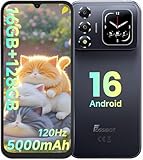
- 📱【6.9" FHD+ 120Hz Display & 1.8" Smart Rear Screen】FOSSiBOT S7 Unlocked Phone features a large 6.9-inch FHD+ display with a smooth 120Hz refresh rate for gaming, streaming, and scrolling. The 1.8-inch smart rear screen provides quick access to notifications, time, music controls, and more, making this smartphone more convenient for daily use.
- 🚀【Android 16 & Octa-Core Processor with 128GB ROM】This Android smartphone runs the latest Android 16 system and a powerful octa-core processor for smooth multitasking. Equipped with up to 16GB RAM (4GB + 12GB virtual RAM), 128GB ROM, and expandable storage up to 2TB via TF card. Dual SIM 4G unlocked mobile phone compatible with T-Mobile. ❌❌Not compatible with AT&T, Cricket, Verizon, or Xfinity Mobile.
- 🔋【5000mAh Battery for All-Day Power】The FOSSiBOT S7 mobile phone is equipped with a 5000mAh battery designed for long-lasting performance. Enjoy up to 670 hours standby time, 28 hours of calling, and up to 22 hours of gaming on a single charge. Perfect for work, travel, entertainment, and everyday communication.
- ✨【Slim 8.5mm Design & Premium Comfortable Grip】Unlike bulky phones, the FOSSiBOT S7 smartphone combines a lightweight 215g body with an ultra-slim 8.5mm profile. The rounded four-corner frame provides a modern appearance and comfortable grip, making it easy to carry in your pocket, backpack, or hand throughout the day.
- 🎁【Fingerprint Unlock, Face ID & Reliable After-Sales Support】This unlocked smartphone supports fingerprint unlocking, face recognition, GPS navigation, and essential daily functions. ❌❌NFC is not supported. Enjoy professional customer support within 24 hours, 30-day hassle-free returns, and a 2-year warranty with replacement service. For details, please refer to the Brand Story section.
Safe mode can help isolate downloaded apps on phones that support it. If the display becomes smooth in safe mode, a downloaded app or overlay is more likely than a panel fault. Uninstall or disable recently added apps individually, reboot normally after each change, and retest. If the symptom remains in safe mode, downloaded apps are less likely to be the cause.
Recommended Free Tools
8. Recognize normal adaptive behavior versus a fault
| Observation | Likely interpretation | Next action |
|---|---|---|
| Refresh appears lower on a still image, then rises during a fast scroll | Expected adaptive behavior on a supported variable-refresh implementation | Judge smoothness during motion, not a static reading. |
| High-refresh control disappears when Battery Saver or Power saving is on | Documented power-management restriction | Turn the mode off temporarily and decide whether the battery trade-off is acceptable. |
| Galaxy switches to Standard after WQHD+ is selected | Model-specific resolution limitation | Choose a resolution/refresh combination the model supports. |
| Only one app is jerky while Settings is smooth | App rendering or optimization issue is more likely | Update, restart, and contact that app’s support if needed. |
| Flicker, lines, black areas, or stutter in every app after software checks | Possible physical or display hardware problem | Back up data and contact the manufacturer or an authorized service provider. |
Adaptive systems may also reduce refresh while the phone is warm or conserving energy. The important question is whether motion is consistently abnormal in contexts where the device should be able to render smoothly, not whether a diagnostic tool ever reports exactly 120 Hz.
9. Handle visible damage and persistent symptoms
Stop troubleshooting through settings if the phone has a cracked panel, liquid exposure, new lines, persistent flicker, dead areas, or a problem that began after a drop or repair. Back up your data, avoid pressing on the screen, and use the manufacturer’s support channel or an authorized repair provider.
A screen replacement is appropriate only when a qualified diagnosis identifies a display hardware fault. It will not fix an unsupported refresh rate, Battery Saver, an incompatible resolution combination, or an app that renders unevenly. Conversely, repeatedly changing settings will not repair a panel with physical damage.
10. Avoid fixes that cannot change the panel’s capability
- A generic screen protector cannot add 120 Hz support. It is relevant to touch feel or damage protection, not the panel’s refresh ceiling.
- Cleaning storage, installing a “RAM optimizer,” or using a refresh-rate utility cannot make unsupported hardware deliver 120 Hz.
- A displayed 120 Hz value does not guarantee that every app is producing 120 frames per second.
- Do not force a setting with developer tools unless the phone maker documents that procedure for your exact model; an unsupported override can create instability without improving motion.
The reliable path is to verify the hardware capability, use the manufacturer’s supported display control, remove documented power and resolution restrictions, isolate apps, and escalate only when the symptom persists across the system.
When replacing the phone is reasonable
Buying another phone is not the normal solution for an enabled setting, a battery restriction, a resolution conflict, or a single misbehaving app. It becomes a reasonable option when your current model’s documented maximum is below the rate you need, or when an authorized diagnosis confirms a persistent hardware fault whose repair cost or availability does not make sense for you.
For example, a Pixel 7 or Pixel 7a is documented at up to 90 Hz, so no software switch can turn either model into a 120 Hz phone. A model such as the Galaxy S24 is an example of a phone documented by Samsung as supporting up to 120 Hz, but the exact operating range and adaptive behavior still depend on its settings and software.
A concise decision path
- Identify the exact model and regional or carrier variant.
- Confirm its documented maximum refresh rate.
- Enable Motion smoothness, High/Adaptive, or Smooth Display where supported.
- Turn off Power saving or Battery Saver for the test.
- Check whether the selected resolution restricts high refresh, especially on supported Galaxy models.
- Compare Settings and several apps, including after closing demanding workloads.
- Restart, update the system and affected app, and use the phone’s diagnostic or safe-mode guidance where available.
- Escalate visible damage or persistent system-wide symptoms to manufacturer support or authorized service.
This sequence tells you whether the limit is a hardware specification, an intentional adaptive choice, a power or resolution policy, an app-specific rendering problem, or a fault that needs service.
Quick Recap
Product prices and availability are accurate as of the date/time indicated and are subject to change. Any price and availability information displayed on Amazon at the time of purchase will apply.
What’s actually slowing this PC down?
Pick the symptom - the matching free tool is one click away.

