
iTechGuides is reader-supported. When you buy through links on our site, we may earn an affiliate commission. As an Amazon Associate I earn from qualifying purchases. Learn more
The AppData folder stores application-specific settings, caches, profiles, temporary files, and other data for the currently signed-in Windows user. It is normally located at C:Users<username>AppData, but Windows hides it by default.
The quickest way to open the AppData root is to press Windows + R, enter %USERPROFILE%AppData, and press Enter. You can also open the two main subfolders directly with %APPDATA% and %LOCALAPPDATA%.
Where is AppData in Windows?
For the signed-in account, the conventional path is:
Quick wins for a faster PC:
Repair Windows errors before they cause bigger problemsFix Now →Scan for outdated or missing drivers - takes under a minuteDriver Scan →C:Users<username>AppDataFor example, if the Windows profile folder is alex, the usual path is:
#1 Best Overall
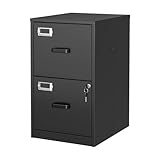
- 【HIGH CAPACITY】This filing cabinet consists of two drawers of the same size, which are large enough to accommodate A4, letters, file boxes, legal documents, etc. The drawers are also deep enough to store some office supplies.
- 【HUMANIZED DESIGN】The steel ball bearing full extension drawer slide is noiseless, will not affect the work of others, and always maintain a quiet environment. The extra-long drawer handle design of the file cabinet makes it more convenient to open the drawer
- 【UNIQUE DESIGN】This file cabinet can lock 2 drawers at the same time with one lock, and is equipped with 2 keys. Business card holders on drawers can also be labeled according to the different documents stored.
- 【HIGH QUALITY】Although this filing cabinet is lightweight, it is also very sturdy. It is suitable for home or office use, providing more convenience for your office environment. The surface of the file cabinet has a smooth coating treatment, which can be waterproof and easier to clean
- 【NEED TO ASSEMBLE】vertical file cabinets with lock need simple assembly, we will have assembly instructions to help you complete the assembly. If you have any problems with the installation, you can contact us at any time by email, and we will provide you with the best solution
C:UsersalexAppDataThe folder can be redirected in managed or customized Windows installations, so environment variables are safer than typing a user name into a hard-coded path.
| Location | Environment variable | Typical purpose |
|---|---|---|
AppDataRoaming |
%APPDATA% |
User application data traditionally intended to roam with a profile |
AppDataLocal |
%LOCALAPPDATA% |
Application data that stays on the device |
AppDataLocalTemp |
%TEMP% or %TMP% |
Temporary files |
Microsoft documents %USERPROFILE% as the current user profile, normally C:Users<username>. Therefore, %USERPROFILE%AppData points to the AppData root, while %APPDATA% points specifically to AppDataRoaming.
Open AppData with the Run dialog
- Press Windows + R.
- Enter
%USERPROFILE%AppData. - Press Enter or select OK.
File Explorer opens the root containing Local, LocalLow, and Roaming, where present.
To go straight to a particular location, use one of these commands in the same Run box:
%APPDATA%opens the current user’s AppDataRoaming folder.
%LOCALAPPDATA%opens AppDataLocal.
%TEMP%opens the current user’s temporary-files folder, normally AppDataLocalTemp.
Open AppData from Command Prompt
Open Command Prompt and run:
explorer.exe %USERPROFILE%AppDataFor the two common subfolders, run:
explorer.exe %APPDATA%
explorer.exe %LOCALAPPDATA%
Windows expands the environment variable and explorer.exe opens the resulting directory in File Explorer. These commands avoid problems caused by spaces, unusual profile names, or a display name that differs from the actual profile-folder name.
Rank #2

- Metal Material:File cabinet is made of 0.8mm thick steel,whole is solid and does not deform, and it is stronger than wooden filing cabinets in terms of firmness, durability, moisture resistance, and fire protection
- Practical Design:5 Wheels and 360° rotation caster wheel design easier to move while prevent tipping ,the first two casters can be locked for accident roll away.Hanging-file drawer with adjustable hanging bars can perfectly store letters, legal and A4 size folders front to back or side by side
- Privacy Security:1 lock secures all three drawers, comes with 2 keys for your locking
- Home & Office:Modern delicate appearance can match your other furniture perfectly and adds fashion magic and charm to your office & home, it’s perfect height make it can be placed under desk
- Easy Installation:Letaya File Cabinet no assembly required Except Wheels
Navigate to AppData manually
- Open File Explorer.
- Select This PC in the navigation pane.
- Open the Windows installation drive, usually Local Disk (C:).
- Open Users.
- Open the folder for the signed-in Windows account.
- Open AppData.
On Windows 11, AppData may not appear because it is hidden. In File Explorer, select:
The Tool Desk
Outbyte PC Repair FREERepair Windows errors before they cause bigger problemsFix Now →Outbyte Driver Updater FREEFix the driver behind crashes, sound loss and screen glitchesFind Drivers →View > Show > Hidden itemsOn Windows 10, use:
View > Options > Change folder and search options > ViewUnder Advanced settings, select Show hidden files, folders, and drives, then select OK.
These instructions also work on Windows 11 even though its File Explorer landing page is called Home rather than the former Quick access. That interface rename did not move or remove AppData.
What the AppData folders contain
Roaming
Roaming contains application data associated with the user profile and is traditionally represented by %APPDATA%. Applications may store preferences, profiles, extensions, or other account-related settings here.
“Roaming” does not mean that every file in this folder automatically follows you between computers. Whether data actually synchronizes depends on the application, Windows configuration, and account-management system.
Local
Local is intended for data tied to the particular device. It commonly contains caches, downloaded components, machine-specific settings, and larger application databases. The shortcut %LOCALAPPDATA% opens this folder.
Rank #3

- Spacious & Versatile Storage: Organize effortlessly with our 7-drawer file cabinet, offering large capacity to declutter your space. Perfect for storing office supplies, accessories, crafts, and more. The versatile design includes a flat top surface for decor or quick-access items, making it a functional addition to any room
- Quiet & Smooth Operation: Enjoy noiseless drawer movement thanks to steel ball-bearing slides, ensuring a quiet environment. The recessed handle design adds safety and convenience, preventing finger injuries while opening drawers
- Durable & Long-Lasting Build: Crafted from high-strength board, this cabinet is sturdy, waterproof, and scratch-resistant, ensuring it stays in top condition for years. Its robust construction resists deformation, even with heavy daily use
- Easy to Move & Relocate: Equipped with 4 smooth-rolling casters (2 with brakes), this cabinet is easy to move without damaging floors. Whether you're rearranging your office or home, mobility is effortless
- Hassle-Free Assembly & Support: Includes a comprehensive installation kit with clear instructions for quick setup. Our 24/7 customer service is ready to assist with any issues, ensuring a seamless experience from unboxing to everyday use
LocalLow
LocalLow is another per-user application-data location, traditionally used by applications running with lower integrity or restricted permissions. You may not need to edit it unless an application’s documentation specifically directs you there.
Temp
LocalTemp stores temporary data. The %TEMP% and %TMP% variables typically resolve to this location. Temporary files may be removed by Windows maintenance or applications, so do not treat them as permanent storage.
How to use AppData safely
AppData is useful when an application’s own settings do not expose a required option, when troubleshooting a damaged cache, or when following instructions from the application’s developer. Before changing anything, close the relevant application and make a backup of the file or folder.
- Identify the correct application folder. Names may use a publisher name, product name, abbreviation, or an internal identifier.
- Check whether the instructions mean Roaming or Local. Searching only one location can make it appear that the data is missing.
- Back up before deleting or editing. Copy the target folder to the desktop or another backup location.
- Change one thing at a time. This makes it possible to identify which file fixed—or caused—the problem.
- Restart the application. Many programs recreate missing cache files or settings after they start.
Deleting application data can reset preferences, sign you out, remove local profiles, or discard app-managed state. AppData should not be the sole storage location for irreplaceable documents, photographs, email, or other user-created content.
AppData is not the same as ProgramData
A common mistake is looking in the wrong data directory:
C:Users<username>AppDatais normally for the current user’s application data.C:ProgramDatais normally the all-users application-data directory.C:UsersPublicis a shared user-profile location, not the normal location for the signed-in user’s AppData.
If an application’s settings must apply to every user, its documentation may refer to ProgramData instead. Do not move files between these locations unless the application or its support instructions tell you to.
Rank #4
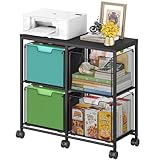
- Large 4-Drawer File Storage: This lateral file cabinet features 4 spacious drawers, can hold a total of about 360 files, ideal for organizing letter-size files, documents, and office supplies. It helps keep paperwork neatly arranged, reduce clutter, and facilitates quick access to important items when needed
- Easy to Move: Equipped with 6 smooth-rolling wheels (including 3 lockable casters), this mobile file cabinet can be easily moved or secured in your home office. Its sleek design adds a refined touch while maintaining a professional look
- Clear Visibility: The mesh viewing window on each hanging file drawer allows you to quickly identify contents at a glance. Your office supplies will be easy to locate and less likely to be overlooked
- Sturdy & Durable Construction: Built with a robust black metal frame and a modern finish, this rolling file cart is designed for lasting use. Reinforced side screws secure each drawer firmly, minimizing the risk of accidental slipping and keeping items safely stored
- Versatile & Stylish Design: With a wide wooden top and 4 large storage drawers, this cabinet can also serve as a printer stand, offering ample space for extra paper or files. It’s also suitable as a storage solution in living areas or other rooms
Why an application’s data may not be easy to find
Not every Windows application stores data in a plainly named folder under the traditional AppData locations. Packaged applications can use system-managed, per-user data stores, and Microsoft recommends that applications generally avoid depending on the physical storage location of those stores.
What’s actually slowing this PC down?
Pick the symptom - the matching free tool is one click away.
For a packaged app, use its own reset, repair, export, or backup options where available. Manually removing an unfamiliar directory can have the same effect as resetting the app.
Windows 10 and Windows 11 differences
The AppData paths and environment variables apply to both Windows 10 and Windows 11. The main difference relevant to this task is the File Explorer interface: Windows 11 uses View > Show > Hidden items, while Windows 10 uses Folder Options to show hidden files.
Microsoft ended Windows 10 support on October 14, 2025. After that date, Microsoft no longer provides free Windows Update software updates, technical assistance, or security fixes for Windows 10. The AppData instructions still describe the folder’s location, but using an unsupported operating system carries security risks.
Independent reader supportYour contribution helps us test, update, and keep practical guides available for everyone.For scripts and software
Use environment variables in batch files and support commands instead of assuming the profile is stored under a particular name:
Windows Errors? Fix Them Before They Spread
Repair common Windows errors and clear accumulated junk for a smoother, more stable PC - no reinstall needed.Free scan · no reinstallCrashes, No Sound, or Screen Glitches?
Random freezes, missing sound and display glitches usually trace back to one bad driver. Find and replace yours safely.Free scan · under a minuteecho %USERPROFILE%
echo %APPDATA%
echo %LOCALAPPDATA%For new Windows software, Microsoft recommends modern known-folder APIs rather than the older CSIDL values and SHGetFolderPath. Existing compatibility APIs remain supported, but new native code should use SHGetKnownFolderPath with Known Folder IDs. .NET applications can use Environment.GetFolderPath.
Best Value

- Ample capacity: Provides spacious space to organize books, printer, documents, and collectibles to maintain a tidy, orderly, harmonious, and comfortable living environment.It is perfect for placing beside to or under the desk, providing extra storage space and keeping the desktop tidy.
- Thoughtful design: Equipped with wheels to ensure household safety and prevent floor damage. Because its multifunctional structure, the file cabinet can easily adjust the workspace or move the device whenever needed.And the wheels have locking mechanism, so the file cabinet can stay stable when movement is not needed.
- Interlock System: One lock with 2 keys secures all 3 drawers, add security to your home and office.
- Hassle-Free Assembly: Comes with clear, illustrated instructions so can set up the file cabinet quickly and without stress. Every step is straightforward, making installation a smooth and simple process.
- High-quality wood: This filing cabinet is made from eco-friendly wood panels, ensuring long-lasting durability and can support up to 100 pounds. Its surface material is scratch and stain resistant — a simple wipe with a damp cloth will make it look like new.
FAQ
Why can’t I see the AppData folder?
AppData is hidden by default. In Windows 11, open File Explorer and select View > Show > Hidden items. In Windows 10, go to View > Options > Change folder and search options > View, select Show hidden files, folders, and drives, and select OK.
Does %APPDATA% open the AppData folder?
No. %APPDATA% opens AppDataRoaming. To open the AppData root, use %USERPROFILE%AppData. To open the Local folder, use %LOCALAPPDATA%.
Is AppData stored in C:UsersPublic?
Normally, no. A user’s AppData is under that user’s profile, usually C:Users
Free tools Windows power users keep installed
One-click scans. No signup required.
Can I delete everything in AppData?
Do not delete the entire folder. It contains application settings, profiles, databases, and other state. Delete only a documented cache or temporary file, close the relevant application first, and make a backup before changing data.
Why does my account name not match the folder under C:Users?
The sign-in or display name can differ from the Windows profile-folder name. Use %USERPROFILE%, %APPDATA%, or %LOCALAPPDATA% instead of guessing the folder name.
What if AppData is not at C:UsersAppData?
Known folders can be redirected, including to another drive or a network location. Use the environment variables to resolve the current location rather than relying on a hard-coded path.
The Bottom Line
Use %USERPROFILE%AppData to open the AppData root, %APPDATA% for Roaming, and %LOCALAPPDATA% for Local. If you browse there manually, enable hidden items first. Treat the contents as application state: back up files before editing, and do not delete folders unless you know exactly what they contain.
Do these 3 things before closing this tab:
1Scan for outdated or missing drivers - takes under a minute2Clear out junk files and repair common Windows errors3Fix the driver behind crashes, sound loss and screen glitchesQuick Recap
Product prices and availability are accurate as of the date/time indicated and are subject to change. Any price and availability information displayed on Amazon at the time of purchase will apply.

