
iTechGuides is reader-supported. When you buy through links on our site, we may earn an affiliate commission. As an Amazon Associate I earn from qualifying purchases. Learn more
Most Pixel phones hide useful tools behind gesture settings, the recent-apps menu, call controls, and newer Android privacy features. Start by checking your Android version in Settings > About phone > Android version, then use the Settings search box when a menu label differs. Quick Tap, split screen, Private Space, Call Assist, notification recovery, and Pixel AI tools can save time every day, but availability depends on your Pixel model, Android release, language, carrier, and country.
Check your Pixel before looking for hidden features
Pixel software changes through Android releases and Pixel feature drops. A menu shown on one phone may be renamed or moved on another. Before troubleshooting, open Settings > System > Software update and install available updates, then confirm your model under Settings > About phone > Model. If a path below is missing, type the feature name—such as Quick Tap, Private Space, or Notification history—into the Settings search field.

Hardware and regional support matter as much as software. Quick Tap is documented for Pixel 4a (5G) and later. Split-screen support is partly controlled by each app. Private Space requires Android 15. Call Screen, Direct My Call, Call Notes, and Gemini-based tools vary by country, language, carrier, and model. Treat the instructions below as a way to check your phone, not as a promise that every Pixel includes every feature.
Recommended Free Tools
Use Quick Tap to trigger an action from the back
Quick Tap turns two firm taps on the back of the phone into a shortcut. It is one of the fastest ways to capture a screenshot, pause media, turn on the flashlight, open an app, or run another action offered by your Pixel.
#1 Best Overall

- Gemini AI Integration: Built-in Gemini AI assistant supercharges your productivity and creativity, helping you accomplish tasks faster, generate content, and unlock new possibilities right from your smartphone without needing additional apps or subscriptions
Set up Quick Tap
- Open Settings.
- Tap System > Gestures > Quick Tap to start actions.
- Turn on Use Quick Tap.
- Choose an action, such as Take screenshot, Pause media, Turn on flashlight, or Open app.
- If you chose Open app, select the app from the list and return to the previous screen.
- Tap the back of the phone twice to test it. The taps should be deliberate rather than light taps.
Prevent accidental triggers
In the Quick Tap settings, enable the option requiring a stronger tap when it is available. A firmer threshold helps when the phone activates while you set it on a desk, adjust a case, or walk with it in a pocket. A thick or rigid case can make detection less reliable; test with the case fitted before deciding that the gesture is broken.
Choose an action that fits your routine
- Screenshot: useful for maps, receipts, error messages, and conversations.
- Pause media: convenient when your hands are occupied and the screen is locked or out of reach.
- Flashlight: faster than opening Quick Settings in a dark room.
- Open app: a direct route to an app you launch many times a day.
Quick Tap does not create an unlimited automation system. You can select only the actions exposed in your phone’s current software, and detection can vary with how you hold the phone and with case thickness.
Run two apps with split screen and app pairing
Split screen keeps two compatible apps visible at once—for example, a browser above a notes app, or a video call beside a calendar. Android 15 adds app pairing, which lets you reopen a frequently used two-app combination more quickly.
Quick wins for a faster PC:
Scan for outdated or missing drivers - takes under a minuteDriver Scan →Clear out junk files and repair common Windows errorsFree Scan →Fix the driver behind crashes, sound loss and screen glitchesFind Drivers →Start split screen from recent apps
- Open the first app.
- Swipe up from the bottom and hold briefly to open Recent apps. With three-button navigation, tap the Overview button instead.
- Tap the app’s icon at the top of its preview card.
- Choose Split screen.
- Swipe through the remaining recent apps and tap the second app. If it is not open, return to the home screen or app drawer and launch it when prompted.
Drag the divider between the apps to give one app more space. To leave split screen, drag the divider completely to the top or bottom, or swipe home and open a single app. Rotation can change which app appears on top.
When split screen is unavailable
Some apps opt out of multi-window mode. If Split screen does not appear in an app’s icon menu, that app is declining the feature; Pixel settings cannot force it safely. Banking, camera, games, and older apps are common examples, but support can change with an app update. Try a different app combination to confirm that the phone’s multi-window function works.
Reopen a pair on Android 15
On Android 15, after two apps are arranged in split screen, use the recent-apps screen to look for the paired-app control or shortcut associated with that combination. The exact icon and wording can differ by Pixel software build. Saving a pair places a shortcut on the home screen or launcher area so you can reopen both apps together. If you do not see a pairing option, check that the phone is running Android 15 and that both apps support split screen.
Rank #2
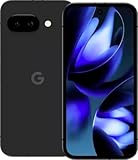
- Google Pixel 9a with Gemini - Android Smartphone with Incredible Camera and AI Photo Editing, All-Day Battery, and Powerful Security - Obsidian - 128 GB For Verizon (Renewed)
Keep selected apps in Private Space
Private Space, introduced with Android 15, creates a locked area for apps that you do not want visible during ordinary phone use. When Private Space is locked, its selected apps are hidden from the app list, the recent-apps view, notifications, and Settings surfaces that list installed apps.
Free tools Windows power users keep installed
One-click scans. No signup required.
Create and lock a Private Space
- Open Settings > Security & privacy.
- Tap Private Space and authenticate with your existing screen lock if asked.
- Follow the setup prompts. You can use the phone’s screen lock or configure a separate lock for the space, depending on the options shown on your build.
- Install or move the apps you want inside Private Space. Apps in this area are managed separately from their copies in the main profile.
- Lock Private Space from its control in the app drawer or from the Private Space settings page.
Understand what Private Space does—and does not do
Locking Private Space hides the selected apps and their notifications from normal phone surfaces. It is a privacy boundary for one device profile, not a replacement for a separate user account, a second phone, or an encrypted vault for every file. A person who knows the device unlock method or who can change security settings may still be able to manage the space. Remember the unlock method you choose; losing it can make the apps and data inside inaccessible.
Private Space can also affect notifications and background activity. An app that is locked may not deliver alerts until the space is unlocked. Test any authentication, messaging, or work app before relying on it for time-sensitive notifications.
Let Pixel handle unknown callers and business phone menus
Pixel Call Assist groups several call features. Google describes Call Screen this way: “Call Screen uses Google Assistant to help you find out who’s calling and why before you pick up.” Call Screen can ask an unknown caller to identify themselves, show you the response, and let you decide whether to answer. Direct My Call displays choices from supported business phone menus so you can tap an option instead of listening to every prompt. Call Notes can capture useful details from supported calls using on-device Gemini Nano processing.
Find the call controls
- Open the Phone app.
- Tap the three-dot menu and choose Settings.
- Look for Spam and Call Screen, Call Screen, or a similarly named Call Assist section.
- Review automatic screening, spam protection, Direct My Call, and Call Notes options that appear on your device.
During an incoming call, the Screen call button appears only when the feature is supported for that call and location. Follow the on-screen transcript, then answer, end, or mark the call as spam.
The Tool Desk
Outbyte PC Repair FREEClear out junk files and repair common Windows errorsFree Scan →Outbyte Driver Updater FREEFix the driver behind crashes, sound loss and screen glitchesFind Drivers →Know the availability limits
Call Screen and related tools are not universal. Google changes eligibility by country, language, carrier, and Pixel model; some features work only with particular phone-app versions. Call Notes additionally requires a supported device and supported call conditions. If a control is absent, update the Phone app and system software, verify your language and region, and search Settings for the feature name. Do not assume that a missing button indicates a hardware fault.
Rank #3

- Google Pixel 10a is a durable, everyday phone with more[1]; snap brilliant photography on a simple, powerful camera, get 30+ hours out of a full charge[2], and do more with helpful AI like Gemini[3]
- Unlocked Android phone gives you the flexibility to change carriers and choose your own data plan; it works with Google Fi, Verizon, T-Mobile, AT&T, and other major carriers
- Pixel 10a is sleek and durable, with a super smooth finish, scratch-resistant Corning Gorilla Glass 7i display, and IP68 water and dust protection[4]
- The Actua display with 3,000-nit peak brightness shows up clear as day, even in direct sunlight[5]
- Plan, create, and get more done with help from Gemini, your built-in AI assistant[3]; have it screen spam calls while you focus[6]; chat with Gemini to brainstorm your meal plan[7], or bring your ideas to life with Nano Banana[8]
Use screening without missing legitimate calls
Screening is most useful for unknown numbers, delivery calls, and suspected spam. It can delay a caller who does not understand automated prompts, so keep important contacts saved and review the live transcript before rejecting a call. For business menus, Direct My Call is helpful only when the system can recognize the menu; unusual recordings, poor audio, or unsupported regions can prevent choices from appearing.
Recover alerts with Notification History
Notification History keeps a record of recently dismissed notifications, which is useful when you swipe away a message before reading it. It must be enabled before the alert is dismissed; turning it on later cannot reconstruct old notifications.
Enable and open Notification History
- Open Settings > Notifications.
- Tap Notification history.
- Turn on Use notification history.
- Return to the same page whenever you need to review recently dismissed alerts.
History is not a permanent archive. Android retains a limited recent window and may remove entries as they age or as storage and system rules require. Notifications that an app never sends, or content hidden by the app’s privacy settings, will not appear.
PC Slower Than It Used to Be?
A free scan shows the junk files, broken settings and background clutter dragging Windows down - then fixes them in one click.Free scan · Windows 10 & 11Outdated Drivers Are Slowing You Down
One free scan finds every outdated or missing driver and matches the right update for your exact hardware.Free scan · exact hardware matchTake a quick tour of everyday gestures
Several small gestures are easy to overlook because they are enabled in separate parts of Settings. Names and locations can shift between Android releases, so use Settings search if the path shown on your phone differs.
Tap to check phone
Open Settings > System > Gestures and look for Tap to check phone. When enabled, tapping the display while it is off wakes the lock screen so you can see the time and notifications without fully unlocking.
Lift to check phone
In the same gestures area, enable Lift to check phone if available. Raising the phone can wake the display. If it activates in a bag or while you move it around, disable the option or rely on the power button.
Rank #4

- The best phone camera under $500 - Take photos and videos so amazing, you won’t believe you actually took them. Capture small details, create perfect group shots, and even get vivid ones at night.
- One ask, done across your apps - Save time by asking Gemini to find information and get things done for you across your Google apps – like Maps, Calendar, Gmail, and YouTube Music. It’s multitasking made easy.
- Talk things out live - Instead of typing, use Gemini Live and have a natural, free-flowing conversation. Gemini follows along, even if you change the topic or switch the question mid-sentence.
- Take the picture. And be in it, too - Add Me makes sure no one is left out of a photo. Take one with the group, then swap in the photographer, and Pixel magically merges both photos.
- Tiny is epic - Use Macro Focus to reveal vivid color and striking contrast in photos and videos of the smallest details – like raindrops, flowers, or sprinkles.
Navigation gestures
Open Settings > System > Navigation mode to choose gesture navigation or three-button navigation. Gesture navigation generally uses a swipe up from the bottom for Home, a swipe up and hold for Recent apps, and a swipe inward from either side for Back. Three-button navigation exposes dedicated Back, Home, and Overview controls and can be easier when split-screen or edge swipes are unreliable.
Do these 3 things before closing this tab:
1Repair Windows errors before they cause bigger problems2Scan for outdated or missing drivers - takes under a minute3Clear out junk files and repair common Windows errorsFind Pixel AI tools without assuming every model has them
Pixel AI features are among the most model-dependent tools. Google highlights Audio Magic Eraser, document scanning, and Gemini access from the power button on supported Pixel phones. A Pixel 9a technical data sheet also lists Audio Magic Eraser. Availability can depend on the Pixel generation, Android release, language, region, account status, and app version.
Audio Magic Eraser
In Google Photos, open a video and choose the editing tools. If Audio Magic Eraser is supported, it can reduce selected background sounds while preserving the sounds you want to hear. The available controls and processing time vary by clip and device. If the tool is not shown, update Google Photos and check the model and region requirements rather than installing an unofficial substitute.
Document scanning
Use the camera or a supported document workflow to detect pages, correct perspective, and save a cleaner scan when the option is offered. Bright, even lighting and a flat page produce better results than a folded or reflective document. Scanning features can move between the Camera and Google Drive experiences as apps update, so search the app’s help or Settings when the button is absent.
Gemini from the power button
On supported Pixels, pressing and holding the power button can open Gemini instead of the traditional power menu. The assignment is controlled in Settings > System > Gestures > Press and hold power button or a similarly named setting. Choose the power-menu behavior if you prefer the original controls. Gemini responses and actions depend on language, account, connectivity, and device support; do not treat the shortcut as proof that every Gemini feature runs entirely on the phone.
What’s actually slowing this PC down?
Pick the symptom - the matching free tool is one click away.
Compare the hidden features at a glance
| Feature | Minimum or key dependency | Setup effort | Privacy or visibility behavior | Best problem solved |
|---|---|---|---|---|
| Quick Tap | Pixel 4a (5G) and later; compatible software | Choose one action in Gestures | Triggers an action from the locked or unlocked phone; accidental taps can occur | Fast screenshots, media control, flashlight, or app launch |
| Split screen | Android multi-window support and two compatible apps | Start from Recent apps each time | Both apps remain visible; content follows each app’s own lock and privacy behavior | Reading, copying, messaging, or watching while using another app |
| App pairing | Android 15 and split-screen-compatible apps | Save a two-app combination after arranging it | Reopens the same two apps; each app keeps its normal data protections | Repeating the same multitasking setup |
| Private Space | Android 15 | Create a locked space and install or move apps | Locked apps disappear from app lists, Recents, notifications, and relevant Settings views | Keeping selected apps separate from ordinary phone use |
| Call Screen, Direct My Call, Call Notes | Supported Pixel, Phone app, country, language, carrier, and call conditions | Review Call Assist settings; use controls during calls | Screening shows caller responses; Call Notes processes supported call details on-device with Gemini Nano | Reducing spam handling and navigating business phone menus |
| Notification History | Notification-history support; must be enabled in advance | One switch in Notifications | Stores a limited recent record of dismissed alerts | Recovering an alert dismissed by mistake |
| Pixel AI tools | Supported model, Android release, app, language, and region | Use the relevant Photos, Camera, Drive, or power-button control | Processing and cloud requirements vary by tool; review the feature’s notice | Cleaning audio, scanning documents, or reaching Gemini |
Fix the most common problems
The menu path does not match
Use Settings search with the exact feature name, then check Settings > About phone > Android version. Google can move a control in a feature drop without changing the phone hardware. Updating the system and the Phone, Photos, or Camera app can restore a missing entry.
A gesture works inconsistently
Remove or loosen a case temporarily, repeat the gesture with a consistent motion, and check whether a stronger-tap requirement is enabled. For navigation, switch briefly between gesture and three-button modes to determine whether the issue is the gesture itself or an app that intercepts edge swipes.
An app will not split screen
Confirm that the Split screen command appears for the app in Recent apps. If it does not, the app may opt out. Update the app, try another pairing, and avoid forcing unsupported activities through developer options because layouts can break.
Private Space notifications are missing
Unlock Private Space and check the app’s notification permission inside that space. A locked space intentionally suppresses its apps and notifications. If you need immediate alerts, keep that app in the main profile or use a separate supported account arrangement.
Call Assist or AI controls are absent
Check country, language, carrier, Pixel model, Android version, and app updates. Some features roll out gradually or require a supported account. A missing control is often an availability limitation rather than a setting you can unlock manually.
Keep your Pixel’s feature set current
Pixel feature availability changes with Android releases, monthly updates, and regional rollouts. Recheck the relevant Settings page after a major update, and do not rely on screenshots that lack an Android version or date. For a model-specific example, a 2025 Pixel 9a technical data sheet says the phone receives seven years of software updates from first availability on the US Google Store; that is a Pixel 9a specification, not a guarantee for every Pixel model, and current policy should be verified before purchase or long-term planning.
The practical approach is simple: identify your exact model and Android version, search Settings when labels move, and test each feature with the apps, language, and carrier you actually use. That avoids mistaking a regional or model-specific capability for a universal Pixel function.
Quick Recap
Product prices and availability are accurate as of the date/time indicated and are subject to change. Any price and availability information displayed on Amazon at the time of purchase will apply.

