
iTechGuides is reader-supported. When you buy through links on our site, we may earn an affiliate commission. As an Amazon Associate I earn from qualifying purchases. Learn more
Open the Epic Games Launcher, select Library, and use its search and filters to find every game or software title acquired through the Epic Games Store. The launcher—not the Epic Games Store website—is where you view, install, organize, verify, and remove your owned titles.
If a game seems to have disappeared, first check the account, filters, hidden-library setting, operating-system support, and purchase status before assuming access is permanently lost.
Use the Epic Games Launcher to open your library
Epic Games Store Support says, “Your library will contain all the games and software you purchased from the Epic Games Store.” To reach it, start the Epic Games Launcher, sign in, and choose Library in the main navigation. The library is the working area for downloads and title management.
Recommended Free Tools
The store website is useful for browsing and purchasing, but it is not the full library-management interface. Epic’s support guidance states: “You can browse and purchase games on the Epic Games Store, but downloading and managing your library requires the Epic Games Launcher.” Open the launcher whenever you need to install a title, inspect its installed version, manage add-ons, or change local installation choices.
#1 Best Overall

- Customize your drive’s RGB lighting with the downloadable WD_BLACK Dashboard (Windows only) to show off your style and make every play personal.
- Kick loading into overdrive with a USB 3.2 Gen2x2 interface and speeds up to 2,000MB/s. (Based on read speed. 1 MB/s = 1 million bytes per second. Based on internal testing; performance may vary depending upon host device, usage conditions, drive capacity, and other factors.)
- Compatible with PlayStation 5 and Xbox Series X|S consoles. {Compatible with PlayStation 4 Pro or PS4 with system software version 4.50 or higher, PlayStation 5 (Play and store PS4 games; archive PS5 games), Xbox One, and Xbox Series X|S (Play and store Xbox One games; archive Xbox Series X|S games).}
- Keep more of the latest and largest titles installed and ready to launch with capacities of up to 2TB. (1TB = 1 trillion bytes. Actual user capacity may be less depending on operating environment.)
- Built with WD_BLACK toughness thanks to a shock-resistant structure, this durable drive can survive a drop of up to two-meters.
Use the official instructions for library controls here: Managing the Library in the Epic Games Launcher.
Find a game or application quickly
Search by full or partial title
- Open Library in the launcher.
- Click the library search field.
- Enter the complete title or only part of a word. Epic gives “rock” as an example that can locate Rocket League.
- Select the matching tile to open its available actions.
Partial searches are useful when you remember only one word, when a title has a long edition name, or when the library contains several similarly named entries. Search narrows the displayed tiles; it does not change ownership. If the result is empty, clear the search field before concluding that the title is absent.
Use filters to narrow a large collection
Library filters let you combine several ways of describing what you want to see. The available feature filters depend on which eligible titles are in your account, so a filter may not appear or may return no results for a particular collection.
Crashes, No Sound, or Screen Glitches?
Random freezes, missing sound and display glitches usually trace back to one bad driver. Find and replace yours safely.Free scan · under a minutePC Slower Than It Used to Be?
A free scan shows the junk files, broken settings and background clutter dragging Windows down - then fixes them in one click.Free scan · Windows 10 & 11| Filter or view | What it shows |
|---|---|
| Installed | Only titles currently installed on the computer |
| Genre | Titles assigned to a selected genre |
| Features | Eligible features such as Cloud Saves, controller support, multiplayer, or achievements |
| Type | Titles grouped by the available product type |
| Platform | Titles associated with a selected platform |
| Subscriptions | Titles associated with an applicable subscription filter |
To see the complete collection, clear the Installed filter and any other active filters. A filtered library is the most common reason a claimed or purchased title appears to be missing. Filters describe what is displayed; they do not revoke, transfer, or otherwise alter a title in your account.
Open a title’s management controls
Select a title tile or its three-dot menu to see the actions Epic exposes for that product. Depending on the title, the menu can provide a link to the store page, favorite controls, add-on management, installation choices, game-management options, file verification, and uninstall. The library can also display play time and the installed version. A particular menu item is not guaranteed for every title; availability depends on the product and its current installation state.
For example, an uninstalled game may present an install command, while an installed game may expose uninstall, verification, version, and play-time information. An entry with add-on support may show a separate add-on control. Treat the menu as title-specific rather than expecting every game to have an identical set of commands.
Organize the library without changing ownership
Create collections for personal views
Collections are user-created groupings inside the launcher. Add titles to a collection such as “Play next,” “Co-op,” or “Installed on this PC” to create a view that matches how you play. Collections are organizational labels only: adding or removing a title from one does not buy it, transfer it, or alter its purchase status.
A collection is especially useful when the general library contains both installed and uninstalled titles. You can create a short queue for games you intend to start soon, a group for multiplayer games, or a category for software rather than repeatedly searching the whole account. If a title is missing from a collection, check the main library and its filters first; removing it from a collection is not the same as removing it from the account.
Use favorites and title actions
Favorite controls can keep frequently used entries easy to reach. For less frequent maintenance, the title menu is the place to inspect add-ons, open the store page, choose installation options, verify files when that option is offered, and remove a local installation. These actions affect the selected title or its files, not the rest of the account library.
Use the store-page link when you need to review a title’s feature tags, including whether Cloud Saves are supported. Use the library’s management controls when the task concerns the local installation. Keeping those purposes separate helps avoid mistaking a store listing or wishlist entry for an owned, downloadable copy.
What to do when a game is missing
Work through the checks below in order. Early steps resolve visibility problems; later steps explain cases where the account no longer has downloadable access. Do not conclude that a title is permanently lost until the account, filter, settings, compatibility, and transaction checks are complete.
Rank #2

- Built for Creators: Capture, edit, and transfer with ease. NVMe SSD with premium NAND Flash delivers up to 2100MB/s—perfect for 4K video, RAW photos, and gaming assets
- Record Without Limits: Direct 4K 120fps HDR recording from compatible USB-C iOS/Android phones, cameras, and tablets with supported pro apps. Ideal for high-bitrate shooting on the go
- Rugged, Reliable, Ready: Durable aluminum shell with water- and drop-proof protection. SMART monitoring and advanced error correction keep your data safe in any environment
- Works Where You Do: True plug-and-play with laptops, desktops, cameras, projectors, and more. Fully compatible with Windows, Mac, iPad Pro, Chromebooks, Android, Linux, PS4, PS5, and Xbox devices
- Pocket-Sized Power & Capacity Notice: Ultra-slim 2.85 × 1.52 × 0.40 in, 0.03 lb SSD fits any pocket or gear bag. Actual usable storage may be ~7–10% less than labeled due to system calculation differences. Supports up to 2100MB/s under ideal USB 3.2 Gen 2x2/Thunderbolt 4/5 conditions; older interfaces may reduce speeds
1. Confirm the Epic account and sign-in method
Sign out and verify that the launcher is using the Epic account that originally purchased or claimed the title. If you historically entered through an external sign-in such as Google or Facebook, try that same method instead of creating or using a different Epic account. Purchases and free claims belong to the account that completed the transaction.
Using a different email address, a newly created Epic account, or a different external-login button can produce a valid but empty-looking library. This is an account-identity problem, not evidence that Epic deleted the game. Check the account you used at the time of purchase before repeating a transaction.
2. Clear filters and refresh the library
In Library, uncheck Installed, remove genre, feature, type, platform, subscription, search, and collection restrictions, then reset the filters if the launcher offers a reset control. Refresh the view after clearing them. A title that is not installed will not appear while the Installed-only view is active.
Pay particular attention to feature filters. Selecting Cloud Saves, multiplayer, controller support, or achievements can hide otherwise owned titles that do not carry that feature. A title can also disappear from a temporary search or collection view while remaining present in the complete library.
3. Check whether the library is hidden in launcher settings
Open the launcher’s settings and look for Hide Game Library. Turn that setting off, return to Library, and refresh. A hidden-library setting can make the entire collection appear absent even though the account remains correct.
This check is separate from the Installed filter. If the navigation or library view itself is missing, inspect the setting; if the library opens but contains too few entries, clear filters first.
4. Verify operating-system compatibility
Check whether the title supports the operating system currently in use. Epic explains that an unsupported title cannot be downloaded or launched on that operating system. This is an eligibility limitation, not a filter problem, so changing the search view will not make an incompatible build installable.
A game can therefore be correctly associated with the account while remaining unavailable on the computer you are using. Confirm support before troubleshooting the launcher as though the purchase record were missing.
The Tool Desk
Outbyte PC Repair FREEClear out junk files and repair common Windows errorsFree Scan →Outbyte Driver Updater FREEFix the driver behind crashes, sound loss and screen glitchesFind Drivers →5. Inspect purchase history and access conditions
Open the account’s purchase history and examine the transaction associated with the title:
- A refunded game is no longer available to download from that account.
- A limited-time beta or press version can expire after its authorized period.
- A code can be revoked after it is reported as fraudulent. For a revoked retail code, Epic directs the player to the retailer that issued it.
- If the transaction says Gifted to, the purchase was sent to another person’s account rather than retained in the buyer’s library.
These cases differ from a display error. The purchase record identifies whether the account should still have access and which party must resolve the problem. A gifted transaction should be investigated with the recipient account, while a revoked retail code requires help from the retailer rather than a launcher filter change.
6. Restart the launcher and clear its webcache
If the account, filters, settings, compatibility, and transaction all check out, fully restart the Epic Games Launcher. Epic also lists clearing the launcher’s webcache as a troubleshooting step for library display problems. Reopen the launcher and allow the library to reload before checking again.
Rank #3

- 【Plug-and-Play Expandability】 With no software to install, just plug it in and the drive is ready to use in Windows(For Mac,first format the drive and select the ExFat format.
- 【Fast Data Transfers 】The external hard drives with the USB 3.0 cable to provide super fast transfer speed. The theoretical read speed is as high as 110MB/s-133MB/s, and the write speed is as high as 103MB/s.
- 【High capacity in a small enclosure 】The small, lightweight design offers up to 500GB capacity, offering ample space for storing large files, multimedia content, and backups with ease. Weighing only 0.35 Lbs, it's easy to carry "
- 【Wide Compatibility】Supports PS4 5/xbox one/Windows/Linux/Mac and other operating systems, ensuring seamless integration with game consoles,various laptops and desktops .
- Important Notes for PS/Xbox Gaming Devices: You can play last-gen games (PS4 / Xbox One) directly from an external hard drive. However, to play current-gen games (PS5 / Xbox Series X|S), you must copy them to the console's internal SSD first. The external drive is great for keeping your library on hand, but it can't run the new games.
Follow Epic’s detailed checklist for missing entries in My games are missing from the Epic Games Launcher library.
Quick wins for a faster PC:
Scan for outdated or missing drivers - takes under a minuteDriver Scan →Clear out junk files and repair common Windows errorsFree Scan →Install, manage, verify, and uninstall titles
Choose installation options
Select a title in Library and choose its install command. The launcher presents the installation location and any options supported by that product. Use those controls when you need to place a game on a different drive, adjust optional components, or review the space required before starting.
Before installing, confirm that the selected drive has enough available space and that you recognize the destination shown by the launcher. The installation choice concerns local files only; it does not move ownership to another account or convert a wishlist item into a purchase.
Use game management and file verification
Installed titles can expose a game-management screen from the three-dot menu. Depending on the title, that screen can include file verification, add-on controls, the installed version, play-time information, and other product-specific settings. Verification checks the local installation against the launcher’s expected files; it does not restore a purchase that is absent from the account.
If a game has launch or file errors, note the installed version and use verification when Epic provides that option. If verification is unavailable, that does not necessarily indicate a missing purchase; menu options vary by title and installation state.
Uninstall one game while keeping its account access
- Open Library.
- Locate the installed title.
- Click the three-dot menu beside the title.
- Choose Uninstall.
- Confirm the removal.
Uninstalling removes the local installation from that computer. It does not remove the title from the Epic account, so an owned game can be downloaded again later. Epic documents this path in How do I uninstall a game in the Epic Games Launcher?.
Uninstalling is therefore a storage action, not an ownership action. If you are removing a game to make room, check Cloud Saves first and make sure any local-only progress has been preserved according to that title’s own save behavior.
Understand the consequence of reinstalling the launcher
Epic’s launcher-reinstallation guidance warns that uninstalling the Epic Games Launcher removes installed games from that computer as well. After reinstalling the launcher, sign in to the owning account and download those games again. Do not assume that every local save file survives this process; progress is retained through the cloud only for games that support Cloud Saves, and local save behavior varies by title. The installation-directory guidance is at How do I change the installation directory of the Epic Games Launcher?.
If local storage is the constraint, removing a rarely played installation or choosing another installation location is safer than assuming that reinstalling the launcher is a minor reset. Reinstalling gives you a clean launcher installation, but it also removes the games installed on that computer and requires them to be downloaded again.
Free tools Windows power users keep installed
One-click scans. No signup required.
Check Cloud Saves before moving between computers
Determine whether a title supports Cloud Saves
Cloud Saves are not universal across the Epic catalog. In Library, select the Cloud Saves feature filter, or open the game’s store page and inspect its feature tags. Supported titles can store save files online so the same progress can be used on another device; a title without that feature may keep saves only on the local computer.
The filter is a way to find eligible titles, not a promise that every game in the account synchronizes. Check each title before uninstalling it, replacing a drive, or moving to another computer. Epic explains how to identify support in How to check if a game on the Epic Games Store supports cloud saves.
Rank #4

- Note: Magsafe is not available in this version
- High-speed Data Transfer: Lexar external SSD ES3 supports USB 3.2 Gen 2 up to 1050MB/s read and 1000MB/s write to transfer files fast for more efficient work. (Performance may be lower if not supporting USB 3.2 Gen 2 on Mac and other systems)
- Wide Compatibility: Lexar Portable SSD ES3 compatibility with iPhone 17 series (Not supported on iPhone 14 and older models), Android mobile devices, laptops, cameras, Xbox X|S, PS4, PS5, gaming console, and more
- On The Go: Lexar external solid state drive ES3's thin, stylish, and durable design, weighs 42g and is only 10.5mm thick, making it smaller than a card and easily fits in your pocket. It comes with a Type-C cable for plug-and-play convenience
- Data Safety First: Lexar SSD ES3 includes Lexar DataShieldTM 256-bit AES encryption software to protect files
Enable the launcher setting
- Open the launcher and click the Settings icon.
- Choose Settings.
- Turn on Enable Cloud Saves.
Enable the setting before relying on synchronization between computers. If you disable and re-enable Cloud Saves while using more than one machine, the launcher can encounter conflicting save files. The setting enables the launcher feature, but the game must also support Cloud Saves for online save storage to apply.
Resolve a cloud-save conflict deliberately
When a conflict appears, do not select a version at random. Compare the timestamps or progress descriptions shown by the launcher, then choose the copy you intend to keep. Selecting the wrong copy can replace newer progress with an older file. Epic’s enablement instructions and conflict guidance are available at Enable Cloud Saves in the Epic Games Launcher.
What’s actually slowing this PC down?
Pick the symptom - the matching free tool is one click away.
The practical choice is between the local and online versions presented by the launcher. Use the timestamp and progress information to identify the latest intended play session; Cloud Saves are a synchronization aid, not a substitute for reviewing a conflict carefully.
Distinguish the library from the wishlist
The library lists games and software already acquired through the Epic Games Store, subject to the access and visibility checks above. The wishlist is a separate planning feature for products you may want to buy later or monitor for discounts.
You can add or remove wishlist entries and view the wishlist from either the launcher or the Epic Games Store website. A wishlisted game is not owned, does not become downloadable merely because it appears in the list, and should not be confused with a claimed free title. Epic’s instructions are in Add and remove games from your wishlist in the Epic Games Store and Launcher.
When checking access, rely on the Library and the account’s purchase history rather than the wishlist. The website can show and manage wishlist entries, but library downloads and management remain launcher tasks.
Do these 3 things before closing this tab:
1Clear out junk files and repair common Windows errors2Scan for outdated or missing drivers - takes under a minute3Repair Windows errors before they cause bigger problemsChoose the right fix for the problem
| What you observe | Most relevant action |
|---|---|
| Only installed games are visible | Clear the Installed filter and reset the other library filters |
| The library view itself is absent | Turn off Hide Game Library in launcher settings |
| A purchase is absent on one account | Sign in with the account or external-login method that made the purchase |
| The title cannot install on the current computer | Confirm that the game supports the operating system in use |
| The transaction was refunded, expired, gifted, or revoked | Use the relevant purchase record; contact the retailer for a revoked retail code |
| Progress differs between computers | Confirm Cloud Saves support, enable the setting, and compare conflict timestamps before selecting a file |
| Local storage is the concern | Uninstall an installed title or change its installation location; neither action changes account ownership |
This comparison separates visibility from access. A filter or hidden-library setting changes what you see, while a refund, expiration, gifted transaction, or revoked code changes why the account may no longer be able to download a title. Operating-system support and Cloud Saves are separate questions again: one concerns whether the game can run, and the other concerns whether progress can travel between devices.
Independent reader supportYour contribution helps us test, update, and keep practical guides available for everyone.Practical maintenance habits
- Use collections for play queues instead of relying on memory across a large library.
- Clear filters before reporting a title as missing.
- Check Cloud Saves support before uninstalling a game or moving to another computer.
- Record which account and sign-in method owns a title, especially in households with multiple Epic accounts.
- Review the installed version and available management options from the title menu when troubleshooting launch or file problems.
- Separate wishlist planning from ownership checks; only Library and the account’s purchase history establish access.
- Use the launcher for downloads and management, and the website primarily for browsing, purchasing, and wishlist tasks.
- When storage is tight, remove local installations you no longer need rather than assuming that deleting an account entry is required. Owned titles can be downloaded again, subject to the access and compatibility conditions described above.
- Before reinstalling the launcher, check save support and understand that installed games will be removed from that computer.
Frequently asked questions
Can I see my complete Epic Games library on the website?
No. Epic says the website supports browsing and purchasing, while viewing, downloading, and managing the owned library requires the Epic Games Launcher. The wishlist is available on both the website and launcher, but it is not an ownership list.
Why do I see only games I have installed?
The Installed filter is active. Uncheck it, clear search and other filters, reset the view if that control is available, and refresh the library. Uninstalled games remain in the account library when access is valid.
What does a partial search do?
It narrows the displayed library to titles matching the word or letters entered. Epic uses “rock” finding Rocket League as an example. It does not change ownership or permanently hide other titles.
Can I put games into collections without buying them?
Collections organize entries you already see in the launcher. Adding or removing a title from a collection does not purchase it, transfer it, or change its account status.
Best Value
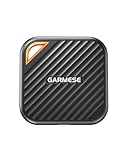
- 2000MB/s Read & 1800MB/s Write: This USB 3.2 Gen 2x2 external SSD lets you load, transfer, or manage large files, 4K videos, and massive game assets in seconds. Load games faster, edit RAW footage instantly, and manage massive creative assets without waiting
- Plug-and-Play: No drivers, no software needed. Our portable SSD works instantly with Windows, macOS, iPadOS, Android, Chrome OS, and Linux. Just plug in and expand your storage in seconds. Perfect for users who want a simple, hassle-free setup
- Ultraportable with Keychain Hole: The USB‑C external SSD weighs just 33g and fits in your palm. Attach it to your keychain, backpack, or lanyard—your photos, projects, and game libraries always travel with you
- Ready for Your Devices: Includes a USB-C cable and a USB-C-to-USB-A adapter. Works with USB-C iPhones (15/16), iPad Pro, MacBooks, Android phones, Windows PCs, PS5, Xbox, and laptops. A true universal external hard drive alternative
- Shock‑Resistant & Travel‑Ready: Built to withstand drops and bumps. Perfect for gamers moving libraries, students backing up assignments, and professionals editing on location. A reliable external solid state drive for daily use
Why is a purchased game missing from my account?
Check the account and external-login method used for the purchase, clear filters, turn off Hide Game Library, confirm operating-system support, and inspect purchase history. A refund, expired beta or press version, gifted transaction, or revoked code can explain why downloading is no longer available.
What should I do with a revoked retail code?
Epic directs players to the retailer that issued the code. A launcher restart or filter reset cannot restore a code that was revoked after being reported fraudulent.
Does uninstalling remove a game from my account?
No. Uninstalling removes the local files from that computer. The owned title remains downloadable from the launcher if the account still has access and the title supports the computer’s operating system.
Will reinstalling the Epic Games Launcher keep my installed games?
No. Epic’s reinstall guidance warns that uninstalling the launcher removes installed games from that computer. Afterward, sign in and download owned titles again. Do not assume all local save data survives.
Do all Epic games use Cloud Saves?
No. Cloud Saves are title-specific. Use the Cloud Saves library filter or inspect the game’s store-page feature tags. Enable Cloud Saves in launcher settings before relying on synchronization.
Which cloud-save file should I choose during a conflict?
Compare the timestamps or progress descriptions shown by the launcher and select the version you intend to keep. Choosing casually can replace newer progress with an older save.
Can a wishlist game be downloaded?
Not merely because it is wishlisted. The wishlist is for planning and discount tracking; the game must be purchased or otherwise acquired and appear in the library before the launcher can provide its download controls.
Frequently Asked Questions
How do I open my Epic Games Store library?
Sign in to the Epic Games Launcher and select Library. The website is for browsing and purchasing; downloading and managing owned titles requires the launcher.
Why is an Epic game missing from my library?
Confirm the owning account and external-login method, clear the Installed and other filters, turn off Hide Game Library, check operating-system support, inspect purchase history, then restart the launcher and clear its webcache if needed.
Does uninstalling an Epic game delete ownership?
No. It removes the local installation only. An owned title can be downloaded again while the account retains access.
Do Epic Games support cloud saves automatically?
Cloud Saves are not universal. Check the title’s Cloud Saves feature tag or filter, then enable Cloud Saves in launcher settings.
Recommended Free Tools
What is the difference between the library and wishlist?
The library contains acquired games and software. The wishlist contains products you may want to buy or track and does not grant download access.
The Bottom Line
Use the Epic Games Launcher’s Library for the complete ownership and management workflow: search with full or partial words, clear filters when titles seem missing, organize entries with collections and favorites, install or uninstall from the title menu, and verify files when that option is available. For missing games, check the account, hidden-library setting, operating-system support, and purchase history before treating the problem as permanent. Before changing computers or removing installations, confirm Cloud Saves support, enable the setting, and review any sync conflict by timestamp. Keep the wishlist separate from ownership, and remember that reinstalling the launcher removes installed games even though eligible owned titles can be downloaded again.
Quick Recap
Product prices and availability are accurate as of the date/time indicated and are subject to change. Any price and availability information displayed on Amazon at the time of purchase will apply.

