
Free tools Windows power users keep installed
One-click scans. No signup required.
iTechGuides is reader-supported. When you buy through links on our site, we may earn an affiliate commission. As an Amazon Associate I earn from qualifying purchases. Learn more
In Halo Infinite, finding a community-made multiplayer experience and joining one are two different actions. Use Community > Community File Share to discover Forge maps, modes, and Prefabs, then bookmark anything you want to keep. Use Community > Customs Browser when you want to enter a Custom Game that is already running. If no suitable live session exists, the fireteam leader can select the bookmarked creation while setting up a Custom Game for your group.
Choose the route that matches what you want to do
The fastest route depends on whether you want to play immediately or organize a specific creation with your own group.
| Goal | Menu path | What you do | What must be true |
|---|---|---|---|
| Play with other players immediately | Community > Customs Browser | Filter the active list, inspect a session, and choose Join | The session must already be in progress and have room |
| Save a particular map or mode | Community > Community File Share | Browse or search, then bookmark the creation | The file must be available in the community listings |
| Play a saved creation with friends | Community > My Bookmarks, then Custom Game setup | The fireteam leader selects the bookmarked map or mode | Your group arranges its own Custom Game |
The File Share is a library of creations; the Customs Browser is a directory of live sessions. A file can be bookmarked even when nobody is currently playing it, while a browser entry exists only while its session is joinable.
Quick wins for a faster PC:
Fix the driver behind crashes, sound loss and screen glitchesFind Drivers →Clear out junk files and repair common Windows errorsFree Scan →What this guide covers
These instructions apply to Halo Infinite. Halo Infinite multiplayer and Forge are included with the free-to-play multiplayer experience, according to Halo Support’s Forge overview. The steps here are not a claim about equivalent menus in Halo: The Master Chief Collection.
#1 Best Overall

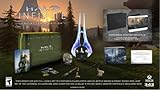
- Bonus Content: Order Halo Infinite and receive the exclusive VK78 Commando Rifle Skin only while supplies last. Codes will be distributed after eligible order is placed. *In some cases, it may take up to 24-hours after release date for available codes to be distributed.
- The legendary Halo series returns with a groundbreaking multiplayer experience and the most expansive Master Chief campaign yet.
- Campaign: When all hope is lost and humanity’s fate hangs in the balance, the Master Chief is ready to confront the most ruthless foe he’s ever faced. Step inside the armor of humanity’s greatest hero to experience an epic adventure and explore the massive scale of the Halo ring.
- Multiplayer: Halo’s celebrated multiplayer returns, reimagined and free to play! Seasonal updates evolve the experience over time with unique events, new modes and maps, and community-focused content.
- Cross-generation and cross-platform gaming: Halo Infinite provides an amazing experience across the Xbox One and newer family of consoles with stunning graphics and world-class cross-platform play. On Xbox Series X, enjoy enhanced features like up to 120 FPS and greatly reduced load times creating seamless gameplay that ushers in the next generation of gaming.*
Community-made content can include Forge maps, game modes, Prefabs, custom games, and replays. The important distinction is between the creation itself and a session using that creation. You can search for and save the former at any time; you can join the latter only when its host has started a game that is accepting players.
Find a community-made map or mode in Community File Share
Community File Share is the official discovery route for Forge creations. Halo Support describes its tiles as the place to discover popular Forge maps, modes, and Prefabs; the same page explains the available browsing categories at Halo Infinite Forge Overview.
- Open the Community tab. From the Halo Infinite main menu, select Community, then open the Community File Share area.
- Start with a curated tile if you want ideas. Recommended contains selections chosen by Halo Studios. It is a way to begin browsing, not a guarantee that a particular item will remain listed.
- Use Popular Maps or Popular Modes for recent activity. These tiles show the most-played items during the previous seven days. The time window matters: a file that was popular earlier may move out of these lists as the seven-day period changes.
- Use Popular Prefabs for bookmarked items. This tile ranks Prefabs by bookmarks during the previous seven days, rather than by map or mode plays.
- Search with Browse All. Choose Browse All to search by file name, tag, or keyword. Search terms based on the creator’s spelling, a distinctive mode name, or a tag are more useful than a broad genre word.
Browse All is the practical option when you already know part of a title. If a search produces several similarly named results, compare the displayed names and thumbnails before opening one; the browser and File Share can contain multiple versions of an idea.
The Tool Desk
Outbyte Driver Updater FREEScan for outdated or missing drivers - takes under a minuteDriver Scan →Outbyte PC Repair FREERepair Windows errors before they cause bigger problemsFix Now →How to search effectively
- Begin with the exact or most distinctive words in the creation’s name.
- Try a tag or a shorter keyword if the full title returns no result.
- Check both map and mode results when the creator has published them as separate files.
- Remember that Popular lists are rolling seven-day lists, so they are not a permanent catalog.
Availability is live. A creation can be renamed, removed, or displaced from a popularity tile, so save anything you may want to revisit rather than relying on finding it again later.
Bookmark a creation so you can use it later
When you find a map or mode you want to play, bookmark it from the community interface. Bookmarks are the bridge between discovery and arranging your own game: they let the fireteam leader select the file during Custom Game setup instead of searching again.
- In Community File Share, open the map or mode you intend to keep.
- Choose the available Bookmark action for that creation.
- To retrieve it later, return to Community > My Bookmarks.
Halo Support’s menu guide identifies My Bookmarks as the location for bookmarked custom games, Prefabs, and replays. That means the list can contain more than maps and modes; use the item type or title to distinguish what you want when preparing a session.
Bookmarking does not start a game and does not reserve a slot in somebody else’s lobby. It simply stores the creation in your account’s accessible list. To play it immediately with strangers, you still need a live Customs Browser session; to control the group and settings, the fireteam leader must start a Custom Game.
What’s actually slowing this PC down?
Pick the symptom - the matching free tool is one click away.
Join a live community session through Customs Browser
Use Customs Browser when your priority is to play now with a host and other players. The browser lists active Custom Games that can be joined immediately, rather than future events or lobbies waiting for their host to press Start. Halo Support’s explanation is available in the Halo Infinite Custom Game Browser overview.
- Open Community > Customs Browser. The browser loads a list of sessions currently exposed for joining.
- Read the session cards. Check the displayed map name, mode name, and thumbnail so you know what you are about to enter.
- Apply filters or sorting. Narrow the list by the available criteria when you are looking for a particular map, mode, or session type. Filters are useful when the page contains many unrelated games.
- Refresh after changing filters. Refreshing requests an updated list and helps account for sessions that have started, ended, filled, or changed since the previous display.
- Choose Join for a direct entry. If the session has room and is still joinable, select Join to enter it.
- Choose View Details first when you need to inspect it. Details let you check the listing before committing to the join action.
The browser is a live snapshot, not a reservation system. A session can disappear between the list and the Join command because another player filled the available space or the host ended the game. If that happens, refresh and select another active listing.
Capacity and page behavior
The browser displays 12 sessions per page. Each Custom Game session supports up to 24 players and 4 observers, according to Halo Support’s current browser documentation. Those are session limits, not a promise that every listed game has an open player slot; a host may have filled the player positions while leaving observer space, or may have configured a smaller group.
Why a specific session is missing
A missing listing usually reflects the browser’s definition of joinable rather than a search failure. Check these cases in order.
Recommended Free Tools
The host has not started the game
Customs Browser lists sessions that are already in progress. A lobby that is merely waiting for players or waiting for the host to start is not listed as an immediately joinable game. Ask the host to start the Custom Game, then refresh the browser.
The session is full
Full sessions are omitted from the joinable list. If you know the host, ask whether a player can leave or whether the group will start another session. Repeatedly refreshing cannot create an opening; the game must have capacity first.
Your filters or page are stale
After changing filters, refresh the browser. Also refresh when you have been watching the list for a while. The 12-session page is a changing view, so a game can move to another page or leave the list as sessions start and end.
A friend’s Join control is missing or disabled
Halo Support notes that a missing or disabled Join option when joining a friend can mean that the friend’s fireteam is full. In that case, the limitation is the friend’s group capacity rather than the browser search.
You were removed from the session
If you are booted from a Custom Game, you cannot rejoin that specific session through the browser on your own. Someone still in the session must invite you again. This is different from a temporary listing problem: refreshing will not restore a removed player without a new invitation.
Rank #3
- Software Main Type: Game
- Software Sub Type: First Person Shooter
- Software Name: Halo Infinite Standard Edition
- ESRB Rating: Rating Pending
- Single Player Supported: Yes
Arrange your own Custom Game with a community creation
Choose this route when the exact map or mode matters more than joining a random live session, or when you want to play with a known group. Forge maps and modes can be used in Custom Games, and the fireteam leader can select saved or bookmarked content while configuring the game. The menu and mode relationships are documented in Halo Support’s game-mode guide.
- Find and bookmark the creation. Use Community File Share and My Bookmarks as described above.
- Form or join the fireteam that will play. The person who will configure the game needs to be the fireteam leader for the selection controls described by Halo Support.
- Open the Custom Game setup. Use the Custom Games menu to choose a map and a mode instead of entering matchmaking.
- Select the bookmarked or saved content. Pick the Forge map and mode from the available selections. You can select community content rather than limiting yourself to standard matchmaking combinations.
- Configure the group and start. Set the available game options, confirm the player arrangement, and start the Custom Game when the group is ready.
This route gives the organizer control over which creation is used and who receives an invitation. It does not depend on a stranger having the same file open in Customs Browser at that moment.
Maps and modes are selectable separately
A Custom Game can combine maps and modes outside the combinations used by matchmaking. That is why saving a map and a mode separately can be useful: the leader can choose the pairing that suits the group instead of waiting for the browser to expose a session using a particular combination.
What happens when the match ends
When a browser match ends, the players remain in the same fireteam. Its leader can start another Custom Game with that group, which makes it possible to continue playing without rebuilding the party. If you leave the fireteam, you will need a new invitation or another join path.
Progression and other Custom Game limits
Custom Games are designed for community play and experimentation, not matchmaking progression. They do not award Match XP or advance Challenges. Enter a Custom Game because you want the map, rules, or group experience, not because you expect the same progression as a matchmaking match.
| Custom Game behavior | Verified detail |
|---|---|
| Browser listing | Shows active sessions that can be joined immediately |
| Sessions displayed | 12 sessions per page |
| Player capacity | Up to 24 players per session |
| Observer capacity | Up to 4 observers per session |
| Match XP and Challenge progression | Not awarded in Custom Games |
These are product rules documented by Halo Support, not estimates of player activity. The number of visible sessions and the availability of open slots change continuously.
A practical workflow for a known community mode
Suppose a friend gives you the name of a Forge mode but is not currently hosting it. Search the name through Community > Community File Share > Browse All, bookmark the matching result, and verify it later under Community > My Bookmarks. When your group is ready, the fireteam leader selects that saved mode during Custom Game setup. This avoids relying on a live browser listing that may not exist.
If the friend is already playing the mode, skip the File Share search and open Community > Customs Browser. Use the map and mode labels or thumbnails to identify the session, refresh the list, and select Join. If it is absent, determine whether the host has started the game and whether the session has space; a waiting or full lobby will not appear as joinable.
Quick decision checklist
- I want to discover something new: Open Community File Share and start with Recommended, Popular Maps, Popular Modes, Popular Prefabs, or Browse All.
- I found a creation I may use later: Bookmark it and retrieve it from My Bookmarks.
- I want to play with strangers now: Open Customs Browser, filter the active list, refresh, and join a session with capacity.
- I want a particular map or mode with friends: Bookmark it, then have the fireteam leader select it in Custom Game setup.
- I cannot find a friend’s session: Check that the game is in progress, the session is not full, the friend’s fireteam is not full, and your filters are refreshed.
- I was removed from a session: Ask a remaining participant to invite you again; you cannot independently rejoin that same session.
Keeping the File Share and Customs Browser roles separate makes the process predictable: save creations in the former, and use the latter only for sessions that are live and joinable.
Quick Recap
Product prices and availability are accurate as of the date/time indicated and are subject to change. Any price and availability information displayed on Amazon at the time of purchase will apply.

