
Quick wins for a faster PC:
Clear out junk files and repair common Windows errorsFree Scan →Scan for outdated or missing drivers - takes under a minuteDriver Scan →Repair Windows errors before they cause bigger problemsFix Now →iTechGuides is reader-supported. When you buy through links on our site, we may earn an affiliate commission. As an Amazon Associate I earn from qualifying purchases. Learn more
The quickest way to extend a 6-inch Kindle’s battery is to lower the front-light level, switch on Airplane Mode when you do not need internet access, press the power button briefly when you finish reading, and leave the Kindle charging while new books are downloaded and indexed. Also use a compatible USB cable; the current 6-inch model charges through USB-C.
These changes address the main sources of drain without disabling reading features. If a Kindle still loses charge unusually quickly after downloads and updates finish, work through the troubleshooting procedure below rather than judging battery health during initial setup.
What battery life to expect from a current 6-inch Kindle
Amazon’s 2026 6-inch Kindle has a glare-free 6-inch display, 300 ppi resolution and a USB-C charging port. Amazon advertises up to six weeks of battery life. “Up to” is a manufacturer maximum measured under specified usage conditions, not a guarantee for every reader.
Your interval can be shorter when the front light is bright, wireless connections remain active, Bluetooth is used, the Kindle syncs frequently, or the device is downloading and indexing many books. Reading more hours per day also consumes the advertised allowance sooner. A new Kindle or a Kindle that has just received an update can therefore appear to drain quickly while it completes background work.
#1 Best Overall
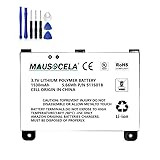
- BATTERY PART NO.: Replacement Battery S11S01B
- COMPATIBLE MODEL: Battery for B003B0A294563B74,D00701,D00701 WiFi,DX DXG,S11S01A
- SAFE AND RELIABLE: Our batteries are manufactured to the same exact specifications as original batteries. Each battery has undergone strict specification testing and use testing to absolutely ensure the safety and durability of the battery
- LONG LIFE WITHOUT CAPACITY LOSS: This battery pack guarantees a high number of charge cycles with low self-discharge – for longer breaks between charges
- EASY TO INSTALL: High-quality replacement batteries, carefully crafted to meet original factory specifications, easy to remove and install batteries.
| Use condition | Battery implication | What to do |
|---|---|---|
| Front light at a high level | Higher power use from the built-in light | Set the lowest comfortable level, especially in a dark room. |
| Wi-Fi or other wireless connection left on | Connectivity, syncing and downloads continue to use power | Enable Airplane Mode when online features are not needed. |
| Reading screen left active after a session | The Kindle does not enter its normal sleep state immediately | Press the power button once briefly. |
| Recent downloads or software updates | Books may be indexed for search, causing temporary extra drain | Keep the Kindle connected to power during the work and for a while afterward. |
| Wireless reading with Bluetooth active | Additional radios and connected accessories can shorten the interval | Turn off connections you are not using. |
Amazon does not publish a per-setting savings percentage in the guidance used here, so treat these as priorities rather than promises of a particular number of extra days.
Make the four highest-impact changes first
1. Lower the front-light level
On a Kindle with a built-in light, open the quick settings panel from the top of the screen and move the light control down until text is comfortable to read. Use only enough light for the room. In a dark room, a high setting is usually unnecessary.
Amazon’s Kindle Help puts the reason plainly: “Lower your device’s light settings: Devices with a built-in light use more battery.” Lowering the light is especially useful if you read for long sessions or keep the light bright indoors.
What’s actually slowing this PC down?
Pick the symptom - the matching free tool is one click away.
2. Turn off wireless when you do not need it
Open the quick settings panel and tap Airplane Mode. The Kindle will stop its internet connection, which prevents wireless syncing, downloads and purchases until connectivity is restored.
Amazon specifically recommends Airplane Mode to conserve battery on Kindle (6th Generation and newer) when an internet connection is unnecessary. Use it after your books have downloaded and your reading progress has synced. Turn it off when you need to download a title, synchronize progress, use an online lookup or complete another connected task.
3. Put the Kindle to sleep when you finish
When you stop reading, press the power button once briefly. Do not hold it down unless you intend to shut the device down. Amazon’s instruction is: “Put your device to sleep when done reading. Press the power button once briefly.”
Sleep ends the active reading session while preserving your place. Make this a habit whenever you put the Kindle down for more than a short pause.
Recommended Free Tools
4. Enable Power Saver
Power Saver places the Kindle in a low-power sleep mode after it has not been used for a few hours. If the setting is available on your software version, enable it in the device settings and leave it on unless you have a specific reason to keep the Kindle awake.
Power Saver is most useful for readers who forget to press the power button. It does not replace Airplane Mode or a lower light level; it addresses unattended idle time.
Rank #2

- 【Compatible Model】 Please Make sure your phone is suitable for this replacement battery before ordering. Battery Model: 58-000246 Battery.
- 【Durable】100% brand new, high quality, upgraded batteries with A+ grade cells, UL certified. Each battery is tested under strict quality control standards before shipment, fast charging and high efficiency, can provide you with up to 545+ cycles of charging.
- 【Quality Assurance】 100% brand new, high quality, upgraded batteries with A+ grade cells, UL certified. Each battery is tested under strict quality control standards before shipment, fast charging and high efficiency, can provide you with up to 549+ cycles of charging.
- 【Easy To Install】Instruction/Manual NOT included, but there are many installation tutorials videos on YouTube to reference.
- 【Customer Guarantee】 We take care of all quality-related problems with a replacement or a complete refund. If you are not 100% satisfied with your battery change when using this battery during the period, we will reply to you within 33 hours.
Use Airplane Mode without losing the features you need
Airplane Mode is a battery trade-off, not a permanent requirement. It disables internet connectivity, so the Kindle cannot perform online actions until you switch connectivity back on.
| Task | Airplane Mode on | Best approach |
|---|---|---|
| Reading books already stored on the Kindle | Works normally | Leave Airplane Mode on to avoid unnecessary wireless activity. |
| Downloading a purchased book | Unavailable until connectivity returns | Turn Airplane Mode off, download, then re-enable it. |
| Syncing reading position | Delayed | Restore connectivity when you finish a session or change devices. |
| Buying or downloading from the Kindle | Unavailable | Use a connected period for purchases and downloads. |
| Online lookups or other internet features | Unavailable | Restore connectivity only for the task, then turn it off again. |
A practical routine is to connect once, download and synchronize everything you need, then activate Airplane Mode for offline reading. This preserves online features when you choose to use them while avoiding continuous wireless activity during ordinary reading.
Do these 3 things before closing this tab:
1Fix the driver behind crashes, sound loss and screen glitches2Clear out junk files and repair common Windows errors3Scan for outdated or missing drivers - takes under a minuteHandle downloads, updates and indexing correctly
Fast drain immediately after setup is often temporary. Amazon explains: “After downloading, your Kindle indexes your books to provide search capability, but it affects battery life.” Indexing makes on-device search work, but it requires processing after the download itself has completed.
After downloading several books
- Connect the Kindle to power before starting a large batch of downloads.
- Allow the downloads to finish.
- Keep the Kindle charging for a period afterward so indexing can complete.
- Leave the device idle or in sleep while the work continues; avoid repeatedly waking it to check progress.
- After the library has settled, compare battery behavior during an ordinary reading session.
After a software update
A recently updated Kindle may perform additional background work. Keep it connected to power while the update and any post-update library processing finish. Do not treat the first rapid drop after an update as proof of a defective battery.
How to distinguish temporary indexing from a persistent problem
- Temporary pattern: the Kindle drains faster soon after many books or an update, then returns to normal once processing ends.
- Persistent pattern: the battery continues dropping unusually quickly after downloads and updates are complete, with the light lowered, wireless disabled when unnecessary and the device put to sleep between sessions.
The supplied guidance does not establish a battery-health percentage or a fixed number of hours that indexing should take. Judge the device after this activity has finished rather than against a precise time target.
Charge with the correct cable
Amazon recommends a compatible USB cable, preferably the cable supplied with the Kindle. The current 6-inch Kindle uses a USB-C charging port, so a compatible USB-C cable is the appropriate replacement or spare for that model.
Free tools Windows power users keep installed
One-click scans. No signup required.
Match the cable to the Kindle generation
“6-inch Kindle” describes screen size, not every generation’s connector. Check the exact model before buying or reusing a cable. A current 2026 6-inch model has USB-C; an older 6-inch Kindle may use a different connector. A cable that physically fits another device is not automatically the right cable for your Kindle.
Use a reliable charging routine
- Inspect the Kindle’s port and cable for visible damage or an insecure connection.
- Use the supplied cable when available, or a USB cable explicitly compatible with the Kindle’s connector.
- Connect the cable firmly and verify that the Kindle shows it is charging.
- Leave the device connected during large downloads, indexing and updates.
- Once background work is complete, disconnect or continue charging according to your normal routine; the key is avoiding interrupted power during intensive setup work.
Do not infer a battery fault solely from a slow or interrupted charge until you have confirmed that the cable matches the port and is seated securely.
A step-by-step battery-saving setup
Use this sequence after unboxing, after a reset, or whenever you want to standardize your settings.
Rank #3
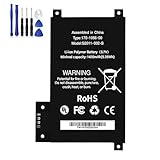
- BATTERY PART NO.: Replacement Battery 170-1056-00, DR-A014, MC-354775, S2011-002-A, S2011-002-S
- COMPATIBLE MODEL: Battery for D01200,DR-A014, KD Touch, KD Touch 4th
- SAFE AND RELIABLE: Our batteries are manufactured to the same exact specifications as original batteries. Each battery has undergone strict specification testing and use testing to absolutely ensure the safety and durability of the battery
- LONG LIFE WITHOUT CAPACITY LOSS: This battery pack guarantees a high number of charge cycles with low self-discharge – for longer breaks between charges
- EASY TO INSTALL: High-quality replacement batteries, carefully crafted to meet original factory specifications, easy to remove and install batteries.
- Charge first: connect the Kindle with the supplied or generation-compatible USB cable.
- Finish essential downloads: download the books you expect to read soon and allow reading progress to synchronize.
- Wait for indexing: keep the Kindle on power for a period after downloads finish so its search index can be built.
- Set the light: open quick settings and choose the lowest comfortable front-light level for your room.
- Enable Power Saver: turn on the low-power sleep behavior in settings if the option is present.
- Choose wireless deliberately: leave connectivity on only when you need downloads, syncing, purchases or online functions; otherwise tap Airplane Mode.
- Sleep after reading: press the power button once briefly every time you finish a session.
- Recheck after normal use: evaluate drain only after setup processing, downloads and updates have settled.
Diagnose a Kindle that drains too fast
Work through the checks in order. Each step removes a common temporary or settings-related cause before you escalate the problem.
Check 1: Is the Kindle still downloading or indexing?
Think back to the timing. If the drain began after adding many books or installing an update, connect the Kindle to power and allow the work to finish. This is the most important check for a new device.
Check 2: Is the front light brighter than necessary?
Open quick settings and lower the light. Read for a comparable period under the same room conditions. The objective is comfort at the lowest practical level, not turning the light off when you need it.
Check 3: Is wireless running during offline reading?
If you are reading books already stored on the Kindle, enable Airplane Mode. Remember that this also pauses syncing and online features, so restore connectivity before switching devices or expecting a purchase to appear.
Check 4: Is the device being left awake?
Press the power button once briefly when you finish. If you often forget, confirm that Power Saver is enabled so the Kindle eventually enters low-power sleep after several hours of inactivity.
Check 5: Is charging reliable?
Confirm that the cable matches the Kindle generation and connector. For the current 6-inch model, that means USB-C. Try the supplied cable if you have it, reseat both ends and verify that the charging indicator appears.
Check 6: Has the abnormal drain continued after setup?
Once downloads, indexing and updates are complete, repeat the light, wireless, sleep and cable checks. If the Kindle still loses charge unusually quickly, use Amazon’s device support and charging guidance. The available guidance does not provide a battery-health percentage or a universal per-setting savings figure, so support is the appropriate next step rather than relying on an invented threshold.
Choose settings by reading situation
| Reading situation | Recommended settings | Reason |
|---|---|---|
| Long offline reading session | Lowest comfortable light, Airplane Mode on, Power Saver enabled | Reduces light and wireless activity while retaining downloaded books. |
| Preparing for travel | Download and sync first, charge during indexing, then enable Airplane Mode | Books are available offline and background processing is completed before departure. |
| Frequent switching between devices | Keep wireless on only during synchronization periods | Progress updates need connectivity, but it does not need to remain active for every reading minute. |
| Reading in a dark room | Lower the front light to the minimum comfortable level | A bright built-in light uses more battery than a dim setting. |
| Initial setup or large library import | Use compatible USB charging throughout downloads and afterward | Indexing after downloads temporarily increases consumption. |
Common mistakes that waste battery
- Leaving Wi-Fi on by default: offline reading does not require an active internet connection.
- Using maximum light for every environment: adjust the level to the room instead of treating one setting as universal.
- Holding the power button when you only want sleep: a brief press is Amazon’s recommended sleep action.
- Judging battery life during indexing: downloads and search indexing can create a temporary spike in use.
- Assuming all 6-inch Kindles share one cable: connector requirements vary by generation; the current model is USB-C.
- Expecting Airplane Mode to preserve online features: it intentionally disables internet connectivity until you turn it off.
When to contact support
Contact Amazon’s Kindle support if abnormal drain remains after the Kindle has completed downloads and updates and you have verified the light, wireless, sleep and charging settings. Include the model generation, when the problem began, whether the Kindle was recently updated, whether many books were added, the cable and connector used, and what happens when Airplane Mode and Power Saver are enabled.
That information separates a temporary indexing workload from a charging or device problem and gives support a useful starting point. Avoid diagnosing the battery from a single short session or from the first day of setup.
The Tool Desk
Outbyte Driver Updater FREEFix the driver behind crashes, sound loss and screen glitchesFind Drivers →Outbyte PC Repair FREEClear out junk files and repair common Windows errorsFree Scan →A simple maintenance routine
- Before a long reading period, set the front light for the room rather than leaving it brighter than necessary.
- After syncing or downloading, switch to Airplane Mode if you will read offline.
- Press the power button once when you finish.
- Keep Power Saver enabled so forgotten sessions eventually enter low-power sleep.
- Use the correct cable whenever the Kindle needs charging, especially during downloads, indexing and updates.
- If drain changes suddenly, first check for recent downloads or an update before assuming the battery has failed.
For the current 6-inch Kindle, this routine aligns the device’s main power controls with the situations that actually consume energy: the built-in light, wireless activity, active screen time and post-download indexing.
Quick Recap
Product prices and availability are accurate as of the date/time indicated and are subject to change. Any price and availability information displayed on Amazon at the time of purchase will apply.

