
Free tools Windows power users keep installed
One-click scans. No signup required.
iTechGuides is reader-supported. When you buy through links on our site, we may earn an affiliate commission. As an Amazon Associate I earn from qualifying purchases. Learn more
To estimate whether a multi-GPU workstation can run an AI model, start with the exact model file and runtime, then budget memory for its weights, KV cache, activations, and runtime overhead at your intended context length and concurrency. Next, confirm that the software can distribute that model across the specific GPUs, and check the workstation’s power, cooling, slots, and other system requirements. Adding the cards’ VRAM figures together is not, by itself, a reliable fit test.
What determines whether a model fits?
A model fits only if the complete workload fits within the memory the selected software can actually use. The relevant question is not simply how many parameters the model has or how large its download is. Inference also consumes GPU memory for the KV cache, activations, communication buffers, CUDA graphs, and sometimes adapters, multimodal inputs, or model-specific state. Training and fine-tuning can have different memory requirements from inference.
There are two separate checks. First, does the model and workload fit in memory under the intended software configuration? Second, can the workstation run that configuration with acceptable performance and reliability? A successful model load answers neither question completely if it used a shorter context, fewer concurrent requests, a different quantization, or a different serving profile than the one you need.
PC Slower Than It Used to Be?
A free scan shows the junk files, broken settings and background clutter dragging Windows down - then fixes them in one click.Free scan · Windows 10 & 11Crashes, No Sound, or Screen Glitches?
Random freezes, missing sound and display glitches usually trace back to one bad driver. Find and replace yours safely.Free scan · under a minute- Model artifact: the exact checkpoint or quantized file matters; two artifacts described by the same model name may not have the same stored weights.
- Workload: inference, training, and fine-tuning are not interchangeable memory cases.
- Serving settings: context length, output length, batch size, and concurrent sequences affect memory use.
- Software: the framework, model profile, and parallelization strategy determine whether and how multiple GPUs are used.
- Whole system: power delivery, slot layout, cooling, system RAM, storage, and software support can rule out a build even when its headline VRAM total looks adequate.
Define the workload before estimating memory
Write down the workload you intend to run before comparing GPUs. Otherwise, an estimate can appear precise while describing a different job from the one you care about. Record the following for the exact model artifact and software stack:
#1 Best Overall
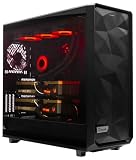
- A M D R9-9950X3D2 4.3GHz 16 core | 256GB DDR5 RAM
- N V I D I A - G e F o r c e 2X5090 64 GB | 1600W Power Supply
- 360mm Liquid Cooler | 8 TB NVMe SSD Boot Drive
- Ready to work, preloaded with Windows 11 Pro and the latest drivers
- Custom built Dual GPU AI Workstation, professional cable management, fully tested
- Model name, checkpoint, and any quantization or other weight format.
- Whether you will perform inference, training, or fine-tuning.
- Weight precision and any runtime settings that affect how the model is represented.
- Maximum input or context length and the output length you need to support.
- Expected concurrent requests or batch size—not merely the number of people who might eventually use the workstation.
- Latency or throughput target, such as how quickly an answer must begin or how many requests must be served.
- Optional features, including adapters, multimodal inputs, and model-specific runtime components.
These details define the target configuration for both the memory estimate and the final test. If, for example, you know the model but not the context length or concurrency, you can estimate a narrow use case, but you cannot yet conclude that the workstation will support your intended service.
Estimate the full GPU-memory requirement
Start with the exact weights
Use the exact artifact size or, preferably, an estimator for the intended runtime and model profile. A rough first-pass estimate multiplies the parameter count by the number of bytes used per stored parameter. That is only a starting point: it does not account for metadata, alignment, runtime-specific representations, or non-weight allocations.
Vendor estimates illustrate why a model label is not a universal memory specification. NVIDIA’s NIM for Large Language Models getting-started guide, version 1.14.0, gives approximate examples including about 15 GB for Llama 8B, about 131 GB for Llama 70B, about 14 GB for Mistral 7B Instruct v0.3, and about 88 GB for Mixtral 8x7B Instruct v0.1. These are NIM guidance figures for its described setup, not guaranteed weight-file sizes or requirements for every engine. The guide explicitly characterizes the numbers as rough and configuration-dependent.
Recommended Free Tools
The same NIM guide separately allows approximately 5–10 GB for the operating system and other processes and 16 GB for Docker in its described setup. Those allowances are part of that guide’s estimate; do not assume they apply unchanged to a different operating system, container setup, or serving environment.
Add the KV cache for the actual context and concurrency
For language-model inference, the KV cache stores information used while processing sequences. Its memory footprint grows with sequence length and batch size, so a model that loads at a short context may not fit at a long context or with more concurrent requests. Input length, output length, and the number of active sequences all matter to the workload you need to support.
Rank #2

- Unlock next-generation AI computing with AMD Ryzen AI Max+ 395 processor featuring 16 cores, 32 threads, up to 5.1GHz boost clock, and integrated Ryzen AI engine delivering up to 126 TOPS AI performance. EVO-X3 is designed for local AI models, content creation, development, and professional workloads.
- OCuLink External GPU Expansion – Upgrade Beyond a Mini PC: Take your graphics performance further with a dedicated OCuLink (PCIe 4.0 x4) interface. Connect an external GPU dock to add desktop-class graphics power for AAA gaming, AI acceleration, 3D rendering, video production, and advanced creative applications. EVO-X3 gives you the flexibility of a compact PC with workstation-level expansion capability.
- AI NPU with XDNA 2 ARCHITECTURE - Powered by 16 “Zen 5” CPU cores, 50+ peak AI TOPS XDNA 2 NPU and a truly massive integrated GPU driven by 40 AMD RDNA 3.5 CUs, the Ryzen AI MAX+ 395 is a transformative upgrade and delivers a significant performance boost over the competition. The Ryzen AI Max+ 395 excels in consumer AI workloads like the llama.cpp-powered application: LM Studio. Shaping up to be the must-have app for client LLM workloads, LM Studio allows users to locally run the latest language model without any technical knowledge required and unleash their creativity and productivity.
- AMD RADEON 8090S iGPU GAMING PC - The AMD Radeon RX 8060S offers all 40 CUs with up to 2.9 GHz graphics clock and uses the new RDNA 3.5 architecture. The powerful iGPU is positioned between an RTX 4060 and 4070 laptop GPU and therefore enables gaming in FHD at maximum details in most demanding games. The 8060S can also utilize the full 128GB pool, which is perfect for running LLMs such as Deepseek 70B Q8, which runs comfortably on this machine.
- EIGHT CHANNEL LPDDR5X - LPDDR5X is a new ground breaking memory small form factor installed on-board. With blazing speeds up to to 8000MT/s, it runs 1.5x faster than the DDR5 SODIMMs; 90% better performance over DDR5 SODIMMs in video conferencing and photo editing; 30% better performance in productivity apps; 12% better performance in digital content workloads.
The exact cache requirement also depends on the model architecture and cache format. Use the serving stack’s estimator with the target model and workload settings rather than applying a single VRAM-per-token rule to every model. NVIDIA’s inference optimization guidance identifies sequence length and batch size as factors in KV-cache size; it does not establish one universal cache figure for all models.
Reserve memory for runtime work
Weights and KV cache are not the entire allocation. Depending on the stack and workload, GPU memory may also be used by activations, communication buffers, CUDA graphs, input and output tensors, optional LoRA adapters, multimodal reservations, and hybrid-model state. TensorRT-LLM’s memory guidance identifies weights, internal activation tensors, and I/O tensors as major contributors and notes that settings such as batch size and input length affect memory use.
Quick wins for a faster PC:
Fix the driver behind crashes, sound loss and screen glitchesFind Drivers →Repair Windows errors before they cause bigger problemsFix Now →Scan for outdated or missing drivers - takes under a minuteDriver Scan →Use an estimator tied to the runtime you plan to deploy, and include the intended context, batch size, precision, and optional features. Avoid setting a build’s capacity exactly equal to a theoretical minimum: the runtime needs room for its allocations, and other processes may also occupy memory. The cited guidance does not establish a universal percentage of extra memory to reserve, so a fixed safety-margin number would be misleading.
How to interpret published VRAM estimates
Another NVIDIA guide, its multi-GPU workstation guide, gives separate estimates assuming 4-bit quantization: at least 24 GB of VRAM for a 30B LLM, 40 GB or more for a 70B LLM, and roughly 70 GB for a 120B model once context is included. These are estimates from that guide, not guarantees for every model, runtime, context, or concurrency level.
| Published estimate | What it describes | How to use it |
|---|---|---|
| About 15 GB for Llama 8B; about 131 GB for Llama 70B; about 14 GB for Mistral 7B Instruct v0.3; about 88 GB for Mixtral 8x7B Instruct v0.1 | NVIDIA NIM for Large Language Models getting-started guide, version 1.14.0; approximate, configuration-dependent figures for its described NIM setup. The guide also identifies 5–10 GB for the OS and other processes and 16 GB for Docker in that setup. | Use as an initial reference for that NIM guidance, then estimate the exact artifact and workload in your runtime. |
| At least 24 GB for a 30B LLM; 40 GB or more for a 70B LLM; roughly 70 GB for a 120B model including context | NVIDIA multi-GPU guide estimates, assuming 4-bit quantization. | Use as a guide-specific starting estimate, not as a substitute for checking context, concurrency, runtime allocations, and per-GPU placement. |
These two sets of numbers answer different questions and should not be blended into a universal model-to-VRAM chart. They come from different guidance and assumptions. Treat the first as approximate NIM setup guidance and the second as a multi-GPU guide’s 4-bit estimates; neither certifies an arbitrary workstation or serving configuration.
Rank #3

- Professional AI & Creator Workstation: AMD Radeon AI PRO R9700 GPU with 32GB GDDR6 is engineered for AI development, professional content creation, and compute-intensive workloads.
- Massive 32GB Memory Capacity: 32GB of GDDR6 memory on a 256-bit bus provides ample bandwidth for large AI models, 8K video editing, and complex 3D rendering.
- Advanced RDNA 4 with AI Accelerators: 64 Compute Units with 3rd Gen Ray Tracing and dedicated 2nd Gen AI Accelerators for groundbreaking AI performance and visual computing.
- Professional Blower Cooling: Efficient single blower design exhausts heat directly out of the chassis, ideal for multi-GPU workstation and server configurations.
- Enterprise-Grade Thermal Solution: Vapor chamber heatsink with industrial Honeywell PTM7950 thermal interface material ensures reliable cooling under sustained professional loads.
Does VRAM add up across GPUs?
Not automatically. Two cards do not become one larger memory pool for every application. A framework must support the model and GPU configuration and actively distribute work across cards using a supported strategy. Tensor parallelism, for example, can split some tensors across GPU ranks, reducing the portion held on an individual rank. That behavior depends on the implementation; it is not universal pooling of the cards’ VRAM.
NVIDIA’s NIM for Large Language Models documentation, version 1.14.0, says NIM should—but is not guaranteed to—run on a single NVIDIA GPU with sufficient memory, or on multiple homogeneous NVIDIA GPUs with sufficient aggregate memory and CUDA compute capability greater than 7.0, or 8.0 for bfloat16. The qualification matters: sufficient aggregate memory alone does not guarantee execution. The model profile, supported hardware, software configuration, and required compute capability still have to match.
Before counting on a multi-GPU fit, establish how the chosen software distributes the model. Ask whether it uses tensor parallelism, pipeline parallelism, or another supported method; whether the cards must be homogeneous; how memory is divided across ranks; and what communication topology it expects. Check the allocation on each card, not just total installed VRAM. A lopsided allocation can leave one GPU as the limiting device even when the system’s aggregate memory seems sufficient.
Compare candidate workstations against the actual job
When comparing two possible builds, use the same model artifact, runtime, context, and concurrency assumptions for both. A total-VRAM figure is only one comparison point; the useful build is the one that supports the intended configuration and performance target within the limits of the entire system.
| Comparison area | What to verify | Why it matters |
|---|---|---|
| Per-card memory | VRAM on each GPU and the expected memory allocation on each rank. | Aggregate capacity does not show whether the software can use it or whether each GPU has enough for its assigned work. |
| Model-parallel support | Framework, model profile, GPU type, compute capability, supported parallelization method, and any homogeneity requirement. | Multiple GPUs help only if the selected software can distribute the intended model across them. |
| Context and concurrency | Target input and output lengths, batch size, active sequences, and optional model features. | These settings change cache and runtime memory needs; a short-context test does not validate a longer one. |
| Communication and performance | GPU interconnect and system topology, plus measured prefill/decode performance or training time for the target workload. | Memory fit does not establish latency, throughput, or training performance. There is no universal multi-GPU speedup applicable to every workload. |
| Physical and electrical fit | Motherboard slots and spacing, card dimensions, case clearance, airflow, cooling, PSU capacity, and power draw. | A system can be incompatible or thermally constrained even if its memory budget looks adequate. |
| Other system resources | Software and driver support, system RAM, storage capacity, and total build cost. | The GPU configuration must work with the rest of the machine and the software stack you intend to run. |
NVIDIA’s multi-GPU guide discusses example GPUs and supporting components, but a guide’s example configuration is not a universal bill of materials. Check the exact current specifications, physical dimensions, power requirements, and software support of the parts you are considering. Hardware pricing, availability, and compatibility can change, so verify them at purchase time.
Rank #4

- Built for Local AI and Advanced Workflows – The BOSGAME M5 AI Mini PC is powered by AMD Ryzen AI Max+ 395 with 16 cores, 32 threads, up to 5.1GHz, 50 TOPS NPU performance and up to 126 TOPS total AI performance. It is designed for local AI inference, private AI assistants, coding, data analysis, virtualization, content creation and demanding multitasking while keeping sensitive data on the device.
- 128GB Unified Memory for Large Models and Creative Projects – M5 includes 128GB LPDDR5X-8000 unified memory, giving the CPU and Radeon 8060S graphics access to a large shared memory pool. This helps support memory-intensive AI workloads, large project files, multiple virtual machines, 3D work, video editing and complex professional applications without the capacity limits of typical 32GB or 64GB mini computers.
- Radeon 8060S Graphics for Creation, Rendering and Gaming – Integrated Radeon 8060S graphics with 40 RDNA 3.5 compute units delivers high-end visual performance without a separate graphics card. Use the M5 creator workstation for 4K video editing, 3D rendering, CAD, AI image workflows, high-resolution media and modern gaming, while maintaining a compact desktop footprint.
- 2TB PCIe 4.0 SSD and Flexible Expansion – A pre-installed 2TB NVMe PCIe 4.0 SSD provides fast access to models, datasets, media libraries and project files. A second M.2 2280 PCIe 4.0 slot allows additional storage expansion, while the SD 4.0 card reader supports efficient photo and video workflows for creators and production teams.
- Professional Connectivity and Four-Display Support – Dual USB4 ports, HDMI 2.1 and DisplayPort 1.4 support up to four displays and resolutions up to 8K@60Hz. WiFi 7, Bluetooth 5.4 and 2.5GbE deliver fast networking for cloud collaboration, NAS access and business deployment. Windows 11 Pro, performance-mode switching, Wake-on-LAN and auto power-on support flexible workstation use.
A practical step-by-step fit estimate
- Fix the workload definition. Record the model artifact, inference or training task, precision, context and output lengths, concurrency or batch size, optional features, and latency or throughput target. If one of these is unknown, mark it as an assumption rather than silently treating it as settled.
- Get a weight estimate for that artifact. Prefer the runtime’s model-specific estimator or the exact artifact information. Use parameter count multiplied by bytes per stored parameter only as a rough first pass, because it omits other memory demands.
- Estimate cache and runtime allocations. Enter the intended sequence lengths and concurrency in the actual serving stack’s estimator. Include activations, I/O tensors, communication buffers, CUDA graphs, and any adapters or multimodal features relevant to the workload.
- Check the parallel strategy. Verify that the runtime and model profile support the proposed number and type of GPUs, the required compute capability, and the chosen distribution method. Determine expected per-GPU allocations instead of assuming the cards’ memory is pooled.
- Compare those allocations with each candidate build. Check per-card memory and leave room for the operating environment and runtime allocations. Do not adopt a universal percentage reserve: the cited vendor guidance does not specify one.
- Screen the whole workstation. Confirm motherboard layout, slot spacing, case clearance, cooling, PSU capacity, system RAM, storage, drivers, and software support for the exact configuration.
- Validate the target configuration. Load the exact artifact in the intended software with the intended precision, context, and concurrency. Record peak memory on every GPU and measure the performance metric that matters to you.
The result of the estimate should be a conditional fit judgment, not simply “the model is smaller than total VRAM.” State the configuration that was estimated and any assumptions that remain. A load test at lower concurrency or context is useful for diagnosing basic setup issues, but it does not validate the target job.
What to measure during validation
Test the same combination of model artifact, runtime, precision, context, concurrency, and optional features you plan to use. During a representative run, record peak memory per GPU, whether the workload completes, and the latency or throughput relevant to your goal. For training or fine-tuning, measure the actual training workload rather than inferring its fit from an inference run.
If the model loads but the target workload fails, identify which setting differs from the successful test: context, output length, concurrency, batch size, or optional feature. Change one factor at a time where practical, and rerun the intended workload. This helps distinguish a basic model-loading problem from a capacity limit introduced by longer sequences or more simultaneous work.
A successful test only validates the tested configuration and workload. It does not establish performance for a different model profile, quantization, software version, or user load. Keep the configuration details with the measurements so you can tell what the result actually demonstrates.
Quick Recap
Common estimation mistakes
- Using parameter count as the final answer. It offers a rough starting point for weights but excludes cache, activations, and other allocations.
- Adding all GPU memory and assuming it is available to the model. The runtime must support and implement multi-GPU distribution, and each card’s allocation matters.
- Testing at a smaller context than the intended one. Sequence length affects KV-cache memory; the shorter test does not prove the longer one will fit.
- Ignoring concurrency. A single sequence may load successfully even when the planned batch or number of active requests cannot run.
- Treating vendor estimates as guarantees. The cited NVIDIA figures are tied to their respective guides and assumptions; NIM labels its estimates approximate.
- Assuming a memory fit means a performance fit. The sources do not establish a universal speedup from adding GPUs. Measure the target workload against your latency or throughput requirement.
- Checking GPUs but not the host. Slots, spacing, airflow, power, system memory, storage, and software support are part of the workstation decision.
Product prices and availability are accurate as of the date/time indicated and are subject to change. Any price and availability information displayed on Amazon at the time of purchase will apply.

