
Free tools Windows power users keep installed
One-click scans. No signup required.
iTechGuides is reader-supported. When you buy through links on our site, we may earn an affiliate commission. As an Amazon Associate I earn from qualifying purchases. Learn more
The reliable way to encrypt all your data in 2026 is layered protection: enable built-in encryption on every computer and phone, encrypt each USB stick and external drive, add file-level encryption to especially sensitive documents, choose end-to-end-encrypted cloud features when available, and keep at least one offline encrypted backup. Store recovery keys separately from the devices they unlock. Encryption protects stored data from someone who lacks the key; it does not make an unlocked, malware-infected device or a phishing-compromised account safe.
What “encrypt everything” actually means
Encryption converts readable data (plaintext) into ciphertext that is useless without a cryptographic key. “Everything” is not one switch because data exists in several places and moves through several states. A laptop’s internal drive, a USB stick, a document copied to cloud storage, an email attachment, and a backup each need an appropriate control.
Use these layers:
- Device or full-disk encryption: protects data at rest if a computer or phone is lost, stolen, or its drive is removed.
- Removable-drive encryption: protects USB flash drives, SD cards, and external hard drives after files leave the encrypted computer.
- File-level encryption: protects selected documents when they are copied, attached, or stored in a location you do not fully control.
- End-to-end encryption (E2EE): keeps service providers from holding usable decryption keys for covered online data; availability depends on the service and category.
- Encrypted, offline backups: give you a recovery copy while reducing the chance that ransomware can reach every copy.
- Account and endpoint security: prevents an attacker from obtaining keys through stolen passwords, phishing, malware, or an already-unlocked session.
The Cybersecurity and Infrastructure Security Agency (CISA) summarizes the goal as: “Encrypt all devices, hard drives, removable media, and relevant documents for enhanced security.” Encryption is one control in a broader plan, not a substitute for updates, multifactor authentication (MFA), safe browsing, or malware protection.
Start with an inventory and a recovery plan
Before changing settings, list every place your information lives. Include laptops, desktops, phones, tablets, USB sticks, SD cards, external drives, cloud-storage accounts, email, messaging, documents, photos, and existing backups. Mark which items contain financial records, identity documents, work data, health information, private photos, or account-recovery material.
#1 Best Overall

- Utilizes Military Grade FIPS PUB 197 Validated Encryption Algorithm
- Super fast USB 3.0 Connection - Data transfer speeds up to 10X faster than USB 2.0
- Software Free Design - With no admin rights needed
- Sealed from Physical Attacks by Tough Epoxy Coating
- Brute Force Self Destruct Feature
Back up before enabling encryption
Make a current backup to a secure external drive or a properly vetted cloud service before you alter disk-encryption settings. CISA advises securing recovery keys and passwords first, then initiating encryption. Verify that the backup opens and contains the files you would need; a backup that has never been restored is only an assumption.
Record keys without putting them beside the device
Recovery keys are separate secrets, not ordinary passwords. Save each one in a password manager’s encrypted vault and in a second secure location that is not kept with the computer or drive. A printed copy in a protected place can provide a fallback if your account is unavailable. Do not leave a recovery-key file on the same unencrypted USB drive it is meant to unlock.
Decide who must be able to recover the data
For personal devices, identify a trusted person or documented process that can retrieve keys if you are unavailable. For work or family data, clarify whether an administrator, co-owner, or designated recovery contact is authorized. Test retrieval before you depend on it; a key that cannot be found is equivalent to no key.
The Tool Desk
Outbyte PC Repair FREERepair Windows errors before they cause bigger problemsFix Now →Outbyte Driver Updater FREEFix the driver behind crashes, sound loss and screen glitchesFind Drivers →Turn on encryption for computers and phones
Windows 11: Device Encryption or BitLocker
- Open Settings > Privacy & security and look for Device encryption. If it is available, turn it on and follow the prompts.
- If Device encryption is not shown, open Control Panel > System and Security > BitLocker Drive Encryption. On editions that support it, select Turn on BitLocker for the operating-system drive.
- When Windows offers to save the recovery key, save or print it to a location separate from the computer. Confirm that the saved key is complete and readable.
- Allow encryption to finish while the computer is connected to power. Do not interrupt a conversion or firmware update in the middle of the process.
- Afterward, restart the computer and confirm that Windows starts normally. Keep the recovery key available for firmware changes, hardware replacement, or a recovery prompt.
Microsoft documents BitLocker with AES-XTS or AES-CBC and 128-bit or 256-bit key lengths. The available mode and management controls depend on the Windows edition and configuration. A longer key is not a reason to skip recovery planning: losing the key can still make the data inaccessible.
macOS: FileVault and hardware-backed protection
- Open Apple menu > System Settings > Privacy & Security > FileVault.
- Select Turn On and choose the recovery method offered by your Mac. Record the recovery key in a separate secure location.
- Keep the Mac connected to power while the initial encryption completes. You can continue using it, but avoid forcing a shutdown.
- Sign out or restart once the process reports completion, then verify that your password unlocks the startup volume and that the recovery method works.
Apple says FileVault is on by default on macOS 26.4 or later, but check the setting rather than assuming a default applies to your Mac, account, or installation. Apple’s hardware-backed Data Protection documentation describes AES-256-XTS on A14–A18 and M1-or-later devices; the exact protection available depends on the hardware and operating-system version.
Phones and tablets
Modern iPhone and iPad devices use hardware-backed Data Protection when a passcode is set. Set a strong passcode, keep the operating system current, and do not disable the passcode to make unlocking easier. Android encryption is also integrated into current devices, but menu names and defaults vary by manufacturer and version. In Settings, search for encryption, security, or privacy; confirm that a screen lock is enabled and that the device reports storage as encrypted. If a device has an unusually old operating system or a modified firmware build, check its manufacturer documentation before treating it as encrypted.
Device encryption protects data while the phone is locked or powered off. It does not protect a file after you open it in a malicious app, nor does it stop an attacker who has control of an unlocked session.
What’s actually slowing this PC down?
Pick the symptom - the matching free tool is one click away.
Encrypt USB sticks, SD cards, and external drives
Copying a file from an encrypted computer to an unencrypted removable drive removes the computer’s protection. Every removable device therefore needs its own encryption, especially one used to carry backups.
Rank #2
- Hardware encrypted drive
- Simple to use pin access. RPM-5400
- Administrator password feature
- Bus powered
- Utilizes Military Grade FIPS PUB 197 Validated Encryption Algorithm
Windows: BitLocker To Go
- Connect the USB flash drive, SD card, or external hard drive.
- In File Explorer, right-click the drive and choose Turn on BitLocker. You can also open Control Panel > System and Security > BitLocker Drive Encryption and select the removable drive.
- Choose password unlocking, create a long unique password, and save the recovery key somewhere other than the drive.
- Choose whether to encrypt used space only or the entire drive. Encrypt the entire drive when it has held sensitive data before; used-space-only encryption is faster for a brand-new drive but does not protect remnants of previously deleted files.
- Start encryption and wait for Windows to report completion before disconnecting the drive.
BitLocker To Go is convenient for Windows-managed removable media, but compatibility with other operating systems and older Windows editions varies. Test the encrypted drive on every computer that must read it before relying on it for travel or recovery.
macOS: encrypted removable volumes
In Disk Utility, select the physical external drive, choose Erase, and select an encrypted format such as APFS (Encrypted) when offered. Erasing destroys existing contents, so copy the data elsewhere first and verify that the backup opens. Set a strong volume password and store it separately. An encrypted Mac volume may not be writable from Windows without compatible software; test cross-platform access before moving files.
Hardware versus software encryption
A drive can encrypt through its controller (hardware encryption) or through the operating system (software encryption). Hardware implementation can be convenient, but its security and recovery behavior depend on the manufacturer’s design. Software encryption is usually easier to audit and manage with the host operating system. Whichever method you use, confirm how a forgotten password is recovered, whether a reset erases the key, and which operating systems can unlock the drive.
Recommended Free Tools
Use file-level encryption for documents that travel
Full-disk encryption stops protecting a document once you copy it to another person’s computer, attach it to an email, or place it on a service whose keys you do not control. File-level encryption adds protection to the document itself.
Office and iWork files
Use the application’s password-protection command when the format supports it. In Microsoft Office, look under File > Info > Protect Document (or the equivalent for a workbook or presentation) and choose password encryption. In Apple iWork apps, use the document’s password option. Send the password through a different channel from the file, such as a phone call or a separate messaging conversation. A password-protected file can still expose its filename, size, author, revision history, and timestamps.
Encrypted archives
For a group of files, create an encrypted archive using a modern archive tool that explicitly supports strong encryption. Use a long, unique passphrase and test extraction on a second device before deleting the originals. Avoid treating a renamed ZIP file as encrypted; compression and encryption are separate features, and many basic ZIP workflows leave filenames or weakly protected metadata visible.
What file encryption does not hide
File encryption protects content, not necessarily metadata. File names, folder structure, file sizes, authors, creation dates, access times, thumbnails, and cloud-sharing logs may remain visible. If metadata itself is sensitive, remove unnecessary identifying details and protect the containing device or volume as well.
Quick wins for a faster PC:
Clear out junk files and repair common Windows errorsFree Scan →Scan for outdated or missing drivers - takes under a minuteDriver Scan →Protect cloud-stored data and online accounts
Encryption in transit, encryption at rest, and E2EE
These terms describe different key arrangements:
| Protection | What it covers | Who may hold usable keys |
|---|---|---|
| In transit | Data moving between your device and a service | The service can generally decrypt it after delivery |
| At rest | Data stored on the provider’s servers | The provider commonly manages keys, so it may be able to decrypt data |
| End-to-end encryption | Data encrypted before upload and decrypted only on trusted endpoints | Keys are intended to remain with you or your trusted devices; features and recovery options vary |
A service can advertise “encrypted” storage while still retaining the ability to decrypt your files. Check the product’s key-custody model, which categories are covered, whether search and sharing disable E2EE, and how account recovery works.
Rank #3

- 256-Bit AES XTS hardware encryption
- Super Speed USB 3.0
- Software free
- Integrated USB cable
- Water and dust resistant
iCloud protection choices
Apple states that standard iCloud protection stores encryption keys in Apple data centers. Advanced Data Protection (ADP) keeps keys on trusted devices for most covered categories, including iCloud Backup, Photos, and Notes. Turn it on only after every device is updated enough to support it and after you establish the offered recovery method. If you lose access to all trusted devices and the recovery key or contact, the provider may not be able to restore the protected data.
Review each cloud category separately. A service may use E2EE for backups but a different model for mail, calendars, shared files, or collaboration features. Sharing can also change the threat model: recipients’ devices and accounts become additional places where plaintext may exist.
Encrypt before uploading when E2EE is unavailable
For sensitive files in a provider-managed folder, encrypt an archive locally before upload. Keep the archive password outside the cloud account, and remember that the provider may still see the encrypted filename, size, upload time, and sharing relationships.
Crashes, No Sound, or Screen Glitches?
Random freezes, missing sound and display glitches usually trace back to one bad driver. Find and replace yours safely.Free scan · under a minuteWindows Errors? Fix Them Before They Spread
Repair common Windows errors and clear accumulated junk for a smoother, more stable PC - no reinstall needed.Free scan · no reinstallCreate an encrypted offline backup
- Choose the data to protect, including documents, photos, device exports, password-manager emergency information, and encryption-recovery records that you are authorized to back up.
- Prepare an external drive with full-volume encryption. Use BitLocker To Go on Windows or an encrypted volume on macOS, and record its password separately.
- Run the backup while the drive is connected directly to the trusted computer. Prefer backup software that keeps version history so a damaged or encrypted-by-ransomware file can be rolled back.
- Open representative files from the backup and check the backup log. A successful copy operation is not proof that every file is usable.
- Safely eject the drive and physically disconnect it when the job is complete. CISA’s ransomware guidance recommends offline, encrypted backups and regular checks of their availability and integrity.
- Store the disconnected drive in a secure, protected location. Keep a second backup on a different medium or at a separate location when the data is irreplaceable.
An always-connected backup is reachable by ransomware that compromises the computer. Synchronization is useful for convenience but is not, by itself, an offline backup: deletions and encrypted files can synchronize to every copy.
Protect the keys and the endpoints that use them
Use a password manager and MFA
NIST says password managers can generate unique, long, complex passwords and store them in an encrypted vault. Use a different password for every cloud account, backup, removable drive, and recovery service. Enable MFA, preferably with a phishing-resistant security key where supported. Keep emergency recovery codes in the same protected recovery plan as your encryption keys, but not in an unencrypted note on the device.
Patch and limit privileges
Install operating-system, browser, application, and firmware updates. Use a standard user account for everyday work where practical, reserving administrator privileges for tasks that require them. Encryption cannot stop malware that runs inside your logged-in session and reads files after you unlock them.
Recognize phishing and fake recovery prompts
An attacker may ask for a BitLocker, FileVault, cloud, or backup password through a convincing message. Support staff should not need your complete recovery key. Navigate to the service directly rather than following an unexpected link, and never upload a recovery key to a form whose legitimacy you cannot verify.
Do these 3 things before closing this tab:
1Clear out junk files and repair common Windows errors2Scan for outdated or missing drivers - takes under a minute3Repair Windows errors before they cause bigger problemsUnderstand AES and storage-encryption categories
AES-128, AES-192, and AES-256 are the three AES forms described by CISA; CISA considers all highly secure and describes AES-256 as the most secure. The practical choice is usually the operating system’s supported mode, sound key management, and reliable recovery—not selecting a number in isolation.
Rank #4
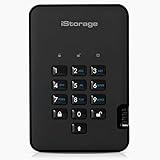
- Easy to use: Perfect solution to protect your digital assets. Simply enter a 7-15 digit PIN to authenticate and use as a normal portable HDD. When the drive is disconnected, all data is encrypted using AES-XTS 256-bit hardware encryption (no software required).
- The diskAshur2 helps you ensure compliance with data regulations such as GDPR, CCPA, HIPAA.
- The diskAshur2 is the perfect solution for storing your personal or company data. Carry the diskAshur2 with you wherever you go. Portable, rugged, dust & splashproof (IP56 certified) Without the PIN, there’s no way IN! All data transferred to the drive is encrypted in real time and is protected from unauthorised access even if the device is lost or stolen! The diskAshur2 incorporates a Common Criteria EAL 5+ (Hardware Certified) secure microprocessor.
- The diskAshur2 will work on any device with a USB port, no software is required. Compatible with: MS Windows, macOS, Linux, Chrome, Android, Thin Clients, Zero Clients, Embedded Systems, Citrix and VMware.
- Transfer your files in seconds Lightning fast backwards compatible USB 3.2 data transfer speeds. Up to 160MB/s Read speeds Up to 143MB/s Write speeds.
NIST Special Publication 800-111, published November 15, 2007, groups storage encryption into three classes:
| Class | Scope | Typical use |
|---|---|---|
| Full-disk encryption | Most sectors on an operating-system drive | Protecting a lost or stolen laptop |
| Volume or virtual-disk encryption | A selected partition, volume, or virtual disk | Separating a protected workspace from other volumes |
| File/folder encryption | Individual files or directories | Protecting documents that move between systems |
BitLocker supports AES-XTS or AES-CBC with 128-bit or 256-bit key lengths, according to Microsoft’s current Windows 11 security documentation. Apple describes AES-256-XTS on A14–A18 and M1-or-later devices. These specifications do not establish a universal speed penalty or price: authoritative figures vary by hardware, workload, edition, and configuration, and no single percentage applies to every system.
Choose the right layer for each situation
| Situation | Minimum control | Additional control | Main limitation |
|---|---|---|---|
| Laptop left in a car | Full-disk encryption and a strong login secret | Remote lock or wipe, current patches | Does not protect an unlocked session |
| USB drive carrying tax records | Encrypted removable volume | Encrypted archive for the most sensitive files | Lost password or recovery key can make data unrecoverable |
| Photos stored in a cloud account | Account password, MFA, provider encryption | E2EE setting such as ADP where supported; offline backup | Coverage, sharing, and recovery vary by category |
| Document emailed to another person | File-level password encryption | Send the password separately; minimize metadata | Recipient’s device may be compromised or may create an unencrypted copy |
| Ransomware recovery | Offline encrypted backup | Versioned second copy and restore test | Connected or synchronized copies may also be encrypted |
Recovery, loss, and troubleshooting
“I lost my BitLocker or FileVault recovery key.”
Do not erase or reset the device while searching. Check the password manager, printed emergency records, the authorized account that stores the key, and any organization’s administrator or help-desk process. If no valid key or authorized recovery path exists, encryption is designed to prevent bypass; the data may be permanently inaccessible. A new installation can restore use of the hardware but does not recover the old files.
“The encrypted USB drive will not open on another computer.”
Confirm the drive is receiving power, use the same unlock password, and check whether that operating system supports the encryption format. A BitLocker To Go drive may require a compatible Windows edition or software on another platform. Do not reformat until you have confirmed that no required data remains; formatting destroys the encrypted volume’s contents.
“Encryption is stuck or the computer is slow.”
Keep the device on power, close heavy applications, and allow the conversion to finish. Check free storage and the system’s encryption status rather than interrupting it repeatedly. Performance impact depends on the processor’s cryptographic acceleration, drive speed, workload, and whether the system is encrypting used space or the entire drive. There is no universal penalty percentage.
“A cloud service says my files are encrypted, but I need provider-proof privacy.”
Look for an explicit end-to-end or client-side encryption statement and read which categories, search functions, previews, sharing modes, and recovery options are excluded. If the provider controls the keys, encrypt the files locally before upload. Treat “encrypted in transit” or “encrypted at rest” as protection against some infrastructure threats, not proof that the provider cannot decrypt content.
“I deleted a sensitive file. Is it gone?”
No. CISA states, “Simply deleting a file does not completely erase it.” Emptying Trash or Recycle Bin removes a directory reference, while recoverable data may remain on the storage medium. Use a disposal method appropriate to the technology: securely erase supported solid-state-drive storage, overwrite or encrypt-and-destroy keys for applicable magnetic media, or physically destroy a drive when the risk warrants it. Consult the device manufacturer’s secure-erase procedure; do not repeatedly overwrite an SSD as a generic rule.
Maintain the system throughout 2026
- Review the device and account inventory whenever you buy, sell, or retire hardware.
- After every operating-system upgrade, verify that device encryption and recovery settings remain enabled.
- Rotate passwords when exposure is suspected, not on a schedule that encourages predictable changes.
- Test recovery keys and restore a sample file from each backup at regular intervals.
- Reconnect an offline backup only long enough to update and verify it, then disconnect it again.
- Remove old cloud sessions and revoke lost devices from account-security pages.
- Before disposal, export the data you need, perform a technology-appropriate secure erase, and destroy or retain recovery records according to your retention policy.
The result is defense in depth: a stolen device yields ciphertext, a misplaced USB drive has its own lock, a copied document retains protection, cloud keys are controlled as deliberately as possible, and an isolated backup gives you a recovery path when an endpoint fails or ransomware spreads.
Quick Recap
Product prices and availability are accurate as of the date/time indicated and are subject to change. Any price and availability information displayed on Amazon at the time of purchase will apply.

