
iTechGuides is reader-supported. When you buy through links on our site, we may earn an affiliate commission. As an Amazon Associate I earn from qualifying purchases. Learn more
The reliable way to keep your voice is to treat AI narration as a tightly controlled insert, not as a replacement for your performance. Keep the host’s original recording for most of the episode. Use generated speech only for a defined correction, a short transition, or another passage that solves a specific editorial problem. Preserve the source audio and script, edit with the right representation, make restrained cuts, and listen to every change in the complete mix before exporting.
“Your own voice” has two meanings here: your identity and your actual recorded delivery. A synthetic passage can use your approved voice model yet still sound unlike your timing, emphasis, breathing, or room. The workflow below protects both.
What it means to keep your own voice
Authenticity is not created by applying an AI voice to every sentence. Listeners recognize a host through word choice, rhythm, pauses, emphasis, imperfections, and the acoustic character of the recording. Replacing those elements wholesale can make an episode technically clean but personally flat.
Use your recorded performance as the editorial anchor when personal presence matters. A generated line is most defensible when it fixes a narrow problem: a mispronounced name, a factual correction discovered after recording, a short bridge between sections, or a deliberately scripted announcement. If an insertion attracts attention to itself, rerecording the line is often the better way to preserve continuity.
#1 Best Overall

- [XLR Mic Input] One XLR microphone input interface is set on the gaming audio mixer, which is great to up your audio quality with your XLR setup. The XLR mixer is a stepping stone to upgrade your live streaming. Audio mixer offered built-in 48V phantom power which opens up more choices for mics. Directly use it with your condenser microphone but do not solve added peripherals. (NOT available for USB mic)
- [Individual Channel Control] Gaming audio mixer for one mic recording with smooth volume slider fader take your streaming recording to a whole new level with full pleasure. Four independent channels set on the DJ mixer give audio volume of the MICROPHONE, LINE IN, HEADPHONE, and LINE OUT channels individual control. Configurable on the PC audio mixer instead of just operating on your game or streaming software.
- [Mute and Monitor] The front mute and monitor buttons but not at the back, make it easier to get the audio interface use. Ability to mute audio, the audio mixer for streaming prevents background noise from damaging your live broadcast. Real-time feedback between speaking and hearing will not distract your attention, which encourage you to speak more confidently. The sturdy-built control button allow you to operate freely and easily during live streaming.
- [Sound Effects] The computer sound mixer supports four pre-recorded customized button that can be recorded and activated at the press of button to post production. 6 kinds of voice changing modes change your output style. 12 auto tune changes the tone of your voice. The podcast mixer being able to add different and fun effects is a huge bonus for your streaming or game voice.
- [Controllable Vibrant RGB] RGB button on the audio mixer DJ meets different live streaming themes. Lights on the video mixer is vibrant but not harsh on your eyes. Flowing or frozen RGB color rotation in a decent pace presents a greatly strong impression as a "light show" to your audience. Even a streaming equipment accessory will not be dull looking when video production.
Do not confuse an account-specific voice feature with a general right to imitate anyone. For example, Riverside describes its AI Voice as optional and limited to the account owner’s opted-in voice; its documentation says guests and other people cannot be cloned through that feature. That is a product limit, not a universal legal safe harbor. Obtain informed permission before creating or using any person’s synthetic voice, and follow the terms that apply in your jurisdiction and distribution channels.
Prepare an editable, reversible project
Before removing a breath or generating a replacement, make it possible to return to the original. A clean setup prevents an audio repair from being mistaken for a content change.
Keep both source files
- Save the original AI render without processing or edits.
- Save the exact script or transcript used to generate it.
- Keep the host’s original recording, room tone, and any separate music or sound-effect tracks.
- Create a new working version for cuts and corrections instead of overwriting the source.
Mark content changes before audio changes
Read through the script and mark incorrect facts, names, dates, pronunciation, and wording first. Label each item as a content correction, a performance edit, or a technical repair. This simple distinction helps you avoid using an AI voice to conceal a sentence that should have been rewritten or rerecorded.
Decide what must remain human
Identify the moments where the host’s delivery carries meaning: an opinion, a joke, a vulnerable disclosure, a difficult explanation, or a change in emotional emphasis. Protect those sections from aggressive cleanup. Your edit can be technically consistent without making every pause identical.
Choose the edit surface before you cut
Transcript editing and timeline editing expose different kinds of control. Use the transcript to find words and passages quickly; use the timeline when the exact audio boundary, crossfade, room tone, or overlap matters.
| Edit surface | Best for | Watch for |
|---|---|---|
| Transcript or text view | Finding a phrase, correcting wording, removing a sentence, and locating filler words or long pauses. | A text deletion can hide the underlying boundary. Listen to the resulting audio rather than assuming the cut is transparent. |
| Audio timeline | Precise trims, fades, crossfades, silence shaping, clip alignment, and matching a generated insert to neighboring speech. | Visual symmetry is not proof of a natural edit. Room tone and breath continuity still need an audible check. |
| Converted standard audio layer | Ordinary timeline operations on generated speech, including trims, fades, and crossfades. | After conversion, later script edits no longer update that audio. Keep an editable version or regenerate if the wording may change. |
Riverside documents transcript correction and removal, trimming, optional pause and filler-word removal, and audio-only export. Descript documents converting AI speech to a standard audio layer for timeline editing, with the important trade-off that changing the text afterward does not change the converted clip. Adobe describes Podcast as a browser-based recording and editing tool with text-based editing and voice enhancement. These are documented capabilities, not comparative performance results.
Rank #2
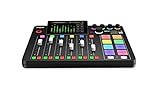
- EVERYTHING IN ONE DESK UNIT: 4 XLR mic inputs, headphone outs, sound pads and effects, no separate interface or PC mixer needed
- STUDIO SOUND, ZERO EXPERTISE: APHEX audio processing presets make voices broadcast-ready with one tap
- PODCAST, STREAM OR RECORD: multitrack to computer, microSD or USB drive, works standalone without a computer
- SHOW CONTROL: 8 customizable SMART pads trigger music, sound effects and mix-minus phone calls live
- IN THE BOX: RØDECaster Pro II console, power supply and USB-C cable, add your microphones
A step-by-step workflow that preserves personality
1. Build a correction list
Write the intended replacement for every wrong or awkward line. Include pronunciation notes in plain language, such as “say the surname as …,” and note whether the replacement must match a particular emotion or sentence length. Fix the script first; do not improvise wording while making an audio patch.
What’s actually slowing this PC down?
Pick the symptom - the matching free tool is one click away.
2. Locate the passage in the transcript
Search for the exact words and select enough surrounding context to understand the sentence. A correction that sounds acceptable in isolation can fail when the previous sentence ends with a breath or when the next sentence begins immediately. Keep the selection short when the mistake is short.
3. Correct the transcript deliberately
Change only the words that need changing. If the editor supports a voice-correction feature, use it for a specific word or brief passage rather than regenerating a whole paragraph. Riverside describes AudioDub as a transcript correction in which the audio adjusts to align with the revised text. Its documentation does not establish how natural every correction will sound, so treat the rendered result as a draft that requires listening.
4. Compare the generated line with the host’s delivery
Audition the replacement together with the sentence before and after it. Check four things:
- Timing: Does the new line enter and end at a believable pace?
- Emphasis: Does the important word receive the same stress as the surrounding performance?
- Pronunciation: Is the corrected name or term actually clear?
- Acoustic continuity: Does the room tone, microphone perspective, and noise floor change at the edit?
If the line feels conspicuous, try a shorter replacement, adjust the boundary, or rerecord it yourself. A technically accurate AI correction is not automatically an authentic performance.
5. Make timeline boundaries unobtrusive
Use a small fade or crossfade where a hard cut produces a click or an abrupt change in ambience. Do not use a long crossfade simply because it looks smoother; overlapping syllables can blur consonants and make the speaker sound doubled. Keep a little natural room tone where it supports continuity, and remove only the silence that distracts from the intended cadence.
Rank #3

- 【All-in-One Audio Setup for Creators】Complete Podcast Equipment Bundle for Streaming, Recording & Content Creation.Designed as a complete audio solution, this kit includes an audio mixer, condenser microphone, and essential accessories—ideal for building a clean and efficient setup without extra equipment.
- 【Clear, Balanced & Reliable Sound】Enhanced Vocal Clarity with Built-in Noise Reduction.Capture clean, natural sound with reduced background noise. Optimized for streaming, podcasting, voice recording, and everyday content creation.
- 【Follow Singing Mode for Live Performance】Hear the Original Track While Your Audience Hears Only Your Voice & Music.Perfect for live singing, TikTok streams, and online performances. Monitor the original vocals privately while delivering a clean mix to your audience.
- 【Voice Changer & Sound Effects】Multiple Voice Styles & Built-in Effects for Interactive Content.Switch between different voice styles and trigger sound effects like applause or laughter to enhance engagement during streaming or recording sessions.
- 【Real-Time Audio Control】Adjust Bass, Treble, Reverb & Pitch with Ease.Fine-tune your sound in real time to match different scenarios, from chatting and gaming to singing and recording.
6. Protect meaningful pauses and breaths
Automatic pause and filler-word tools are optional, not mandatory. Remove a repeated “um,” a dead section, or a distracting noise when it genuinely improves comprehension. Keep a pause that separates ideas, creates anticipation, or gives an emotional statement room to land. Preserve breaths that belong to the host’s recognizable rhythm unless they are unusually loud or disruptive.
7. Match the insert to the recorded voice
Listen at a consistent monitoring level and compare the generated clip with adjacent host speech. The goal is not to make every waveform identical; it is to prevent the insertion from announcing a change in speaker or production state. Work through the following checks:
- Trim excess silence so the generated phrase has the same conversational spacing as the host.
- Use clip-level gain to avoid a jump in loudness at the edit.
- Shape the start and end so breaths are not cut unnaturally.
- Preserve or add matching room tone only when the transition needs it.
- Check sibilants and plosives at the join; a sharp “s” or clipped “p” can reveal an otherwise subtle edit.
- Do not add heavy enhancement to hide a mismatch. Processing that removes character from the host can make the contrast worse.
8. Convert generated speech only when the wording is settled
If your editor keeps AI speech tied to editable text, leave it that way while the script is still changing. Descript’s documented conversion to a standard audio layer enables normal timeline edits, including trims, fades, and crossfades, but the conversion is effectively permanent for the underlying script: later text edits do not alter the converted audio. Save an editable project or duplicate the sequence before converting, and regenerate rather than trying to force a converted clip to follow a changed paragraph.
Crashes, No Sound, or Screen Glitches?
Random freezes, missing sound and display glitches usually trace back to one bad driver. Find and replace yours safely.Free scan · under a minuteWindows Errors? Fix Them Before They Spread
Repair common Windows errors and clear accumulated junk for a smoother, more stable PC - no reinstall needed.Free scan · no reinstall9. Review the complete episode
First check each edited passage in context. Then listen from beginning to end without jumping between markers. Full-episode review catches pacing drift, repeated changes in emphasis, inconsistent noise, and transitions that sounded acceptable when isolated. Riverside’s AI guidance tells creators to validate and verify AI output before sharing or publishing; apply that principle to every generated correction, not only to obvious factual changes.
10. Export for the next production step
Riverside’s audio-only instructions list WAV HD and compressed MP3 export, with optional normalization. Choose the format that matches the next handoff: keep a high-quality, editable master for further production and use a compressed file only when the receiving workflow or distribution service calls for it. There is no single universally correct export setting established for every podcast workflow. Confirm the requirements of your editor, producer, archive, or host platform before committing.
How the documented tool capabilities differ
Choose a tool by the control you need, not by the presence of an “AI” label. The following comparison summarizes the capabilities documented by the vendors named here.
Rank #4

- Pro performance with great pre-amps - Achieve a brighter recording thanks to the high performing mic pre-amps of the Scarlett 3rd Gen. A switchable Air mode will add extra clarity to your acoustic instruments when recording with your Solo 3rd Gen
- Get the perfect guitar and vocal take with - With two high-headroom instrument inputs to plug in your guitar or bass so that they shine through. Capture your voice and instruments without any unwanted clipping or distortion thanks to our Gain Halos
- Studio quality recording for your music & podcasts - Achieve pro sounding recordings with Scarlett 3rd Gen’s high-performance converters enabling you to record and mix at up to 24-bit/192kHz. Your recordings will retain all of their sonic qualities
- Low-noise for crystal clear listening - 2 low-noise balanced outputs provide clean audio playback with 3rd Gen. Hear all the nuances of your tracks or music from Spotify, Apple & Amazon Music. Plug-in headphones for private listening in high-fidelity
- Everything in the box: Includes Pro Tools Intro+, Ableton Live Lite, Cubase LE, and Hitmaker Expansion: a suite of essential effects, powerful software instruments, and easy-to-use mastering tools
| Tool or feature | Documented capability | Decision implication |
|---|---|---|
| Riverside transcript and timeline workflow | Transcript correction and removal, trimming, optional pause and filler-word removal, and audio-only export. | Useful when you want to locate spoken content in text while retaining a timeline for final boundary checks. |
| Riverside AudioDub | A transcript correction that automatically adjusts audio to align with the revised text. | Use for a targeted correction, then verify the transition; the documentation does not promise a natural result for every line. |
| Riverside AI Voice | An optional voice feature described as reproducing the opted-in account owner’s voice; guests and other people cannot be cloned through that feature. | Suitable only where the account owner has consented and the insertion has a defined editorial purpose. This limit is vendor-specific. |
| Descript conversion | Converts AI speech into a standard audio layer that can be trimmed and given fades or crossfades on the timeline. | Convert after wording is final, because subsequent script edits no longer update the converted audio. |
| Adobe Podcast | A browser-based recording and editing tool with text-based editing and voice enhancement, according to Adobe’s description. | Consider it when browser-based text editing and enhancement fit your workflow; the description is not a comparative test. |
For a careful final listen, closed-back monitor headphones can make edits easier to notice. Audio-Technica identifies the ATH-M20x as professional monitor headphones, but that model is optional and not required for this workflow. Any reliable monitoring setup is more important than a particular product.
Recommended Free Tools
Use cases: when to generate and when to rerecord
A single factual correction
Generate only the corrected word or short sentence if the surrounding performance is strong and the correction can match its pace. If the sentence carries a strong emotional inflection, rerecording is usually safer because emphasis and breath timing matter more than preserving the original waveform.
A mispronounced name or technical term
Write a pronunciation guide, generate the smallest possible replacement, and listen to it beside the original phrase. If the name is central to the episode, consider rerecording the entire sentence so the correction does not sound pasted in.
A missing transition
A short scripted bridge can work when it has a neutral delivery and enough room around it to establish a natural transition. Keep the host’s main commentary recorded rather than generating connective tissue throughout the episode; repeated synthetic bridges can make the production feel assembled.
Filler-word cleanup
Remove only filler that obscures meaning or breaks momentum. A host who never breathes or pauses can sound less human than the original recording. Review the sentence rhythm after each deletion rather than accepting an automatic pass wholesale.
Late script changes
If the wording is still under editorial review, do not convert generated speech to a fixed audio layer. Keep the text-linked version or a duplicate project until approval is complete. Once converted, a changed script requires a new render or a separately edited replacement.
Best Value

- Upgraded Podcast Equipment Bundle: Elevate your podcasting, streaming, and studio recording with the E2 Gen2 podcast equipment bundle. This all-in-one solution offers an intuitive design that allows you to start your podcasting journey right away. With two XLR combo inputs and a high-quality preamp offering 60dB gain, E2 GEN2 is perfect for co-hosts. Plus, the USB-C and 3.5mm ports make it easy to connect to phones and computers, ensuring smooth and clear audio every time
- Crystal-Clear Audio with XLR Interface: The E2 Gen2 podcast interface has two premium and low-noise preamps, delivering up to 60dB of gain. This ensures you get rich, clean sound even when using dynamic microphones. Whether you're a beginner or a pro, the E2 gen2 eliminates needing an external preamp. Noise reduction technology keeps unwanted sounds like fan noise away, so your podcast recordings stay pristine
- Add Personality with 8 Custom Sound Effects: Bring your content to life with the E2 gen2's 8 customizable sound effect buttons. Perfect for podcasters and streamers, you can upload your favorite intro music, quirky sound bites, or custom effects to engage your audience. Each button supports up to 20 seconds of recording with adjustable volume, making it the ultimate podcast mixer to add personality to your shows
- Ultimate Convenience for Podcasters and Content Creators: The E2 Gen2 podcast mixer features a one-touch mute button, so you can easily handle any mishaps during podcast recording. The monitoring button lets you listen to your own voice while gaming, allowing seamless communication with teammates and clear game audio. The Loopback function enables you to start a live stream with just one computer. Plus, the built-in 1500mA battery offers up to 8 hours of use, so your podcast never has to stop
- Enhance Your Podcast Atmosphere: Add flair to your podcast with E2 Gen2’s pitch-changing effects. Whether creating a fun atmosphere or protecting your privacy, the interface's versatile options let you adjust your voice for added entertainment. Choose from six preset reverbs to set the perfect mood for any show. SingAlong mode even allows you to hear the singing without your audience hearing it, letting you shine as a performer
Troubleshoot the edits listeners notice first
The replacement sounds louder
Match clip-level gain before applying broad processing. Compare the first consonant and the final word, not only the average level. A short fade can prevent a level step, but it will not fix a fundamentally different performance.
The join sounds like a different room
Check for a changed noise floor, reverberation, or microphone distance. Shorten the generated passage, move the cut to a natural pause, and retain a small amount of consistent ambience where appropriate. If the acoustic mismatch remains obvious, rerecording is preferable to piling on denoising or reverb.
The sentence is correct but emotionally wrong
Voice generation can reproduce words without reproducing the exact intention of the original take. Rewrite the line for a neutral delivery, generate a shorter insert, or record it yourself. Do not ask processing to create emphasis that was never present in the performance.
The Tool Desk
Outbyte Driver Updater FREEFix the driver behind crashes, sound loss and screen glitchesFind Drivers →Outbyte PC Repair FREERepair Windows errors before they cause bigger problemsFix Now →Words overlap after a crossfade
Reduce the overlap and place the transition at a breath or complete phrase boundary. Crossfades are for smoothing continuity, not for hiding incompatible syllables.
Automatic cleanup makes the host sound rushed
Undo the global pause or filler pass and restore selected breaths and pauses manually. The correct edit preserves comprehension and personality, even if the waveform contains more silence than an automated preset prefers.
The text and audio no longer agree
Confirm whether the generated speech was converted to a standard audio layer. In Descript’s documented workflow, later script edits do not update converted audio. Return to the editable version or regenerate the affected passage, then recheck the full sentence in context.
Privacy, consent, and publishing checks
Keep a record of who authorized a voice model, what material was used, and where the resulting audio may be published. Do not upload a guest’s or co-host’s voice for cloning without explicit permission. Review the tool’s current terms before using an AI voice commercially or in a sensitive subject area; vendor features and limits can change.
Quick wins for a faster PC:
Scan for outdated or missing drivers - takes under a minuteDriver Scan →Clear out junk files and repair common Windows errorsFree Scan →Fix the driver behind crashes, sound loss and screen glitchesFind Drivers →Before release, verify names, figures, quotations, and corrections against your approved script. A generated line can sound confident while still containing an error. Treat it as a production asset that requires the same fact-checking and editorial approval as any other narration.
Quick Recap
Final pre-export checklist
- The original generated render, source recording, and script are preserved.
- Every generated passage has a documented reason for existing.
- The host’s recorded performance remains the main voice of the episode.
- Corrections were checked in the transcript and heard in the surrounding sentence.
- Breaths, pauses, and emphasis were kept where they carry meaning.
- Timeline joins have no clicks, doubled syllables, abrupt room changes, or level jumps.
- Any converted AI layer was created only after the wording was settled.
- The entire episode was heard from start to finish after the final edits.
- The export format matches the next production or distribution step, with a high-quality master retained.
- Voice consent, factual verification, and publishing permissions are documented.
Product prices and availability are accurate as of the date/time indicated and are subject to change. Any price and availability information displayed on Amazon at the time of purchase will apply.

