
iTechGuides is reader-supported. When you buy through links on our site, we may earn an affiliate commission. As an Amazon Associate I earn from qualifying purchases. Learn more
You can start drawing on a Galaxy S22 Ultra with the S Pen already built into the phone—no separate stylus is required. For a blank canvas, open Samsung Notes; for guided practice, try PENUP; and for marking up what is on screen, use Screen write or Smart select.
Which drawing app should you use?
Choose based on whether you want to make a new drawing, practice from a template, or annotate something already on the phone. Samsung documents these S Pen workflows, though app availability and menus may vary by region and software version.
| Tool | Best for | How it works |
|---|---|---|
| Samsung Notes | Quick sketches and drawings on a blank page | Create a note and choose from the available pen options, colors, and writing styles. Samsung describes drawing in Notes in its S Pen guide for Galaxy S21 Ultra and S22 Ultra. |
| PENUP | Guided sketching or coloring a template | Samsung describes PENUP as an option for sketching pictures and coloring templates through Air command. The template gives you a starting point rather than a blank canvas; see Samsung’s S Pen guide. |
| Screen write | Drawing or writing on the screen you are viewing | Use it to mark up the current screen rather than create a separate illustration canvas, as described in Samsung’s S Pen guide. |
| Smart select | Annotating only part of the screen | Select an area, then draw or write on the captured content. Samsung says a selected image can be saved to Gallery; see its S Pen guide. |
| AR Doodle | A playful drawing over a camera view | Draw over the camera view while recording. It is a camera effect, not a conventional illustration canvas, according to Samsung’s S Pen guide. |
How do you make a first sketch in Samsung Notes?
- Remove the S Pen from its slot and open Samsung Notes.
- Create a new note and choose a pen option and color from the controls available in your version of the app.
- Warm up with a simple object, such as a mug: draw its outline, add the handle, then mark the rim and base.
- Try a few light and firmer strokes before adding detail. If your chosen pen responds to pressure, use that variation to explore thin and thick marks.
- Save the note when you are ready to keep the sketch. To make practice easy to revisit, give each session a dated note or save a new version when your workflow supports it.
The warm-up and practice routine here are drawing suggestions, not a Samsung-prescribed lesson. Samsung identifies Notes as a place to create drawings with the S Pen in its S Pen guide.
How can you control line weight with the S Pen?
Start with slow, light strokes, then gradually press more firmly to see whether the selected pen changes width. Samsung explains that pressure sensitivity affects how much you can vary line width; the result also depends on the pen tool and app you are using. Check the active tool’s controls rather than assuming every brush behaves alike. Samsung’s historical overview, From Stylus to Self-Expression: Looking Back at the Evolution of the S Pen, describes 4,096 pressure-sensitivity levels and a 0.7 mm tip as points in the S Pen’s development—not as independent measurements of every app on the S22 Ultra.
#1 Best Overall
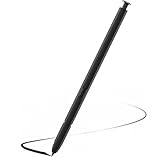
- Compatible with Galaxy S22 Ultra Only , Not Fit S22 and S22 Plus. Samsung Galaxy S22 Ultra Pen Replacement is the reliable choice when you need a backup or replacement for your original Galaxy S22 Ultra S Pen
- S22 Ultra S Pen Replacement can connect your mobile phone and control your mobile phone to take photos and video recording. PPT page turning
- Pull Up The Air Command Menu At The Click Of The S22 Ultra Stylus Pen Button; Simply Hover S22 Ultra Pen Over The Screen And Click The Button On The Side To Pull Up The Features Like Smart Select, Screen Write, Live Messages And More
- Slim 0.7 mm Pen Tip, 4096 Pressure Levels, S22 ultra pen allows you to make quick notes, draw or edit along with all other typical touch-screen
- Packaging Included S Pen S22 Ultra , Replacement Tips/Nibs
Samsung said at the S22 Ultra launch that its S Pen had 70% lower latency than the previous model. That is Samsung’s comparison with the previous S Pen, not an independently measured result for every drawing app or a measure of drawing skill. See the Samsung Galaxy S22 Ultra launch announcement.
How do you color a picture with PENUP?
- Open Air command with the S Pen and choose PENUP, if that option is available in your software version.
- Choose a coloring template or a sketching activity offered in the app.
- Use the available colors and pen tools to fill larger areas first, then add smaller details.
- Save or share the finished work using the options shown in PENUP.
Samsung documents PENUP for sketching pictures and coloring templates; the precise interface can change with app and software updates. Its S Pen guide describes the workflow.
Rank #2
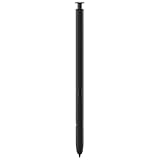
- 【Compatibility】Galaxy S22 Ultra 5G All Version ( Not Compatibility Galaxy S22 & S22 Plus )
- 【Product Features】0.7mm Pen Tips/Nibs , 4096 Pressure Sensor , allows you to make quick notes, draw or edit along with all other typical touch-screen
- 【One-Touch Command】This S Pen replacement for S22 Ultra lets you manage your phone's camera with a single click. Effortlessly capture photos, record videos, and navigate through PPT presentations
- 【Packaging】S Pen Compatible with Galaxy S22 Ultra , Tip/Nibs Replacement
- 【Service】We provide 30 days replacement for all quality-related issues
Can you draw on a screenshot with the S Pen?
Yes. Use Screen write to mark up the screen currently being viewed, or Smart select when you want to capture a chosen region before annotating it. Samsung says Smart select can save the selected image to Gallery. These are useful for circling a detail, adding a quick note, or pointing something out; they are annotation workflows rather than substitutes for a blank-canvas drawing app. The steps and labels are documented in Samsung’s S Pen guide.
What’s actually slowing this PC down?
Pick the symptom - the matching free tool is one click away.
What should you know about the included S Pen?
The Galaxy S22 Ultra includes an integrated S Pen that can draw directly on the display, so basic drawing does not require another stylus. Samsung distinguishes direct on-screen writing from Air Actions, which are remote functions that require Bluetooth and charging. A pen that can trigger remote actions is not necessary for drawing on the screen.
Rank #3
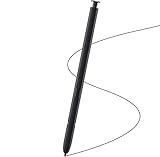
- Brand New- Compatible with Samsung Galaxy S22 Ultra.Tested one by one by professional technicists before shipping.
- High Quality - Galaxy S22 Ultra real pen soft tips great sensitive.4096 levels of pressure sensitivity. Precise touch and control, support all menu functions.[Note: WithoutBluetooth and does not support remote control functionality.]
- Wide Application - The stylus pen helps in daily use , writing ,painting etc.And it does no harm to your screen.
- Helpful -Troubled with your lost stylus Galaxy S22 Ultra, then this will work for you.
- Package Includes:1 X Galaxy S22 Ultra Pen Replacement(Black), WithoutBluetooth
Samsung’s compatibility guidance says the included S22 Ultra S Pen can write on other devices, while Note or Tab S Pens used with the S22 Ultra are limited to writing functions in its compatibility summary. Exact behavior can vary by device and software. If your original pen is lost or damaged, verify the exact replacement model and its supported features before buying; Samsung notes that other S Pen models may have limited functions on the S22 Ultra. See its S Pen compatibility guidance.
Independent reader supportYour contribution helps us test, update, and keep practical guides available for everyone.A simple practice sequence to build on
- Block in a silhouette: Draw the overall outline of a familiar object before worrying about small features.
- Add large shapes: Break the object into simple forms, such as circles, rectangles, or tapered shapes.
- Refine the contours: Adjust the outline and remove or redraw marks that do not help the form read clearly.
- Add a few details and color: Keep details selective, then use color to distinguish major areas.
- Keep a record: Save dated practice notes or versions when the app supports it, so you can compare your own work over time.
This is a general practice method, not a guaranteed route to a particular result. Samsung’s cited product and support materials do not establish a statistic for how many S22 Ultra owners draw or how quickly users improve.
Quick Recap
Best Value

- (Without-Bluetooth) S Pen Compatible with Samsung Galaxy S22 Ultra
- Slim 0.7mm Pen Tip, 4,096 Pressure Levels, allows you to make quick notes, draw or edit along with all other typical touch-screen
- Pull Up The Air Command Menu At The Click Of The S Pen Button; Simply Hover S Pen Over The Screen And Click The Button On The Side To Pull Up The Features Like Smart Select, Screen Write, Live Messages And More
- Packaging Included S22 Ultra S Pen Replacement , Replacement Tips/Nibs
Rank #4

- DESIGN FOR ACCURACY: Take advantage of the expansive screen on Galaxy S22; S Pen features a slim 0.7mm pen tip with 4,096 pressure levels to write and sketch as naturally and accurately as putting pen to paper
- REMOTE CONTROL: S Pen becomes a remote control for your apps thanks to built-in Bluetooth capacity; Take pictures, switch between cameras, pause or turn up your playlist and so much more — all with a quick gesture or a click of the S Pen button on the side
- AIR COMMAND: Pull up the Air Command menu with a click of the S Pen button; Simply hover S Pen over the phone’s screen and click the button on the side to pull up features like Smart Select, Screen Write, Live Messages and more
- Air actions support may vary by app
Product prices and availability are accurate as of the date/time indicated and are subject to change. Any price and availability information displayed on Amazon at the time of purchase will apply.
Quick wins for a faster PC:
Repair Windows errors before they cause bigger problemsFix Now →Scan for outdated or missing drivers - takes under a minuteDriver Scan →
