
iTechGuides is reader-supported. When you buy through links on our site, we may earn an affiliate commission. As an Amazon Associate I earn from qualifying purchases. Learn more
ASUS Aura Sync is no longer distributed as ASUS’s main standalone lighting application. Its current features are included in Armoury Crate, while Aura Creator is available as an optional advanced lighting editor.
For a current Windows 10 or Windows 11 installation, download the Armoury Crate & Aura Creator Installer from ASUS Support for your exact computer, motherboard, or accessory model. Avoid unofficial download sites and old guides that point only to the discontinued Aura Sync Utility.
Before you install Aura Sync
Check these requirements first:
- Windows 10 version 1903 or later, or Windows 11. Some product-specific ASUS pages list different package minimums, so check your exact model page if the installer reports an incompatibility.
- A stable internet connection. The installer downloads Armoury Crate, required services, and updates during setup.
- Administrator access to Windows.
- Your ASUS RGB devices connected to the computer.
ASUS supports Aura Sync across many product categories, including compatible motherboards, graphics cards, laptops, desktops, monitors, keyboards, mice, headsets, liquid coolers, cases, power supplies, and storage devices. Compatibility is model-specific; installing Armoury Crate does not make every RGB product controllable.
Download the current ASUS Aura Sync installer
- Open the ASUS Support website.
- Search for your exact ASUS product model. For example, search for the full motherboard or laptop model rather than just “ROG motherboard.”
- Open the product’s support page and select Driver & Utility.
- Choose your installed operating system: Windows 10 64-bit or Windows 11 64-bit.
- Expand Software and Utility.
- Find Armoury Crate & AURA Creator Installer and select Download.
ASUS normally supplies the download as ArmouryCrateInstallTool.zip. The package version and date can vary between a generic ASUS support page and an individual product page, so use the package listed for your own model instead of copying a download link from a third-party website.
#1 Best Overall
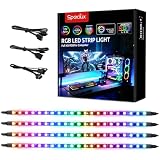
- √ Dimmable and adjustable speed: Different brightness levels when the RGB strips for PC cases are in static mode (single-color display), and different speed levels in dynamic mode (color-changing display). More fun and designs are waiting for you to discover. If you have any questions about our product, both before and after placing an order, feel free to contact us anytime — we will respond within 24 hours.
- √ Great effects: There are 4 ultra-bright ARGB Fusion LED strips (WS2812B) for modding your PC case, creating amazing ARGB sync effects and making it brighter. These RGB PC strips are perfect for DIY gamers to create any colors or animations they want.
- √ ARGB Sync: Speclux PC RGB LED strips are designed for motherboards with a 3-pin digital RGB LED header (+5V, DATA, N/A, GND or VDD, DATA, GND), compatible with Asus Aura, Gigabyte RGB Fusion, ASROCK RGB LED, etc. A perfect Valentine’s Day gift for him, men, and friends.
- √ Easy installation: The PC RGB strip comes with both a magnet between each 5050 LED and double-sided 3M adhesive on the back, making it easier for you to install on iron surfaces or any dry and flat surface without screws or clips.
- √ Package includes: 4 × Speclux rainbow strip lights, 3 × extension cables, 2 × SATA power cables, 1 × 5V 3-pin header cable, 1 × user manual. (Note: Before placing your order, please make sure that your computer’s motherboard has a 3-pin ARGB header and check whether the motherboard’s outer package has an RGB Sync logo. If there is no RGB Sync logo, it will not support RGB Sync.)
Install Armoury Crate and Aura Creator
- Open the downloaded ZIP file in File Explorer.
- Extract the ZIP to a normal folder, such as your Desktop or Downloads folder. Do not run the installer from inside the compressed file.
- Open the extracted folder and double-click the included installer. ASUS documentation refers to this file as either
ArmouryCrateInstaller.exeorArmouryCrateInstallTool.exe, depending on the package. - If Windows displays a User Account Control prompt, select Yes.
- Choose what you want to install: Armoury Crate, Aura Creator, or both.
- Click Start and allow the installer to download the required components.
- Restart Windows when the installation finishes.
For ordinary Aura Sync lighting, Armoury Crate is sufficient. Install Aura Creator only if you want to design more detailed, layered, or device-specific lighting effects. Aura Creator is not required for basic synchronization.
Turn on synchronized RGB lighting
- Open Armoury Crate from the Windows Start menu.
- Select Aura Sync in the left navigation pane.
- Select the compatible devices that should participate in synchronization.
- Choose a lighting effect, such as Static, Breathing, Color Cycle, or another effect available for your hardware.
- Adjust the color, speed, brightness, and other available settings.
- Apply or save the changes.
If you created an effect in Aura Creator, apply it from the Aura Sync tab. A device may need its ASUS driver, firmware, or supporting service before it appears in the device list.
Change lighting on only one device
Use a different menu when you do not want to synchronize every device:
Windows Errors? Fix Them Before They Spread
Repair common Windows errors and clear accumulated junk for a smoother, more stable PC - no reinstall needed.Free scan · no reinstallCrashes, No Sound, or Screen Glitches?
Random freezes, missing sound and display glitches usually trace back to one bad driver. Find and replace yours safely.Free scan · under a minute- Open Armoury Crate.
- Go to Device.
- Select the device.
- Open Lighting.
- Choose the effect and apply the change.
Aura Sync changes multiple compatible devices together. Device > Lighting changes one device independently. These are related controls, but they are not the same feature.
If Armoury Crate was already installed
New ROG and TUF Gaming laptops or desktops may already include Armoury Crate in the Start menu. New ROG, ROG Strix, TUF Gaming, and Prime motherboards may also display a Windows prompt offering to install Armoury Crate during the first boot.
If you canceled that prompt, download the installer manually from the product’s ASUS support page. On laptops and desktops, also install Windows updates and check whether MyASUS and ASUS System Control Interface V2 or V3 are installed. Some hardware controls depend on those components and may not work simply because Armoury Crate itself installed successfully.
Rank #2

- Wide compatible: BTF-LIGHITNG 5050 RGB LED strips are compatible with ASUS Aura Sync, Gigabyte RGB Fusion, MSI Mystic Light Sync, BIOSTAR motherboards with 4PIN (+12V G R B)ADD header. DO NOT connect it to 3pin 5V RGB_HEADER (5V, G,R,B). Otherwise you will destroy the entire led strip.
- Lighting Effect:You can use M/B software to make some funny effect, such as color change,breathing, gradually changing color,flashing etc.
- Double-sided tape made of high-quality materials makes the LED strip more durable without falling off.The 12V M/B LED strip has a more stable output. The light of this LED strip is uniform and bright.
- There is a double-sided tape on the back of the LED light strip to fix it to the host without any screws or clips. One-step installation, connect and use. Linkable design, length can be extended by adding more strips and can be cut to any length.
- Package includes:1 To 2 4PIN-SM Connector(20.47inch), 4PIN (+12V G R B)ADD header(20.47inch), 2X RGB LED strip(19.7in). IP30 Non-waterproof.
Fix a failed or incomplete installation
| Problem | What to try |
|---|---|
| The download or installation stops | Use a stable connection, disconnect from a VPN, and run the installer again. ASUS requires internet access during setup. |
| Antivirus or optimizer blocks the installer | Check the security software’s quarantine and blocked-app settings. Temporarily prevent it from blocking Armoury Crate processes, then restore normal protection afterward. |
| A previous installation is incomplete | Download the official Armoury Crate Uninstall Tool, run it, restart Windows, and then download and install Armoury Crate again. |
| A service error appears | Restart the computer first. If the message returns, download a fresh installer from ASUS and repeat the installation. |
| The installer is running inside an emulator | Close Android emulators and other virtual platforms before installing. ASUS specifically warns against installing Armoury Crate while using a virtual platform. |
| RGB hardware is missing | Check USB and internal connections, install the latest model-specific drivers and firmware, restart Windows, and confirm that the product is Aura Sync-compatible. |
Perform a clean Armoury Crate removal
Do not simply delete Armoury Crate folders if you need to reinstall it. Use ASUS’s cleanup utility:
Free tools Windows power users keep installed
One-click scans. No signup required.
- Open the ASUS Support page for Armoury Crate or your product.
- Go to Driver & Utility and select Windows 10 64-bit.
- Download Armoury Crate Uninstall Tool.
- Extract
Armoury_Crate_Uninstall_Tool.zip. - Run
Armoury Crate Uninstall Tool.exe. - Restart Windows when the tool finishes.
- Run the current Armoury Crate & Aura Creator installer again.
If the uninstall tool fails once, follow its restart instruction and run it a second time. If it continues to fail, look in the tool’s folder for a log named similar to ACUTLog_xxxxxxxx(date and time).logE. ASUS Support can use that file to investigate the failure.
Disable automatic Microsoft Store updates
Armoury Crate and Aura Creator may receive updates through the Microsoft Store. To disable automatic Store app updates:
- Open Microsoft Store.
- Click the Sign in icon on the right side of the title bar.
- Select App settings.
- Turn off App updates.
This is a Microsoft Store-wide setting. It disables automatic updates for all Microsoft Store applications, not just ASUS software.
Important limitations
- The old standalone Aura Sync Utility is a legacy branch and is no longer ASUS’s recommended primary installation route.
- Not every RGB device supports Aura Sync, even if it uses addressable RGB lighting.
- Xiaomi Light Strip support has been discontinued because the manufacturer no longer maintains the required lighting-effect components.
- The initial-boot Armoury Crate prompt is not a general Windows feature. ASUS documents it for certain supported ASUS motherboards.
- Package versions and dates can differ between ASUS’s generic download page and product-specific support pages. The exact product page is the safer source.
FAQ
Is ASUS Aura Sync still a standalone application?
ASUS says Aura Sync features are now part of Armoury Crate. The old Aura Sync Utility remains listed as a legacy download, but Armoury Crate is the current installation route for supported Windows systems.
The Tool Desk
Outbyte PC Repair FREEClear out junk files and repair common Windows errorsFree Scan →Outbyte Driver Updater FREEFix the driver behind crashes, sound loss and screen glitchesFind Drivers →Do I need Aura Creator to use Aura Sync?
No. Install Armoury Crate for normal synchronized lighting. Aura Creator is optional and provides a more advanced editor for custom lighting effects.
Rank #3

- Adjustable Lighting: Control the LED strip lights with a remote control for dynamic color changes and animations.
- Compatible with Popular Motherboards: Works with Asus Aura, Gigabyte RGB Fusion, MSI Mystic Light, and ASRock RGB LED.
- Easy Installation: Magnetic backing and double-sided adhesive allow for secure mounting on any flat surface without screws or clips.
- Dimmable and Adjustable Speed: 5-level brightness in static mode and adjustable speed in dynamic mode for customizable lighting.
- Includes Key Controller and Extension Cables: Get a remote control, 2 extension cables, and a 5V SATA connection cable to connect multiple LED strips.
Where is Aura Sync in Armoury Crate?
Open Armoury Crate and select Aura Sync from the left navigation pane. For one-device lighting, use Device, select the device, and open Lighting.
Can I install Armoury Crate on a non-ASUS computer?
ASUS says Armoury Crate can be installed to configure supported ROG or TUF peripherals even when the computer itself is not an Armoury Crate-compatible ASUS system.
Why does my ASUS device not appear in Aura Sync?
The device may not support Aura Sync, may need a model-specific driver or firmware update, or may have a connection or ASUS service problem. Restart Windows and install the drivers listed on the product’s ASUS support page.
What should I do before reinstalling Armoury Crate?
Use ASUS’s Armoury Crate Uninstall Tool, restart Windows, and then run a freshly downloaded installer. This removes related Armoury Crate and Aura Creator components more thoroughly than deleting folders manually.
The Bottom Line
For Windows 10 or 11, download Armoury Crate & Aura Creator Installer from the ASUS Support page for your exact model. Extract the ZIP, run the included installer, select Armoury Crate, restart Windows, and use Armoury Crate > Aura Sync to synchronize compatible lighting. Install Aura Creator only when you need custom effect design, and use ASUS’s official Uninstall Tool before attempting a clean reinstall.
Quick Recap
Product prices and availability are accurate as of the date/time indicated and are subject to change. Any price and availability information displayed on Amazon at the time of purchase will apply.

