
iTechGuides is reader-supported. When you buy through links on our site, we may earn an affiliate commission. As an Amazon Associate I earn from qualifying purchases. Learn more
A normal Windows or Mac computer cannot install most apps directly from the Google Play website. Google Play’s Install button is designed to send an app to a compatible Android phone, Chromebook, TV, watch, car, or another supported device linked to your Google Account.
On a PC, the correct method depends on what you are trying to run:
- Android games: use Google Play Games on PC.
- General Android apps and games: use an Android emulator with Google Play Store support.
- ChromeOS: use the Play Store built into a compatible Chromebook.
This guide covers each option, including requirements, installation paths, APK sideloading, and the most common errors.
Can you download Google Play apps directly to Windows or macOS?
Usually, no. Visiting play.google.com on Windows or macOS does not download an Android application in a format that Windows or Mac can run. Google states that Play apps are intended for supported Android and Chromebook devices and generally cannot be used directly on Windows or Mac computers.
#1 Best Overall

- Universal Compatbility: This phone stand works with all 4-8" Smartphones and e-readers, such as iPhone 17 16 15 14 13 12 11 Pro Max Xs Xr X 8 7 6, Switch, Samsung Galaxy S10 /S10+/S9 /S9+/S8 /S8+, Google Nexus, Kindle.
- Adjustable & Portable: The phone cradle is fully collapsible, it can be easily adjusted to ideal position, which is a good desk accessories while watching video, playing games, making phone call, viewing recipes, using Facetime.
- Sturdy & Protective: The cell phone stand is made of high quality premium aluminum, it stays firmly in place, hold your phone steadily, no worry any wobble at all. The rubber pads can protect your phone from any scratching and sliding.
- Case Friendly: The hook width of the stand is 19mm, no need to remove your phone case, which is long enough to hold your device with HEAVY CASE on, please make sure the thickness of your device is no more than 19mm (0.74").
- Warm Tips: Please set your device(4"-6") in landscape or portrait mode, and set the device (6"-8") in landscape mode, which will provide more stability.
The Play website can still be useful for remote installation. If your Google Account is connected to an Android phone, for example, you can choose that phone from the device list and install the app there. The app is installed on the selected Android device, not on the computer displaying the website.
The three supported approaches
| What you want to do | Best option | Important limitation |
|---|---|---|
| Play selected Android games on Windows | Google Play Games on PC | Only games in Google’s PC catalog are supported |
| Run general Android apps on Windows or Mac | Android emulator | Some apps require hardware, certification, sensors, or DRM unavailable in an emulator |
| Run Android apps on ChromeOS | Chromebook Play Store | Only compatible Chromebook models support Android apps |
Method 1: Use Google Play Games on PC for supported games
Google Play Games on PC is Google’s official Windows application for playing selected mobile games. It is not a complete Google Play Store for Windows, so it cannot install arbitrary apps such as messaging, banking, streaming, or productivity applications.
Minimum requirements
Google’s listed minimum requirements include:
- Windows 10 version 2004 or later
- An SSD with at least 10 GB of available space
- 8 GB of RAM
- Intel UHD Graphics 630 or a comparable GPU
- A processor with four physical CPU cores
- A Windows administrator account
- Hardware virtualization enabled
For better performance, Google recommends an eight-logical-core processor and a gaming-class graphics processor such as an Nvidia GeForce MX450. Availability also depends on whether Google Play Games on PC is supported in your country or region and whether your Google Play country is eligible.
Install Google Play Games on Windows
- Open play.google.com/googleplaygames on the Windows PC.
- Click Download.
- Open the downloaded installer.
- Follow the setup instructions.
- Sign in with a personal Google Account.
- Search for a game.
- Open the game’s listing and click Install.
Use the same Google Account on your phone and PC if the game supports cross-device progress synchronization. Android availability alone does not guarantee that a game is available in the PC catalog.
If Google Play Games asks for virtualization
The installer may ask you to enable Windows Hypervisor Platform. Allow the feature, restart Windows, and run the installer again if necessary.
Your processor’s virtualization feature may also need to be enabled in BIOS or UEFI. Depending on the computer, it can be called:
- Intel VT-x
- Intel Virtualization Technology
- AMD-V
- SVM
The exact BIOS menu differs by manufacturer. Look under processor, security, advanced, or system configuration settings.
Free tools Windows power users keep installed
One-click scans. No signup required.
Google Play Games limitations
- It supports games in Google’s PC catalog, not all Android games.
- A game may be unavailable because of outdated graphics drivers or processor restrictions.
- Only the first Windows user who installed Google Play Games on PC can open and play games through that installation.
- Another emulator may stop working correctly when Windows Hypervisor Platform is enabled.
Method 2: Use an Android emulator with Google Play Store
An Android emulator creates a virtual Android device inside Windows or macOS. If you want to run ordinary Android apps rather than only Google’s supported PC games, this is generally the practical solution.
There are two common choices: Google’s Android Studio Emulator and a third-party emulator such as BlueStacks 5. Whichever you choose, use an image or emulator edition that includes both the Google Play Store and Google Play services.
Rank #2
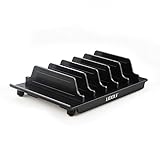
- 【Multi Devices Organizer】: This product is a device organizer and does not come with charging ports. The stand holder works with most 6-port chargers. It can store five phones and one tablet at the same time. Not recommended for tablets larger than 10 inches.
- 【Light and Portable】: Durable and stable plastic separators hold your iPhone, tablet and smart phone in place, The external hard drive holder very easy to depatchable and carry(Not recommended if your tablet is larger than 10 inches ).
- 【Adjustable Size Tablet Organizer Stand】: As the thickness of your device, you can decide which baffle is left then you have enough space to place it. Save more space for your desk space , The ipad rack holder is a good choice for organizing multiple devices.
- 【Unique Design】: The multiple phone holder features a fashion boat design, when you put smart phone on the bow position, the bracket will not cover the screen of your device(Note: The organizer measures 5.70 "L x 3.74" W x 1.37 "H, with a device height of 0.98" H and adjustable minimum spacing of 0.70 "W. The weight is 90 grams.).
- 【What You Get】: 1 X UDOLI bracket stand ; 4 X narrow slat ; 2 X wide slat ; Satisfactory customer service, if you want any questions please email us and let us know, we will get back to you within 24 hours.
Option A: Android Studio Emulator
Android Studio is Google’s official Android development environment and includes the Android Emulator. It is primarily designed for app testing, so its setup is heavier than a gaming-focused emulator, but it provides a directly supported Google tool.
Android Studio requirements
Google’s practical requirements include:
- 64-bit Windows 10 or later, macOS 12 or later, Linux, or ChromeOS
- 16 GB of RAM
- 16 GB of free disk space
- Hardware virtualization enabled
On Windows, Intel VT-x or AMD-V must be enabled in BIOS or UEFI. Windows computers with ARM-based CPUs are not currently supported for Android Studio.
Create a virtual device with Play Store support
- Install and open Android Studio.
- At the welcome screen, select More Actions > Virtual Device Manager.
After opening a project, you can instead select View > Tool Windows > Device Manager. - Click Create Device.
- Select a phone hardware profile that has the Google Play logo in the Play Store column.
- Click Next.
- Select a compatible system image.
- If the image has a download icon, click it and complete the download.
- Click Next, review the configuration, and click Finish.
- In Device Manager, click Launch next to the new virtual device.
- Open Play Store inside the emulator.
- Click Sign in and log in with your Google Account.
- Search for an app and click Install.
Only certain hardware profiles and system images include the Play Store. An AOSP image does not include Google apps or services. A Google APIs image includes Google Play services but does not necessarily include the Play Store. Choose a device profile marked with the Google Play logo.
Android Studio emulator problems
Some apps will not work even when installation succeeds. Common reasons include missing sensors, unsupported hardware, device certification requirements, DRM, Play Integrity checks, or an app’s refusal to run on virtual devices. Large virtual screens and newer Android versions can also require substantially more memory and processing power than the listed minimum.
Option B: BlueStacks 5
BlueStacks 5 is a third-party Android emulator for Windows and macOS. Its Android instance includes access to Google Play after you sign in.
Sign in to Google Play in BlueStacks
- Launch BlueStacks 5.
- On the home screen, click System apps.
- Click Play Store.
- Click Sign in.
- Enter your Google Account email address and click Next.
- Enter your password and click Next.
- Click I agree to accept Google’s terms.
- Choose whether to enable Google Drive backup.
- Click Accept.
Install an app in BlueStacks
- Open System apps.
- Open Play Store.
- Search for the app.
- Open its listing and click Install.
- After installation, open the app from the BlueStacks home screen.
Paid apps are generally associated with your Google Account, so you may not need to purchase an app again when using the same account. Compatibility, subscriptions, licensing checks, and developer restrictions can still prevent installation or use.
What’s actually slowing this PC down?
Pick the symptom - the matching free tool is one click away.
Installing an APK manually on an emulator
An APK is an Android application package. Installing an APK downloaded from another source is sideloading; it is not the same as downloading the application through Google Play.
Only obtain APK files from a source you trust. A file from an unofficial site could be modified, outdated, incompatible, or incomplete.
Drag an APK into Android Studio Emulator
- Start the Android Emulator.
- Drag the
.apkfile onto the emulator window. - Wait for the APK Installer dialog to finish.
- Open the application from the emulator’s app list.
Install an APK with ADB
With the emulator running and Android Debug Bridge available, use:
Rank #3

- 1.【Suitable all the phone】: suitable for all the smartphone with case and under 8 inch tablets without a case. For example iphone, ipad, Samsung galaxy, Google Nexus,HTC One, Blackberry, Oneplusone,Motorola Droid,Nokia Lumia.
- 2.【Portable everywhere】: perfect for travel, Portable, just simply put it in a pocket or wallet, purse, backpack, bag, you can use it everywhere, cafe, coffee shop, dining table, airplane tray table...ect. Easy Storge and Carrage.
- 3.【6 Angles Viewing】: 6 different adjustable Multi angles for viewing to meet different needs of watching movies. Free hands to reduce cervical and arm pain. Supporting portrait and landscape modes, offer you the best viewing point.
- 4.【Lightweight but sturdy】: The material is engineering plastic ABS. Small pocket size: (3.3 * 2.8 * 0.5 inches) and lightweight (0.8 ounces) are also strong and durable.
- 5.【What You Get】: 2 Pcs Kemoxan office adjustable cell phone stand holder, black and white.
adb install path_to_apkFor example, on Windows:
adb install "C:UsersNameDownloadsapp.apk"On macOS or Linux:
adb install "$HOME/Downloads/app.apk"If more than one emulator or Android device is connected, specify the target:
Outdated Drivers Are Slowing You Down
One free scan finds every outdated or missing driver and matches the right update for your exact hardware.Free scan · exact hardware matchWindows Errors? Fix Them Before They Spread
Repair common Windows errors and clear accumulated junk for a smoother, more stable PC - no reinstall needed.Free scan · no reinstalladb -s emulator-serial install path_to_apkFor a test APK, use:
adb install -t path_to_test_apkWhy one APK may not be enough
Many current apps are delivered through Google Play as an Android App Bundle. Google Play can install a base APK together with feature and configuration APKs selected for the device’s language, screen density, Android version, and CPU architecture.
Installing only one extracted file can therefore result in an incomplete installation or an app that will not start. If you have the matching APK files, install them together:
adb install-multiple base.apk split_config.apk split_config.arm64_v8a.apkAll files must belong to the same package and match the emulator’s Android version and CPU architecture. Files with extensions such as .xapk or .apks may require the emulator vendor’s installer or a bundle-aware installation tool; adb install will not automatically process every archive format.
Method 3: Install Play Store apps on a Chromebook
A Chromebook with Android-app support can use the Google Play Store directly. This is different from running Windows or macOS: ChromeOS provides the supported Android environment as part of the operating system.
Quick wins for a faster PC:
Clear out junk files and repair common Windows errorsFree Scan →Scan for outdated or missing drivers - takes under a minuteDriver Scan →Repair Windows errors before they cause bigger problemsFix Now →Enable Google Play Store
- Update ChromeOS.
- Click the time in the bottom-right corner.
- Select Settings.
- Select Apps.
- Select Manage Google Play preferences.
- In the window that opens, select More.
- Accept the Google Play Terms of Service.
If Manage Google Play preferences is missing, the Chromebook may not support Android apps. On a work or school Chromebook, an administrator policy may also disable the feature.
Install the app
- Open the Play Store app.
- Search or browse for the app.
- Select the app.
- Click or tap Install.
- Open it from the Chromebook Launcher.
Apps installed on an Android phone are not automatically installed on every Chromebook. You may need to download them again, and some apps are incompatible with a particular Chromebook model.
Install an app remotely from the Google Play website
This method is useful when you want to control an Android phone or tablet from your computer, but it does not install the app on Windows or macOS.
- Go to play.google.com.
- Search for and select the app.
- Click Install.
- Open the device dropdown under Install.
- Select the linked Android device.
- Click Install again.
The target device must be linked to the same Google Account and compatible with the app. It may be greyed out if the app is unavailable in the region, requires a different Android version, does not support the device’s screen size, or has been excluded by the developer.
Do these 3 things before closing this tab:
1Clear out junk files and repair common Windows errors2Fix the driver behind crashes, sound loss and screen glitches3Repair Windows errors before they cause bigger problemsRank #4

- Want To Adjust The Distance Of The Phone Holder?--This stand features a 33.46" (85 cm) flexible telescopic arm that rotates 360 degrees, allowing you to loosen your hands, reduce neck fatigue and easily position your phone at the desired distance. Ideal Valentine's gifts choose
- Is It Suitable For Your Mobile Phone?--Compatible with cell phones screen from 4.0 to 6.3 inches. The height of the fixed section can be adjusted from 0 to 2.75 inch(7cm).
- Is The Arm Easy To Fracture?--Our cell phone holder arm is made of 8.5mm Aluminum Alloy, it is hard to fracture, please rest assured to buy; Any questions about this phone holder, please contact us immediately, we will give you the most satisfactory solutions.
- This Phone Clip Damage The Furniture?--Our handy phone holder for recording can be used at a small table, your bed frame or even a desk! Designed with an anti-slip silicone base, the holder will not cause damage to your furniture.
- 24 Hours Customer Service - Any question about SAIJI cell phone stand, please contact us via E-mail first time. We have a replacement with 12 months and professional customer service support.
Fix common problems
The computer is not listed after clicking Install
This is expected for most Windows and Mac computers. Google Play is treating the computer as an unsupported Android-app target. Use Google Play Games on PC for a supported game or install an Android emulator for general apps.
The app says it is unavailable or incompatible
Compatibility can depend on the Android version, screen size, CPU architecture, hardware features, country, carrier, parental-control settings, and developer device-targeting rules. Try a different emulator device profile or Android version, but some restrictions cannot be bypassed legitimately.
“You haven’t accessed the Google Play Store app on your device with this email account”
On a physical Android device, sign in with the same Google Account, open the Play Store, search for an app, and tap Install once. This can establish the device-account link required for remote installation. The message can also appear when the selected target is an unsupported computer.
A work or school account cannot install remotely
Google Workspace administrators may block remote Play installation from a computer. The Play Store on the managed Android device may still work, subject to the organization’s policies. Try a personal Google Account only where doing so complies with your organization’s rules.
The Tool Desk
Outbyte PC Repair FREEClear out junk files and repair common Windows errorsFree Scan →Outbyte Driver Updater FREEScan for outdated or missing drivers - takes under a minuteDriver Scan →Google Play Games will not install
- Check the Windows version, RAM, SSD space, processor, and graphics requirements.
- Enable hardware virtualization in BIOS or UEFI.
- Enable Windows Hypervisor Platform if the installer requests it.
- Restart Windows.
- Uninstall Google Play Games from Settings > Apps > Apps & features.
- Download the installer again from Google’s official site.
- Run the installation again as an administrator if required.
For installer feedback, start the installer, click Send feedback, enable Send system information, enter #gpginstall in the message, and click Send.
Another emulator stopped working after enabling Hyper-V
Windows Hypervisor Platform and other virtualization technologies can conflict with emulators. Google warns that some other emulators may not work when Windows Hypervisor Platform is enabled. Close competing virtual machines and emulators, and check the documentation for the specific emulator before changing Windows virtualization features.
The APK installs but the app will not run
Check whether the APK matches the emulator’s CPU architecture and Android version. The app may require Google Play services, specific sensors, DRM, device certification, Play Integrity, or hardware that the emulator does not provide. It may also detect and block virtual devices, or you may have installed only one file from a split-APK set.
What not to use
Windows Subsystem for Android is no longer a current solution. Microsoft ended support for Windows Subsystem for Android on March 5, 2025, and Amazon discontinued the Amazon Appstore on Windows 11 after that date. Guides recommending WSA as the current official way to run Play Store apps are outdated.
Also avoid treating an APK download site as Google Play. A third-party APK is a separate sideloaded package and does not necessarily include the components Google Play would select for your device.
Best Value

- Wide Compatibility: JSAUX fold-flat phone stand is compatible with 4–8 inch smartphones and tablets, including iPhone 18/17/16/15/14/13/12/11 series (Pro/Pro Max/Max/Air), Samsung Galaxy S26/S25/S24/S23/S22/S21 series (Plus/Ultra), Google Pixel 10/9/8/7 (Pro/Pro XL/Pro Fold), iPad mini 7/6/5/4, and Kindle devices etc,.
- Foldable and Convenient: This portable cell phone holder for desk is foldable and can be completely folded into a pocket-size, it is easy to carry anywhere. It can easily be put in your pocket or bag during travel or business trip. You can free your hands and enjoy a Youtube video or Facetime call anywhere at any time
- Angle Adjustable: The office desktop cellphone holder stand supports angle adjustment from 0° to 90°, you can flexibly customize the angle of your device to find the most comfortable viewing angle
- Sturdy Swivel Never Loose: The swivel part is very tight, smooth and reinforced, will never break or loose no matter how many times you fold, easy to unfold
- What you get: One Pc JSAUX Cell Phone Stand with an 18-Month worry-free period and 24/7 friendly client consultation, if you have any questions, we will resolve your issue within 24 hours
FAQ
Can I install Google Play Store on a Windows PC?
Not as a normal Windows application. Windows does not natively support most Google Play Android apps. Use Google Play Games on PC for supported games or an Android emulator with Play Store support for general apps.
Can I download a Google Play app from the website to my computer?
No, not directly for most Windows or Mac computers. The website’s Install button normally sends the app to a compatible Android device or Chromebook linked to your Google Account.
What is the best Google Play emulator for PC?
Android Studio Emulator is Google’s directly supported option and can be configured with a Play Store image. BlueStacks 5 is a simpler third-party option for many everyday apps and games.
Recommended Free Tools
Does Google Play Games on PC run every Android game?
No. It provides a selected catalog of supported games. A game being available for Android does not guarantee that it is available through Google Play Games on PC.
Do I have to buy a paid app again in an emulator?
Usually not if the purchase is associated with the same Google Account. Compatibility, subscriptions, licensing checks, and developer restrictions can still affect whether the app is available.
Why is the Play Store missing from my Android emulator?
The virtual device may use an AOSP or Google APIs image. AOSP images do not include Google apps, and Google APIs images do not necessarily include the Play Store. Create a device profile and system image marked with the Google Play logo.
Is installing an APK the same as installing from Google Play?
No. An APK downloaded elsewhere is sideloaded and may be modified, outdated, incompatible, or incomplete. Modern apps may require several split APK files rather than one APK.
Do these 3 things before closing this tab:
1Clear out junk files and repair common Windows errors2Scan for outdated or missing drivers - takes under a minute3Repair Windows errors before they cause bigger problemsThe Bottom Line
For a Windows gaming PC, install Google Play Games on PC if your game is in Google’s supported catalog. For general Android apps, create a Google Play-enabled device in Android Studio Emulator or sign in to BlueStacks 5. On a compatible Chromebook, enable the built-in Play Store. Simply opening Google Play in a browser will not install Android apps on Windows or macOS.
Quick Recap
Product prices and availability are accurate as of the date/time indicated and are subject to change. Any price and availability information displayed on Amazon at the time of purchase will apply.

