
Outdated Drivers Are Slowing You Down
One free scan finds every outdated or missing driver and matches the right update for your exact hardware.Free scan · exact hardware matchWindows Errors? Fix Them Before They Spread
Repair common Windows errors and clear accumulated junk for a smoother, more stable PC - no reinstall needed.Free scan · no reinstalliTechGuides is reader-supported. When you buy through links on our site, we may earn an affiliate commission. As an Amazon Associate I earn from qualifying purchases. Learn more
To display an IPEVO document camera, connect it using the mode your model supports, open IPEVO Visualizer or a compatible camera application, and select the IPEVO device as the video source. Then adjust framing and image quality in Visualizer or, over USB, in CamControl. The exact steps differ between USB-only cameras such as V4K and DO-CAM and multi-mode models such as VZ-X and VZ-R, so identify the model and its ports before connecting anything.
The most common mistake is treating every IPEVO camera as if it were the same webcam. A USB camera sends its image to software on a computer, while an HDMI-capable model can feed a display directly. Wireless, USB, and HDMI modes can also change whether the built-in microphone and recording functions are available. Choosing the display path first makes setup and troubleshooting much more predictable.
Identify the camera and the connection you want to use
Look at the label on the camera and note every available port before opening software. V4K and DO-CAM are primarily USB document cameras. VZ-X can operate wirelessly, over USB, or through HDMI. VZ-R supports USB and HDMI, with important restrictions on power, audio, recording, and simultaneous output. Those differences determine which application, cable, power source, and controls will work.
What’s actually slowing this PC down?
Pick the symptom - the matching free tool is one click away.
| Model or family | Connection choices described by IPEVO | Important behavior |
|---|---|---|
| V4K | USB | Uses the operating system’s UVC driver as a generic webcam; select V4K in Visualizer or another UVC-compatible camera app. |
| DO-CAM | USB | Works with IPEVO camera software; a TWAIN driver is available for compatible scanning applications. |
| VZ-X | Wireless, USB, HDMI | Choose one operating mode. The built-in microphone is active only in USB mode. IPEVO’s charging guidance specifies a 5V/2A adapter. |
| VZ-R | USB or HDMI | HDMI needs sufficient USB power. USB and HDMI cannot output simultaneously from the camera. Microphone and video recording are available in USB mode. |
If you are deploying several cameras, record the model name and intended connection for each station. A V4K procedure cannot be copied wholesale to a VZ-X, and an HDMI procedure cannot be assumed to apply to a USB-only DO-CAM. This simple inventory also helps a support person diagnose whether a missing feature is a fault or a mode limitation.
#1 Best Overall

- Features an 8 Megapixel camera for capturing Ultra High Definition live images up to 3264 x 2448 pixels
- High frame rate for lag-free live streaming – streams at up to 30 fps at full HD, and up to 15 fps at 3264 x 2448 pixel
- Fast focusing speed helps minimize interruptions for frequent switching between different materials; features Sony CMOS Image Sensor for exceptional noise reduction and color Reproduction – great for capturing in dimly lit environments
- Designed and made in Taiwan. Multi-jointed stand offers a simple fix for tightening loose joints caused by heavy daily use.Max Shooting Area:13.46 inch x 10.04 inch
- Works with a variety of software and applications on Mac, PC and Chromebook that allows you to use it in different ways. System Requirements - Mac Intel Core i5 CPU 2.5 GHz or higher, OS X 10.10 or higher, Solid-state drive, and 200MB of free hard disk space, 256MB of dedicated video memory (For lag-free live streaming up to 1920 x 1080, and video recording of 1920 x 1080). Windows Recommended Requirements - Microsoft Windows 10,Intel Core i5 CPU 3.40 GHz or higher, 4 GB RAM, 200MB of free hard disk space, 256MB of dedicated video memory (For lag-free live streaming up to 1920 x 1080, and video recording of 1920 x 1080)
Standard USB setup in Visualizer
- Connect the camera. Plug the camera into a functioning USB port. For a V4K, IPEVO specifically directs users to connect it by USB. For DO-CAM, use the supplied or compatible USB connection and allow the operating system to recognize it.
- Open the camera software. Launch IPEVO Visualizer, or open another application that accepts UVC webcams. A driver being recognized does not itself display an image; a camera application must request the video stream.
- Select the IPEVO device. In Visualizer’s camera or device menu, choose the exact model name, such as V4K. If another webcam is selected, the application can open normally while showing the wrong feed.
- Position the subject. Place the document, object, or presenter beneath the lens. Use the camera head and any available stand adjustment for the broad framing, then use software zoom for fine composition.
- Confirm the preview. Move a page or hand in front of the lens. A live preview confirms that the camera is connected, selected, and sending frames rather than merely powered.
Do not judge the setup solely by an operating-system notification that a USB device was attached. Recognition only proves that a connection exists. The preview in Visualizer or the chosen camera application proves that the application has selected the correct source and is receiving frames.
Why V4K may appear without a special driver
IPEVO describes V4K as a generic UVC webcam that uses the operating system’s built-in UVC driver. That makes it available to compatible third-party software, but you still need to open Visualizer or another camera application and select V4K from its camera list. If a UVC-compatible program lists several cameras, use the model name rather than relying on the default selection.
DO-CAM and TWAIN workflows
DO-CAM can be used as a live camera in Visualizer or a meeting application. Its support material also lists a TWAIN driver for compatible scanning software. TWAIN is a separate software path: a scanning application must support TWAIN, and installing or selecting that driver does not automatically select DO-CAM as the live video source. Decide whether the task is live presentation or document acquisition, then open the corresponding application.
Quick wins for a faster PC:
Fix the driver behind crashes, sound loss and screen glitchesFind Drivers →Repair Windows errors before they cause bigger problemsFix Now →Selecting an IPEVO camera in meeting applications
When you want to show the camera in a video meeting, open the application’s video settings and choose the IPEVO model as the camera. The menu wording varies, but it is normally under Settings, Preferences, or a camera selector next to the video preview. Test the preview before presenting, because a meeting program can remain pointed at a laptop webcam even when the IPEVO is connected.
Google Meet
Open the meeting’s device or video settings, select the IPEVO camera in the camera drop-down list, and verify the preview before joining or while in the call. If the camera does not appear, close Visualizer or another program that may already be using it, reconnect the camera, and reopen the device list.
Microsoft Teams
Open Teams device settings, choose the IPEVO camera under Camera, and check the preview. If the camera is already open in another application, close that application if Teams cannot claim the feed. A selected IPEVO video source does not imply that its microphone is also available; audio behavior follows the model and connection mode.
Skype
Open Skype’s audio and video settings, select the IPEVO device, and confirm that movement under the lens appears in the preview. Check the audio input separately if you need a microphone, particularly when using a VZ-X or VZ-R outside USB mode.
Zoom
In Zoom’s video settings, choose the IPEVO model from the camera list and verify the thumbnail. IPEVO also describes a workflow in which Visualizer runs alongside Zoom: open Visualizer, then use Zoom’s screen- or window-sharing command to share the Visualizer window. This is useful when you need Visualizer’s rotation, filters, snapshots, or recording controls rather than an unprocessed camera feed. Sharing the window is different from selecting the camera directly, so choose the method that matches your presentation.
Using Visualizer as the source window
If your workflow requires Visualizer’s document controls, run Visualizer and display its live image in the meeting application by selecting the Visualizer window through that application’s screen or window-sharing command. This preserves Visualizer features such as rotation, filters, snapshots, and recording while the meeting application shares the processed view. Keep only the needed window visible to avoid exposing unrelated desktop content.
Optimize the image in Visualizer
Visualizer provides presentation controls rather than requiring every adjustment at the physical camera. Available controls include:
- Zoom: enlarge a page or object after positioning the camera.
- Rotation: correct an image when the camera is mounted at an angle.
- Mirroring: reverse the feed when a mirrored presentation is useful.
- Resolution: choose an available output resolution appropriate to the application and connection.
- Exposure: brighten or darken the feed when paper and background contrast is poor.
- Video filters: apply supported presentation effects for clearer or more legible material.
- Snapshots: capture a still image instead of leaving the camera running.
- Recording: record video when the installed Visualizer version and connected camera support it.
- Split screen: combine or compare views where the installed Visualizer version provides that function.
Adjust one variable at a time. Start with physical framing, then set resolution, exposure, and zoom; use rotation or mirroring only after the page is legible. A higher resolution does not compensate for a page that is out of focus or badly lit. If a page is cut off, move the camera or subject first instead of immediately zooming out and losing useful detail.
Free tools Windows power users keep installed
One-click scans. No signup required.
Use rotation when the camera head is positioned sideways, and use mirroring only when the audience needs a reversed view. Confirm the result with text: reversed writing is a sign that mirroring is inappropriate for ordinary document reading. Choose the highest practical resolution that the application and connection can handle, but remember that available options vary by installed Visualizer version and connected model.
Use CamControl for USB camera adjustments
CamControl is IPEVO’s USB utility for changing camera settings while the device is connected. The controls exposed by CamControl depend on the model, so do not assume that every slider or command shown for one camera appears for another. Connect the camera by USB, open CamControl, select the detected IPEVO device, and change only settings the utility presents for that model. If a control is absent, use Visualizer’s presentation controls or the camera’s physical positioning instead.
Rank #2
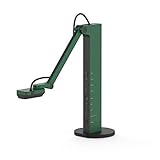
- HDMI and USB Dual Mode Document Camera: Direct HDMI connection to a TV, monitor or projector and easy plug and play USB connection to a computer. It works on Mac, Windows PC, and Chromebook, and it's compatible with different third-party software. It doubles as a webcam for video calls. (Please note that VZ-R's package does not include an HDMI cable nor the wall power adapter.)
- High image clarity with 8 megapixel camera: Captures up to 3264 x 2448 in USB mode, and up to 1920 x 1080 in HDMI mode. Max capturing area of 10.6” x 18.9” (16:9) / 13.5” x 18.1” (4:3)
- Performance boost: Fast focus, noise reduction, and excellent color reproduction brought by Sony CMOS image sensor and Ambarella integrated system-on-a-chip (SoC). Its LED light gives you additional lighting for capturing material in dimly lit environments.
- Double it as a Webcam: VZ-R is compatible with a wide variety of 3rd party video-conference software. Use its swiveling head, multi-jointed stand to capture different heights, angles, and orientations.
- Durability, Portability and Convenience: VZ-R features a glass fiber reinforced stand (GVX-5H) which gives you increased durability and portability for daily use. The tactile built-in buttons located on VZ-R's body enable you to adjust real-time images instantly.
CamControl is therefore a model-dependent adjustment tool, not a promise of identical manual controls across the product line. Confirm that the camera is in USB mode and that no other application is holding the device when CamControl fails to detect it. Make a small change, watch the live image, and return to the previous value if legibility gets worse. For a camera being used over HDMI or wireless, rely on the controls available in that operating path rather than assuming USB utility settings will apply.
Model-specific power, audio, and mode rules
VZ-X: choose wireless, USB, or HDMI deliberately
VZ-X is a multi-mode camera. Decide whether the display path is wireless, USB to a computer, or HDMI directly to a display before troubleshooting software. IPEVO’s support guidance recommends charging the camera after opening it and specifies a 5V/2A adapter for that charging procedure. That adapter guidance is for VZ-X; it is not a universal requirement for every IPEVO camera.
The built-in microphone is active only when VZ-X is operating over USB. If you use wireless or HDMI, plan for the computer or display system to provide audio capture separately. Wireless operation also means that a missing USB camera entry may be normal rather than evidence of a failed USB connection; use the wireless procedure and supported application for that mode.
VZ-R: HDMI power and output limits
When VZ-R is connected by HDMI, provide sufficient USB power as described by IPEVO. VZ-R cannot send USB and HDMI output simultaneously from the camera itself, so select the required path rather than expecting both a computer preview and a direct HDMI display at once.
VZ-R’s built-in microphone and video recording are available in USB mode. They should not be expected when the camera is being used through HDMI. If the room needs a direct HDMI image and recorded video or camera microphone audio at the same time, plan a separate capture or audio path rather than trying to enable both outputs on the camera.
Compare direct HDMI with USB presentation
Direct HDMI is appropriate when the immediate goal is to put the camera image on a compatible display without routing the video through a computer. USB is the more software-centered path: it lets Visualizer or a meeting application select the camera and can provide the VZ-R microphone and recording functions that IPEVO associates with USB mode. Wireless, where supported by VZ-X, is another distinct path rather than an automatic extension of USB behavior.
| Requirement | USB to computer | HDMI to display | Wireless VZ-X path |
|---|---|---|---|
| Visualizer or meeting-app selection | Yes, select the IPEVO device in software | Not through the computer’s USB camera menu | Use the supported wireless workflow |
| VZ-R microphone and recording | Available in USB mode | Do not expect them | Not a VZ-R option |
| Power consideration | USB connection supplies the computer-side connection | VZ-R requires sufficient USB power | VZ-X charging guidance specifies 5V/2A |
| Simultaneous VZ-R USB and HDMI | Not available from the camera at the same time | Not applicable | |
Platform and connection compatibility
Visualizer capabilities depend on both the platform version and the camera connection. IPEVO notes that its iOS and tvOS Visualizer versions do not support USB document cameras. Android supports the connection methods listed for the relevant Visualizer version and camera. On a computer, use the desktop Visualizer release or another compatible UVC application when the camera is connected by USB.
If a camera is missing from the device list, first verify that the chosen Visualizer version supports that camera’s connection method and operating system. A cable, camera, and application can each work independently while the combination remains unsupported. Check the connection mode before changing image settings: no amount of exposure or resolution adjustment can make an unsupported platform discover the camera.
Troubleshoot a missing or blank preview
| Symptom | Likely cause | Action |
|---|---|---|
| The camera is not listed | Wrong connection, unsupported platform, bad cable, or another application has the device. | Reconnect using the model’s supported mode, check platform support, close other camera applications, and reopen the device menu. |
| The application opens but shows another webcam | The default camera is still selected. | Open the application’s camera selector and choose the exact IPEVO model. |
| VZ-R HDMI output is absent | Insufficient USB power or an incorrect output expectation. | Provide the required USB power and use HDMI as the selected output path; USB and HDMI cannot be simultaneous from the camera. |
| No microphone from VZ-X or VZ-R | The camera is in wireless or HDMI mode. | Use USB mode when the built-in microphone is required, or select a separate computer microphone. |
| The image is visible but unreadable | Framing, exposure, resolution, or focus problem. | Reposition the camera, adjust exposure and resolution in Visualizer, and use zoom only after the page is centered. |
| Recording is unavailable | The selected model or connection does not provide recording. | For VZ-R, switch to USB mode; for other cameras, confirm that the installed Visualizer version exposes recording. |
| Visualizer shows no USB camera on a phone or TV device | The platform version does not support USB document cameras. | Use a supported computer or Android connection, or choose a connection method listed for that platform and model. |
| CamControl has fewer settings than expected | Controls vary by connected IPEVO model. | Use only the controls presented for that model and use Visualizer or physical positioning for the rest. |
When testing, change one component at a time. Try a second USB port or cable for a USB camera, then reopen the camera menu. If the camera works in Visualizer but not in a meeting application, the hardware and basic connection are probably functioning; concentrate on the meeting application’s selected source or on whether another program still owns the feed.
A reliable display workflow for teaching or presenting
- Write down the exact model and decide whether the audience needs a computer preview, a direct HDMI display, or wireless operation.
- Connect power and data appropriate to that mode. For VZ-X charging, follow IPEVO’s 5V/2A guidance; for VZ-R HDMI, ensure adequate USB power.
- Open Visualizer or the chosen compatible application and select the IPEVO device by name.
- Set physical height and angle, then correct rotation, mirroring, resolution, exposure, and zoom.
- Test any required microphone or recording function in the actual connection mode before the presentation.
- In the meeting application, select the IPEVO camera directly, or share the Visualizer window when its processed image is required.
- Keep a fallback path ready: a second USB port or cable for USB cameras, and a separate microphone when using a mode that disables the camera’s built-in microphone.
Run this test with the same display, computer, application, and connection that will be used during the event. A camera that works over USB in Visualizer does not prove that its HDMI output has adequate power, and a successful HDMI test does not prove that a meeting application can select it as a webcam. Testing the complete path catches those mode-specific failures early.
Recommended Free Tools
What to check before buying or deploying an IPEVO camera
- Connection: confirm whether your room requires USB, HDMI, wireless operation, or more than one of those options.
- Display path: decide between direct HDMI to a display and USB into a computer for software control and meeting integration.
- Audio: verify whether the microphone is available in the mode you intend to use.
- Recording: check the model and connection, especially for VZ-R’s USB-only recording behavior.
- Controls: use Visualizer for presentation adjustments and check CamControl’s model-specific list before relying on a particular camera setting.
- Platform: verify that the operating system and Visualizer version support the selected camera connection; USB document cameras are not supported by IPEVO’s iOS and tvOS Visualizer versions.
- Scanning: if documents must enter TWAIN-compatible software, confirm that the DO-CAM TWAIN driver meets that application’s requirements.
- Power: account for the model’s power instructions, including the VZ-X 5V/2A charging guidance and the USB power requirement for VZ-R HDMI use.
- Output limits: if users need both a computer feed and a direct display, verify whether the chosen model can provide both; VZ-R cannot output USB and HDMI simultaneously from the camera.
Frequently asked questions
Do I need a special driver for the V4K?
IPEVO describes V4K as using the operating system’s built-in UVC driver as a generic webcam. You still need Visualizer or another UVC-compatible camera application and must select V4K in that application’s camera menu.
Can I use an IPEVO camera directly in Zoom, Teams, Meet, or Skype?
Yes, select the IPEVO model in the meeting application’s video settings when the model and connection are supported. If you need Visualizer’s processed image, run Visualizer and share its window instead of selecting only the raw camera feed.
Why is my VZ-X microphone missing?
IPEVO states that VZ-X’s built-in microphone is active only in USB mode. Wireless and HDMI use require a separate audio source supplied by the computer or display system.
Rank #3

- The 8 MP Camera in Wi-Fi and HDMI mode captures images in high definition (1920 x 1080), and in near 4K quality in USB mode (3264 x 2448). video Recording in HD (1920 x 1080 @ 30 FPS). connect to a computer, iOS/Android device, Apple TV, projector, TV, or monitor.
- Built-in LED illuminates the viewing area. Max viewing area: 11. 14” x 19. 72” (283 x 501mm) [16: 9], 14. 29” x 19. 01” (363 x 483mm) [4: 3]
- The 8 MP sensor by Sony is boosted by an Ambarella system-on-a-chip that provides fast focusing speed, improved noise reduction, and excellent color reproduction.
- 9-12 hours of battery life ensures a complete class or presentation session without interruptions. Up to 33-feet of the wireless range teachers and presenters to capture different objects all over the room.
- Designed and made in Taiwan. Swiveling head, Multi-Jointed stand, and small footprint allow you to capture freely from different height, angle, and orientation. Buttons conveniently located on the camera’s body enable you to adjust the video feed instantly and without a computer.
Why does VZ-R show no HDMI image?
VZ-R HDMI use requires sufficient USB power. Also make sure you are not expecting USB and HDMI output simultaneously from the camera; choose the required output path.
The Tool Desk
Outbyte PC Repair FREEClear out junk files and repair common Windows errorsFree Scan →Outbyte Driver Updater FREEScan for outdated or missing drivers - takes under a minuteDriver Scan →Can VZ-R record while connected by HDMI?
IPEVO associates VZ-R video recording with USB mode. Switch to USB when recording is required, and confirm that the installed Visualizer version exposes recording for the connected camera.
Can I use Visualizer on an iPhone, iPad, or Apple TV with a USB document camera?
IPEVO notes that its iOS and tvOS Visualizer versions do not support USB document cameras. Check the supported connection methods for the exact platform and model; Android support depends on the listed methods for that Visualizer version.
Why does CamControl not show the setting I saw in a guide?
CamControl controls vary by connected IPEVO model. Use the controls the utility presents for your camera, and use Visualizer or physical positioning for adjustments that are not exposed.
Does the DO-CAM TWAIN driver replace Visualizer?
No. TWAIN is for compatible scanning software. Live presentation still uses Visualizer or another application that accepts the camera feed.
Frequently Asked Questions
What is the basic way to display an IPEVO camera?
Connect the camera in a mode supported by its model, open Visualizer or a compatible camera application, and select the exact IPEVO device in the camera menu. Then position the subject and adjust the image.
Can I show Visualizer in a Zoom meeting?
Yes. Run Visualizer and use Zoom’s window- or screen-sharing command to share the Visualizer window. You can also select the IPEVO camera directly in Zoom’s video settings.
Which IPEVO modes provide microphone input?
VZ-X’s built-in microphone is active only in USB mode. VZ-R’s built-in microphone is available in USB mode; do not expect it through HDMI. Use a separate microphone in other modes.
What adapter guidance applies to VZ-X?
IPEVO’s VZ-X charging guidance specifies a 5V/2A adapter. This is model-specific guidance, not a universal requirement for every IPEVO camera.
Can VZ-R output USB and HDMI at the same time?
No. IPEVO states that VZ-R cannot output USB and HDMI simultaneously from the camera. Select the connection path required for the presentation.
Why is an IPEVO camera missing from Visualizer?
Check the model’s supported connection, the operating system and Visualizer version, the cable and USB port, and whether another application is using the camera. iOS and tvOS Visualizer versions do not support USB document cameras.
The Bottom Line
Display an IPEVO camera by matching the model to its supported connection, selecting it by name in Visualizer or the meeting application, and then tuning framing and image controls. V4K and DO-CAM follow a USB webcam workflow; VZ-X adds wireless and HDMI choices with USB-only microphone behavior; VZ-R requires adequate power for HDMI and limits recording, microphone use, and output to USB mode. Test the complete connection path, platform, audio, and recording requirements before presenting.
Quick Recap
Product prices and availability are accurate as of the date/time indicated and are subject to change. Any price and availability information displayed on Amazon at the time of purchase will apply.
Do these 3 things before closing this tab:
1Fix the driver behind crashes, sound loss and screen glitches2Repair Windows errors before they cause bigger problems3Scan for outdated or missing drivers - takes under a minute
