
iTechGuides is reader-supported. When you buy through links on our site, we may earn an affiliate commission. As an Amazon Associate I earn from qualifying purchases. Learn more
Start with the smart-home platform and hubs you already use, then verify the exact accessory’s compatibility, device category, connection method and required features. A Matter label or platform badge can make a device a candidate, but neither guarantees that every function will work in every app—or that your home has the network hardware needed to set it up.
Start with your current smart-home setup
Before comparing accessories, write down what is already in your home. The right choice depends on the combination of platform, device type, connection method and hub or bridge—not on a logo in isolation.
- Platform: Which app or ecosystem do you use to control devices—Google Home, Apple Home, Alexa, or more than one?
- Accessory: What are you adding, such as a plug, light or another supported device category? List the functions you expect to use, not just the product’s general category.
- Existing hardware: Record any smart-home hub, bridge or Thread-capable device already installed. Note its exact model so you can check its current requirements.
- Network: Identify whether the product uses Wi-Fi, Thread, Zigbee or Z-Wave, and check the product and platform setup instructions for network requirements.
- Apps and phones: Check the setup app, supported phone or operating-system requirements, and whether Bluetooth is needed for pairing.
This inventory helps answer the practical question: “Will this accessory work with my existing smart home?” It also separates two different problems: whether the platform recognizes the accessory, and whether the home has the connection and hardware needed to operate it.
Windows Errors? Fix Them Before They Spread
Repair common Windows errors and clear accumulated junk for a smoother, more stable PC - no reinstall needed.Free scan · no reinstallCrashes, No Sound, or Screen Glitches?
Random freezes, missing sound and display glitches usually trace back to one bad driver. Find and replace yours safely.Free scan · under a minuteCheck the exact device, not just its brand or category
Look up the precise product model on the accessory maker’s compatibility listing and on the platform’s current compatibility page. A manufacturer may sell several models with different radios, setup requirements or supported functions, so a listing for a similar product is not enough.
#1 Best Overall

- 【Matter: All-Round Compatibility】With Matter, users are no longer tied to specific platforms and works with all certified smart home platforms, such as Apple Home, Amazon Alexa, Google Home and Samsung SmartThings. You can control all your smart home devices from a single app, reducing the need for multiple apps for different devices.
- 【Matter: Smooth LAN Control】All Matter-certified devices in your local area network (LAN) will work smoothly even when your home internet goes offline. Matter allows effective communication directly between devices, without the need for a specific 'forwarding' device. For example, a Matter smart switch or sensor can turn on/off a Matter bulb directly without being connected to a cloud service, or other specific action. Once configured, communication and control between Matter devices can be achieved directly on the local network.
- 【Matter: Future-Proofing】Matter devices will be compatible with future updates and advancements in technology, ensuring that your smart home system remains up-to-date and compatible with new devices and features.
- 【Compact & Flame Retardant Design】Avoid blocking additional outlets with its compact design, and plug in your WiFi smart plug with confidence thanks to its UL certified flame retardant design and 2-year limited warranty.
- 【App & Voice Control】Control your WiFi smart plug from anywhere, anytime via the free Tapo App or just give voice commands to Siri, Amazon Alexa, Google Assistant or Samsung SmartThings. Your favorite smart assistant enables you to have a truly hands-free experience.
For Google Home, the compatibility page says existing “Works with Google Home” devices remain supported. It also tells shoppers to look for that compatibility badge or Matter support. The page lists Matter-supported device types, including lighting and electrical products such as plugs. Those statements are useful starting points, but you still need to confirm that your exact model and the functions you want are supported in your setup. Google Home’s compatible-device list
For other platforms, consult their current compatibility guidance and the product’s own instructions. A badge or certification indicates compatibility within the scope of that program; it is not proof that every advertised feature will appear in every other app. For example, Amazon describes Works with Alexa as a certification program for product compatibility with Alexa. Amazon’s Smart Home Thread documentation
When checking a listing, look for the product’s full model name or number, the platform you use, the supported device category and any notes about required hubs, bridges or features. If the listing does not identify your exact model or answer a requirement that matters to you, treat compatibility as unconfirmed rather than assuming that a related model will behave the same way.
Recommended Free Tools
Understand what Matter does—and what it does not promise
Matter is a smart-home standard intended to let compatible devices work with multiple certified apps. Google says Matter devices can be controlled in multiple certified apps, and describes Matter commands as operating locally over the home network. That can make it easier to use one accessory with more than one supported platform, but it does not mean every platform supports every device category or every feature at the same time. Google’s Matter preparation guidance
Rank #2

- 【Easy Setup, One Control】With Matter, Skip the step of downloading and registering multiple manufacturers' apps every time you buy a new device. Instead, head straight to certified smart home platforms like Apple Home, Alexa, Google Home, SmartThings, or AiDot to control all your Matter devices.【TIP】Matter-certified hub or controller (HomePod, Echo Dot, Nest, SmartThings Hub) is required for Apple Home/Alexa/Google Home/SmartThings platforms. Alternatively, the AiDot app can be used without hub
- 【Offline-Ready Control】Once you've set up your Matter-certified devices on your LAN, they'll be able to communicate with each other directly, using the Matter protocol. This means that if your home internet connection goes offline, your Matter-certified devices will still be able to communicate and be controlled within your LAN, without relying on the internet or cloud services.
- 【Remote Control from Anywhere】Use the app to turn electronics on before you arrive home and off after you leave, no matter where you are. Using the smart plug that work with alexa manage your power usage and save money.
- 【Hands-free Voice Control】Control linkind homekit plug using simple voice commands through Apple HomeKit, Siri, Amazon Alexa, Google Assistant, and SmartThings, without the need for physical input such as buttons or switches.
- 【Flexible Scheduling & Timer】Effortlessly reduce energy usage with automatic device shutdown after a set time. For example Chrismas Tree, TV, Lamp, Fan, Humidifier,Blenders, Lightbulbs
Check the specific platform you plan to use for both the accessory category and the functions you care about. A listing that confirms basic control does not necessarily establish that a platform exposes every product setting, automation option or other advertised capability. The platform’s category support and the accessory maker’s feature documentation are the deciding references.
Also distinguish Matter compatibility from a platform’s hub requirements. Google says a Matter-enabled hub is needed for setup, local control and remote control in its documented Google Home setup. That is Google-specific guidance, not a universal rule for every Matter platform. Check the current instructions for the platform you intend to use before buying or attempting setup. Google’s Matter preparation guidance
Tell Matter, Wi-Fi and Thread apart
Matter and Thread answer different questions. Matter is the smart-home standard; Wi-Fi and Thread are network connection methods. A product can be Matter-compatible while still requiring particular network hardware, so the Matter label alone does not tell you whether it can join your home.
- Wi-Fi: Check that the accessory’s Wi-Fi setup requirements match your home network and the platform’s instructions. Google lists Wi-Fi as a Matter network transport.
- Thread: A Thread device needs a compatible Thread border router to connect to the Thread network. Google says a mixed Thread/Wi-Fi Matter setup needs a hub with Thread support, and its setup guidance calls for a Thread border router for Thread devices.
- Ethernet: Google also lists Ethernet as a Matter network transport. Confirm what role the platform’s instructions assign to Ethernet-connected hardware; the transport listing alone does not establish that a particular accessory uses Ethernet.
Google’s setup pages describe the transports and hardware for Google Home’s Matter path. Do not generalize those requirements to another platform without checking its own documentation. Google’s Matter preparation guidance and Google’s Matter setup instructions
Rank #3

- 【Matter-Certified】Matter-certified devices, regardless of brand, can work together and are compatible with most major smart home platforms like Amazon Alexa, Apple HomeKit, Google Home, and Samsung SmartThings. Enjoy more flexible and unified control.
- 【Insightful Energy Tracking】 Monitor your energy consumption with in-depth statistics and clear visuals, helping you optimize power usage.
- 【Estimate Your Energy Bill】 Enhance energy management by integrating with billing systems for clear cost visualization (both single and periodic readings). Additionally, programmable scheduling allows automatic operation of high-consumption devices during off-peak hours with lower electricity rates, resulting in cost savings.
- 【Overcharge Prevention & Power Management】 Automatically cuts off power based on user-set thresholds and durations to prevent overcharging, conserve energy, and protect connected devices from overcurrents by shutting off when power exceeds set limits.
- 【Voice & Remote Control】 With built-in support for both Alexa and Google Assistant, issue simple voice commands to adjust settings, turn devices on or off, or even access specific functions without lifting a finger. Manage Tapo P110M and its connected devices from anywhere with the user-friendly Tapo app.
If the product uses Thread, look for explicit confirmation that your installed hub or other device can act as a Thread border router. A hub that supports Matter is not automatically a Thread border router: verify both capabilities against the exact hardware model and the platform’s current list.
Apple’s Works with Apple Home guidance sets out its own requirements for Matter accessories. For Thread accessories, it specifies a Thread-enabled Apple Home hub; it also says some listed older Apple hub models require a compatible Thread border router. Check the current wording and your exact hub model before relying on an existing device. Apple’s Works with Apple Home badge guidelines
Amazon’s developer documentation lists Echo and eero devices that it documents as containing Thread border routers. Because that is a model list in a particular platform’s documentation—not a permanent guarantee for every device—check the current page for the model you own. The page says it was last updated May 1, 2026. Amazon’s Smart Home Thread documentation
Check network, app and pairing prerequisites
For Matter on Google Home, the documented requirements include an IPv6-enabled home Wi-Fi network and a compatible Matter hub. The Google setup guidance also specifies smartphone-app requirements, Bluetooth Low Energy 4.2 or higher for pairing, and a Thread border router for Thread devices. Confirm the current Google instructions and the accessory’s documentation for your particular setup, because requirements can change and other platforms may specify different ones. Google’s Matter preparation guidance and Google’s Matter setup instructions
Rank #4
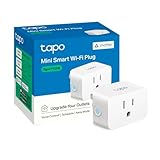
- 【Matter: All-Round Compatibility】With Matter, users are no longer tied to specific platforms and works with all certified smart home platforms, such as Apple Home, Amazon Alexa, Google Home and Samsung SmartThings.
- 【Matter: Smooth LAN Control】All Matter-certified devices in your local area network (LAN) will work smoothly even when your home internet goes offline. Matter allows effective communication directly between devices, without the need for a specific 'forwarding' device. For example, a Matter smart switch or sensor can turn on/off a Matter bulb directly without being connected to a cloud service, or other specific action. Once configured, communication and control between Matter devices can be achieved directly on the local network.
- 【Compact & Flame Retardant Design】Avoid blocking additional outlets with its compact design, and plug in your WiFi smart plug with confidence thanks to its UL certified flame retardant design and 2-year limited warranty.
- 【App & Voice Control】Control your WiFi smart plug from anywhere, anytime via the free Tapo App or just give voice commands to Siri, Amazon Alexa, Google Assistant or Samsung SmartThings. Your favorite smart assistant enables you to have a truly hands-free experience.
- 【Advanced Scheduling & Timer】Time your smart plugs to automatically turn on and off any home electronic appliances such as lamps, fans, humidifiers, Christmas lights, etc. Advance Scheduling your appliances with your daily routine.
IPv6 is a consequential check in Google’s documented path, not a detail to leave until troubleshooting. Google warns that setup may initially appear to succeed without IPv6, but control and other functionality can eventually fail because Matter requires IPv6 support on that network. If you use Google Home and are considering Matter, check the router’s network settings and Google’s current guidance rather than judging readiness only by whether the initial pairing screen completes. Google’s Matter preparation guidance
Before purchase, compare the setup requirements with the phone, app, router and hub you actually have. A product can be compatible in principle and still be a poor fit if you cannot meet its pairing or network prerequisites.
Choose a bridge for older Zigbee or Z-Wave devices carefully
An existing Zigbee or Z-Wave device may be usable with a platform through a compatible hub or certified bridge, even though the accessory itself is not a Matter device. Google’s compatibility page describes certified bridges for non-Matter Zigbee or Z-Wave devices, and says existing Works with Google Home devices remain supported. That does not mean every older device can be upgraded or that any bridge will expose every function. Google Home’s compatible-device list
Quick wins for a faster PC:
Scan for outdated or missing drivers - takes under a minuteDriver Scan →Clear out junk files and repair common Windows errorsFree Scan →Fix the driver behind crashes, sound loss and screen glitchesFind Drivers →For a device you already own, check the bridge maker’s supported-device information for the exact accessory, then confirm that the bridge exposes the features you need to your chosen platform. A successful connection through a bridge can still leave you without a particular control or setting. Do not replace a working device—or buy a bridge—until you have verified the exact device-to-bridge and bridge-to-platform paths.
Best Value

- 【Matter-Compatible Smart Home Integration】Works with Matter-certified platforms such as Apple Home, Amazon Alexa, Google Home, and Samsung SmartThings. Users can manage compatible devices across supported apps within the Matter ecosystem.
- 【Energy Monitoring】Tracks energy usage over time to help you understand consumption patterns and make informed decisions about how your devices are used.
- 【Matter: Smooth LAN Control】All Matter-certified devices in your local area network (LAN) will work smoothly even when your home internet goes offline. Matter allows effective communication directly between devices, without the need for a specific 'forwarding' device. For example, a Matter smart switch or sensor can turn on/off a Matter bulb directly without being connected to a cloud service, or other specific action. Once configured, communication and control between Matter devices can be achieved directly on the local network.
- 【Compact & Flame Retardant Design】Avoid blocking additional outlets with its compact design, and plug in your WiFi smart plug with confidence thanks to its UL certified flame retardant design and 2-year limited warranty.
- 【App & Voice Control】Control your WiFi smart plug from anywhere, anytime via the free Kasa App or just give voice commands to Siri, Amazon Alexa, Google Assistant or Samsung SmartThings. Your favorite smart assistant enables you to have a truly hands-free experience.
Compare options with a compatibility checklist
Use the same checks for every candidate. This makes it easier to compare an accessory that connects directly with one that depends on a hub or bridge.
| What to verify | What counts as a useful answer | Why it matters |
|---|---|---|
| Exact product | The listing identifies the precise model you plan to buy. | A compatibility statement for a related model may not apply to this one. |
| Platform or certification | The product listing or platform page confirms support for your app or an applicable standard. | A badge is a starting point for verification, not a promise that all features work everywhere. |
| Device category | Your platform currently supports the accessory type. | Platforms may add support for categories at different times. |
| Desired functions | The platform and product documentation identify the controls or features you expect to use. | Category compatibility does not establish feature parity. |
| Connection method | The product uses a network method your home and platform setup can support, such as Wi-Fi or Thread. | Matter compatibility does not remove transport requirements. |
| Hub or bridge | Any required hub, Thread border router or certified Zigbee/Z-Wave bridge is supported and already available—or included in your plan. | Missing hardware can prevent setup or limit control. |
| Setup prerequisites | Router, IPv6, app, phone and Bluetooth requirements are satisfied where the platform specifies them. | Pairing can fail or control can be unreliable if a required prerequisite is missing. |
| Multiple apps | Each intended certified app supports the device category, and the maker’s multi-app setup instructions cover the planned arrangement. | Multi-platform capability does not mean every app has the same controls or setup flow. |
| Unanswered details | If a source does not state a needed requirement or feature, treat it as unconfirmed and ask the manufacturer or platform support. | An unknown is not evidence of compatibility. |
Follow this buying and setup process
- Inventory the home. Record your platform, the accessory type and desired functions, existing hubs or bridges, and relevant network hardware.
- Find the exact model’s listing. Check the accessory maker’s documentation and the platform’s current compatibility page. Look for the model number, not merely the brand or product family.
- Confirm category and features. Verify that the platform supports the device category and the specific controls you plan to use.
- Identify the transport. Determine whether the accessory uses Wi-Fi, Thread or another method. For Thread, verify a compatible border router is present.
- Check every required intermediary. Confirm that a Matter hub or a Zigbee/Z-Wave bridge is required or supported, and that your exact installed model meets the requirement.
- Review setup conditions. Check the current platform and product instructions for network settings, IPv6 where specified, app or phone requirements, and Bluetooth pairing.
- Decide whether multiple apps matter. If you want the accessory in more than one platform, verify support and setup instructions for each app separately.
- Keep a recovery path. Before ordering, read the seller’s return terms and the maker’s support information. This is especially useful when an undocumented router or hub detail could affect setup.
- Set up using the platform’s current instructions. Follow the app’s flow for the intended platform, then test the functions you care about rather than checking only that the accessory appears in the app.
Troubleshoot a device that will not connect or behave as expected
Work from the specific failure instead of repeating setup without changing anything. The platform’s current instructions and the accessory maker’s model-specific support page should guide any steps beyond these checks.
- The app cannot find the accessory: Recheck that the exact model supports the app and device category, then confirm the required hub or bridge is available. If pairing uses Bluetooth, verify the phone and app requirements in the setup instructions.
- A Thread accessory cannot join: Confirm that a compatible Thread border router is present and supported by the platform. A Matter-capable hub alone does not establish Thread capability.
- Google Home setup appears to finish but control later fails: Check whether IPv6 is enabled on the home network, as required by Google’s Matter guidance. A successful-looking initial setup does not rule out this network issue.
- The device connects but a function is missing: Recheck platform support for that exact feature and accessory category. Basic recognition does not establish that all product controls are exposed in the app.
- An older Zigbee or Z-Wave device is not exposed correctly: Verify exact-device support with the bridge and whether the bridge passes through the required functions to the platform. Do not assume that the device can be upgraded solely because a bridge supports its protocol.
- It works in one app but not another: Check that the second app supports the accessory category and consult the product’s instructions for adding it to multiple certified apps. Matter’s multi-app potential does not guarantee identical support in each one.
Make the decision based on the whole path
A good compatibility check traces the accessory all the way from the product model to the app you intend to use: device certification or platform support, category, wanted features, network transport, required hub or bridge, and setup prerequisites. If each link is documented for your actual hardware, the accessory is a reasonable candidate. If a critical link is missing or unclear, wait for confirmation or choose an option whose requirements are documented for your setup.
The Tool Desk
Outbyte Driver Updater FREEFix the driver behind crashes, sound loss and screen glitchesFind Drivers →Outbyte PC Repair FREERepair Windows errors before they cause bigger problemsFix Now →Quick Recap
Product prices and availability are accurate as of the date/time indicated and are subject to change. Any price and availability information displayed on Amazon at the time of purchase will apply.

