
The Tool Desk
Outbyte Driver Updater FREEScan for outdated or missing drivers - takes under a minuteDriver Scan →Outbyte PC Repair FREEClear out junk files and repair common Windows errorsFree Scan →iTechGuides is reader-supported. When you buy through links on our site, we may earn an affiliate commission. As an Amazon Associate I earn from qualifying purchases. Learn more
The right streaming device is the one that matches your TV’s HDMI capabilities, the services you actually use, the video and audio formats your entire setup can pass, and the way your household controls smart-home devices. Start with the TV and HDMI port, then verify apps, formats, network connections, and ecosystem features. A player cannot create 4K or HDR that the television, cable, receiver, subscription, app, or individual title does not support.
This guide uses current specifications available in October 2026. Prices, app catalogs, model generations, and availability can change, so verify the exact model and country listing before purchase.
Use this buying order
Compare players in this sequence. It prevents paying for features your television or services cannot use.
Free tools Windows power users keep installed
One-click scans. No signup required.
- Identify the TV and HDMI path. Record the panel resolution, HDR formats, available HDMI ports, and whether a port or receiver requires HDCP 2.2 for 4K.
- List essential apps. Include every service used by each household member, and check the catalog for your country and the exact device model.
- Match video and audio formats. Compare 4K, HDR10, HDR10+, Dolby Vision, HLG, Dolby Atmos, and any receiver or soundbar limits.
- Choose the connection and shape. Decide whether Wi-Fi is reliable enough or whether built-in Ethernet, USB, extra storage, or a box-style installation is worthwhile.
- Fit the ecosystem. Consider Siri and Apple devices, Google Home and Matter, Alexa, voice remotes, and smart-home automations.
- Check current price and support. Confirm the generation, included accessories, and software-support expectations at the time you order.
Start with the TV, HDMI port, and HDCP
Resolution is a ceiling, not a guarantee
A 4K player can operate on an HD television, but the output will be limited by the display. Google says its Google TV Streamer works with any display that has HDMI, even when the display and streamer have different resolutions; it recommends a 4K TV for the best experience. The final resolution is constrained by what both the device and display support. Google’s compatibility guidance
#1 Best Overall

- Ultra-speedy streaming: Roku Ultra is 30% faster than any other Roku player, delivering a lightning-fast interface and apps that launch in a snap.
- Cinematic streaming: This TV streaming device brings the movie theater to your living room with spectacular 4K, HDR10+, and Dolby Vision picture alongside immersive Dolby Atmos audio.
- The ultimate Roku remote: The rechargeable Roku Voice Remote Pro offers backlit buttons, hands-free voice controls, and a lost remote finder.
- No more fumbling in the dark: See what you’re pressing with backlit buttons.
- Say goodbye to batteries: Keep your remote powered for months on a single charge.
Check the TV’s specification label or its Settings menu for a native resolution such as 1920×1080 (Full HD) or 3840×2160 (4K UHD). Do not assume that a television described as “smart” is 4K. If the set is 1080p, a less expensive HD player may be sufficient unless you plan to move the player to another 4K screen later.
Find a suitable HDMI input
Count the free HDMI ports and note which one connects through an AV receiver or soundbar. A player normally connects by HDMI to the TV, receiver, or soundbar, and the chosen path must pass the required picture and sound signals. If all ports are occupied, budget for an HDMI switch that supports the same resolution, HDR formats, refresh rate, and HDCP version as the player.
Check HDCP 2.2 for 4K
Roku states that 4K and HDR playback on its compatible players requires a compatible television and an HDMI port supporting HDCP 2.2. A 4K panel with an older or incompatible input can therefore fall back to lower quality. Look for “HDCP 2.2,” “4K,” or “enhanced” beside the HDMI socket or in the TV manual. If the player passes through a receiver, switch, or soundbar, check HDCP support on every link, not only the TV.
Understand 4K and HDR formats
Resolution and dynamic range are separate decisions. 4K describes pixel count; HDR describes how brightness, contrast, and color information are delivered. The device, television, streaming app, subscription tier, title, cable, and intermediate audio/video equipment all have to support the selected mode.
| Feature | What it changes | What must support it |
|---|---|---|
| 4K UHD | Up to 3840×2160 pixels, with more detail than 1080p when the source and display are 4K. | Player, TV, HDMI/HDCP path, app, title, and an eligible service plan where required. |
| HDR10 | Baseline HDR format used by many televisions and services. | Player, TV, app, title, and the complete HDMI chain. |
| HDR10+ | HDR with dynamic metadata on compatible content and displays. | Player, TV, app, title, and HDMI chain must all accept HDR10+. |
| Dolby Vision | A separate dynamic HDR format supported by selected televisions, players, and titles. | Player, TV, app, title, and every device between them. |
| HLG | An HDR format commonly associated with broadcast-style content. | Player, TV, app or broadcast source, and HDMI chain. |
| Dolby Atmos | Object-based surround sound rather than a picture format. | App and title, player, TV or eARC/ARC path, and compatible receiver or soundbar. |
Roku explicitly cautions that compatible 4K/HDR content is required and that some content may be limited or require an additional payment. A title advertised as 4K may still play in HD if your subscription, app, TV input, or network conditions do not qualify. Roku’s compatibility notes
Why format logos do not settle the question
A device listing Dolby Vision does not mean every app supplies Dolby Vision, and a Dolby Vision television does not make an HDR10 title Dolby Vision. The same applies to HDR10+, HLG, and Atmos. Treat each logo as a capability to verify, not as a promise about every stream. When a service offers multiple plans, inspect its current plan description for 4K or premium-format access before upgrading hardware.
Rank #2
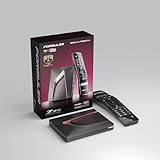
- Next-Gen Flagship Performance. Powered by a high-performance quad-core processor, 4GB DDR4 RAM, and 128GB storage, Z12 Ultra delivers ultra-fast navigation, seamless multitasking, and space for all your favorite apps and recordings.
- Dolby Vision and Dolby Atmos. Enjoy cinematic 4K playback with ultra-vivid colors, deeper contrast, and immersive 3D surround sound that places you right in the middle of the action.
- Advanced Decoding Technology. Supports 4K 60fps 10-bit playback with AV1, H.265 (HEVC), H.264, and HDR formats including HDR10+ and HLG, ensuring compatibility with the latest streaming and live broadcast standards.
- Next-Gen Connectivity. Equipped with Gigabit LAN and WiFi 6E (AX) for faster, more stable, and interference-free streaming—ideal for 4K and beyond.
- Simple and Elegant Home Screen. No ads, no clutter. Customize your home screen with your favorite apps and contents, including direct access to MYTVOnline3 for the ultimate streaming experience.
Verify the apps and services you actually need
Make a must-have list
Write down the services used for movies, live television, sports, children’s programming, music, and local or regional channels. Include less obvious needs such as a broadcaster’s catch-up app, a cloud-gaming client, or a household member’s preferred music service. A device with excellent picture specifications is a poor purchase if one essential app is absent.
What’s actually slowing this PC down?
Pick the symptom - the matching free tool is one click away.
Check the exact country catalog
App availability varies by country and can change. Roku states that both availability and content may vary by region, and that some content requires paid subscriptions or other payments. Search the manufacturer’s current app catalog while signed in to the relevant country, and confirm the exact model rather than relying on an older review or a different regional version. Roku’s model comparison page
Also check whether an app supports the quality you want. A service may offer an app on a player but limit that app to HD, stereo, or a particular HDR format. The app’s own help pages and plan terms are the authority for those limits.
Separate device cost from service cost
The player is a one-time hardware purchase; subscriptions, rentals, purchases, and premium tiers are separate. Do not count a free app as free viewing if its programs require a subscription or transaction. An Apple TV 4K, for example, requires an Apple Account for purchases, rentals, and Home Sharing, even though the box can also run other services. Apple TV 4K technical specifications
Choose a stick, compact player, or full box
| Form factor | Best fit | Trade-offs to check |
|---|---|---|
| Streaming stick | A small installation behind the TV, a spare HDMI port, and a strong nearby Wi-Fi signal. | Often relies on Wi-Fi, may have less storage and fewer ports, and can be awkward when the TV or wall blocks the wireless signal. |
| Compact dongle or small player | A tidy setup with more processing or storage than a basic stick, while still using little shelf space. | Confirm whether Ethernet is available or whether a separate adapter is needed. |
| Box-style player | Reliable wired networking, larger storage, USB or other ports, a more capable remote, or integration with a receiver. | Costs more and needs shelf space, power, and a clear location for the remote or line-of-sight accessories. |
Google lists 32 GB of storage and built-in Ethernet for its Google TV Streamer. Roku lists Wi-Fi 6, Ethernet, and USB on Roku Ultra. Those differences matter when the router is distant, the wireless signal is crowded, or you install many apps. Google TV Streamer specifications Roku player specifications
Compare current examples by the feature that matters
The following are capability examples, not a universal ranking. Manufacturer specifications describe what a model can support; they do not constitute comparable laboratory testing across all players.
Rank #3

- The Google TV Streamer (4K) delivers your favorite entertainment quickly, easily, and personalized to you[1,2]
- HDMI 2.1 cable required (sold separately)
- See movies and TV shows from all your services right from your home screen[2]; and find new things to watch with tailored recommendations for everyone in your home based on their interests and viewing habits
- Watch live TV and access over 800 free channels from Pluto TV, Tubi, and more[3]; if you find an interesting show or movie on your TV, mobile app, or Google search, you can easily add it to your watchlist, so it’s ready when you are[2]
- Up to 4K HDR with Dolby Vision delivers captivating, true-to-life detail[4]; and you can connect speakers that support Dolby Atmos for more immersive 3D sound
| Device example | Relevant video and audio capabilities | Connectivity, storage, or ecosystem detail | When it makes sense |
|---|---|---|---|
| Google TV Streamer (4K) | Up to 4K; HDR10, HDR10+, HLG, and Dolby Vision; Dolby Atmos. | 32 GB storage, built-in Ethernet, Thread border router, and Matter/Google Home hub features. | Useful when Google Home, Matter, Thread, wired networking, or generous app storage is important. |
| Roku Streaming Stick 4K | 4K, Dolby Vision, and HDR10+ when the TV, port, cable, app, and title are compatible. | Compact design and long-range Wi-Fi. | Useful when a small installation and broad HDR-format support matter more than extra ports. |
| Roku Ultra | 4K, HDR10+, Dolby Vision, and Dolby Atmos. | Wi-Fi 6, Ethernet, USB, and Voice Remote Pro features. | Useful when wired networking, USB, Wi-Fi 6, and a box-style remote are worth the added hardware. |
| Apple TV 4K | SDR up to 2160p/60 fps; Dolby Vision up to 2160p/60 fps; HDR10+, HDR10, and HLG up to 2160p/60 fps; Dolby Atmos. | HDMI is required and the cable is sold separately; purchases, rentals, and Home Sharing require an Apple Account. | Useful for households centered on Apple services and devices, provided the exact hardware generation is confirmed. |
| Fire TV models | Current generations include 4K/HDR variants; some models list Dolby Vision, HDR10+, and Dolby Atmos. | Alexa and different Wi-Fi capabilities vary by model. | Compare the exact generation on Amazon’s maintained specification page rather than assuming every Fire TV model has the same formats or ports. |
Google’s page notes that the display and content constrain final resolution even when the streamer supports 4K. Roku’s comparison page supplies the model-specific requirements and caveats. Apple’s specification page distinguishes output modes by format and frame rate. For Fire TV, the developer specification page has model-by-model details; verify the exact listing because the referenced page can redirect as Amazon reorganizes its documentation. Amazon Fire TV device specifications
Pick the smart-home and voice ecosystem
Google Home, Matter, and Thread
Google TV Streamer includes a Thread border router and a Matter/Google Home hub. That can make it useful as a home-control point for compatible Matter devices, but the individual lights, locks, sensors, and routines still need to support Matter or the relevant Google Home integration. Confirm regional availability and device compatibility before treating the streamer as a complete smart-home controller.
Apple and Siri
Apple TV 4K is the natural choice for a household that already uses Apple accounts, Siri, Home Sharing, and Apple services. Verify the specific generation and the services you need; the technical page describes format support but does not make every third-party app or smart-home accessory universal.
Do these 3 things before closing this tab:
1Repair Windows errors before they cause bigger problems2Fix the driver behind crashes, sound loss and screen glitches3Clear out junk files and repair common Windows errorsAlexa, Google Assistant, and Siri with Roku
Roku lists compatibility with Siri, Alexa, and Google, subject to having the required assistant enabled. Voice commands, power control, and search behavior can differ by television, assistant, country, and account. Treat assistant compatibility as an integration requirement: check which commands are supported for your TV model and the chosen Roku player rather than assuming every command works everywhere.
Plan the network and placement
Wi-Fi versus Ethernet
Consumer Reports’ 2026 buying guide states, “Dual-band WiFi is best.” A dual-band player can use the 2.4 GHz or 5 GHz band supported by your router; the better choice depends on distance, walls, interference, and router configuration. Wi-Fi capability alone does not guarantee smooth playback if the signal is weak or the internet connection is congested.
Choose Ethernet when the TV is near a router or network switch and you want a consistent wired link. Google TV Streamer includes built-in Ethernet, and Roku Ultra lists Ethernet as well. A stick without a network port may need a separate adapter, if the model supports one.
Rank #4

- MAKE YOUR TV SMARTER - Enhance any TV with the ability to play videos, music, and photo slideshows from a USB drive or MicroSD Card! It’s so simple and intuitive - anyone can use it. The Micca 4K is amazingly compact and affordable, get one for each TV in the house!
- PLAYS 4K ULTRA-HD VIDEOS - Works with TVs old and new! Smoothly plays videos up to 4096x2304@30fps over UHD 4K/60Hz HDMI output. Sharp and clear video and audio in pure digital format, compatible with 4K and 1080p TVs, projectors, and monitor displays. Composite AV output for use with analog TVs or for sending sound to a stereo system.
- DUAL USB AND MICRO SD READER - Play media files from USB flash drives and USB hard drives up to 8TB, or microSD cards up to 1TB. Supports FAT/FAT32, exFAT and NTFS file systems. Compatible with wireless air mouse remotes for non-line-of-sight control so that the player can be hidden away!
- SIMPLE DIGITAL SIGNAGE - Automatic video playback with endless repeat and looping, and the ability to resume from the last stopping point. Configurable 90/180/270 degree video output rotation. Great for digital signage applications such as restaurant menu boards, lobby welcome videos, art and museum installations.
- MEDIA FORMAT SUPPORT - Videos: MKV, MP4/M4V, AVI, MOV, MPG, VOB, M2TS, TS files encoded with H.265/HEVC, H.264/AVC, MPEG1/2/4, VC1, up to 4096x2304, 30fps, 200mbps. Subtitles: SRT, PGS, IDX+SUB. Music: MP3, WAV, FLAC. Photos: JPG, GIF, BMP, PNG
Place the player where the signal and remote work
Keep a Wi-Fi player away from metal panels, enclosed cabinets, and other sources of interference. A stick behind a wall-mounted TV is neat but may receive a weaker signal than a box placed on an open shelf. Ensure the power adapter reaches a reliable outlet; a TV’s USB port may not supply the current a particular player requires, so follow the model’s power instructions.
Quick wins for a faster PC:
Scan for outdated or missing drivers - takes under a minuteDriver Scan →Repair Windows errors before they cause bigger problemsFix Now →Fix the driver behind crashes, sound loss and screen glitchesFind Drivers →Do not overlook cables and the sound chain
Use the cable specified for the player
Apple says an HDMI cable is required for Apple TV 4K and sold separately. Google recommends an Ultra High Speed HDMI 2.1 certified cable for optimal performance and also says it is sold separately. Roku says its 4K/HDR players require a High Speed HDMI cable. Check the box contents before ordering a cable, and replace an older cable if the player reports that 4K or HDR is unavailable. Apple cable requirement Google cable guidance Roku cable guidance
Trace audio through every component
For Dolby Atmos or another surround format, check the player, streaming app, title, TV, receiver or soundbar, and the ARC/eARC or HDMI path between them. If a receiver or soundbar is older, it may accept the picture but not the desired audio format. As a diagnostic step, connect the player directly to a compatible TV HDMI input, then send sound to the audio system through the supported ARC/eARC path; this isolates a receiver’s video-pass-through limitation. Use the exact HDMI input mode recommended by the TV and receiver manuals.
Budget using dated guidance, not a permanent price promise
Consumer Reports’ Buying Guide 2026, in a file dated December 30, 2025, estimates that a 4K streaming player costs approximately $30 to more than $100 and that HD models start around $15. These are guide estimates, not live retailer prices. The same guide includes example scores and approximate prices for specific models such as Roku Ultra (2024), Google TV Streamer (4K), Apple TV 4K (128GB, 2022), Roku Streaming Stick 4K, Fire TV Cube (3rd Gen), and Nvidia Shield TV Pro. Because those figures apply to that edition, model generation, and Consumer Reports’ own scoring method, do not treat them as current prices or combine the scores with manufacturer specifications. Consumer Reports Buying Guide 2026
When comparing a sale price, include the cost of an HDMI cable, Ethernet adapter, replacement remote, or subscription tier needed to use the feature you want. Verify whether the listing is for the current generation, a prior model, or a regional variant.
Recommended Free Tools
Set up the device without losing 4K or HDR
- Record the TV’s capabilities. From the TV’s information or picture menu, note the resolution, supported HDR formats, and the HDMI input marked for 4K, enhanced, or HDCP 2.2. Menu names vary by manufacturer.
- Connect the correct HDMI cable. Plug the player into the identified TV, receiver, or soundbar input. Use a High Speed HDMI cable for a Roku 4K/HDR player or the cable class recommended by the chosen model; use an Ultra High Speed HDMI 2.1 cable for Google TV Streamer’s optimal-performance recommendation.
- Power the player as specified. Use the supplied power adapter or the manufacturer’s approved method. If the device repeatedly reboots, move it from an underpowered TV USB port to a wall outlet.
- Select the HDMI input. On the TV, choose the input where the player is connected. If the screen is blank, test a different HDMI port and remove an intermediate switch or receiver temporarily.
- Complete network setup. Select your home Wi-Fi network and enter its password, or connect Ethernet when the player provides a port. Place the player where the wireless signal is usable before judging streaming performance.
- Install system updates. Allow the initial firmware update to finish before testing picture formats or installing many apps. A new model may not expose every advertised feature until its software is current.
- Sign in and install only needed apps first. Add the services on your must-have list, then confirm that each app offers the expected plan, resolution, HDR, and audio options in your country.
- Set display and audio modes. Start with automatic or recommended output. If the TV reports SDR when a known HDR title plays, inspect the HDMI input’s enhanced mode, cable, receiver path, and the title’s actual format before forcing a manual setting.
- Test one known title. Choose a title and service that explicitly advertise 4K, HDR, or Atmos under your subscription. Verify the TV’s information banner and receiver or soundbar’s audio indicator rather than relying only on the player’s marketing screen.
- Configure voice and smart-home controls. Pair the remote, enable the desired assistant, and link Google Home, Apple, Alexa, Matter, or Thread devices only after basic playback is stable.
Fix the most common failures
The player shows HD instead of 4K
- Confirm that the TV panel is 4K and that the selected HDMI port supports 4K and HDCP 2.2.
- Check the cable specification and replace an unknown or damaged cable.
- Bypass an older receiver, soundbar, or HDMI switch to identify a weak link.
- Verify that the app title and subscription actually include 4K; a 4K player cannot upgrade an HD stream.
- Check the player’s display setting after the TV and cable are confirmed. Automatic mode is usually the safest starting point.
HDR is missing or colors look wrong
- Confirm that the TV supports the specific format being offered: HDR10, HDR10+, Dolby Vision, or HLG.
- Enable the TV’s enhanced or deep-color HDMI mode if its manual requires it.
- Test a title known to carry HDR in your region and plan.
- Remove an incompatible receiver or switch from the signal path, then reconnect components one at a time.
- Do not force Dolby Vision or HDR output for every title if the TV displays SDR content incorrectly; return to automatic output and let the source negotiate the mode.
Dolby Atmos or surround sound does not appear
- Check that the title and app provide Atmos and that your plan permits it.
- Confirm Atmos support on the player, TV, receiver or soundbar, and ARC/eARC connection.
- Try the player’s direct-to-TV connection to isolate receiver pass-through limits.
- Review the TV’s digital-audio output setting and the receiver’s input format, following their manuals.
Streaming buffers or apps disconnect
- Test the player near the router or use Ethernet if available.
- Prefer dual-band Wi-Fi and select the band that provides a stable signal at the TV.
- Restart the router and player, then install pending firmware updates.
- Compare several apps: if only one fails, check that service’s outage information or account status rather than replacing the hardware immediately.
An app or voice command is unavailable
- Confirm country, account region, and the exact player model.
- Install system updates and search the current app catalog.
- Check whether the service has changed its supported devices or minimum software version.
- For voice control, enable the required assistant and verify that the TV and account are linked; compatibility does not guarantee every command.
Match the device to a real household scenario
1080p television in a bedroom
Prioritize the apps you use, a simple remote, and reliable Wi-Fi. A 4K player will work but cannot make the panel display 4K; spend extra only if you expect to move it to a 4K TV or need a particular ecosystem feature.
Best Value

- 4K streaming made simple:With America’s number 1 TV streaming platform,* exploring popular apps—plus tons of free movies, shows, and live TV—is as easy as it is fun. *Based on hours streamed—Hypothesis Group
- 4K picture quality: With Roku Streaming Stick Plus, watch your favorites with brilliant 4K picture and vivid HDR color.
- Compact without compromises: Our sleek design won’t block neighboring HDMI ports, and it even powers from your TV alone, plugging into the back and staying out of sight. No wall outlet, no extra cords, no clutter.
- No more juggling remotes: Power up your TV, adjust the volume, and control your Roku device with one remote. Use your voice to quickly search, play entertainment, and more.
- Shows on the go: Take your TV to-go when traveling—without needing to log into someone else’s device.
4K TV with a distant router
Prioritize Ethernet or a strong dual-band Wi-Fi connection before chasing a longer list of HDR logos. A box with built-in Ethernet, such as the Google TV Streamer or Roku Ultra, can be more practical than a stick if the TV is close to a network switch.
4K OLED or premium LCD with HDR10+ and Dolby Vision
Choose a player that overlaps the TV’s preferred formats, then verify that your services and titles provide those formats. Roku Streaming Stick 4K, Roku Ultra, Google TV Streamer, and Apple TV 4K list different combinations of HDR support; use the comparison table and the current manufacturer pages rather than assuming one device delivers every title in every format.
Household using Google Home and Matter devices
Google TV Streamer’s Thread border router and Matter/Google Home hub features may reduce the need for another home-control hub. Confirm that the devices you own are Matter or Thread compatible and that the required region and account settings are available.
Household centered on Apple services
Apple TV 4K is the logical model to investigate when Apple accounts, Home Sharing, Siri, and Apple services are central. Confirm the retailer’s hardware generation, cable requirement, and the third-party apps your household needs.
Need USB playback or a premium remote
Roku Ultra lists USB and Voice Remote Pro features in addition to Ethernet and Wi-Fi 6. Those are concrete reasons to choose a box over a compact stick, provided the device’s app catalog suits your country.
A practical final check before buying
- TV resolution and HDR formats written down.
- Free HDMI port confirmed, including HDCP 2.2 where 4K requires it.
- Every must-have app checked for the exact model and country.
- Device, TV, title, subscription, cable, receiver, and soundbar formats compared.
- Wi-Fi strength measured at the TV or Ethernet availability confirmed.
- Voice assistant and smart-home ecosystem chosen deliberately.
- Storage, USB, remote, power supply, and included HDMI cable checked.
- Current generation, price, and retailer description verified on the purchase date.
If those checks agree, choose the least expensive device that satisfies the whole chain. Pay more for a specific benefit—wired Ethernet, extra storage, Wi-Fi 6, USB, a preferred voice ecosystem, or a format your household actually uses—not simply for a longer specification list.
Quick Recap
Product prices and availability are accurate as of the date/time indicated and are subject to change. Any price and availability information displayed on Amazon at the time of purchase will apply.

