
Quick wins for a faster PC:
Scan for outdated or missing drivers - takes under a minuteDriver Scan →Clear out junk files and repair common Windows errorsFree Scan →iTechGuides is reader-supported. When you buy through links on our site, we may earn an affiliate commission. As an Amazon Associate I earn from qualifying purchases. Learn more
Choose a powerline Ethernet kit when you need a wired or wireless connection in a distant room but running new Ethernet cable is impractical. A basic installation requires two compatible adapters: one connected by Ethernet to a router LAN port and one connected to the remote device or room. The adapters communicate over your home’s electrical wiring, so the advertised link speed is a nominal rating, not a guaranteed internet speed.
The right purchase depends first on whether the two outlets share a usable electrical path, then on standards compatibility, Ethernet port capacity, Wi-Fi, passthrough outlets and placement. Check those factors before comparing the largest number printed on the box.
What a powerline Ethernet adapter does
A powerline adapter converts network traffic into a signal carried over electrical wiring. The first adapter, normally placed beside the router, uses an Ethernet cable to connect to a LAN port. A second adapter in another room converts the signal back to Ethernet, Wi-Fi or both, depending on the model. The result is a network connection without installing a long cable between the rooms.
What’s actually slowing this PC down?
Pick the symptom - the matching free tool is one click away.
You need at least two adapters for a new powerline network. TP-Link’s setup guide states that a powerline network requires “at least two units connected to the same electrical circuit.” A single adapter cannot create a link by itself. Additional units can be added only when their standard and compatibility rules match the existing network.
#1 Best Overall

- 𝐄𝐱𝐭𝐞𝐧𝐝 𝐘𝐨𝐮𝐫 𝐄𝐭𝐡𝐞𝐫𝐧𝐞𝐭 𝐂𝐨𝐧𝐧𝐞𝐜𝐭𝐢𝐨𝐧 𝐓𝐡𝐫𝐨𝐮𝐠𝐡 𝐘𝐨𝐮𝐫 𝐄𝐥𝐞𝐜𝐭𝐫𝐢𝐜𝐚𝐥 𝐒𝐲𝐬𝐭𝐞𝐦 - This device is meant for for areas where thick walls block Ethernet connections, where routers or range extenders do not work. Compatible with all TP-Link powerline adapters.
- 𝐀𝐕𝟏𝟎𝟎𝟎 𝐒𝐩𝐞𝐞𝐝𝐬 𝐔𝐩 𝐭𝐨 𝟕𝟓𝟎 𝐅𝐞𝐞𝐭 - Powered by HomePlug AV2, delivers AV1000 powerline speeds through existing electrical wiring. Speeds cannot exceed your internet plan's limit and may be lower due to wiring quality, distance, and interference.
- Ideal for multi-story homes, basements, attics, and garages.
- 𝐂𝐡𝐞𝐜𝐤 𝐛𝐞𝐟𝐨𝐫𝐞 𝐲𝐨𝐮 𝐛𝐮𝐲 - Adapters must be plugged directly into wall outlets on the same electrical circuit. Does not work with power strips, surge protectors, or extension cords. Place away from large appliances, such as washing machines, refrigerators, and air conditioners.
- 𝐀𝐝𝐯𝐢𝐬𝐨𝐫𝐲 - Performance may be limited or blocked in homes with AFCI breakers, which are standard in many homes built after 2000. Powerline may also not work with routers or gateways using modified, open-source (e.g., DD-WRT), or non-standard firmware.
When powerline is a sensible choice
- You have a router LAN port and a suitable wall outlet near it.
- The destination room has a wall outlet that connects through usable wiring to the router outlet.
- Running a dedicated Ethernet cable would require difficult drilling, surface cable or a long temporary run.
- The remote device is a television, game console, desktop, access point or other equipment that benefits from a wired connection.
When to be cautious
- The outlets are on separate electrical phases or circuits with poor coupling.
- The building has old, damaged or unusually noisy wiring.
- The only convenient outlets are behind a surge protector, UPS, extension lead or power strip.
- You need a predictable, measured throughput for demanding work and cannot test the connection where it will be used.
Powerline can be practical, but its result is installation-specific. No manufacturer signal-rate label can tell you exactly what throughput your home will deliver.
Start with the electrical path, not the speed label
Same circuit matters
Before shopping, identify the wall outlet beside the router and the outlet at the intended endpoint. The strongest expectation of compatibility is when both are on the same electrical circuit. A home with multiple circuits, phases or a complex distribution board may still work, but the signal can be weaker or fail to cross between them.
NETGEAR notes that multi-phase use can cause noticeable performance loss or prevent powerline adapters from communicating. This is why a kit that works in one room may perform poorly in another room of the same house. Electrical distance is not the same as the physical distance measured along a hallway.
Plan an outlet test
Choose a second nearby wall outlet where you can test the adapters before moving one to its final room. A close-outlet test separates pairing problems from building-wiring problems. If the adapters cannot establish a link when they are close together on direct wall sockets, check the model instructions, reset the units and verify that the adapters use the same standard.
Rank #2

- EXTEND YOUR ETHERNET CONNECTION THROUGH YOUR ELECTRICAL SYSTEM - This device is meant for areas where thick walls block Ethernet connections, where routers or range extenders do not work. Compatible with all TP-Link powerline adapters.
- AV600 SPEEDS UP TO 750 FEET - Delivers AV600 powerline speeds through existing electrical wiring. Speeds cannot exceed your internet plan's limit and may be lower due to wiring quality, distance, and interference.
- Ideal for multi-story homes, basements, attics, and garages.
- CHECK BEFORE YOU BUY - Adapters must be plugged directly into wall outlets on the same electrical circuit. Does not work with power strips, surge protectors, or extension cords. Place away from large appliances, such as washing machines, refrigerators, and air conditioners.
- ADVISORY - Performance may be limited or blocked in homes with AFCI breakers, which are standard in many homes built after 2000. Powerline may also not work with routers or gateways using modified, open-source (e.g., DD-WRT), or non-standard firmware.
Use direct wall outlets
Plug each adapter directly into a wall receptacle whenever possible. NETGEAR advises against power strips, surge protectors, UPS devices and extension cords because their filtering can reduce the data rate or block the high-frequency powerline signal. If a connection is weak, move the adapter to another wall outlet before assuming the kit is defective.
A direct wall connection can occupy the only convenient socket. If that is a problem, select a model with an integrated passthrough power socket. Passthrough is a hardware feature, not a guarantee that every connected appliance will be electrically or mechanically convenient.
Match the powerline standard and compatibility
Identify the standard used by any powerline adapters already installed before buying an add-on. Product families that look similar may use different technologies and may not interoperate.
HomePlug AV and AV2
TP-Link’s overview describes HomePlug AV as a class with a physical signal rate of up to 600 Mbps and describes AV2 as delivering gigabit-class physical speeds. These are standard-level or catalog ratings, not measured application throughput in a particular home. A product labeled HomePlug AV2 should be matched with compatible HomePlug equipment according to the exact model’s documentation.
Rank #3

- 𝐄𝐱𝐭𝐞𝐧𝐝 𝐘𝐨𝐮𝐫 𝐄𝐭𝐡𝐞𝐫𝐧𝐞𝐭 𝐂𝐨𝐧𝐧𝐞𝐜𝐭𝐢𝐨𝐧 𝐓𝐡𝐫𝐨𝐮𝐠𝐡 𝐘𝐨𝐮𝐫 𝐄𝐥𝐞𝐜𝐭𝐫𝐢𝐜𝐚𝐥 𝐒𝐲𝐬𝐭𝐞𝐦 - This device is meant for individuals that are not able to extend their Ethernet connections where routers or range extenders do not work. Speeds cannot exceed your internet plan’s limit.
- 𝐇𝐨𝐦𝐞𝐏𝐥𝐮𝐠 𝐀𝐕𝟐 - Delivers AV1000 powerline speeds over existing electrical wiring, extending home network wired connectivity through thick walls and other barriers. Ideal for multi-story homes, basements, attics, and garages.
- 𝐂𝐡𝐞𝐜𝐤 𝐛𝐞𝐟𝐨𝐫𝐞 𝐲𝐨𝐮 𝐛𝐮𝐲 - Adapters must be plugged directly into wall outlets on the same electrical circuit. Does not work with power strips, surge protectors, or extension cords. Place away from large appliances, such as washing machines, refrigerators, and air conditioners.
- 𝐀𝐝𝐯𝐢𝐬𝐨𝐫𝐲 - Performance may be limited or blocked in homes with AFCI breakers, which are standard in many homes built after 2000. Powerline may also not work with routers or gateways using modified, open-source (e.g., DD-WRT), or non-standard firmware.
- 𝐆𝐢𝐠𝐚𝐛𝐢𝐭 𝐏𝐨𝐫𝐭 - provides secure wired networks for desktops, smart TVs or games consoles. Ethernet cables are included.
G.hn
TP-Link explicitly says its G.hn adapters do not work with HomePlug AV or AV2 adapters. Do not assume that a faster-looking G.hn product can extend an older AV2 network, or that an AV2 add-on can join a G.hn installation. Read the compatibility notes for the exact model and hardware revision.
What to record before purchasing
- The standard printed on each existing adapter: HomePlug AV, HomePlug AV2, G.hn or another stated technology.
- The model number and, where shown, hardware revision.
- Whether the existing network uses a vendor-specific pairing or management utility.
- How many adapters are already paired and whether you need a complete starter kit or only an expansion unit.
If you cannot identify the installed standard, buying a matched two-adapter kit is less risky than mixing an unknown expansion adapter into the network.
Understand what the speed number means
Powerline packaging usually emphasizes a physical-link rate. That number describes signaling under the product’s stated technology and conditions; it is not a promise of internet throughput, file-copy speed or latency. Electrical noise from appliances, wiring age, distance through the electrical system and protocol overhead all reduce the rate observed by an application.
| Rated figure or class | What it represents | How to use it when choosing |
|---|---|---|
| Up to 600 Mbps HomePlug AV | TP-Link’s physical signal-rate description in a guide labeled 2022; it is not a household application-speed test. | Use it to identify the product class, not to predict an internet plan’s delivered speed. |
| HomePlug AV2 1000 Mbps | A catalog class used for TP-Link’s TL-PA7017 KIT in 2024; it is a rated product specification, not an independent real-world result. | Check that the Ethernet port and the rest of the network can use the class; do not treat 1,000 Mbps as expected throughput. |
| Up to 300 m over existing electrical wiring | TP-Link catalog wording for listed G.hn products in 2024. | Read it as a catalog reach claim, not a guaranteed distance inside a particular property. |
There is no reliable universal “typical speed” figure for a current retail kit. The only meaningful result is the rate achieved on your outlets, with your appliances operating, after installation. If a manufacturer provides a utility that reports the link rate, use that reading as a local diagnostic rather than as a promise of internet performance.
Rank #4
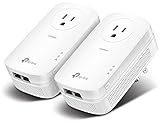
- EXTEND YOUR ETHERNET CONNECTION THROUGH YOUR ELECTRICAL SYSTEM - This device is meant for individuals that are not able to extend their Ethernet connections where routers or range extenders do not work. Speed cannot exceed your internet plan’s limit.
- HOMEPLUG AV2 - Delivers AV2000 powerline speeds over existing electrical wiring, extending home network wired connectivity by up to 750ft through thick walls and other barriers. Ideal for multi-story homes, basements, attics, and garages.
- CHECK BEFORE YOU BUY - Adapters must be plugged directly into wall outlets on the same electrical circuit. Does not work with power strips, surge protectors, or extension cords. Place away from large appliances, such as washing machines, refrigerators, and air conditioners.
- ADVISORY - Performance may be limited or blocked in homes with AFCI breakers, which are standard in many homes built after 2000. Powerline may also not work with routers or gateways using modified, open-source (e.g., DD-WRT), or non-standard firmware.
- 2 GIGABIT PORTS - Provides a secure wired network for connected devices, such as desktops, smart TVs, game consoles, and more. Ethernet cables are included. Tip: Expand connections with an Ethernet switch (sold separately).
Choose the endpoint features you actually need
Ethernet port count and speed
A wired-only adapter is appropriate for one nearby device such as a television, console or desktop. Check both the number of Ethernet ports and their speed rating. One port is sufficient for a single endpoint; multiple ports let you connect several nearby wired devices without adding a separate switch. A slower Ethernet port can constrain the connection even when the powerline link itself is rated higher.
Wi-Fi at the remote room
A powerline Wi-Fi extender combines the electrical backhaul with a wireless access point at the far end. Choose this format when phones, tablets or laptops need coverage in that room. A wired-only model is simpler when every endpoint has Ethernet and you do not need a second wireless access point. Wi-Fi capabilities, bands and configuration controls vary by product, so verify the exact specification instead of assuming that every powerline adapter broadcasts Wi-Fi.
Passthrough power socket
A passthrough design includes a mains socket on the adapter so the occupied wall outlet remains usable. It is useful behind furniture, near a desk or anywhere a second outlet is difficult to find. It does not remove the requirement to plug the adapter directly into the wall, and it does not make a power strip suitable for carrying the powerline signal.
Physical size and placement
Confirm that the adapter will not block adjacent sockets, fit behind furniture or interfere with a grounded plug. Because moving an adapter to another outlet can improve a weak link, leave enough access to test alternatives during setup.
Best Value

- 𝐄𝐱𝐭𝐞𝐧𝐝 𝐘𝐨𝐮𝐫 𝐂𝐨𝐧𝐧𝐞𝐜𝐭𝐢𝐨𝐧 𝐓𝐡𝐫𝐨𝐮𝐠𝐡 𝐘𝐨𝐮𝐫 𝐄𝐥𝐞𝐜𝐭𝐫𝐢𝐜𝐚𝐥 𝐒𝐲𝐬𝐭𝐞𝐦 - This device is meant for individuals that are not able to extend their Wi-Fi or wired connections where routers or range extenders do not work. Speeds cannot exceed your internet plan’s limit.
- 𝐇𝐨𝐦𝐞𝐏𝐥𝐮𝐠 𝐀𝐕𝟐 - Delivers AV1000 powerline speeds over existing electrical wiring, extending home network wired connectivity by up to 750ft through thick walls and other barriers.* Ideal for multi-story homes, basements, attics, and garages.
- 𝐀𝐂𝟏𝟐𝟎𝟎 𝐖𝐢𝐅𝐢 𝟓 - Dual-Band WiFi speeds of 867 Mbps on 5GHz 300 Mbps on 2.4GHz ensures seamless HD streaming, online gaming, and large file downloads.
- 𝐆𝐢𝐠𝐚𝐛𝐢𝐭 𝐏𝐨𝐫𝐭 - Provides a secure wired network for connected devices, such as desktops, smart TVs, game consoles, and more. Ethernet cables are included. Tip: Expand connections with an Ethernet switch (sold separately).
- 𝐀𝐝𝐯𝐢𝐬𝐨𝐫𝐲 - Adapters must be on the same electrical circuit for connectivity. Requires direct outlet plug in. Does not work with surge protectors. Speeds may be lower due to wiring quality, adapter distance, and network interference and conditions.
Compare kits with a decision table
| Buying axis | What to check | Why it matters |
|---|---|---|
| Standard | HomePlug AV/AV2 or G.hn, plus the exact compatibility statement | Different standards may not interoperate. TP-Link specifically marks its G.hn adapters incompatible with HomePlug AV/AV2. |
| Remote Ethernet | Port speed and number of ports | Determines whether the port can limit throughput and how many wired devices can connect. |
| Wireless endpoint | Wired-only adapter or Wi-Fi powerline extender | Choose Wi-Fi only when the far room needs a wireless access point. |
| Outlet access | Passthrough socket or direct-plug design | Passthrough can preserve a usable socket at the occupied outlet. |
| Speed class | Nominal physical-link rate | Wiring, electrical noise, distance and protocol overhead determine the delivered rate. |
| Placement | Direct wall sockets and an alternate outlet for testing | Filtering accessories can reduce or block communication. |
How to install and pair the adapters
Exact button names and indicator behavior differ by model. Use the supplied instructions for the units you bought, but the following sequence reflects TP-Link’s current setup guidance.
- Check the hardware. Confirm that you have at least two adapters, Ethernet cables, accessible wall outlets and a free LAN port on the router. Verify that all adapters use a compatible standard.
- Connect the first adapter. Plug it directly into a wall outlet near the router. Connect an Ethernet cable from the adapter to a router LAN port.
- Place the second adapter nearby for initial pairing. Use a direct wall outlet rather than a strip, UPS, surge protector or extension cord. Keeping the units close makes it easier to distinguish pairing issues from wiring distance.
- Start automatic pairing. Follow the model’s pairing procedure and allow time for the units to complete it. TP-Link says automatic pairing may take two to three minutes.
- Use manual pairing if automatic pairing fails. Press the pair buttons in the sequence and for the duration specified by the model. Do not assume that button timing is identical across product families.
- Move the remote adapter. Once the close test succeeds, unplug the second unit and install it in the destination room, again using a direct wall outlet.
- Connect the endpoint. Attach the television, console, computer, switch or other device by Ethernet. For a Wi-Fi model, configure the wireless network using the product’s instructions.
- Check the indicators and local performance. A link indicator, management utility or adapter status page may show whether the connection is established. If the result is poor, test another wall outlet before changing other settings.
Protect the powerline network
Pair only adapters that belong to your network. Powerline products use a network key or equivalent security setting so nearby compatible units do not automatically become part of your private network.
Follow the exact product instructions to set or change the encryption key. NETGEAR’s Powerline Utility documentation describes configuring an encryption key and documents a default key for the models covered by that software article. That default must not be generalized to every brand, model or generation. If your adapters provide a reset procedure, record the new key and repeat the pairing process only as instructed.
Windows Errors? Fix Them Before They Spread
Repair common Windows errors and clear accumulated junk for a smoother, more stable PC - no reinstall needed.Free scan · no reinstallCrashes, No Sound, or Screen Glitches?
Random freezes, missing sound and display glitches usually trace back to one bad driver. Find and replace yours safely.Free scan · under a minuteTroubleshoot a link that will not work
No link light or no connection at all
- Verify that both adapters are powered and that the router-side Ethernet cable is connected to a LAN port, not an inactive or incorrectly configured port.
- Move both adapters to direct wall outlets in the same room and repeat pairing.
- Confirm that the devices use the same standard. A G.hn unit will not join a HomePlug AV/AV2 network according to TP-Link’s compatibility statement.
- Reset and pair the units according to the model’s instructions if a previous owner or installation left an unknown network key.
- If the close test works but the destination outlet does not, the issue is likely the electrical path, circuit arrangement or outlet accessory rather than the pairing sequence.
The connection works but is slow
- Remove the adapter from a power strip, surge protector, UPS or extension cord and plug it into the wall.
- Try a different outlet in the same room; electrical noise and outlet location can change the observed rate.
- Temporarily identify appliances that may be injecting noise, such as chargers, motors or switching power supplies, and test with them disconnected if practical.
- Check the Ethernet port rating on the remote adapter and the connected device. A lower-rated port can cap throughput.
- Interpret the utility’s rate as a local link diagnostic. It is not equivalent to internet throughput because protocol overhead and the service provider’s connection also matter.
The link drops intermittently
- Use direct wall outlets and test another outlet on the same circuit.
- Look for appliances that switch on at the time of each drop and retest with them off.
- Check whether the adapters are separated by multiple circuits or phases; NETGEAR warns that multi-phase operation can reduce performance or prevent communication.
- Update or reconfigure only according to the exact model’s documentation. Do not apply a pairing or firmware procedure from a different standard.
A catalog example and how to read it
TP-Link’s 2024 catalog lists the TL-PA7017 KIT as a HomePlug AV2 1000 Mbps gigabit starter kit with one gigabit Ethernet port on each adapter. That description makes it a useful example of a two-unit, wired-only kit for a single Ethernet endpoint at each end. It does not establish a guaranteed 1,000 Mbps household transfer rate, and current regional stock or hardware revisions should be confirmed before purchase.
Use any product listing in the same way: verify the standard, the number and speed of Ethernet ports, Wi-Fi availability, passthrough design and the included adapter count. Treat reach and speed figures as catalog specifications, then plan to test the actual outlets.
Powerline versus running Ethernet cable
Powerline is primarily a convenience choice when a dedicated cable route is difficult. A properly installed Ethernet cable follows a known physical path and avoids dependence on electrical noise, circuit layout and appliance behavior. Powerline avoids that installation work but trades it for uncertainty that can be resolved only by testing the intended outlets.
If a cable can be installed cleanly and safely, it is the more predictable path. If cable installation is disruptive and the electrical path is suitable, a matched powerline kit can be a practical compromise. A Wi-Fi powerline model is useful when the remote room needs wireless coverage; a wired-only kit is simpler when the endpoint has Ethernet.
Free tools Windows power users keep installed
One-click scans. No signup required.
Quick Recap
A final buying checklist
- Have you identified two wall outlets and confirmed that a router LAN port is available?
- Are the outlets likely to share a usable electrical circuit, rather than crossing difficult phases or circuits?
- Does the new kit use the same standard as any existing powerline equipment?
- Are you buying a complete two-adapter starter kit or a compatible expansion unit?
- Does the remote adapter have enough Ethernet ports and the right port speed?
- Do you need Wi-Fi at the endpoint, or only Ethernet?
- Would a passthrough socket prevent the adapter from taking your only usable outlet?
- Can you install both units directly in wall outlets and test another outlet if performance is poor?
- Have you read the model-specific pairing and encryption instructions?
- Are you treating every speed and distance number as a nominal product rating rather than a guaranteed in-home result?
Product prices and availability are accurate as of the date/time indicated and are subject to change. Any price and availability information displayed on Amazon at the time of purchase will apply.

