
Do these 3 things before closing this tab:
1Clear out junk files and repair common Windows errors2Scan for outdated or missing drivers - takes under a minute3Repair Windows errors before they cause bigger problemsiTechGuides is reader-supported. When you buy through links on our site, we may earn an affiliate commission. As an Amazon Associate I earn from qualifying purchases. Learn more
The most comfortable mouse for your Mac is the one that lets your fingers reach the buttons and scroll wheel without stretching, supports your palm, and keeps your wrist in a neutral position. Choose fit and hand position before you compare extra buttons or appearance. Then narrow the options by grip, hand size, portability, handedness, and whether Bluetooth or a USB receiver suits your Mac.
Comfort is personal. A larger, fuller mouse may support a palm grip and larger hand, while a compact body may be easier for a small hand, fingertip control, or travel. A tilted or vertical mouse is another position to test, not a guaranteed cure for discomfort. The Logitech Lift for Mac is a useful example of that category, but the available evidence does not establish one universally best mouse.
Start with fit, not features
A mouse can have excellent specifications and still feel wrong if your fingers cannot land naturally on its controls. Logitech’s fit guidance focuses on three checks: your fingers should reach the primary buttons and scroll wheel comfortably, your thumb should reach side controls without awkward movement, and your palm should have adequate support.
Recommended Free Tools
Use hand length as a screening tool, not as a final verdict. Measure from the crease below your palm to the tip of your middle finger. That measurement can help you compare a manufacturer’s small, medium, or large categories, but the decisive test is how your hand rests on the actual body.
#1 Best Overall

- Lift yourself up: When the desk life gets you down, lift yourself up with Logitech Lift Vertical Ergonomic Mouse - a great fit for small to medium right hands
- Raise your hand into comfort: Rest on Lift upright mouse throughout the day, with a softly textured grip and snug thumb rest for level-above coziness
- 57 degrees of sooooothe: Lift’s vertical shape helps wrists feel like “ahhh” at work, and promotes a more natural posture in the forearm, for day-long comfort and productivity
- Relax into focus: Settle into work with a wireless computer mouse featuring easy-to-reach customizable buttons, whisper-quiet clicks, and a SmartWheel for smooth, seamless scrolling
- Ergo-certified: Lift wireless vertical mouse has been designed, developed, tested, and approved according to criteria set out by leading ergonomists
- Your index and middle fingers should fall over the main buttons without being pushed forward or forced into a claw.
- Your thumb should reach side buttons with a small, relaxed movement rather than a stretch.
- Your palm should be supported if you naturally rest it on the mouse.
- Your pinky should not have to curl tightly around the shell. Logitech notes that it can be acceptable for the pinky to rest on the desk instead.
- The mouse should not make your fingers tense, make your palm rub the desk, or put your wrist against a hard edge.
If any of these checks fail, changing size or shape is usually more productive than adding software features. A mouse that is slightly less feature-rich but easy to hold is a better starting point for long Mac sessions.
Identify how you hold the mouse
Your grip changes which dimensions matter most. You do not need to force yourself into a named grip, but identifying your natural hand position makes the shortlist smaller.
Palm grip
With a palm grip, much of your hand rests on the shell while your arm moves the mouse. Look for enough length to support the palm and a rounded upper surface that does not push your fingers toward the front edge. A fuller, curvier shape can be more comfortable for this style, particularly with a larger hand.
If the mouse is too short or low, your palm may hang off the back and your fingers may reach the buttons at an overly sharp angle. If it is too tall or wide, your hand may feel spread rather than supported. Check both the back of the palm and the thumb side instead of judging the top contour alone.
Claw grip
A claw grip leaves part of the palm in contact with the rear of the mouse while the fingers arch over the buttons. You may prefer a moderate-height body with a back curve that supports the heel of your hand without forcing your fingertips forward. Side buttons should sit where your thumb can find them without changing the grip.
Fingertip control
With fingertip control, the palm is mostly off the shell and the fingers guide the mouse. A compact, lighter body can be easier to maneuver and carry, especially for travel. It should still provide enough width for your fingers to stay relaxed; very narrow designs can make the thumb and pinky pinch inward.
These are selection heuristics rather than clinical rules. If your grip changes during the day, prioritize a shape that accommodates the least comfortable position you regularly use.
What’s actually slowing this PC down?
Pick the symptom - the matching free tool is one click away.
Match mouse size to your hand and workspace
Size is three-dimensional: length, width, and height all affect reach. A smaller hand may need less of each dimension, while a larger hand may feel cramped on a compact shell. Do not assume that a “small” label is standardized between manufacturers.
Rank #2
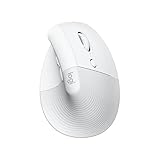
- Made for Comfort: Lift for Mac is an ergonomic wireless vertical mouse crafted for all-day comfort - a great fit for small to medium hands
- Designed for Mac: Compatible with Apple MacBook Pro, MacBook Air, iMac & iPad models via Bluetooth Low Energy (BLE)
- Natural Handshake Position: Lift for Mac ergonomic wireless mouse’s 57-degree angle relieves pressure on your wrist and places your arm and upper body in a more relaxed posture
- Stay Zen: Relax into focus with Lift upright mouse’s whisper-quiet clicks and silent magnetic SmartWheel for smooth, seamless scrolling – plus save time with 4 customizable buttons
- Ergo-certified: Lift for Mac wireless ergo mouse has been designed, developed, tested, and approved according to criteria set out by leading ergonomists
For small hands
Look for a shorter body and modest width so your fingers reach the wheel without stretching. Excess height can make the hand arch unnecessarily, and excess width can leave the thumb unsupported. A compact mouse may also work well if you move it with your fingertips or carry it between locations.
For medium or large hands
Check that the rear of the mouse supports the palm and that your fingers do not run beyond the front buttons. A fuller contour can reduce the feeling that your hand is folded over a small shell. Large does not automatically mean comfortable: a body that is too wide can force the thumb outward and make side controls harder to reach.
Desktop versus travel
Desktop comfort generally rewards enough surface area for support and relaxed movement. Travel favors a body that fits your bag and can be controlled in a smaller space. If one mouse must do both jobs, test whether its compact size remains comfortable for your longest work sessions rather than judging it only by portability.
Crashes, No Sound, or Screen Glitches?
Random freezes, missing sound and display glitches usually trace back to one bad driver. Find and replace yours safely.Free scan · under a minuteWindows Errors? Fix Them Before They Spread
Repair common Windows errors and clear accumulated junk for a smoother, more stable PC - no reinstall needed.Free scan · no reinstallWhen a mouse feels wrong, diagnose the symptom instead of guessing. Fingers that feel stretched point toward excessive length; a pinched thumb or pinky can indicate too much width; a palm that never settles can indicate insufficient length or height. Logitech specifically suggests considering a different size or tilt when the hand becomes tense or the palm rubs the desk.
Choose a horizontal, tilted, or vertical shape
Most mice use a conventional horizontal contour. Tilted and vertical designs rotate the hand so the thumb side faces more upward. The right choice depends on the position that lets you relax your fingers and keep your wrist comfortable, not on a label such as “ergonomic.”
Conventional contoured shape
A horizontal mouse is familiar and often easy to use immediately. It can provide broad palm support and a predictable button layout. Compare the arch, width, and thumb ledge carefully; two horizontal mice can produce very different hand positions.
Tilted or vertical shape
A tilted or vertical body is worth trying if you prefer a more upright hand position or dislike rotating your forearm fully downward. It can change where the thumb, palm, and wrist contact the shell. Give yourself enough time to notice whether the new angle makes the fingers relax or instead creates pressure at the thumb or wrist.
Do not treat vertical as automatically healthier, injury-preventing, or suitable for everyone. Logitech describes the Lift for Mac as a 57-degree vertical design intended for small-to-medium hands and as supporting a more natural posture. That product description does not establish a clinical outcome for every user.
Rank #3

- Perfect Fit for Small to Medium Hands: Designed specifically for hand lengths under 7.5 inches (19.05 cm), the EM11 NL reduces wrist strain by aligning with your natural grip. Please measure the size before ordering for a better fit and more comfort
- Connect up to 3 Devices: This ergonomic wireless mouse features dual Bluetooth connectivity and 2.4G USB-A connectivity modes for simultaneous connection of up to 3 different devices, and is compatible with Windows 8, Windows 10 or higher, Mac OS X 10.12 or higher, and Android 4.3 or higher
- Rechargeable Ergonomic Mouse: The Bluetooth Vertical Mouse has a built-in 500mAh Li-Ion battery that can be conveniently recharged using the included Type-C cable(The Type-C cable is for charging only)
- Ergonomic Vertical Design: The ergonomic mouse wireless keeps your wrist naturally straight, putting your forearm and wrist in a more natural and relaxed position, which can reduce discomfort and strain, helping to improve productivity and reduce the risk of repetitive strain injuries compared to a standard mouse. Warm tips: We encourage you to relax your palm and hold the mouse naturally when using a vertical mouse
- Learning curve: Since it takes a learning curve to get used to the shape when using our ergonomic mouse for the first time, it may cause inconvenience to your mouse grip, We recommend that you take 1-2 weeks to get used to it, as many users find that it will help reduce the pressure and pain on your wrist caused by long-term use of the mouse and improve comfort
Logitech Lift for Mac as a concrete example
The Logitech Lift for Mac illustrates the specifications to verify when you are considering a vertical mouse:
| Detail | What Logitech documents | Why it matters when choosing |
|---|---|---|
| Shape | 57-degree vertical design | Changes the hand angle; test whether that position feels relaxed for you. |
| Intended hand range | Small-to-medium hands | Use the stated range as a starting point, then confirm actual reach and support. |
| Wireless options | Bluetooth Low Energy and Logi Bolt receiver support | Lets you choose between direct Bluetooth pairing and a receiver-based connection. |
| Device switching | Pairing with up to three devices | Useful if you move between several computers, subject to current compatibility. |
| Receiver in the box | Logitech’s support page says the Logi Bolt receiver is not included | Check the current package before assuming a receiver is available. |
| Receiver connector | USB-A | Confirm that your Mac has a compatible port or that your chosen adapter or hub works. |
This is a product-specific example, not a universal recommendation. Logitech’s support information and the package contents can change, so verify the current listing, included accessories, and macOS support before buying.
Compare Bluetooth with a USB receiver
Connection type affects setup, port usage, and what you need to carry. The choice is practical rather than inherently more comfortable: both can work well when the mouse fits your hand.
Bluetooth
Bluetooth connects the mouse directly to the Mac and does not occupy a USB port. It is convenient for a minimal desk, a laptop used in several locations, or a Mac whose available ports are already committed. Confirm the mouse’s Bluetooth requirements and current macOS support, then follow the manufacturer’s pairing instructions.
Before purchasing, consider how you will recover if pairing is lost or the mouse must be moved to another Mac. A model that can pair with several devices may simplify switching, but verify the exact number and switching method for that model.
USB receiver
A receiver provides another supported wireless path and can be useful when you prefer a dedicated dongle. It consumes a port, and the connector must match the Mac or a compatible adapter or hub. Do not assume a receiver is included: the Logitech Lift support page specifically says its Logi Bolt receiver is not included and uses USB-A.
Receiver bundles differ by product and region. Read the current package description and identify whether you are buying the mouse alone, a mouse with a receiver, or a bundle that includes an adapter. If your workflow includes more than one Mac, check whether one receiver can be moved between them or whether Bluetooth pairing is more convenient.
Quick wins for a faster PC:
Repair Windows errors before they cause bigger problemsFix Now →Scan for outdated or missing drivers - takes under a minuteDriver Scan →Software and button support
Decide whether you need programmable buttons, device switching, or custom scrolling. Manufacturer software may be required for those functions, so check that the current Mac version is supported. Basic pointer movement and clicking may work without extra software, but do not assume every special control will.
Rank #4

- Lift yourself up: When the desk life gets you down, lift yourself up with Logitech Lift Vertical Ergonomic Mouse - a great fit for small to medium right hands
- Raise your hand into comfort: Rest on Lift upright mouse throughout the day, with a softly textured grip and snug thumb rest for level-above coziness
- 57 degrees of sooooothe: Lift’s vertical shape helps wrists feel like “ahhh” at work, and promotes a more natural posture in the forearm, for day-long comfort and productivity
- Relax into focus: Settle into work with a wireless computer mouse featuring easy-to-reach customizable buttons, whisper-quiet clicks, and a SmartWheel for smooth, seamless scrolling
- Ergo-certified: Lift wireless vertical mouse has been designed, developed, tested, and approved according to criteria set out by leading ergonomists
Account for handedness and side controls
A shape designed around a right hand may place its thumb rest and side buttons where a left-handed user cannot reach them. Check the manufacturer’s handedness description and look at the side-control layout before ordering. A symmetrical mouse can be easier to share, while an asymmetrical contour may provide more specific palm support.
When testing a mouse, reach the side buttons without lifting your palm or rotating your wrist. If you never use those buttons, their location should not compromise the basic grip. If you do use them, make sure pressing one does not cause the pointer hand to shift.
Set up the Mac workspace for comfort
A well-fitting mouse cannot compensate for an awkward desk position. Apple’s Mac ergonomics guidance recommends relaxed shoulders, an upper arm and forearm angle slightly greater than a right angle, and a roughly straight wrist-and-hand alignment.
Place the mouse at the same height as the keyboard and within comfortable reach. Apple’s guidance states: “Position the mouse or trackpad at the same height as the keyboard and within a comfortable reach.” Avoid pushing the mouse so far away that your shoulder stays lifted or your arm remains extended.
Apple also advises: “Change hand positions often to avoid fatigue.” Alternate small changes in wrist angle, move from the shoulder and forearm rather than making every motion with the fingers, and avoid holding the hand rigidly when the pointer is stationary.
If your wrist presses against a hard desk edge or surface, Logitech suggests considering a mouse pad or palm rest for cushioning. Treat that as an optional setup adjustment, not a required accessory or a treatment for pain. A palm rest should support the heel of the hand without forcing the wrist upward while you operate the mouse.
Independent reader supportYour contribution helps us test, update, and keep practical guides available for everyone.Use a repeatable fit test before you buy
Whether you are holding a display model or using a returnable purchase, test the mouse in the position you actually use at your Mac. A brief click can hide pressure that appears during longer work.
The Tool Desk
Outbyte PC Repair FREEClear out junk files and repair common Windows errorsFree Scan →Outbyte Driver Updater FREEFix the driver behind crashes, sound loss and screen glitchesFind Drivers →- Place your hand on the mouse without consciously changing your usual grip.
- Check that the index and middle fingers land on the buttons and the wheel without stretching.
- Reach every side control you plan to use with the thumb while keeping the palm settled.
- Move the pointer slowly and quickly. Notice whether the fingers tighten, the palm rubs the desk, or the wrist presses against an edge.
- Lift and reposition the mouse several times. A body that is comfortable while moving may still be too wide or heavy for repeated repositioning.
- Try the same mouse at the height and distance of your normal keyboard. Recheck your shoulder and forearm instead of testing only with your elbow tucked close to your body.
- If the position feels wrong, change one variable at a time: size, then shape or tilt, then desk placement.
The goal is not to find a shape that feels unfamiliar but impressive. It is to find one that lets the hand stay relaxed while reaching every control you genuinely need.
Best Value

- Designed for Small to Medium Hands: Built for hand lengths under 7.5 in, the EM11 NL aligns with a natural grip for a more comfortable fit. Please measure before ordering to confirm the size is right for your hand.
- 58° Ergonomic Vertical Design: The 58° comfort angle helps keep your forearm and wrist in a more natural, relaxed position during long office sessions, easing wrist pressure from traditional flat mice and supporting better focus through the workday.
- Connect Up to 3 Devices: Pair this wireless ergonomic mouse with up to three devices through dual Bluetooth and 2.4G USB-A, then switch between your laptop, desktop, or tablet with one click, so one mouse can cover more of your daily workflow.
- USB-C Rechargeable Battery: The built-in 500mAh Li-Ion battery charges with the included Type-C cable, delivering up to 100 hours of use and up to 200 days of standby after about 2 hours of charging, helping reduce disposable battery waste.
- Adjustable DPI and Easy Navigation: Switch between 1000, 1600, and 2400 DPI for precise optical tracking across daily office tasks, while back and forward buttons make browsing documents and websites faster and more efficient.
Use this decision framework
| Your priority | Start by looking for | Check before purchase |
|---|---|---|
| Palm support for long desktop sessions | Longer, fuller, curved shell | Your palm rests without pushing fingers forward or spreading the thumb. |
| Small hands | Shorter, narrower, lower-profile body or a model explicitly sized for small hands | The wheel and buttons are reachable without stretching. |
| Fingertip control or travel | Compact body | The thumb and pinky remain relaxed instead of pinching the shell. |
| More upright hand position | Tilted or vertical design | The angle reduces unwanted rotation for you without creating new pressure. |
| Minimal-port Mac setup | Bluetooth | Pairing steps and current macOS support meet your needs. |
| Dedicated wireless receiver | Receiver-compatible mouse | Whether the receiver is included and whether its connector fits your Mac or adapter. |
| Shared or left-handed use | Ambidextrous or explicitly left-handed shape | Side controls and thumb support suit the dominant hand. |
| Custom buttons or multi-device work | Model with documented software and device switching | Current Mac software support and the exact switching behavior. |
Fix common fit and setup problems
Your fingers feel stretched
Recheck mouse length and height. A shorter body may bring the buttons and wheel closer; if your palm loses support, try a different contour rather than simply choosing the smallest model.
Your thumb or pinky feels pinched
Look for a narrower or differently contoured shell. Confirm that side buttons are not forcing the thumb outward and that you can let the pinky rest on the desk without gripping the mouse tightly.
Your palm rubs the desk
The body may be too short or low for your grip. Try more rear support, a different tilt, or an optional cushioned mouse pad. Also check that the mouse is not sitting too far forward from the keyboard.
The vertical angle feels awkward
Vertical designs require a different hand position. If the thumb, wrist, or forearm becomes tense, test a less pronounced tilt or a conventional contour. Do not keep using an angle that creates discomfort simply because it is marketed as ergonomic.
The receiver cannot connect
Confirm whether a receiver was included, identify its connector, and check the Mac’s available ports. For the Logitech Lift, the documented Logi Bolt receiver is USB-A and is not included according to Logitech’s support page. Bluetooth may be the simpler option when the required receiver or port is unavailable.
Discomfort persists
Buying advice cannot diagnose a hand, wrist, or arm problem. Apple advises people who develop chronic pain or discomfort in those areas to consult a qualified health specialist. Stop treating a mouse change as a substitute for professional advice.
Final buying checklist
- Measure your hand from the crease below the palm to the middle-finger tip as a sizing aid.
- Choose the grip and palm support that match how you actually hold the mouse.
- Confirm comfortable reach to buttons, wheel, and any side controls.
- Check whether the shape is appropriate for your dominant hand.
- Decide whether compact portability or fuller desktop support matters more.
- Test a tilted or vertical shape as a preference, not as a promised medical solution.
- For Bluetooth, verify pairing and current Mac support.
- For a receiver, verify inclusion, connector type, and port or adapter requirements.
- Check whether required customization software supports your Mac.
- Place the mouse at keyboard height, within easy reach, with your wrist and hand roughly straight.
Choose the mouse that keeps your reach easy, your palm supported, and your wrist neutral in your real workspace. Features and connection options matter only after those basics fit.
Free tools Windows power users keep installed
One-click scans. No signup required.
Quick Recap
Product prices and availability are accurate as of the date/time indicated and are subject to change. Any price and availability information displayed on Amazon at the time of purchase will apply.

