
iTechGuides is reader-supported. When you buy through links on our site, we may earn an affiliate commission. As an Amazon Associate I earn from qualifying purchases. Learn more
The reliable way to judge a Snapdragon phone is to check the exact handset model and Android version, then compare them with the specific game or app’s current requirements. A Snapdragon family name alone cannot tell you whether an app will install, which graphics settings it will offer, or whether performance will remain stable during a long session.
What “Snapdragon suitability” actually means
Snapdragon is Qualcomm’s mobile processor platform. It combines computing cores, graphics, memory controllers, connectivity and other components in one system-on-chip. For graphics-heavy games, the most relevant part is the integrated Adreno GPU. Qualcomm describes Adreno as the GPU inside Snapdragon processors and says it handles rendering for mobile interfaces, games and other graphics applications. You can read the vendor’s overview at Qualcomm’s Adreno GPU page.
| # | Preview | Product | Price | |
|---|---|---|---|---|
| 1 |
|
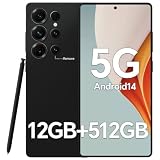
IZ25 Unlocked Cell Phone with Built-in Pen, Snapdragon 888 Android Smartphone, 12GB+512GB, 5000mAh,... | $89.99 | Buy on Amazon |
Suitability has several separate dimensions:
- Installation compatibility: whether the app supports the phone’s Android version, processor architecture and device configuration.
- Graphics compatibility: whether the GPU and graphics APIs expose the features the app expects.
- Performance: whether the phone can render the game at an acceptable visual quality and frame-rate stability.
- Sustained performance: whether that experience holds up during longer sessions rather than only during a short launch test.
- Practical fit: whether memory, storage, display resolution, software updates and other phone characteristics match your use.
These are related but not interchangeable. A phone can pass an app’s minimum requirement and still need reduced graphics settings. It can also advertise a compatible API while lacking the rendering performance or hardware feature that a particular game requires.
Quick wins for a faster PC:
Fix the driver behind crashes, sound loss and screen glitchesFind Drivers →Clear out junk files and repair common Windows errorsFree Scan →Scan for outdated or missing drivers - takes under a minuteDriver Scan →Use this checking workflow before you install or buy
Follow the steps in order. Start with the device you actually have or the exact model you intend to purchase; do not begin with a broad label such as “Snapdragon 8” or “Snapdragon 7.”
#1 Best Overall
- Snapdragon 888 + 12GB RAM – Powered by the flagship Qualcomm Snapdragon 888 processor and 12GB of ultra-fast RAM, this IZ25 unlocked phone easily handles intensive gaming, 4K video editing, and multitasking with smooth, uninterrupted performance. No lag, no waiting – delivering pure, responsive performance exactly when you need it most.
- 512GB Storage + Expandable – With a massive 512GB of built-in storage, you can easily store tens of thousands of photos, hours of 4K videos, and all your favorite apps without compromise. Running low? Expand easily via external memory card, so you never have to delete what matters.
- 48MP + 108MP Dual-Camera System – Leveraging a 48MP main sensor and an industry‑leading 108MP secondary sensor, capture every detail with stunning clarity. From everyday moments to creative masterpieces, enjoy true‑to‑life colors, exceptional dynamic range, and sharpness that rivals professional cameras.
- 5000mAh Battery + 6.8" Immersive Display – Equipped with a high‑capacity 5000mAh battery, this IZ25 smartphone keeps you going from morning to night – whether streaming, gaming, or working – without constantly hunting for a charger. The 6.8‑inch FHD+ display offers a wide viewing angle, vivid colors, and deep contrast, turning every movie and game into a truly immersive visual experience.
- Android 14 + 5G Dual‑SIM – Experience the latest Android 14 with enhanced privacy controls and smarter AI‑driven features. Plus, full 5G support and dual‑SIM dual‑standby capability ensure you stay connected at blazing‑fast speeds, whether for work, travel, or staying in touch with loved ones around the world.
- Record the exact phone model. Open Settings > About phone (the wording varies by manufacturer) and copy the full model name and model number. Retail listings can use a family name while selling several regional variants, so record the complete designation shown by the phone or its official specification page.
- Record the installed Android version. In Settings > About phone > Android version, note the version number and security or system-update status. The same Snapdragon platform can appear in phones with different Android releases, and an app may set its minimum Android version independently of the chipset.
- Open the game or app’s current store listing. Check its required Android version, supported-device notes, graphics requirements and any developer-published compatibility list. Requirements and device lists can change, so use the current listing rather than an old chipset chart or an undated forum post.
- Read the developer’s own support material. Look for a minimum GPU, a required graphics API, a 64-bit requirement, known unsupported devices, or instructions for selecting a graphics mode. If the developer names a specific GPU family or API, treat that as a direct compatibility condition rather than substituting a Snapdragon tier.
- Identify the phone’s GPU and API support. Use the handset maker’s specification page or the official platform brief for the exact model. Qualcomm’s Snapdragon 8 Gen 3 product brief, for example, lists Vulkan 1.3 and OpenGL ES 3.2 for that platform. Those figures are an example of platform-specific documentation; they must not be transferred automatically to another Snapdragon generation or assumed to be implemented identically in every handset.
- Check device-specific testing for an important game. Search for testing of the exact phone model and the exact title. Record whether the game launches, which quality presets are available, how stable the frame rate remains, and what happens after a longer session. A test on a different phone using the same broad Snapdragon family is useful context, not proof for your handset.
- Compare purchase candidates using the complete set of details. Put the exact model, Android version and update support, GPU/API information, memory, display resolution and game-specific results side by side. Choose based on the workload you care about, not on the processor badge alone.
How to read Snapdragon and Adreno specifications
| Specification | What it tells you | What it does not prove |
|---|---|---|
| Snapdragon platform or generation | Which Qualcomm platform the phone is built around and which official platform documentation to consult. | That every phone using the label has the same cooling, memory, firmware, display or sustained performance. |
| Adreno GPU model | The integrated graphics processor responsible for rendering the interface and games. | That a particular title will expose every quality setting or maintain a particular frame rate. |
| Vulkan or OpenGL ES version | Which graphics interfaces the platform or handset claims to support. | That the implementation has enough performance or hardware features for a specific game. |
| Android version | The software environment against which the app’s minimum operating-system requirement is evaluated. | That the phone will receive future updates or remain compatible after the developer raises its minimum version. |
| Memory and display resolution | Important context when comparing actual phone models and the workload they must handle. | A substitute for testing the intended game on the intended handset. |
Qualcomm’s descriptions of Adreno graphics and gaming capability are statements from the platform vendor. They explain the intended role and features of the GPU, but they are not independent measurements of compatibility for every phone. Qualcomm’s wording says: “The Qualcomm® Adreno™ GPU takes mobile UI, games, and advanced graphics applications to the next level, providing users with stunning visuals and smooth performance while optimizing power consumption.” Treat that as vendor positioning, not as a guarantee for your handset.
Graphics APIs: why Vulkan helps, but is not a pass/fail test
Android Developers identifies Vulkan as the preferred interface to the GPU for Android graphics. Vulkan support can therefore be an important clue when a game lists it as a requirement. However, API presence alone cannot establish that a phone will run a game well.
Android’s documentation states that Vulkan 1.1 support is required for new 64-bit Android devices beginning with Android 10. The same guidance warns that some older Vulkan-capable devices may not provide the rendering performance or hardware support required by a particular game. In practical terms, “Vulkan supported” answers only one part of the question: whether the interface is available. You still need to verify the required features and the game’s actual performance on the handset.
Android also discusses ANGLE, which can standardize Android’s OpenGL implementation for compatibility and may affect performance. That is another reason not to infer behavior from one API name. A game may use Vulkan, OpenGL ES, or a compatibility path, and the outcome can differ by device software.
When a specification lists several APIs, read the wording carefully:
- Platform specification: describes what the Snapdragon platform is designed to support.
- Phone specification: describes what the manufacturer enabled and validated in that handset’s software.
- Game requirement: describes what the title needs to start or render correctly.
- Observed test: shows how that combination behaves in practice.
Only the last item can answer questions about frame-rate stability or graphics quality for a particular game.
Match the check to the type of app
3D games
Start with the game’s minimum Android version and any named GPU or API requirement. Then confirm the phone’s Adreno model and API support from model-specific documentation. For a demanding title, prioritize tests that report launch success, available visual presets, frame-rate stability and behavior during longer play sessions. A minimum requirement is a baseline for compatibility, not a promise of a target frame rate.
Do these 3 things before closing this tab:
1Clear out junk files and repair common Windows errors2Fix the driver behind crashes, sound loss and screen glitches3Repair Windows errors before they cause bigger problemsLess graphics-intensive games
For a game with modest graphics, the exact GPU may be less decisive than Android compatibility, available memory, storage space and whether the developer supports the phone. Do not skip the store listing simply because the Snapdragon label sounds recent; app support can still be limited by the operating-system version or a device-specific exclusion.
Productivity and utility apps
Most non-graphics applications still depend on Android version, processor architecture, permissions, storage and developer support. Check the app listing first. If the app uses camera processing, video effects, 3D visualization or other accelerated features, apply the same GPU and API checks used for games.
How to compare two phones for the same game
Create a comparison using exact models rather than chipset families. The following template keeps unlike evidence separate:
| Comparison field | Phone A | Phone B | Why it matters |
|---|---|---|---|
| Full model and region | Enter the manufacturer’s exact designation | Enter the manufacturer’s exact designation | Variants can differ in software, memory or enabled features. |
| Android version and update support | Record the installed version and published support | Record the installed version and published support | The app’s minimum Android version and future compatibility depend on software. |
| Snapdragon platform | Use the exact platform name | Use the exact platform name | Links the phone to the correct official brief. |
| Adreno GPU and API support | Copy model-specific specifications | Copy model-specific specifications | Relevant to graphics feature compatibility. |
| Memory and storage | Record the installed configuration | Record the installed configuration | Affects the practical fit for large or multitasking workloads. |
| Display resolution and refresh features | Record the handset specification | Record the handset specification | Changes the rendering workload and the experience you are evaluating. |
| Exact-game test | Launch, settings, stability and long-session observations | Launch, settings, stability and long-session observations | Provides evidence for the title you actually play. |
If a source does not state a value, mark it as “not stated” instead of filling the cell with a family-level assumption. A platform brief can describe a chip while the handset specification determines how that chip is configured in a particular phone.
What a minimum requirement does—and does not—promise
Developers generally publish minimum requirements to identify a baseline on which an app is expected to install or operate. Passing that baseline does not promise a particular graphics preset, frame rate, loading time or sustained result. A phone can meet the minimum Android and API versions while still requiring lower visual settings.
Conversely, a phone with a newer or higher-positioned Snapdragon platform can fail an app’s support check if its Android version is too old, if the developer excludes the device, or if a required feature is not available in that handset’s software. Compatibility is therefore a matching exercise between four records: the app’s current requirements, the exact phone model, the installed Android version and the phone’s graphics implementation.
Troubleshoot common compatibility problems
The store says the app is incompatible
- Recheck the exact Android version and install pending system updates.
- Read the developer’s supported-device notes for a model-specific exclusion.
- Verify that you are checking the correct regional or carrier variant.
- Do not assume that changing a Snapdragon label or installing an unofficial package will resolve a developer-side restriction.
The app installs but will not launch
- Compare the app’s required API, 64-bit support and GPU notes with the phone’s model-specific documentation.
- Check for a game update and an Android system update.
- Look for developer notices about unsupported devices or graphics modes.
- Record the exact error message before changing settings; it can distinguish an operating-system requirement from a rendering problem.
The game launches but graphics are missing or corrupted
- Confirm which graphics API or rendering mode the title is using.
- Install the latest official game and system updates.
- Try the developer’s supported fallback mode if one is documented.
- Compare with testing on the same phone model; a result from another Snapdragon handset may use a different GPU implementation or firmware.
Performance drops during longer sessions
Do not judge sustained behavior from a short launch test. Seek testing that reports longer sessions and note whether visual quality or frame-rate stability changes over time. The official platform specifications establish capabilities, while device-specific testing is needed to evaluate how a particular handset maintains them in practice.
The phone has the advertised API but the game still performs poorly
This is consistent with Android Developers’ warning that older Vulkan-capable devices may lack the performance or hardware features a game needs. Recheck the game’s stated requirements, compare another supported rendering mode if the developer provides one, and treat the observed result—not the API badge—as the deciding evidence.
The Tool Desk
Outbyte PC Repair FREERepair Windows errors before they cause bigger problemsFix Now →Outbyte Driver Updater FREEFix the driver behind crashes, sound loss and screen glitchesFind Drivers →A purchase decision framework
Use the following decision order when selecting a phone primarily for games or an accelerated app:
Quick Recap
- Reject clear incompatibilities first. Eliminate models whose Android version, architecture, GPU or API fails an explicit developer requirement.
- Separate baseline from quality. Among compatible models, identify which tests show the desired visual settings and stable performance for the exact title.
- Check software longevity. Compare the manufacturer’s update support because a phone that meets today’s minimum Android version can become unsuitable after the app raises its requirement.
- Evaluate the whole handset. Include memory, storage and display resolution, not just the Snapdragon platform.
- Prefer evidence from the exact model. If no exact-game test exists, label the decision as uncertain rather than converting a chipset-family specification into an invented frame-rate estimate.
Sources for verifying the technical details
- Qualcomm Adreno GPU overview — explains Adreno’s integration into Snapdragon platforms and its graphics role.
- Android Developers: Native and proprietary engines — covers the Vulkan 1.1 requirement for new 64-bit Android devices from Android 10 and cautions about performance and hardware sufficiency.
- Qualcomm Snapdragon 8 Gen 3 Mobile Platform product brief — gives a model-specific example of Vulkan 1.3 and OpenGL ES 3.2 support.
- Android Developers: Use Vulkan for graphics — explains Vulkan’s role in Android graphics and the broader compatibility context.
Product prices and availability are accurate as of the date/time indicated and are subject to change. Any price and availability information displayed on Amazon at the time of purchase will apply.

