
Outdated Drivers Are Slowing You Down
One free scan finds every outdated or missing driver and matches the right update for your exact hardware.Free scan · exact hardware matchWindows Errors? Fix Them Before They Spread
Repair common Windows errors and clear accumulated junk for a smoother, more stable PC - no reinstall needed.Free scan · no reinstalliTechGuides is reader-supported. When you buy through links on our site, we may earn an affiliate commission. As an Amazon Associate I earn from qualifying purchases. Learn more
You cannot check CPU temperature in Windows Task Manager. In both Windows 10 and Windows 11, Task Manager has no CPU-temperature field, switch, or supported setting that adds one. The CPU page shows processor load and specifications, but temperature telemetry is not exposed there.
You can still use Task Manager to check CPU usage and speed, or use a hardware-monitoring utility, UEFI/BIOS, or a manufacturer tool for the actual temperature.
What Task Manager shows for the CPU
To open the relevant page:
- Right-click the Start button.
- Select Task Manager. You can also press Ctrl + Shift + Esc.
- If the compact view appears, select More details.
- Open Performance and select CPU.
This page displays information such as:
- CPU utilization
- Current speed and base speed
- Processor name
- Number of cores
- Number of logical processors
- Cache sizes
- Uptime and virtualization status
It does not display CPU temperature. The blank area is not caused by a collapsed panel, an administrator setting, or an outdated graphics driver.
Recommended Free Tools
Why the usual instructions are wrong
Some guides say to open Task Manager → Performance → CPU and read the temperature from that screen. That instruction confuses CPU statistics with the temperature feature available for some graphics processors. Task Manager can sometimes show a GPU temperature under Performance → GPU, but that does not mean it can show the CPU temperature.
#1 Best Overall

- Curve display: the actual time temperature is converted right into a curve, and the temper ature Data Logger Recorder for Logging Temperature with Email Alarm Sensor Temperature Data Logger Recorder fo ature monitoring is extra clean and clear. Meter PC Laptop USB Sensor USB Temperature Humidity Meter PC Laptop USB Sensor Thermometer Temper Curve display the actual time temperature is converted right into a curve and
- Note: before use, please clean the floor of the keycap, loose from dust and hold it dry, and then manually ll the labels in series. Email Alarm Sensor Temperature Data USB Temperature Humidity Meter PC Laptop USB Sensor Thermometer Temper Curve display the actual time temperature is converted right into a curve and
- Huge variety of applications: it is able to be used USB Temperature Humidity Meter PC Laptop USB Sensor Thermometer Temper ature monitoring is extra clean and clear. Meter PC Laptop USB Sensor USB Temperature Humidity Meter PC Laptop USB Sensor Thermometer Temper Curve display the actual time temperature is converted right into a curve and
- Temperature measurement show: the temperature is measured by way of an outside probe and displayed on the software interface. the external probe has a function. USB Temperature Humidity Meter PC Laptop USB Sensor Thermometer Temper Curve display the actual time temperature is converted right into a curve and
- Warning placing: set the warning temperature and start the feature. while the temperature reaches the top restriction, the warning sound will play; then when the temperature drops to the lower restrict, the caution sound will prevent. USB Temperature Humidity Meter PC Laptop USB Sensor Thermometer Temper Curve display the actual time temperature is converted right into a curve and
The claim that Windows 10 version 1903 added CPU temperature to Task Manager is also incorrect. Windows releases have not added a general CPU-temperature field to Task Manager. Windows 10 support ended on October 14, 2025, but that does not change the limitation in its final supported state or in Windows 11.
Can a command or Registry tweak enable it?
No. There is no documented taskmgr switch, PowerShell command, Registry value, or Group Policy setting that adds CPU temperature to Task Manager. A command can read some hardware sensors on particular systems, but it cannot make Task Manager display a field that the application does not provide.
Be cautious with registry files and “enable CPU temperature in Task Manager” scripts. They cannot create reliable sensor support and may change unrelated Windows settings.
Ways to check CPU temperature instead
1. Use UEFI or BIOS
This is the most software-independent option, although it shows the temperature while the computer is mostly idle.
Rank #2
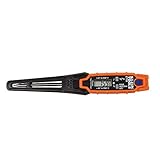
- TEMPERATURE SELECTION: User selectable Fahrenheit and Celsius measurements for convenience and versatility
- WIDE MEASUREMENT RANGE: Measurement range of -40 to 482°F (-40 to 250°C) with room temperature accuracy of +/- 27°F (+/- 15°C)
- BACKLIT DISPLAY: Backlit display allows for easy viewing in low-light environments
- ADVANCED FUNCTIONS: Max/Min, Hold, and Average functions provide additional data analysis capabilities
- NON-MEDICAL DEVICE: Not intended for use on people or animals, complying with regulations and maintaining clear distinction from medical devices
- Save your work and restart the computer.
- During startup, press the firmware key shown on screen. Common keys include Delete, F2, F10, and Esc.
- Open a page named Hardware Monitor, System Monitor, PC Health, or similar.
- Look for CPU temperature, Package temperature, or a related sensor reading.
The exact menu depends on the motherboard or laptop manufacturer. Exit without changing settings when finished.
2. Install a hardware-monitoring application
For a temperature while Windows is running, use a reputable sensor reader such as HWiNFO, Core Temp, or Open Hardware Monitor. These applications may show several different readings, including CPU package, individual core temperatures, average core temperature, and motherboard sensors.
Prefer the official project or vendor download page, and read the sensor names carefully. “CPU usage” is a percentage; “CPU temperature” is measured in degrees Celsius or Fahrenheit. A sensor showing no value may simply be unsupported by the laptop firmware or motherboard.
Free tools Windows power users keep installed
One-click scans. No signup required.
3. Check the processor manufacturer’s utility
Some systems provide temperature information through the CPU or motherboard manufacturer’s software. Gaming laptops and desktops may also include a vendor control center with thermal and fan readings. These tools can be useful for system-specific sensors, but they may show a different reading from a general-purpose monitoring application.
Rank #3

- Quick-Read Temperature Measurements: The digital display provides accurate temperature measurements in degrees Fahrenheit wherever the thermometer is located.
- Aluminum Carabiner Clip for Portability: Clip on a backpack, purse, stroller, pet carrier, golf bag, or any hook for accurate indoor or outdoor temperature measurements wherever you go.
- Weather-Resistant Construction: Don’t let a little rain get in the way of always staying on top of current temperatures, whether on the course, lake, or patio.
- Daily High and Low Temperatures: Resetting every 24 hours since initial use, this portable thermometer always gives you the minimum and maximum temperatures recorded from the previous day.
- Low Battery Indicator: When the battery is low, the digital display exhibits a battery icon with the word LOW, letting you know that soon you’ll need to replace the battery (1 CR2032 lithium battery included)
How to interpret a CPU-temperature reading
There is no single temperature that is “normal” for every processor. Readings vary with the processor model, room temperature, cooling system, fan profile, workload, and whether the tool reports a core or package sensor.
| Situation | What to look for |
|---|---|
| Idle or light use | A relatively stable reading that falls after background activity stops. |
| Gaming or sustained work | A higher reading is expected; check whether performance drops or the system becomes unstable. |
| Unexpectedly high temperature | Check dust, blocked vents, fan operation, cooler mounting, thermal paste, and background CPU load. |
| Temperature near the processor limit | Consult the CPU manufacturer’s specifications rather than relying on a generic internet threshold. |
Modern processors can reduce clock speed or shut down to protect themselves, but repeated thermal throttling can reduce performance. If the temperature rises rapidly at idle, inspect Task Manager’s Processes tab for a process using significant CPU time, then check airflow and cooling.
Do not confuse CPU and GPU temperature
To check whether your graphics card exposes a temperature to Windows, open Task Manager → Performance → GPU. A temperature value may appear in the GPU details. It is not guaranteed: the GPU model, driver, and driver configuration must provide the required sensor data. If the value is absent, that is a GPU telemetry limitation—not a hidden way to turn on CPU temperature.
Quick answer
Open Task Manager → Performance → CPU for CPU usage, speed, cores, and related statistics. You will not find CPU temperature there. Use UEFI/BIOS or a dedicated hardware-monitoring application when you need an actual temperature reading.
Rank #4

- TEMPERATURE MEASUREMENT DISPLAY】: temperature thermometers use two sensors, one inside the device and the other extended to an external probe, which is Both sensors can measure temperature simultaneously and display it on the software interface.
- 【HYPERBOLA DISPLAY】: The real time temperature inside and outside is converted into a hyperbola, and the temperature monitoring is more clear and clear.
- 【LOG FUNCTION】: Real time temperature data can be recorded and automatically saved in related files.
- 【WARNING SETTING】: Set the warning temperature and start the function. When the temperature reaches the upper limit, the warning sound will play; then when the temperature drops to the lower limit, the warning sound will stop.
- 【WIDE RANGE OF APPLICATIONS】: It can be used for indoor and outdoor temperature detection, computer room warehouse environment monitoring, various large shopping malls, pharmacies, air conditioning temperature control monitoring, breeding farms, vegetable greenhouse temperature monitoring and other areas, product and accessories temperature detection.
FAQ
Does Windows 11 Task Manager show CPU temperature?
No. Windows 11 Task Manager does not currently provide a CPU-temperature field. Its CPU page shows usage, speed, cores, logical processors, cache, and other processor information.
Did Windows 10 version 1903 add CPU temperature to Task Manager?
No. That commonly repeated claim is incorrect. The temperature feature associated with Task Manager concerns some GPUs, not a general CPU-temperature display.
Can PowerShell or the Registry add CPU temperature to Task Manager?
No supported PowerShell command, Registry setting, Group Policy setting, or Task Manager switch adds the missing field. Use a sensor-monitoring utility or your computer’s UEFI/BIOS instead.
What’s actually slowing this PC down?
Pick the symptom - the matching free tool is one click away.
Why can I see GPU temperature but not CPU temperature?
Task Manager can display GPU temperature when the graphics hardware and driver expose compatible sensor data to Windows. Task Manager does not expose equivalent CPU-temperature telemetry.
The Bottom Line
Task Manager cannot show CPU temperature. Use Task Manager → Performance → CPU for processor activity and specifications, then use UEFI/BIOS or a reputable hardware-monitoring tool for temperature. The Performance → GPU temperature reading, when available, applies only to the graphics processor.
Quick Recap
Product prices and availability are accurate as of the date/time indicated and are subject to change. Any price and availability information displayed on Amazon at the time of purchase will apply.

