
Free tools Windows power users keep installed
One-click scans. No signup required.
iTechGuides is reader-supported. When you buy through links on our site, we may earn an affiliate commission. As an Amazon Associate I earn from qualifying purchases. Learn more
On a OnePlus phone, battery health and battery drain are different checks. Battery health (shown as Maximum capacity on supported models) estimates how much capacity the battery retains compared with when it was new. Battery usage shows which apps, services, or phone functions are consuming power now. Start in Settings > Battery; you do not need a separate battery app or accessory.
The exact labels and availability depend on your OnePlus model and OxygenOS version. A documented OnePlus Open feature is not evidence that every OnePlus phone displays a health percentage, so the steps below include alternatives when that screen is missing.
Check battery health (Maximum capacity) in Settings
Use the built-in health screen first because it is the only place on some OnePlus models that reports an estimate of remaining battery capacity. The percentage describes the battery’s ability to hold energy compared with its original condition; it is not a score for today’s app activity.
- Open Settings.
- Tap Battery.
- Look for Battery health or Maximum capacity.
- Read the percentage, if your phone provides one.
The OnePlus Open User Manual defines Maximum capacity as “an estimate of your device’s current battery capacity compared to when it was new. A lower percentage means less usage time between charges.” It is an estimate, not a laboratory measurement or a prediction of exactly how many hours your phone will last. Actual runtime also changes with screen brightness, network conditions, temperature, refresh rate, camera use, games, and background activity.
#1 Best Overall

- COMPATIBILITY: This battery only fits for OnePlus 6, A6000, A6003. Please carefully confirm your phone model before purchase.
- Battery model: BLP657, For OnePlus 6 Battery support up to 800+ charging cycles, built with high quality battery cell.
- Included Toolkit: The OnePlus 6 battery comes with all the tools you need for repairing, helps you to complete the repair process effortlessly.
- Step-by-step Instruction: we provide a vivid instruction manual to show you how to disassemble your device and replace the battery by yourself, you'll find it would be an easy task for you with this guide manual.
- Friendly Support: You can reach out to us whenever you have any questions or need any help, our specialists will be glad to assit you anytime.
If you cannot find Battery health
- Use the Settings search field and search for battery health or maximum capacity.
- Check the user manual for your exact model and software version; menu availability can differ between models and OxygenOS releases.
- Install pending system updates if practical, then search again. An update may change the wording or location without adding the feature to every model.
- Do not interpret a missing percentage as proof that the battery is healthy or damaged. It may simply be a model or software limitation.
A health percentage answers “How much capacity does the battery appear to retain?” It does not identify the app that is using power today. Conversely, a fast percentage drop during one demanding session does not by itself prove that the battery has aged badly.
See which app or process is draining the battery
To answer “Which app is draining my battery?” open the usage report:
- Go to Settings > Battery.
- Tap Battery usage, Phone battery usage, or the similarly named option.
- Choose the available view, such as usage since the last full charge or a daily chart.
- Review the ranked apps and system processes.
- Open an individual entry to see additional details, including foreground or background activity when your phone reports those categories.
Labels, charts, and reporting windows vary by device and OxygenOS version. Compare entries over the same period rather than comparing a short, active session with a full day. Some phones show a graph first and require tapping an app or process to reveal its percentage. Others combine system functions into categories such as screen, mobile network, Wi-Fi, or Android system.
A game, camera, navigation session, hotspot, video call, streaming service, or strong cellular signal can legitimately appear near the top after heavy use. A high percentage is not automatically a fault if the activity matches what you did. Look for an entry that is high when you were not using it, keeps returning on different days, or rose sharply when the symptom began.
How to interpret the usage list
- High foreground time: you spent substantial time using the app. Reduce use, screen brightness, streaming quality, or location features if the activity was expected.
- High background time: the app was active while you were not actively using it. Check its notifications, synchronization, location permission, and battery settings.
- A system process at the top: the cause may be display brightness, mobile signal, location, hotspot, Bluetooth, or another phone-wide function rather than one downloadable app.
- A newly installed or updated app: treat the timing as a useful clue, not automatic proof. Observe whether its usage remains high after a restart and normal use.
- Screen or display near the top: compare brightness, screen-on time, refresh-rate choices, and how long the screen stayed awake. A bright display during video or gaming can account for a large share of use.
- Mobile network near the top: poor reception can make the phone work harder to maintain service. Compare the result in the same location and network conditions before blaming an app.
Take a screenshot or note the top entries, the time period, screen-on time if shown, and when the problem began. That record makes it easier to tell whether a change actually helped and gives support something specific to review.
Battery health versus battery drain: what each screen tells you
| Question | Screen or feature | What it tells you | What it cannot tell you |
|---|---|---|---|
| Has the battery aged? | Battery health or Maximum capacity, when available | An estimate of current capacity relative to the battery when new | Which app is consuming power right now, or the exact runtime you will get |
| Why did the charge fall today? | Battery usage or Phone battery usage | Apps and processes using power during the selected period, with foreground/background detail where supported | A universal diagnosis when the report is incomplete or the labels differ |
| Is charging itself unstable? | Charging behavior and support inspection | Whether the phone repeatedly stops, charges unusually slowly, or becomes abnormally hot | A guaranteed hardware fault without an authorized inspection |
| Will a setting improve overnight life? | Sleep standby optimization or app optimization | How the phone can limit selected background activity or overnight consumption | A guarantee that every drain problem will be fixed |
A lower Maximum capacity can reduce time between charges, but it does not identify the immediate cause of unusually fast drain. Conversely, a normal-looking usage report does not establish a particular health percentage when your model does not expose one. Capacity aging and current consumption can happen together: an older battery may provide less energy per charge while a newly misbehaving app still causes the immediate spike.
What to do when your OnePlus battery is draining unusually fast
Make one change at a time and watch the usage report afterward. Changing several settings simultaneously can hide the cause and make it difficult to know which action mattered. First write down when the symptom started, whether it affects idle time or active use, and whether the phone recently received an app or system update.
Rank #2
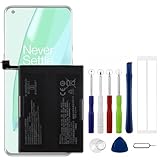
- Compatible Model No.:OnePlus 9 Pro 5G 1+9 Pro 5G LE2127 LE2123 LE2121 LE2125 LE2120,Capacity:2250mAh,Voltage:7.74V. Make sure your device is suitable for this replacement battery before ordering.
- Our battery is 100%, tested premium quality 100%, specially used Class A battery cells with UL,CE and RoHS certification. Each battery has a battery that has been tested under strict quality control standards and offers you a charge of up to 526+ cycles with fast and efficient charging.
- The battery comes with high quality repair tools and 3M adhesive tapes, no installation guide, a professional technician is recommended if you do not know how to replace it yourself.
- If as the product you received is broken, crashed or dented, please do not install it in your phone, contact us first and we will help you solve the problem immediately.
- Installation videos could be found on the internet like YouTube.
1. Check recently installed or updated apps
In Settings > Battery > Battery usage, compare the top entries with the date the drain began. If one app appeared or was updated just before the symptom, update it again if an update is available, stop using it briefly, or uninstall it if you do not need it. Recheck the report after ordinary use rather than judging from a few minutes. If the app is essential, review its background, notification, synchronization, and location permissions instead of immediately disabling every background function on the phone.
2. Reduce display power
Lower the brightness or enable automatic brightness. The display can dominate consumption during long sessions, especially with a bright screen, high refresh-rate setting, video, gaming, or navigation. Keep the test controlled: use the phone normally after changing brightness and compare a similar time period in Battery usage. A display change will not explain drain that occurs mainly overnight with the screen off, so keep checking background entries in that case.
3. Install software updates and restart
Check Settings > System updates (the exact label may differ) and install an available update when practical. Restart the phone after an update or when drain began unexpectedly. A restart can clear a temporary process, but it does not replace checking the usage list. After restarting, allow the phone to return to normal network and account synchronization before deciding whether the pattern changed.
4. Review app battery optimization
Where your model provides it, open the battery settings for an individual app and review its optimization option. Optimization can limit background behavior and reduce unnecessary activity. The trade-off is that delayed synchronization, notifications, or background tasks may be less immediate. Apply restrictions to the app implicated by the usage report rather than disabling background activity indiscriminately. Messaging, navigation, alarm, health, and work apps may need background access for features you rely on.
5. Consider Sleep standby optimization
Some OnePlus versions include Sleep standby optimization. It reduces overnight consumption and may reduce or delay notifications while you sleep. Enable it only if that trade-off suits you; it is an overnight power feature, not a guaranteed fix for heavy daytime drain. Test it over comparable nights and check whether delayed notifications matter to you.
6. Review Optimized charging
Optimized charging adapts charging behavior to your usage habits to help reduce battery aging. It can intentionally pause or slow charging at times. That behavior is different from a battery-drain diagnosis: the feature manages charging to support long-term battery condition and does not reveal which app is consuming energy. If you need a full charge at a particular time, follow the on-screen control for your model rather than repeatedly unplugging and reconnecting the phone.
7. Check High-performance mode
If your phone offers High-performance mode, check whether it is enabled. Higher performance can increase power consumption. Turn it off for a normal battery-life comparison unless you specifically need it for a demanding game or application. Record the setting when reporting results because two tests made with different performance modes are not directly comparable.
Rank #3

- Compatible Model No.:One-Plus 9 1+9 LE2113 LE2117 LE2115,Capacity:mAh,Voltage:3.8V. Make sure your device is suitable for this replacement battery before ordering.
- Our battery is 100%, tested premium quality 100%, specially used Class A battery cells with UL,CE and RoHS certification. Each battery has a battery that has been tested under strict quality control standards and offers you a charge of up to 526+ cycles with fast and efficient charging.
- The battery comes with high quality repair tools and 3M adhesive tapes, no installation guide, a professional technician is recommended if you do not know how to replace it yourself.
- If as the product you received is broken, crashed or dented, please do not install it in your phone, contact us first and we will help you solve the problem immediately.
- Installation videos could be found on the internet like YouTube.
8. Consider network and location conditions
Repeat the comparison in a similar location and with similar connectivity. A weak cellular signal, continuous hotspot use, navigation, Bluetooth accessories, or location-intensive apps can raise consumption without indicating a defective battery. Do not turn off safety or connectivity features permanently just to obtain a short test; use the usage list to determine whether one of them actually dominates.
Recommended Free Tools
How to run a useful drain test
A simple, repeatable comparison is more informative than repeatedly checking the percentage every few minutes. Percentage readings can move unevenly, and a few minutes of screen use do not represent a full usage pattern.
- Record the approximate charge level, time, network conditions, temperature, and what you were doing when the drain started.
- Open the Battery usage page and note the reporting window and top apps or processes.
- Change one factor, such as removing a recently installed app, reducing brightness, or enabling an appropriate optimization.
- Use the phone normally for a comparable period, ideally with similar screen time and location.
- Return to Battery usage and compare the same app or process, including foreground/background time where shown.
- If the same process remains unusually high, record the evidence before contacting support.
A short period of gaming, video recording, navigation, hotspot use, weak cellular coverage, or a software update can produce a temporary spike. Look for a persistent pattern rather than treating one busy session as proof of battery failure. If drain is only present while charging, focus on charging conditions and heat rather than interpreting the discharge chart alone.
When charging problems are part of the symptom
Drain and charging instability can overlap, but they are not the same diagnosis. If charging repeatedly stops, is unexpectedly slow, or the phone becomes unusually hot, use the charging guidance for your exact model and setup. OnePlus support recommends original accessories for stable charging. Compatibility still depends on the phone, cable, charger, charging standard, and local electrical conditions; an accessory does not measure battery health. Do not assume that a charger advertised for another OnePlus model supports the same charging behavior.
- Inspect the cable and connector for visible damage or debris; do not force a plug.
- Try the charging setup recommended for your model.
- Note whether the problem occurs only in a particular outlet, cable, charger, temperature, or while using the phone.
- Keep the phone within normal operating conditions and avoid covering it during charging.
- Stop and seek support if the phone or battery becomes abnormally hot, swells, emits an odor, or shows physical damage.
Do not attempt to “calibrate” the battery by deliberately running it to zero or by repeating complete discharge cycles. Those community practices are not required for the official OnePlus checks described here and can add unnecessary stress to the battery.
What’s actually slowing this PC down?
Pick the symptom - the matching free tool is one click away.
When to contact OnePlus support
Escalate when the usage report points to no reasonable cause, the drain persists after updates and a restart, charging remains unstable, or the phone shows heat or physical symptoms. OnePlus regional support pages describe repair and device-inspection routes, but availability, model eligibility, and service terms depend on your country or region. Use the support page for your location rather than assuming that a service center, mail-in repair, or partner program is available everywhere.
Before contacting support, prepare:
- Your exact OnePlus model and OxygenOS version.
- When the abnormal drain or charging symptom began.
- Screenshots or notes from Battery usage, including the reporting period and top entries.
- Whether the issue followed an app installation, app update, system update, drop, moisture exposure, or accessory change.
- What troubleshooting steps you already tried and what changed.
- Whether the phone is hot only during heavy use or also while idle or charging.
Support may offer an inspection or repair pathway. Do not assume a replacement, warranty coverage, fee, or turnaround time until the regional support team confirms the terms for your device. Back up important data before handing the phone over and follow any instructions about removing accounts or preparing the device.
Rank #4

- This battery is Compatible with OnePlus Nord N20 5G GN2200, please carefully check your phone model before purchase.
- When you replace your old battery, please carefully and gently disconnect your old battery's cable then connect your new battery to the mainboard. If you phone cannot be powered on with the new battery, you may need to install it again and be sure to check if the cable has been properly connected.
- If you have any questions or got any issues with our product, please feel free to contact us, we will reply to you within 24 hrs. We highly appreciate your kind patience.
- All the batteries have been tested before shipping out, No installation instruction.
- Need professional installation technology,We won't responsible for any damage due to improper operation.
Factory reset is a later step, not the first one
OnePlus troubleshooting guidance can include a factory reset after other checks. A reset erases personal data and settings, so back up your data first and use it only when support guidance or a well-supported software diagnosis makes it appropriate. It will not repair a physically degraded battery. If the usage report points to a hardware or charging symptom, an inspection is more appropriate than repeatedly resetting the phone.
Quick decision guide
| What you observe | Best next check |
|---|---|
| A Maximum capacity percentage is available and lower than when new | Use Battery usage to identify current consumption; arrange support if runtime or charging is persistently unacceptable. |
| No health percentage appears | Search Settings for “battery health,” then consult the manual for the exact model and OxygenOS version. |
| One app dominates usage or background activity | Review that app’s optimization, permissions, updates, and necessity; test one change at a time. |
| Display or system functions dominate usage | Compare brightness, network, location, hotspot, performance mode, and the activity performed during the reporting period. |
| Drain began after an app or software change | Record the timing, update or remove the suspected app where appropriate, update the phone, and restart. |
| Drain is mainly overnight | Check background activity, Sleep standby optimization, notifications, synchronization, and cellular signal over comparable nights. |
| Persistent drain, heat, or charging instability has no clear software cause | Use your region’s OnePlus support and inspection route. |
Frequently Asked Questions
How do I check battery health on my OnePlus?
Open Settings and tap Battery. On supported models, choose Battery health or Maximum capacity. If you do not see it, search Settings for those terms and check the manual for your exact model and OxygenOS version. Not every OnePlus phone exposes a health percentage.
Do these 3 things before closing this tab:
1Repair Windows errors before they cause bigger problems2Scan for outdated or missing drivers - takes under a minute3Clear out junk files and repair common Windows errorsHow do I see battery usage on OnePlus?
Go to Settings > Battery and open Battery usage, Phone battery usage, or a similarly named option. Review the chart or since-full-charge list, then tap individual apps or processes for foreground and background details when available.
Why is my OnePlus battery draining so fast?
Check Battery usage first and compare the top entries with when the problem began. Recently installed apps, high brightness, gaming, navigation, hotspot use, weak cellular coverage, software issues, and high-performance mode can all raise consumption. Update the phone, restart it, and test one change at a time.
Does a lower Maximum capacity percentage prove that an app is draining my battery?
No. Maximum capacity estimates battery aging relative to when the battery was new. Battery usage identifies current app and system consumption. Use both screens when both are available.
Should I use a battery-health app or buy an accessory?
No separate app or accessory is required for the basic checks. Use Settings first. A charger or cable is relevant only when charging is unstable, and compatibility depends on your exact phone and charging setup; it does not measure battery health.
The Tool Desk
Outbyte PC Repair FREEClear out junk files and repair common Windows errorsFree Scan →Outbyte Driver Updater FREEFix the driver behind crashes, sound loss and screen glitchesFind Drivers →When should I contact OnePlus instead of changing settings?
Contact regional OnePlus support when drain persists after an update and restart, no reasonable software cause appears, charging repeatedly stops or is unusually slow, or the phone becomes abnormally hot, swells, smells unusual, or shows physical damage. Service availability and terms vary by region.
The Bottom Line
Start with Settings > Battery: use Battery health or Maximum capacity when your model provides it, then use Battery usage to find current app and system consumption. Test one low-risk change at a time, treat optimization features as trade-offs rather than guaranteed cures, and use regional OnePlus inspection or repair support for persistent drain, heat, or charging problems.
Quick Recap
Product prices and availability are accurate as of the date/time indicated and are subject to change. Any price and availability information displayed on Amazon at the time of purchase will apply.

