
Recommended Free Tools
iTechGuides is reader-supported. When you buy through links on our site, we may earn an affiliate commission. As an Amazon Associate I earn from qualifying purchases. Learn more
Windows 11 lets you choose which app opens a particular file type. You can change the default for every file with an extension such as .txt or .pdf, or use a different app for one file without changing the permanent association.
The most reliable method is Settings → Apps → Default apps. For a one-time change, use File Explorer’s Open with menu.
Change the default app for a file type in Settings
Use this method when you want every file with the same extension to open in your preferred application.
Outdated Drivers Are Slowing You Down
One free scan finds every outdated or missing driver and matches the right update for your exact hardware.Free scan · exact hardware matchWindows Errors? Fix Them Before They Spread
Repair common Windows errors and clear accumulated junk for a smoother, more stable PC - no reinstall needed.Free scan · no reinstall- Open Settings. You can use
Windows + I. - Select Apps in the left sidebar.
- Open Default apps.
- In the search box, type the file extension, including the leading period. For example, enter
.txt, not justtxt. - Select the matching file-type result.
- Choose the application you want Windows 11 to use.
- Confirm the change if Windows displays a confirmation prompt.
For example, searching for .txt lets you replace the current text editor with Notepad, another editor, or a compatible application. The change applies to files that use that extension, not to every file the selected application can open.
#1 Best Overall

- ULTRA THICK MEMORY FOAM: experience more comfort while you work; thickest memory foam interior of the wrist rest features an ergonomic, slow rebound for more comfort than ever; inner foam measures nearly 1.2 inches thick; you’ll never want to work without this rest ever again
- ERGONOMIC DESIGN: forget sore wrists and fingers when typing and using a mouse; these rests are designed to help alleviate sore muscles, stress, and aches and pains by elevating your wrists to help aid in your muscles moving freely without being weighted down
- SLIP-RESISTANT BACKING: the ultra durable bottom layer of the rests are designed to stay in place on most desk surfaces, so you can worry less about adjustments and focus on your work
- SUPERIOR CONSTRUCTION: featuring a 3 layer design, the rests are designed for long lasting use; durable rubber bottom stays in place on most surfaces; thick inner memory foam material for extra support; soft top spandex layer for additional comfort; wrist rest measures 17 by 3.5 inches, making it a perfect fit for most desks; mouse pad rest measures 6 by 3.3 inches
- STAIN AND WATER RESISTANT: top spandex layer is water resistant and stain resistant to help it last throughout the years; to clean, simply wipe with a damp cloth and let air dry
Change several file and link associations from an app
You can also start with the application rather than the extension. This is useful when you want to review the file types and link types assigned to one program.
- Go to Settings → Apps → Default apps.
- Under Set defaults for applications, select the application.
- Select the file type or link type whose association you want to change.
- Choose the preferred application.
This view may show multiple associations—for example, document extensions, image formats, web links, or mail links—depending on the application installed.
Use “Open with” for one file
If you only need to open a particular file with another program, you do not need to change the Windows default.
Free tools Windows power users keep installed
One-click scans. No signup required.
- Open File Explorer and locate the file.
- Right-click the file.
- Select Open with.
- Select the application you want to use.
- In the chooser, select Just once.
Just once opens that file with the selected application but leaves the existing default association unchanged. This is the right choice when you are testing an app or occasionally opening a file in a different editor.
Make the “Open with” choice permanent
To assign the selected application to all files of that type:
Rank #2

- 【2-in-1 Keyboard Stand with Wrist Rest】Tired of constantly adjusting a misaligned wrist rest that slides out of place? Vaydeer keyboard wrist rest revolutionary one-piece design fuses the keyboard stand and wrist rest into a single, cohesive unit. This keyboard pad eliminates the frustrating gaps between your keyboard and cushion, ensuring a fluid typing motion without any interruptions.
- 【2-Angle Ergonomic Adjustability】Customize your typing experience with two optimized angles—12.5° for maximum wrist support during extended work sessions, reducing strain on tendons and joints, and 3° for a more subtle elevation ideal for quick tasks or casual use. The ergonomic wrist rest angles distribute pressure evenly, allowing you to work or play easier and more comfortably.
- 【Silicone Bottom Renders Unmatched Stability】Crafted with high-density silicone, the anti-slip base of keyboard cushion creates a secure grip on any desk surface, preventing the wrist pad for keyboard from sliding or shifting. Even during intense typing or gaming sessions, the keyboard riser with wrist rest keeps firmly in place, ensuring ultimate stability and zero wobble.
- 【Indulge in Cloud-Like Softness】Sink your wrists into the sumptuous embrace of our super soft memory foam desk wrist pad. It's like floating on a cloud—effortlessly cushioned, with every keystroke supported by plush comfort that banishes wrist pain and fatigue. The breathable and moisture-wicking lycra fabric allows air to circulate freely, keep your wrists cool and dry.
- 【Amazing Wrist Saver】This arm rest for desk elevates your keyboard and supports your wrists to a comfortable height so your wrists do not get sore, effectively relieve hand inflammation and carpel tunnel problems. Whether you’re a remote worker, a student, or a gamer, this all-in-one keyboard riser and wrist support is your effective solution to typing easier.
- Right-click a file in File Explorer.
- Select Open with.
- Choose the application.
- Select Always.
Windows will then use that application as the default for files with the same extension. For example, choosing an app with Always for one .csv file changes the association for other .csv files as well.
The commonly repeated claim that simply using Open with always changes the default is not correct. The change depends on which option you select: Always changes the association, while Just once does not.
Quick wins for a faster PC:
Clear out junk files and repair common Windows errorsFree Scan →Fix the driver behind crashes, sound loss and screen glitchesFind Drivers →Repair Windows errors before they cause bigger problemsFix Now →If the application is not listed
Windows may not show every compatible program in the first Open with list. Try these options:
- Right-click the file and select Open with → Choose another app.
- Check the suggested-app list.
- If the program is still missing, select Choose an app on your PC.
- Browse to the installed program’s executable file, select it, and continue.
The executable is usually an .exe file in one of these locations:
C:Program FilesC:Program Files (x86)C:Users<your-name>AppDataLocalPrograms
Do not select a shortcut or an unrelated executable. If you are unsure which file launches the program, open the application normally, check its shortcut properties, or reinstall the application so Windows can register it correctly.
Rank #3

- 【1.2"ULTRA THICK MEMORY FOAM】 Upgraded memory foam is softer, more comfortable, and supportive, with a slow rebound. The 1.2'' memory foam keyboard wrist rest is the optimal ergonomic height, alleviating wrist pain caused by weight-bearing, allowing you to work longer hours with less strain
- 【ERGONOMIC DESIGN】 Our wrist rest is ergonomically designed to elevate your wrists, and with grooves that fit perfectly to your wrists, say goodbye to wrist pain and relieve pressure when typing and using a mouse. Suitable for home, office, or school
- 【BUILT TO LAST】 The wrist rests features a 3-layer design for durability. The rubber base stays firmly in place on most surfaces; the inner layer is made of thick memory foam for extra support; and the top layer is made of soft, breathable spandex fabric for a skin-friendly feel
- 【NON-SLIP BACKING & STICKERS】 The wrist pad's bottom is made of a super non-slip natural rubber, which adheres securely to most desks, allowing you to focus on work without the hassle of adjusting. Included stickers provide added protection against slipping. The keyboard wrist pad (17 x 3.5 x 1.2") and mouse wrist (6.3 x 3.3 x 1.2") are perfect for most keyboards and mice
- 【WATERPROOF & STAIN-RESISTANT】 The top spandex fabric is water-resistant and stain-resistant, making it easy to clean; simply wipe with a damp cloth and let dry. We care about your well-being and shopping experience. This is a must-have accessory and a great choice for frequent computer users. Our support team offers 24-hour assistance
Find an app for an unknown file type
If Windows does not recognize the file type, right-click the file and choose Open with → Search the Microsoft Store → OK. The Microsoft Store will display applications associated with that file type when suitable listings are available.
Do these 3 things before closing this tab:
1Clear out junk files and repair common Windows errors2Scan for outdated or missing drivers - takes under a minute3Repair Windows errors before they cause bigger problemsA Store result is not guaranteed for every extension. Be cautious with files from unknown sources, particularly executable or script-related formats. An app that can technically open a file is not necessarily safe or appropriate for it.
Show the file extension before changing the association
Windows may hide extensions in File Explorer by default. Showing them helps you confirm that you are changing the association for the correct file type.
- Open File Explorer.
- Select View on the toolbar.
- Choose Show.
- Enable File name extensions.
You can now distinguish, for example, report.txt from report.csv or photo.jpg from photo.png.
An extension identifies a file type and helps Windows decide which applications can open it. Renaming report.txt to report.pdf does not convert the text file into a PDF; it only changes the filename and can make the file misleading or difficult to open.
Rank #4

- 【Premium & Safety-Certified】This gel mouse pad with wrist rest features gel material that intelligently contours to your hand shape, dynamically adapting to different users. With temperature-regulating comfort (cool in summer, warm in winter), mouse pads ensure zero discomfort even during extended use. Reinforced edges prevent deformation and damage for lasting durability
- 【Seamless Precision Tracking】Ultra-smooth fabric surface ensures precise mouse movement and accuracy. Ergonomic mouse pad with wrist support works seamlessly with any mice, guaranteeing smooth and exact tracking for enhanced gaming and work performance
- 【Non-Slip Bottom Design】Featuring a soft non-slip PU base, this mouse pad and keyboard wrist rest stays firmly in place on your desk to prevent any sliding. Move your mouse freely without worrying about pad movement, ensuring stable and uninterrupted use
- 【Ergonomic Design】The computer mouse pad and wrist rest for computer keyboard provide comfortable contact and effective support for your wrists. They deliver a soothing, relaxed feel during typing to help prevent wrist or hand strain
- 【Practical Mouse Pad Set】The keyboard and mouse pad set includes 1 gel mousepad, 1 memory foam wrist pad for keyboard, and 1 matching coaster. Perfect for computer users needing comfort during office work or gaming
Which method should you use?
| Goal | Best method | Result |
|---|---|---|
| Change the app for all files of one type | Settings → Apps → Default apps | Changes the association for the selected extension |
| Review associations belonging to one app | Set defaults for applications | Lets you change the app’s listed file and link types |
| Open one file temporarily in another app | Open with → Just once | Does not change the default |
| Make an app permanent from File Explorer | Open with → Always | Changes the default for that file type |
| Use a program Windows does not list | Choose an app on your PC | Lets you browse to the program executable |
What to check if the change does not work
- Confirm the extension: Turn on View → Show → File name extensions and verify that the file has the extension you changed.
- Check for similar formats:
.docand.docx, or.jpgand.png, are separate file types and can have different defaults. - Use Settings for a permanent change: If you selected Just once, Windows intentionally retained the old association.
- Check the application: Some programs support only specific versions or variants of a format, even if Windows lists them as possible handlers.
- Do not rename the extension as a fix: Renaming does not convert the file and may prevent the correct application from recognizing it.
- Try the app’s own settings: Some applications include an option to register themselves as the default for selected formats. This is optional; Windows 11’s documented default-app controls remain under Settings → Apps → Default apps.
Do you need Command Prompt or registry editing?
No. Windows 11’s supported procedures use Settings and File Explorer. You do not need Command Prompt, PowerShell, Registry Editor, assoc, or ftype for the normal change. Registry or command-line modifications can create harder-to-diagnose association problems and are unnecessary for this task.
Windows 10 note
Microsoft’s default-app documentation covers both Windows 11 and Windows 10, although the interface may differ slightly. The procedure described here is for Windows 11. Microsoft states that Windows 10 support ended on October 14, 2025; that status does not change how default apps are changed in Windows 11.
FAQ
How do I change what opens a file in Windows 11?
Open Settings → Apps → Default apps, search for the file extension including its period—for example, .pdf—and select the application you want to use.
Does Open with change the default app?
Only if you select Always in the app chooser. Selecting Just once opens the individual file without changing the file-type association.
How can I choose an app that is not shown?
Right-click the file, choose Open with → Choose another app, then select Choose an app on your PC and browse to the installed program’s executable.
Best Value
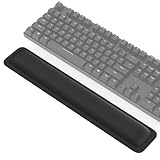
- 【1-inch THICKEN Soft Memory Foam】TECKNET keyboard wrist pad is made of high-quality 80D memory foam, it slowly rebounds in 3-5S after pressing. Through slow deformation, absorbs the weight of the hand, gently wraps the wrist like a cloud, continuously distributes wrist pressure, ideal for long hours of typing & helps prevent carpal tunnel syndrome
- 【Ergonomic Design】The curved design of the wrist pad for keyboard perfectly fits the wrist curve, accurately supports wrist joints, reduces hand suspension fatigue, and alleviates muscle soreness & wrist pressure from the source. It remains comfortable even after hours of continuous work
- 【Non-slip Rubber Base】Keyboard wrist rest is fully covered with a non-slip rubber base, firmly adheres to various desktops such as glass, wood, and metal. The wrist rest for keyboard always stays in place during intense typing or gaming
- 【Superior Structure, Durability】The keyboard cushion features a 3-layer design: rubber base + memory foam in the middle + breathable Lycra layer on the surface. Rubber provides stable support, while memory foam absorbs impact and reduces damage, and Lycra offers sweat-wicking breathability, combined with heat-pressed edge reinforcement, this structure avoids common issues like edge curling or glue failure, maintaining its shape even after repeated bending
- 【Waterproof Coating】Computer wrist support surface uses Lycra fabric + waterproof coating, causing coffee spills or tea stains to instantly bead up & slide off. Simply wipe with a damp cloth to restore cleanliness, effectively preventing liquid damage
Why should I show file name extensions?
The extension identifies the file type Windows is associating with an application. Enable File Explorer → View → Show → File name extensions to confirm it before changing the default.
Does changing a file extension convert the file?
No. Renaming an extension changes only the filename. It does not convert the file’s internal format.
Can I open one file with another app without changing Windows defaults?
Yes. Use Open with and select Just once. The existing default remains in place.
What’s actually slowing this PC down?
Pick the symptom - the matching free tool is one click away.
The Bottom Line
For a permanent change, use Settings → Apps → Default apps and select the extension you want to reassign. For a temporary alternative, right-click the file and choose Open with → Just once. Select Always only when you want Windows 11 to use that application for every file of the same type.
Quick Recap
Product prices and availability are accurate as of the date/time indicated and are subject to change. Any price and availability information displayed on Amazon at the time of purchase will apply.

