
iTechGuides is reader-supported. When you buy through links on our site, we may earn an affiliate commission. As an Amazon Associate I earn from qualifying purchases. Learn more
Gemini Spark can automate recurring or condition-based workflows across connected Google apps, but it is experimental and needs supervision. A useful setup spells out what to do, when to do it, and the reusable instructions or context it should follow. You still need to check results and handle sensitive or consequential actions yourself.
What can Gemini Spark automate?
Spark is an AI agent in Gemini Apps that combines a task, a schedule or condition, and reusable instructions called skills. Google’s examples include sorting through email, preparing recurring news digests, and researching a topic with cited sources. Its actions depend on the connected apps and permissions available to your account.
With Workspace connected, Spark can work with Gmail, Calendar, Drive, Docs, Sheets, Slides, Keep, and Tasks. Examples include finding or summarizing email threads, drafting replies, applying email labels, creating or editing documents and spreadsheets, managing calendar events, and adding or changing tasks. Google’s overview also names YouTube and Maps among native app connections; connections are off by default, so check which ones are enabled in your account. Google’s Spark help page and its product overview describe the current workflow model and supported actions.
Do these 3 things before closing this tab:
1Fix the driver behind crashes, sound loss and screen glitches2Clear out junk files and repair common Windows errors3Scan for outdated or missing drivers - takes under a minuteExamples that make a routine concrete
- Inbox triage: Ask Spark to find messages matching a defined criterion, summarize them, and draft replies. Review the matches and drafts before sending or relying on them.
- Recurring briefing: Schedule a digest on a regular cadence with clear topics and sources. Read the cited material when accuracy or context matters.
- Calendar and task upkeep: Ask it to find relevant details in connected email, then prepare calendar changes or tasks. Check dates, participants, and task details before approving changes.
- Document work: Have it create or update a document or spreadsheet from connected information, then inspect the result for omissions or errors.
These are examples of the actions Google documents, not a guarantee that every account can run every workflow. Workspace data requires Workspace to be connected, and some actions ask for confirmation.
#1 Best Overall

- IMMERSIVE 360° SOUND – Enjoy rich, room-filling audio with clear vocals, detailed highs, and deep bass designed to enhance music, podcasts, audiobooks, and more.
- DESIGNED FOR MUSIC AND ENTERTAINMENT – Enjoy your favorite music, podcasts, audiobooks, and more with room-filling sound and impressive audio clarity.
- STEREO PAIRING CAPABILITY – Pair two compatible speakers together for a wider soundstage and enhanced stereo performance throughout your space.
- MODERN DESIGN WITH MULTIPLE COLOR OPTIONS – Features a sleek, contemporary design available in Sage, Porcelain, Berry, and Hazel to complement a variety of home décor styles.
- DESIGNED FOR EVERYDAY ENTERTAINMENT – Ideal for enjoying music, podcasts, radio stations, and other audio content with premium sound quality and simple operation.
How do I set up a schedule in Gemini Spark?
Describe the work, the timing or condition, and the instructions Spark should reuse. The precise interface and available options can vary by account and rollout, so use the controls shown in your Gemini Apps rather than assuming every user sees the same features.
- Check eligibility and connections. Sign in to Gemini Apps with an eligible personal Google Account, turn on Keep Activity, and connect the Google apps the task needs. For Workspace information, Workspace must be connected.
- Define one bounded task. State the outcome, the information Spark may use, and what it should do when it cannot determine an answer. For example, ask it to summarize a specified class of email rather than granting an open-ended instruction to manage your inbox.
- Set the schedule or condition. Specify when it should run or what should trigger it, and make the intended action clear. Check the schedule details before saving, particularly for tasks that could make changes while you are away.
- Add reusable context if needed. Use a skill for instructions or context that should apply repeatedly, such as the format of a briefing. Keep the instructions focused and avoid putting sensitive information in the task thread.
- Review a run and its permissions. Confirm proposed changes when prompted and inspect the output. For shared Workspace edits, Google says review and confirmation are required; bulk changes to private Google Tasks may not require the same confirmation.
Start with a task that produces a draft, summary, or recommendation rather than an irreversible change. Once you know what Spark actually does with your connected data, decide whether to schedule it again.
Rank #2
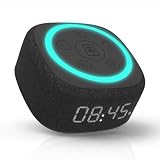
- Bedside Speaker and Sleep Sound Machine: This compact wireless speaker combines Bluetooth audio, 16 built-in sleep sounds (white noise, brown noise, rain, ocean, and more) and multiple RGB night light modes in one rechargeable device. Stream music while the light pulses in time with your audio, or switch to sleep mode and drift off to the sound you picked. A practical gift for teens and adults upgrading a bedroom setup.
- One Button, Your AI, Instantly: The BRS-180 has a dedicated AI button on top. Press it once and it wakes Google Assistant, Siri, or whichever assistant lives on your paired device. Ask it anything, play music, set a reminder, check the weather, or control your smart home, all from across the room without picking up your phone.
- Pairs in Seconds and Stays Connected: Bluetooth connects to any iOS or Android phone, tablet, or laptop with no app and no account required. Once paired, the 12-hour LED clock display syncs the correct time on its own. Three display settings keep you in control: full brightness, dimmed, or completely off for total darkness. A memory function saves your last volume, sleep sound, and light settings automatically.
- Built for the Nightstand, Night After Night: The soft fabric-wrapped enclosure sits on a nightstand, dresser, or shelf without looking like a gadget. Plug it in over USB-C and it runs continuously, or use the built-in rechargeable battery for up to 6 hours of wireless playback. Either way it is ready when you are. Available in White, Black, and Green.
- 16 Sleep Sounds, Fully Customizable: Choose from 16 built-in sleep sounds that play straight from the speaker with no phone, no app, and no subscription. Set a 15, 30, or 60-minute sleep timer and the sound fades out by itself. Want a different library? Connect it to any PC with the included USB-C cable and swap out every sound stored on the device.
Can Gemini Spark work across Gmail and Calendar?
It can use connected Google apps for workflows, but cross-app access is not automatic: Workspace must be connected, and the relevant apps and permissions need to be available. A workflow might use an email thread as context for a calendar-related task, but verify the event details and any proposed change. Google lists both Gmail and Calendar among Spark’s connected-app actions; it does not mean every action happens without confirmation.
Do I need Google AI Pro or Ultra?
Google’s current Gemini Apps Help guidance says Spark requires a Google AI Pro or Ultra subscription. It also says users must be at least 18, use a personal Google Account, and have Keep Activity turned on. Work and school accounts are not supported by that guidance. Availability excludes the European Economic Area, Nigeria, Switzerland, and the United Kingdom, and Google’s product page describes availability as limited to select countries and select business users. Check the current Help Center eligibility details for your location and account.
Rank #3

- Bedside Speaker and Sleep Sound Machine: This compact wireless speaker combines Bluetooth audio, 16 built-in sleep sounds (white noise, brown noise, rain, ocean, and more) and multiple RGB night light modes in one rechargeable device. Stream music while the light pulses in time with your audio, or switch to sleep mode and drift off to the sound you picked. A practical gift for teens and adults upgrading a bedroom setup.
- One Button, Your AI, Instantly: The BRS-180 has a dedicated AI button on top. Press it once and it wakes Google Assistant, Siri, or whichever assistant lives on your paired device. Ask it anything, play music, set a reminder, check the weather, or control your smart home, all from across the room without picking up your phone.
- Pairs in Seconds and Stays Connected: Bluetooth connects to any iOS or Android phone, tablet, or laptop with no app and no account required. Once paired, the 12-hour LED clock display syncs the correct time on its own. Three display settings keep you in control: full brightness, dimmed, or completely off for total darkness. A memory function saves your last volume, sleep sound, and light settings automatically.
- Built for the Nightstand, Night After Night: The soft fabric-wrapped enclosure sits on a nightstand, dresser, or shelf without looking like a gadget. Plug it in over USB-C and it runs continuously, or use the built-in rechargeable battery for up to 6 hours of wireless playback. Either way it is ready when you are. Available in White, Black, and Green.
- 16 Sleep Sounds, Fully Customizable: Choose from 16 built-in sleep sounds that play straight from the speaker with no phone, no app, and no subscription. Set a 15, 30, or 60-minute sleep timer and the sound fades out by itself. Want a different library? Connect it to any PC with the included USB-C cable and swap out every sound stored on the device.
Rollouts can change what is available. Google announced on July 30, 2026, that access was expanding to Google AI Pro subscribers in over 160 additional countries; that is a dated rollout announcement, not proof of availability for every account in every location. Google’s June 30, 2026 update described a macOS beta for Google AI Ultra subscribers aged 18 and over, starting in the United States. Treat those announcements as rollout information and confirm what your account can access now. The announcements are in Google’s June 30 update and July 30 update.
Independent reader supportYour contribution helps us test, update, and keep practical guides available for everyone.What should you keep under human control?
Google calls Spark experimental and warns that it can make mistakes. It recommends close supervision and avoiding sensitive tasks and schedules. A scheduled task can complete an unintended action while you are offline, before you have a chance to stop it.
Rank #4

- Google Audio Bluetooth Speaker Wireless Music Streaming - Chalk
- Music here. Music there. Music everywhere - Create a home audio system that fills your home with sound.* Nest Audio works together with your other Nest speakers and displays, Chromecast-enabled devices, or compatible speakers. And it's easy to set up.
- Rich, full sound. Room filling sound with 30 watt woofer, tweeter and tuning software. Cranks out powerful punchy music to fill your room
- Connect with family and friends - Nest Audio helps you stay in touch. Just say, “Hey Google” to broadcast messages on every Nest speaker and display in the house. Use your Nest speakers as an intercom and chat from room to room.
- Huge help around the house. You can say things like, "Hey Google, what's the weather this weekend?" Ask Google about the news or sports scores. - Includes LED Key Chain (Color May Vary)
- Do not put sign-in information, payment details, or other sensitive information directly into a task thread.
- Review drafts, summaries, cited research, calendar details, and edits instead of assuming they are correct.
- Be especially cautious with schedules that can change data without you present. Some actions require confirmation, but not all changes have the same safeguard.
- Keep payment and other sensitive steps under your direct control. Google says Chrome auto browse hands control back for sensitive actions such as payments.
Chrome auto browse can handle web errands such as researching flights or starting a booking, but availability and behavior depend on the rollout. If it uses your local Chrome browser, your device and Chrome must remain awake and running. A remote-browser task can continue after you close your device, but may pause for sign-in. Google also warns that local browser use may expose information needed for the task to third parties, and using saved login details requires permission. See Google’s Chrome integration announcement for its dated rollout context.
What’s actually slowing this PC down?
Pick the symptom - the matching free tool is one click away.
What are Spark’s schedule and usage limits?
Spark usage counts toward compute-based Gemini limits, which vary according to subscription and use. Google’s Help Center says up to 15 tasks may run at once; a scheduled task will not run if 15 tasks are already running. If a schedule does not run, check whether that concurrent-task limit has been reached and review the task’s status in Gemini Apps.
Which new integrations are available?
Google announced that integrations with Canva, Dropbox, Instacart, OpenTable, and Zillow Rentals, along with monitoring for topics such as news, sports, finance, shopping, and weather, would roll out from June 30, 2026. That announcement does not establish that every integration is live for every user. Check Gemini Apps for the connections actually offered to your account rather than building a routine around an announced feature. Details appear in Google’s June 30, 2026 update.
Quick Recap
Product prices and availability are accurate as of the date/time indicated and are subject to change. Any price and availability information displayed on Amazon at the time of purchase will apply.

