
iTechGuides is reader-supported. When you buy through links on our site, we may earn an affiliate commission. As an Amazon Associate I earn from qualifying purchases. Learn more
Nintendo DS emulation on a dual-screen handheld is software simulation, not native cartridge playback. An emulator recreates the DS processors, graphics, audio, timing, controls, touch digitizer and wireless-facing interfaces, then a frontend places the two generated framebuffers on the handheld’s upper and lower displays. On Anbernic hardware, the two physical panels make the DS layout more natural, but screen scaling, touch-coordinate mapping, focus switching and frame pacing still depend on the emulator and frontend configuration.
What the emulator is actually doing
A Nintendo DS game expects a particular machine: an ARM-based main processor, a secondary processor, two graphics pipelines, audio hardware, buttons, a resistive-style touch interface and strict timing relationships between them. An emulator presents software versions of those components. When the game writes to a graphics register, the emulator interprets that operation and updates a virtual DS framebuffer; when the game reads a button or touch position, the emulator supplies input translated from the handheld.
At the end of each frame, the emulator has two images corresponding to the DS top and bottom screens. The Android frontend decides where those images go. It can show them vertically, side by side, swap their positions, enlarge one screen, add a gap, or keep one screen as the active focus. None of those layout choices is stored in the DS cartridge. They are policies implemented by the emulator or by the frontend wrapping it.
Crashes, No Sound, or Screen Glitches?
Random freezes, missing sound and display glitches usually trace back to one bad driver. Find and replace yours safely.Free scan · under a minutePC Slower Than It Used to Be?
A free scan shows the junk files, broken settings and background clutter dragging Windows down - then fixes them in one click.Free scan · Windows 10 & 11Why timing matters
Games do not only need the right pictures. They rely on CPU timing, video refresh, audio scheduling and input polling. If an emulator misses its frame deadline, the result can be uneven motion, crackling audio or delayed touch response even when the average frame rate appears high. Frame pacing is therefore a separate concern from peak speed. A lighter emulator may feel smoother on modest ARM hardware, while a more accurate implementation may handle unusual games better at a higher processing cost.
#1 Best Overall
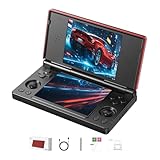
- 【RG DS Dual-Screen Immersion】Dive into authentic dual-screen gaming with two 4-inch IPS OCA-laminated displays, featuring capacitive touch and stylus compatibility. Switch apps between screens effortlessly, perfect for dual-screen applications, multitasking, and interactive touch controls on this RG DS Portable Pocket Arcade.
- 【 Classic Gaming & Modern Performance】Powered by the quad-core RK3568 CPU (2.0GHz) and Mali-G52 GPU, the RG DS smoothly runs over 20 emulators for classic consoles, handhelds, and arcades. Enjoy modern Android titles like Genshin Impact, PC game streaming via Moonlight, and online multiplayer—all from one RG DS handheld game console.
- 【 Intelligent Dual-Screen Creativity】Unlock new gameplay dimensions: play on one screen while displaying guides, maps, or walkthroughs on the other. Built-in AI tools offer one-click game guides, real-time dual-screen translation, and smart dialogue—making gaming more immersive and accessible across languages.
- 【RG DS Versatile Connectivity 】Stay connected with dual-band Wi-Fi and Bluetooth 4.2 on your RG DS Retro Game Console. Stream games from your PC, play online with friends, cast to TV, or enjoy wireless multiplayer and cross-device sharing anytime, anywhere.
- 【4000mAh Battery & Magnetic Flip】Play for hours on a single charge with a 4000mAh polymer battery. The Hall magnetic auto-sleep triggers when closed, preserving power and making this RG DS handheld game console ideal for on-the-go gaming and safe travel.
How touch coordinates reach a game
The lower panel reports a physical coordinate, such as an X and Y position in pixels. The emulator maps that point through the current screen rectangle, rotation, crop and scaling mode into the DS touchscreen’s coordinate system. If the lower screen is moved, zoomed or shown in a window, the mapping must change with it. A layout that looks correct can still feel wrong if the active touch rectangle is offset, mirrored or clipped.
What the documented Anbernic RG DS provides
Anbernic’s 2026 RG DS specification describes an Android 14 handheld with two 4-inch IPS displays, each measuring 640×480 pixels. The host hardware is an RK3568 quad-core 64-bit Cortex-A55 processor rated up to 2.0 GHz, ARM Mali-G52 2EE graphics, 3 GB of RAM and 32 GB of storage. The specification states support for Nintendo DS software, quick switching of key focus between the upper and lower screens, and split-screen use of two applications.
| RG DS component | Documented specification | Emulation implication |
|---|---|---|
| Displays | Two 4-inch IPS panels, 640×480 each | Both DS screens can remain visible without relying on a single-screen overlay. Each panel has the DS screen’s 4:3 shape, although the 256×192 source image scales by 2.5× rather than an integer factor. |
| CPU | RK3568, four 64-bit Cortex-A55 cores, up to 2.0 GHz | Provides the Android host and emulator execution capacity; sustained frame pacing still depends on the emulator build, thermal conditions and settings. |
| GPU | ARM Mali-G52 2EE | Handles Android composition, emulator rendering and optional filtering or shaders. |
| Memory and storage | 3 GB RAM and 32 GB storage | Enough for the operating system, emulator applications and a library of legally created game dumps, but storage planning matters if many titles or multiple backups are kept. |
| Operating system | Android 14 | Android permissions, file-picker behavior, firmware updates and background activity can affect ROM access and emulator behavior. |
The 640×480 panels preserve the DS aspect ratio, but 2.5× scaling is non-integer. Pixel-art edges may therefore look softer than they would at an integer scale. Integer scaling can preserve crisp pixels by leaving unused space or by choosing a different crop; the best choice depends on whether readability, full-screen coverage or sharpness matters most.
Free tools Windows power users keep installed
One-click scans. No signup required.
RG DS and RG DDS are different products
The names are easy to conflate. The RG DS is the model covered by Anbernic’s currently documented specification. The RG DDS is a separate, newer announcement. GamesRadar+ reported the RG DDS with a 4.7-inch 720×1200 upper display, a 4-inch 960×720 lower display and a Qualcomm Snapdragon G2 Gen 2 chipset. Those figures do not describe the RG DS.
Rank #2

- [system configuration] Important Note : The RGDS Package don’t included Game Card, NO Preload Games.Anbernic's latest RG series product, the RG DS, is now available. CPU: RK3568 quad-core 64-bit Cortex-A55, Max frequency: 2.0 GHZ, GPU: The ARM G52 2ee has 3 + 32gb of memory and storage, and is powered by the latest Android 14 system. It is a folding type android game machine with built-in whole switch chip. It is a magnet type that enters sleep mode when the cover is closed, and closes automatically at a small Angle.
- 【Dual Screens】The foldable RG DS features an entirely new, evolved dual-screen interaction system distinct from the previous X18S/X15 models, offering enhanced operational convenience: supporting multi-touch and capacitive stylus input with a resolution of 640×480. It enables swift switching of keyboard focus between upper and lower screens while achieving synchronised application operation across both displays. Through dedicated shader optimisation, it delivers more vibrant colours and sharper visuals, offering a visual feast. (Includes capacitive stylus)
- 【Dual Screen Creative】 The Dual Screen Creative function unlocks infinite possibilities. Immersive games on the upper screen, strategy guides on the lower screen – freely switch apps between the upper and lower screens.
- 【Compatible with numerous simulators】: Supports Android games (such as Genshin Impact and Honor of Kings) and over 20 other emulators; users can download compatible games themselves. Features a built-in 6-axis gyro sensor and supports online multiplayer; compatible with Moonlight Streaming, enabling free play of PC games and delivering an enhanced user experience.
- 【Battery and WIFI/Bluetooth Function】Features a built-in 4000mAh ultra-high-capacity, high-density lithium-ion battery with a battery life of 6 hours. RG DS Supports 5V/2A charging, taking approximately 3.5 hours to fully charge. 2.4/5G WIFI 802.11a/b/g/n/ac, Bluetooth 4.2
| Model | Published hardware information | What cannot be assumed |
|---|---|---|
| RG DS | Two 4-inch 640×480 IPS displays; RK3568; Mali-G52 2EE; 3 GB RAM; 32 GB storage; Android 14, according to Anbernic’s 2026 specification. | Do not transfer RG DDS display sizes, chipset claims or future firmware behavior to this model. |
| RG DDS | GamesRadar+’s 2026 report describes a 4.7-inch 720×1200 upper display, a 4-inch 960×720 lower display and Snapdragon G2 Gen 2 hardware. | The announcement is not a guarantee of final retail software, firmware, emulator presets or compatibility. Verify the exact unit and firmware before tuning settings. |
Screen geometry changes how an emulator should scale and position each framebuffer. A preset designed for the RG DS’s two 4:3 panels may leave large borders or distort the image on the RG DDS. When troubleshooting, record the exact model, Android build, firmware version and emulator version before changing settings.
DraStic and melonDS: how to choose
Batocera’s Nintendo DS documentation lists DraStic and melonDS and exposes dual-screen options, including a setting that makes the 2D screen follow action. The same emulator names can appear in different Android or Linux builds, so menus and behavior are not guaranteed to match across devices.
| Decision axis | DraStic | melonDS |
|---|---|---|
| Speed and frame pacing | Test whether its build sustains the game’s frame deadline on the target handheld. | Test the installed build under the same game, layout and audio conditions; no controlled RG DS benchmark is established here. |
| Accuracy and compatibility | Edge-case behavior depends on the version and configuration. | Accuracy depends on the version and configuration; do not infer universal compatibility from the emulator name. |
| Touch and screen layout | Check stylus mapping, screen swapping, gap handling and whether both panels can stay visible. | Check the same items, plus any frontend-specific dual-screen controls. |
| Features | Compare save states, remapping, shaders, multiplayer or network functions and achievement integrations in the build you install. | Compare those features in the installed build rather than assuming parity with another platform. |
| Maintenance | Record emulator and firmware versions because Android updates can alter permissions or rendering. | Record emulator and firmware versions for the same reason. |
There is no evidence of a universal “best” choice for every RG DS or RG DDS game. Start with the emulator that is available in your frontend, then compare the same title using identical screen and audio settings. Prioritize stable pacing and reliable touch input over a nominal performance claim. If a game has an unusual 2D effect, a camera-like touch interaction or a timing-sensitive sequence, test that section rather than judging only from the title screen.
Setting up DS emulation on the RG DS
Use only game dumps you are legally entitled to use, and keep independent backups of save files. A ROM scan does not create a legal right to download copyrighted games.
Rank #3
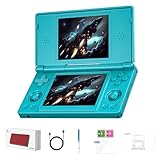
- 【ANBERNIC RG DS Dual-Screen Immersion】Dive into authentic dual-screen gaming with two 4-inch IPS OCA-laminated displays, featuring capacitive touch and stylus compatibility. Switch apps between screens effortlessly, perfect for dual-screen applications, multitasking, and interactive touch controls on this RG DS Portable Pocket Arcade.
- 【 Classic Gaming & Modern Performance】Powered by the quad-core RK3568 CPU (2.0GHz) and Mali-G52 GPU, the RG DS smoothly runs over 20 emulators for classic consoles, handhelds, and arcades. Enjoy modern Android titles like Genshin Impact, PC game streaming via Moonlight, and online multiplayer—all from one RG DS handheld game console.
- 【 Intelligent Dual-Screen Creativity】Unlock new gameplay dimensions: play on one screen while displaying guides, maps, or walkthroughs on the other. Built-in AI tools offer one-click game guides, real-time dual-screen translation, and smart dialogue—making gaming more immersive and accessible across languages.
- 【ANBERNIC RG DS Versatile Connectivity 】Stay connected with dual-band Wi-Fi and Bluetooth 4.2 on your RG DS Retro Game Console. Stream games from your PC, play online with friends, cast to TV, or enjoy wireless multiplayer and cross-device sharing anytime, anywhere.
- 【4000mAh Battery & Magnetic Flip】Play for hours on a single charge with a 4000mAh polymer battery. The Hall magnetic auto-sleep triggers when closed, preserving power and making this RG DS handheld game console ideal for on-the-go gaming and safe travel.
- Prepare storage. Copy your legally created game dumps to accessible internal storage or a removable card. Use a consistent folder structure and leave space for save-state and backup files.
- Open the frontend’s path selector. The 2026 RG DS manual gives the sequence
Game Frontend → SELECT → + → Select Path → Scan ROM. Follow the on-screen permission prompt if Android asks the frontend to access the selected folder. - Choose an emulator. Select DraStic or melonDS if both are installed. If the frontend offers per-game association, assign the emulator after confirming that the title boots correctly.
- Set the screen arrangement. Choose upper-over-lower for a DS-like presentation, side-by-side only when it improves a particular game, or a one-screen focus mode when reading small text. Check whether the frontend’s “swap” command changes only display order or also changes touch focus.
- Configure touch mapping. Select the lower display as the touch surface, verify orientation, and tap each corner. If the pointer lands outside the expected location, recalibrate or reset the layout before adjusting game controls.
- Map physical controls. Assign directional buttons, face buttons, shoulder buttons, Start, Select and any emulator hotkeys. Keep a reachable command for swapping screens or moving focus between them.
- Set performance options conservatively. Begin with normal speed and no frame skip. Change one option at a time, then test a demanding scene with sound enabled. Frame skip can hide load problems but may make animation and touch timing feel worse.
- Test more than booting. Play a touch-heavy section, open an in-game menu, use both screens, save normally and reload. A title that launches successfully may still have unusable touch coordinates or broken audio pacing.
Using the touchscreen and a stylus
Why a stylus helps
A replacement capacitive stylus is useful for handwriting, drag gestures and small targets, but it does not change the emulator’s coordinate conversion. The important requirement is a tip that the panel reliably detects without excessive pressure. Keep the stylus tethered or stored safely; losing it does not prevent button-only games from working, but it can make touch-focused titles frustrating.
Calibrating a layout
- Display the lower screen at its intended size before calibrating.
- Tap near all four corners and along the center. Check for consistent offset, not just one accurate point.
- Try a drag from one edge to the other. A correct tap with a distorted drag usually indicates aspect-ratio or crop settings rather than a bad panel.
- After swapping screens, repeat the test. Some frontends keep touch focus on the original lower-screen rectangle until a separate focus command is issued.
Games that use both screens differently
Many games place status information on the lower screen while action remains on the upper screen. Others require rapid taps, drawing, virtual keyboards or a map. For the first group, a fixed dual-screen view is usually clearest. For the second, a larger lower-screen focus mode may be easier, provided the emulator keeps the upper image available through a quick swap. A layout that is ideal for one title can be awkward for another because the game’s touch targets and reading order differ.
Screen layout and image-quality choices
Both screens visible
Keeping both panels active most closely matches the original console’s information flow. It avoids repeatedly toggling focus, but each image may be physically smaller or softened by non-integer scaling. This is usually the sensible starting point for games that expect simultaneous attention.
Focused lower screen
Enlarging the touchscreen improves precision for drawing and text entry. Confirm that the emulator still accepts input only inside the enlarged lower-screen rectangle; otherwise taps may be shifted by the unused upper-screen area.
Rank #4
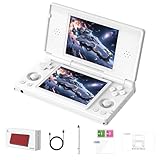
- 【RG DS Dual-Screen Immersion】Dive into authentic dual-screen gaming with two 4-inch IPS OCA-laminated displays, featuring capacitive touch and stylus compatibility. Switch apps between screens effortlessly, perfect for dual-screen applications, multitasking, and interactive touch controls on this RG DS Portable Pocket Arcade.
- 【 Classic Gaming & Modern Performance】Powered by the quad-core RK3568 CPU (2.0GHz) and Mali-G52 GPU, the RG DS smoothly runs over 20 emulators for classic consoles, handhelds, and arcades. Enjoy modern Android titles like Genshin Impact, PC game streaming via Moonlight, and online multiplayer—all from one RG DS handheld game console.
- 【 Intelligent Dual-Screen Creativity】Unlock new gameplay dimensions: play on one screen while displaying guides, maps, or walkthroughs on the other. Built-in AI tools offer one-click game guides, real-time dual-screen translation, and smart dialogue—making gaming more immersive and accessible across languages.
- 【RG DS Versatile Connectivity 】Stay connected with dual-band Wi-Fi and Bluetooth 4.2 on your RG DS Retro Game Console. Stream games from your PC, play online with friends, cast to TV, or enjoy wireless multiplayer and cross-device sharing anytime, anywhere.
- 【4000mAh Battery & Magnetic Flip】Play for hours on a single charge with a 4000mAh polymer battery. The Hall magnetic auto-sleep triggers when closed, preserving power and making this RG DS handheld game console ideal for on-the-go gaming and safe travel.
Integer versus non-integer scaling
Integer scaling multiplies the 256×192 DS image by a whole number, preserving pixel boundaries but potentially leaving borders. Non-integer scaling fills more of a 640×480 panel but can blur one-pixel details. Disable filtering if crisp pixel edges matter, and enable it only if the unfiltered image appears too harsh at the chosen scale.
Independent reader supportYour contribution helps us test, update, and keep practical guides available for everyone.Common problems and practical fixes
Only one screen appears
Check the emulator’s dual-screen mode, then the frontend’s display policy. A one-screen focus mode may be intentional. Look for commands labeled swap, focus, dual display or screen layout before reinstalling anything.
Touch input is offset
Reset the screen rectangle, orientation and crop settings, then recalibrate. Offset commonly appears after changing from vertical to side-by-side layout because the old coordinate transform is still active.
Do these 3 things before closing this tab:
1Repair Windows errors before they cause bigger problems2Scan for outdated or missing drivers - takes under a minute3Clear out junk files and repair common Windows errorsAudio crackles or motion stutters
Return to normal speed, disable expensive shaders, close background Android applications and test again. If the problem remains, compare the other emulator with the same game and layout. Do not treat frame skipping as a complete fix; it can reduce visual workload while increasing perceived input discontinuity.
Best Value
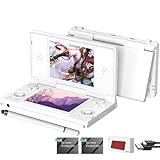
- [system configuration] Important Note : The RGDS Package don’t included Game Card, NO Preload Games.Anbernic's latest RG series product, the RG DS, is now available. CPU: RK3568 quad-core 64-bit Cortex-A55, Max frequency: 2.0 GHZ, GPU: The ARM G52 2ee has 3 + 32gb of memory and storage, and is powered by the latest Android 14 system. It is a folding type android game machine with built-in whole switch chip. It is a magnet type that enters sleep mode when the cover is closed, and closes automatically at a small Angle.
- 【Dual Screens】The foldable RG DS features an entirely new, evolved dual-screen interaction system distinct from the previous X18S/X15 models, offering enhanced operational convenience: supporting multi-touch and capacitive stylus input with a resolution of 640×480. It enables swift switching of keyboard focus between upper and lower screens while achieving synchronised application operation across both displays. Through dedicated shader optimisation, it delivers more vibrant colours and sharper visuals, offering a visual feast. (Includes capacitive stylus)
- 【Dual Screen Creative】 The Dual Screen Creative function unlocks infinite possibilities. Immersive games on the upper screen, strategy guides on the lower screen – freely switch apps between the upper and lower screens.
- 【Compatible with numerous simulators】: Supports Android games (such as Genshin Impact and Honor of Kings) and over 20 other emulators; users can download compatible games themselves. Features a built-in 6-axis gyro sensor and supports online multiplayer; compatible with Moonlight Streaming, enabling free play of PC games and delivering an enhanced user experience.
- 【Battery and WIFI/Bluetooth Function】Features a built-in 4000mAh ultra-high-capacity, high-density lithium-ion battery with a battery life of 6 hours. RG DS Supports 5V/2A charging, taking approximately 3.5 hours to fully charge. 2.4/5G WIFI 802.11a/b/g/n/ac, Bluetooth 4.2
A game scans but will not launch
Confirm that the file is a valid dump, that Android has permission to read its folder and that the selected emulator supports the file format. Re-scan the directory after moving files, and keep save data separate before changing emulator assignments.
Settings disappear after an update
Write down the Android version, handheld firmware, emulator version and per-game overrides. Updates can change storage permissions, menu names or rendering defaults. Reapply one setting at a time and retest touch before restoring elaborate presets.
What to verify before buying or changing hardware
- Identify whether the listing is for RG DS or RG DDS; the documented specifications are not interchangeable.
- Confirm the exact display resolutions and aspect ratios, because they determine scaling and border behavior.
- Check which Android version and emulator builds are supplied, not just the chipset name.
- Plan for a reliable removable card if your library exceeds internal storage, and maintain a second copy of saves.
- Use a stylus or another precise capacitive pointer if your preferred games rely on drawing, handwriting or tiny touch targets.
- Test the specific titles you care about. Available documentation establishes emulator options and configuration capabilities, not a controlled compatibility score for every game on either model.
The key distinction is simple: the handheld supplies screens, controls and Android computing resources; DraStic or melonDS supplies the virtual Nintendo DS; and the frontend decides how the two framebuffers and touch focus are presented. Once those layers are treated separately, screen swapping, stylus calibration and performance troubleshooting become settings problems you can isolate instead of mysterious hardware failures.
Quick Recap
Product prices and availability are accurate as of the date/time indicated and are subject to change. Any price and availability information displayed on Amazon at the time of purchase will apply.

