
Free tools Windows power users keep installed
One-click scans. No signup required.
iTechGuides is reader-supported. When you buy through links on our site, we may earn an affiliate commission. As an Amazon Associate I earn from qualifying purchases. Learn more
Hood Warfare 2 can start on a PC with a GTX 1660 or RX 5600 XT, a Core i5-9600K or Ryzen 5 3600, and 8 GB of RAM, but those are compatibility requirements rather than a promised frame rate. Steam lists a substantially stronger recommended tier—an RTX 3060 Ti or RTX 4060, a Core i5-12600K or Ryzen 5 7600, and 16 GB of RAM. For smoother play, begin in fullscreen with V-Sync off, lower shadows, lighting, and effects, disable motion blur and depth of field, and keep textures at medium until you have checked video-memory use. Change one setting at a time in the same map and scene; no published benchmark establishes a universal preset or FPS gain for this game.
Official Hood Warfare 2 system requirements
Hood Warfare 2 is described on Steam as a chaotic first-person shooter rebuilt in Unreal Engine 5 with updated visuals, weapon animations, and maps. The two hardware tiers below are the currently listed requirements. They tell you whether the game is expected to run on a configuration, not what frame rate it will deliver at a particular resolution or quality level.
| Tier | Operating system | Processor | Memory | Graphics card | API | Storage |
|---|---|---|---|---|---|---|
| Minimum | Windows 10 64-bit, version 1909 or newer | Intel Core i5-9600K or AMD Ryzen 5 3600 (six cores) | 8 GB RAM | NVIDIA GTX 1660 or AMD RX 5600 XT with 6 GB VRAM | DirectX 12 | 25 GB |
| Recommended | Windows 11 64-bit | Intel Core i5-12600K or AMD Ryzen 5 7600 | 16 GB RAM | NVIDIA RTX 3060 Ti or RTX 4060 with 8 GB VRAM | DirectX 12 | 30 GB |
Steam also lists broadband internet and a DirectX-compatible sound card for both tiers. The game may require additional free space for updates, shader caches, or Windows temporary files, so do not fill a drive to exactly 25 or 30 GB.
What the minimum tier really means
A system around the minimum tier has the listed CPU instruction set, graphics capability, memory, and DirectX support needed to launch and play. It does not establish a 60-FPS target, a fixed resolution, or stable frame pacing. An older six-core processor, a 6-GB graphics card, or 8 GB of system memory can become the limiting part when a map is busy or when background applications consume resources.
#1 Best Overall

- 8GB GDDR6 256-bit Memory
- 7680 x 4320 Maximum Resolution
- PCIe 4.0
- Full Height, Dual Slot
- DisplayPort 1.4a, HDMI 2.1
Why the recommended tier matters
The recommended list moves to newer CPUs, 16 GB of RAM, and graphics cards with 8 GB of VRAM. That gives the game more headroom for Unreal Engine 5 visuals, higher texture settings, and background operating-system activity. It is still not a performance guarantee: your monitor resolution, driver version, cooling, memory configuration, and the particular map all affect frame times.
How to check whether your PC meets the requirements
- Check Windows and memory: open Settings > System > About. Confirm that Windows is 64-bit and note the installed RAM. For the minimum operating-system requirement, verify that Windows 10 is version 1909 or later; Windows 11 is the listed recommended operating system.
- Check CPU and GPU: press
Ctrl+Shift+Esc, open Task Manager > Performance, and record the CPU and GPU model. Compare the full model name, not just a family name such as “RTX” or “Ryzen.” - Confirm DirectX: press
Win+R, enterdxdiag, and check the DirectX version on the System tab. The requirement is DirectX 12. - Check free space: in File Explorer > This PC, inspect the drive where you will install the game. Leave several gigabytes beyond the listed requirement for updates and caches.
- Check the connection and audio hardware: multiplayer requires broadband internet, and Steam lists a DirectX-compatible sound card for both tiers.
If one component is below minimum, treat the result as unsupported rather than trying to compensate with a single graphics option. If every part meets minimum but you experience stutter, use the tuning process below before deciding which component needs replacement.
A stable starting graphics profile
The following is a troubleshooting baseline, not a guaranteed “best” preset. Use it only for controls that appear in your installed build:
PC Slower Than It Used to Be?
A free scan shows the junk files, broken settings and background clutter dragging Windows down - then fixes them in one click.Free scan · Windows 10 & 11Outdated Drivers Are Slowing You Down
One free scan finds every outdated or missing driver and matches the right update for your exact hardware.Free scan · exact hardware match- Display mode: Fullscreen.
- V-Sync: Off. If tearing is distracting, cap the frame rate near your monitor’s refresh rate with an available in-game or driver limiter.
- Shadows, lighting, and effects: Low to begin with. These settings often add substantial GPU work in scenes containing many lights, particles, or characters.
- Motion blur and depth of field: Off. This removes post-processing that can obscure motion and costs some rendering time.
- Textures: Medium. Try High only when the graphics card has at least 8 GB of video memory and monitoring shows that memory is not being exhausted.
- Upscaling: use DLSS, FSR, or another upscaler only if that option is actually present in the Graphics menu. Support is not confirmed by the available game information.
After applying the baseline, choose one repeatable map, mode, and location. Record your resolution, every setting, and whether the problem is a low average frame rate, brief hitching, or uneven frame pacing. Then change one control and replay the same section. This prevents a simultaneous collection of changes from hiding which option helped.
Which settings to adjust first
Shadows
Lower shadows first when outdoor areas or scenes with several light sources cause a large GPU load. A low shadow setting can reduce detail and contact definition, but it is usually less distracting than lowering the entire image resolution. Compare the same building, doorway, or open area after each change.
Rank #2
- GeForce RTX 30 Series GPUs deliver ultimate performance for gamers and creators. They're powered by Ampere, NVIDIA's 2nd generation RTX architecture, with new RT cores, Tensor cores, and streaming multiprocessors for the most realistic ray-plotted graphics and cutting-edge AI features.
- Discover today's biggest blockbusters like never before with the visual fidelity of real-time ray tracing and the ultimate performance of AI-powered DLSS. RTX It's on.
- NVIDIA DLSS is a revolutionary AI rendering that increases frame rates with uncompromising image quality using dedicated AI processing Tensor cores on Geforce RTX. This gives you the margin of performance to increase settings and resolutions for an amazing visual experience. The AI revolution has arrived in the game.
- NVIDIA Reflex delivers the ultimate competitive advantage. The lowest latency. The best responsiveness. Powered by Geforce RTX 30 Series GPUs and NVIDIA G-SYNC monitors. Acquire targets faster, react faster and increase aiming accuracy with a revolutionary suite of technologies to measure and optimize system latency for competitive gaming.
- Enhance your creative projects with Geforce RTX 30 Series GPUs. Accelerate AI in the best creative applications. Supported by the NVIDIA Studio platform of dedicated drivers and exclusive tools. Designed to run in record time. Whether it's rendering complex 3D scenes, editing 8K videos, or live streaming with the best encoding and image quality, Geforce RTX GPUs give you the performance you need to create the best.
Lighting
Lighting quality affects the way dynamic lights and illuminated surfaces are calculated. If frame time is high whenever you enter a brightly lit room or a map with many light sources, test lighting before reducing textures. Keep notes so you can restore a higher value if the change has little effect on your hardware.
Effects
Effects cover expensive transient work such as particles and other visual responses. Explosions, smoke, and crowded firefights are useful repeatable tests. Lower effects when those moments produce spikes even though quiet areas run acceptably.
Quick wins for a faster PC:
Fix the driver behind crashes, sound loss and screen glitchesFind Drivers →Repair Windows errors before they cause bigger problemsFix Now →Scan for outdated or missing drivers - takes under a minuteDriver Scan →Textures and video memory
Textures primarily consume video memory and storage bandwidth. Medium is the conservative starting point. High textures are reasonable to test on a card with at least 8 GB of VRAM, such as the cards in Steam’s recommended tier, but available memory matters more than the product name. If the game hitches while turning the camera or entering a new area, return to medium and watch GPU-memory usage.
Motion blur and depth of field
Turning both effects off gives a clearer image during fast movement and removes two post-processing stages. They are not substitutes for lowering shadows or lighting when the GPU is saturated, but disabling them is a low-risk first change.
Fullscreen and V-Sync
Fullscreen provides a consistent display path for troubleshooting. V-Sync can add latency or hold the game to a lower refresh-rate step when frames arrive late, so leave it off while diagnosing. Once performance is stable, a frame cap close to the monitor’s refresh rate can reduce unnecessary GPU use; use a cap only if your installed version or driver exposes one.
Rank #3

- AI Performance: 767 AI TOPS
- OC mode: 2632 MHz (OC mode)/ 2602 MHz (Default mode)
- Powered by the NVIDIA Blackwell architecture and DLSS 4
- Axial-tech fan design features a smaller fan hub that facilitates longer blades and a barrier ring that increases downward air pressure
- A 2.5-slot design maximizes compatibility and cooling efficiency for superior performance in small chassis
DLSS, FSR, and resolution scaling
There is no confirmed information establishing that Hood Warfare 2 supports NVIDIA DLSS, AMD FSR, or another named upscaler. Do not assume that a setting from another Unreal Engine 5 game exists here. Open the installed game’s Graphics menu and use an upscaler only when it is explicitly listed.
What’s actually slowing this PC down?
Pick the symptom - the matching free tool is one click away.
If an upscaler is present, test it after establishing a native-resolution baseline. Record its mode and output resolution, then replay the same scene. An upscaler can trade some image detail for lower rendering cost, but the amount of improvement depends on the selected mode and your bottleneck. If no upscaler appears, lower the confirmed options above one at a time rather than editing configuration files or downloading unofficial injectors.
A repeatable method for low FPS and stutter
- Classify the symptom. Decide whether the issue is consistently low FPS, a short hitch when loading assets, or deteriorating performance after several minutes. These symptoms can have different causes.
- Verify the hardware tier. Compare your CPU, GPU, RAM, Windows version, DirectX version, and free storage with the official table. A system below minimum cannot be made equivalent to the recommended tier through menu settings.
- Establish a reference scene. Use the same map, mode, route, resolution, and starting settings each time. Write down observed frame pacing rather than relying only on a brief peak FPS number.
- Lower the largest likely costs first. Test shadows, then lighting, then effects. Keep textures at medium and disable motion blur and depth of field while you isolate the main bottleneck.
- Watch for thermal or clock changes. If the game becomes slower after several minutes, monitor CPU and GPU temperatures, clock speeds, and utilization. Heat-related throttling, a laptop power mode, or another workload can reduce clocks even when the opening minutes looked fine.
- Remove background interference. Close browsers, recording software, launchers, and overlays temporarily. Update the graphics driver through the GPU vendor’s normal channel, reboot, and test again before changing several game settings at once.
- Separate loading hitches from rendering limits. Installing on an SSD can help map and asset loading. It is not a measured FPS boost, so an SSD will not by itself fix a GPU-bound scene.
- Document a reproducible report. Include CPU, GPU and VRAM, system RAM, Windows version, resolution, each graphics setting, map, mode, and whether the issue appears immediately or after playing for a while.
Why some maps may feel slower
A single Steam discussion reports low FPS on some maps, but that is one player’s report, not a benchmark or confirmation that an entire map has a universal performance defect. Map geometry, lighting, effects, player density, and asset streaming can all change frame time. Reproduce the same location on another map and use the same settings before concluding that the map itself is responsible.
Independent reader supportYour contribution helps us test, update, and keep practical guides available for everyone.Choosing upgrades without guessing
Use the official tiers as comparison anchors, then judge the upgrade by frame-time consistency at your own resolution. The following priorities are more useful than buying a part solely because it has a newer name.
| Area | Minimum reference | Recommended reference | What to evaluate |
|---|---|---|---|
| GPU | GTX 1660 or RX 5600 XT 6 GB | RTX 3060 Ti or RTX 4060 8 GB | Rendering headroom, VRAM capacity, driver support, and consistent frame times in your resolution |
| CPU | Core i5-9600K or Ryzen 5 3600 | Core i5-12600K or Ryzen 5 7600 | Per-core speed, total CPU use during busy scenes, and whether one thread is limiting frame time |
| System RAM | 8 GB | 16 GB | Free memory while the game, Windows, and background applications are running |
| Storage | 25 GB available | 30 GB available | Enough free space for installation and updates; an SSD can improve loading behavior |
| Observed result | Compatibility target | Higher headroom target | Measured frame-time consistency in the exact map, mode, settings, and resolution you use |
If your GPU is below the minimum, replacing it is usually more relevant than adding storage. If the GPU has room but one CPU thread is saturated in crowded scenes, a processor upgrade may matter more. If memory usage approaches the installed 8 GB, moving to 16 GB can reduce operating-system contention, but it does not create a guaranteed FPS figure.
Rank #4
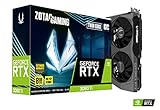
- NVIDIA Ampere architecture, 2nd Gen Ray Tracing Cores, 3rd Gen Tensor Cores.Power Consumption : 200W. Slot Size : Dual Slot
- Boost Clock 1695 MHz, 8GB 256-bit GDDR6, 14 Gbps, PCIE 4.0; Low Hash Rate (LHR) 25 MH/s ETH hash rate (est.)
- White LED Logo Lighting, IceStorm 2.0 Advanced Cooling, Active Fan Control, Freeze Fan Stop, Metal Backplate
- 8K Ready, 4 Display Ready, HDCP 2.3, VR Ready.Avoid using unofficial software
- 3 x DisplayPort 1.4a, 1 x HDMI 2.1, DirectX 12 Ultimate, Vulkan RT API, OpenGL 4.6
Two practical starting profiles
PC close to the minimum tier
Use fullscreen, V-Sync off, low shadows, low lighting, low effects, disabled motion blur and depth of field, and medium textures. Keep the game at your monitor’s native resolution initially so that you know which setting changed performance. If frame times remain high, test a lower available resolution or render option only after the individual quality controls have been measured.
PC close to the recommended tier
Start with fullscreen and V-Sync off, medium textures, and low-to-medium shadows, lighting, and effects. Raise one quality setting at a time in the same scene. High textures are worth testing with an 8-GB card when memory remains available; do not raise every setting simultaneously and assume the recommended list guarantees a particular refresh rate.
What is and is not established about performance
The published requirements identify hardware classes but do not provide a game-specific FPS target. The available graphics guidance also has no setting-by-setting benchmark or measured percentage gains. Consequently, claims such as “this preset guarantees 60 FPS” or “this map always runs at half the frame rate” go beyond the established evidence. Your repeatable scene, monitoring data, and frame-time notes are the reliable basis for a setting decision.
Use the minimum table to answer “will it launch on a supported configuration?” Use the recommended table to identify a more comfortable hardware target. Use the one-change-at-a-time process to find the best compromise for your monitor and the maps you actually play.
Do these 3 things before closing this tab:
1Scan for outdated or missing drivers - takes under a minute2Repair Windows errors before they cause bigger problems3Fix the driver behind crashes, sound loss and screen glitchesQuick Recap
Product prices and availability are accurate as of the date/time indicated and are subject to change. Any price and availability information displayed on Amazon at the time of purchase will apply.

