
Quick wins for a faster PC:
Fix the driver behind crashes, sound loss and screen glitchesFind Drivers →Clear out junk files and repair common Windows errorsFree Scan →iTechGuides is reader-supported. When you buy through links on our site, we may earn an affiliate commission. As an Amazon Associate I earn from qualifying purchases. Learn more
The Surface Slim Pen 2 remains Microsoft’s most capable Surface stylus in 2026, but its signature tactile feedback is not universal: the pen, Surface model, Windows version, firmware, and application all matter. Compatible Surface Pro and Surface Laptop Studio owners who write or draw regularly get the strongest experience; casual annotators and owners of older or non-inking Surfaces should probably skip the upgrade.
The Surface Slim Pen 2 is a rechargeable, flat-bodied active pen with pressure-sensitive inking, tilt support, Bluetooth shortcut buttons, wireless charging on compatible hardware, and a haptic motor Microsoft calls tactile signals. The pen launched in 2021, but current support documentation and a reported 2026 software update make its compatibility story more complicated than a simple “works with Surface” label suggests.
Key takeaways
- The Surface Slim Pen 2 provides pressure-sensitive inking, tilt support, Bluetooth shortcut functions, a replaceable tip, and tactile feedback on supported Surface hardware.
- Microsoft’s compatibility table treats basic inking, Bluetooth, tilt, charging, tactile signals, and zero-force inking as separate capabilities, so compatibility is not all-or-nothing.
- The pen’s haptic feedback can make glass feel more like paper, but the effect depends on the Surface model, Windows version, firmware, intensity setting, and application.
- Pairing requires holding the top button for 5–7 seconds until the LED flashes white, while tactile feedback is enabled under Windows 11’s Pen & Windows Ink settings.
- Microsoft lists the Surface Slim Pen (2nd Edition) as entering service on October 5, 2021, with accessory servicing scheduled through December 30, 2029.
What is the Surface Slim Pen 2?
The Surface Slim Pen 2 is Microsoft’s rechargeable active stylus for compatible Surface PCs and displays. Microsoft also calls the product Surface Slim Pen and Surface Slim Pen (2nd Edition) in current support documentation. The pen combines electromagnetic inking with Bluetooth controls and a haptic motor designed to send tactile signals through supported Surface hardware.
The Tool Desk
Outbyte Driver Updater FREEFix the driver behind crashes, sound loss and screen glitchesFind Drivers →Outbyte PC Repair FREEClear out junk files and repair common Windows errorsFree Scan →The flat body is designed to sit in a compatible keyboard tray or charging area rather than roll around like a traditional cylindrical pen. The pen includes a pressure-sensitive tip, a right-click/select button on the barrel, an LED indicator, and an eraser/top button. Bluetooth is primarily relevant to shortcut functions; basic electromagnetic inking can work independently of Bluetooth when the display supports the pen.
#1 Best Overall

- Sleek and comfortable. Slim carpenter-inspired style is perfect for all hands and is easy to hold and control.
- Take notes naturally. The haptic motor in Surface Slim Pen 2 brings the feeling of writing and drawing on paper to your PC's screen. (1)
- Surface Slim Pen 2 can help improve your productivity. You control the level of feedback you feel when you successfully select objects, hover, delete, and more. (1)
- Create in real time with zero force inking (2). Ink flows fluidly out of the pen the instant it hits the screen.
- The best shading experience yet. A sharper pen tip and an improved design let you approach the screen at a perfect angle for ultra-precise tilting, shading and an exceptional 4,096 points of pressure sensitivity. (1)
Microsoft’s compatibility documentation identifies up to 4,096 pressure points for supported Surface Slim Pen devices. Pressure sensitivity and tilt support are useful for handwriting, illustration, shading, and annotation, but the result still depends on the Surface digitizer and the application being used. The number of pressure levels alone does not guarantee that every app will produce the same response.
The tip is replaceable, but replacement should be treated as occasional maintenance rather than routine experimentation. Microsoft warns that 500 or more removal-and-reinsertion cycles can damage internal parts and cause inking failures; Microsoft also says that damage is excluded from warranty coverage. Follow Microsoft’s Surface Slim Pen instructions when replacing the tip.
What changed from the first-generation Surface Slim Pen?
The second-generation pen’s most important change is the addition of tactile feedback. The Slim Pen 2 also uses a newer Microsoft Pen Protocol implementation, retains the flatter storage-friendly shape, and supports zero-force inking on compatible hardware. Newer Surface keyboards and devices can integrate the pen’s storage and wireless charging more neatly than older designs.
The physical redesign is a trade-off rather than an automatic improvement. The flat profile is convenient to carry and store, but users who prefer the balance and grip of a round pen may find the Slim Pen 2 less natural during long writing sessions. Early hands-on coverage also found the shape awkward for some users, so comfort deserves as much attention as the specification list.
| Change or feature | Surface Slim Pen 2 | Why it matters |
|---|---|---|
| Haptic feedback | Yes, where supported | Creates a vibration-like resistance sensation while writing or interacting. |
| Body shape | Flat and compact | Stores neatly in compatible keyboard trays but may feel less comfortable than a round pen. |
| Inking | Pressure-sensitive | Supports handwriting and pressure variation on compatible displays. |
| Tilt | Supported on compatible hardware | Useful for drawing and shading, but not universal across every Surface model. |
| Charging | Wireless on compatible devices or accessories | Convenient when the correct keyboard or charging accessory is available. |
| Bluetooth | Required for shortcut functions | Enables pairing and top-button features; Bluetooth is not the same as basic inking compatibility. |
Microsoft’s Surface Pen compatibility table is the controlling reference because each capability is listed separately by Surface model. A device can accept handwriting while lacking tactile signals, zero-force inking, magnetic storage, or integrated charging.
How does the Surface Slim Pen 2 feel in use?
The most distinctive experience is not the pressure response or tilt support; it is the tactile signal. The pen does not create literal mechanical friction against the glass. Instead, the pen and compatible Surface hardware generate a vibration or resistance-like sensation that makes a smooth screen feel less inert.
Rank #2

- Take notes naturally: The haptic motor in Surface Slim Pen 2 brings the feeling of writing and drawing on paper to your PC's screen.
- Haptic Signaling: Haptic feedback is only compatible with Surface Pro 11, Surface Laptop Studio 2, Surface Pro 8, Surface Pro 9 and Surface Laptop Studio with Windows 11
- Precise rendering: A sharper pen tip and an improved design let you approach the screen at a perfect angle for ultra-precise tilting, shading and an exceptional 4,096 points of pressure sensitivity.
- Smooth and comfortable: Designed with a minimalist woodworking style, it fits all hand sizes and provides a comfortable grip and easy control.
- After-sales service: This package includes one Slim Pen 2, a Slim Pen 2 Tips replacement (3 Pack), and a pen holder. If you have any questions, please feel free to contact us.
When configured correctly, the sensation can resemble writing on paper closely enough to improve the subjective feeling of control. The effect is most noticeable during handwriting, drawing, and supported interface interactions. It does not turn a Surface screen into paper, and some users will experience the vibration as subtle or distracting rather than helpful.
Intensity matters. Early hands-on testing initially encountered a nonworking haptic experience because the tactile setting was not configured correctly; increasing the setting resolved the problem. That experience is a useful warning: a pen that writes normally but produces no tactile feedback is not necessarily defective. Check the setting, firmware, pairing, application, and device compatibility before returning the pen.
Microsoft originally positioned tactile signals as the result of the pen working with the Surface G6 processor, compatible Surface Pro 8 or Surface Laptop Studio hardware, and Windows 11 capabilities. A May 27, 2026 Windows Central report said a Slim Pen 2 software update added Windows 11 system-level haptic feedback. That update could make tactile feedback useful beyond the narrower app-specific experience described by early reviews, but the report does not establish one universal combination of Windows build, firmware, Surface model, and system interaction. Treat current Windows 11 haptics as conditional, not guaranteed on every Slim Pen 2 setup.
Which Surface devices support the Surface Slim Pen 2?
The exact Surface model determines which Slim Pen 2 features work. The compact matrix below reflects the supplied Microsoft compatibility data, but Microsoft’s live compatibility page should be checked before purchase because model support and labels can change.
| Surface device | Basic inking | Bluetooth | Tilt | Charging/storage | Tactile signals | Zero-force inking |
|---|---|---|---|---|---|---|
| Surface Pro 12-inch | Yes | Yes | Yes | Integrated on device | Yes | Yes |
| Surface Pro 11th Edition | Yes | Yes | Yes | Compatible keyboard/accessory | Device-dependent | Device-dependent |
| Surface Pro 10 for Business | Yes | Yes | Yes | Compatible keyboard/accessory | Device-dependent | Device-dependent |
| Surface Pro 9 | Yes | Yes | Yes | Compatible keyboard/accessory | Listed by Microsoft | Listed by Microsoft |
| Surface Pro 8 | Yes | Yes | Yes | Compatible keyboard/accessory | Yes | Yes |
| Surface Laptop Studio and Studio 2 | Yes | Yes | Yes | Integrated charging area | Yes | Yes |
| Surface Pro X | Yes | Yes | Yes | Compatible keyboard/accessory | No | Yes |
| Surface Duo 2 | Yes | Yes | No | Pen Cover required | No | No |
| Surface Hub 2S and Hub 3 | Yes | Yes | Yes | Device-specific | No | Yes |
Several Surface Laptop models do not support inking at all. Microsoft specifically identifies Surface Laptop 8th Edition, Surface Laptop 13-inch, Surface Laptop 7th Edition, and every Surface Laptop Go model as incompatible with Surface Slim Pen and Surface Pen because those computers lack pen/inking support. A Slim Pen 2 cannot add pen input to a display that was not built for it.
Windows Errors? Fix Them Before They Spread
Repair common Windows errors and clear accumulated junk for a smoother, more stable PC - no reinstall needed.Free scan · no reinstallCrashes, No Sound, or Screen Glitches?
Random freezes, missing sound and display glitches usually trace back to one bad driver. Find and replace yours safely.Free scan · under a minuteSurface Go owners should also check the exact model in Microsoft’s table rather than assuming that every Surface Go configuration has identical support. “Works with Surface” is too broad: verify inking first, then tilt, Bluetooth, charging, tactile signals, and zero-force inking separately.
Rank #3
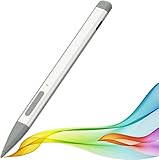
- ✍️【Advanced Conelike nib& Innovative graphite nib】Differ from the old-fashioned styluses with tubular tips,Jvkzaen Surface pen enjoys a cone tip for a strong signal and a more streamlined design on the whole. The innovative graphite nib can be used as a pencil, switching between tablet and paper at will.One graphite nib is equivalent to 50 pencils. Don't worry about the loss of inspiration brought by switching pens, inspiration is uninterrupted. Creation continues. All the creations you want in one stroke.
- ✍️【4096 Pressure Sensitivity& Eraser Side Button】Fine control with 4096 pressure points. Jvkzaen Surface pen ink flows out from a 1.0mm tip in real-time with no lag or latency. Delete mistakes quickly. An eraser button close to the place where your thumb will be put on.Besides, aluminum-alloy seamless body with a flat surface on both sides makes it more comfortable to grip and more likely to stay put on the desk.just like the Surface Slim Pen 2.
- ✍️【Double Magnets & Palm Rejection】Jvkzaen Surface pen is always ready to firmly attach to your Microsoft Surface tablets with 2 stronger built-in magnets. No fatigue on the wrist with 2 hands on the screen, and no breaking points when writing either. Jvkzaen Surface pen is always there and ready to jot down when inspiration strikes.
- 🔋【Type-C Charge &Smart Standby Surface Pen, No Panic】Enjoying Jvkzaen's leading Type-C charge and longer battery life,only 1hours of charging, 66 hours of use.Automatically turn in "Sleep Mode" if idle for 10 minutes to save power.
- 💻【Wide Compatibility】: Compatible with Surface Pro 12,Surface Pro 11th Edition,Surface Pro 10,Surface Pro 9, Surface Pro 8, Surface Pro 7+, Surface Pro 7, Surface Pro 6, Surface Pro 5, Surface Pro 4, Surface Pro 3, Surface Duo/ Duo 2, Surface Pro X, Surface Go/Go 2/Go 3, Surface Book/Book 2/Book 3, Surface Studio 1st Gen, Surface Studio 2, Surface Studio 2+, Surface Laptop 1/Laptop 2/Laptop 3/Laptop 4/Laptop 5, Surface Laptop Studio. *Not compatible with Surface Laptop Go, Surface Laptop Go 2 and others touch screen computers.
How should you test the pen?
A useful hands-on test should go beyond writing a few words. Test the pen in the way you expect to use it, because handwriting, drawing, and system interaction exercise different parts of the experience.
Writing test
- Write slowly and quickly to check small lettering and note-taking control.
- Draw diagonal, curved, and nearly horizontal strokes.
- Write for 30–60 minutes to assess the flat grip over a sustained session.
- Test palm rejection, hover behavior, and writing near the screen edges.
- Try the screen at different angles if you normally use a Surface as a tablet or laptop.
Drawing test
- Move from light to heavy pressure and back again.
- Use tilt shading if the application supports it.
- Draw slow lines, fast strokes, dots, and repeated taps.
- Check slow-speed tip control and whether the eraser responds naturally.
Tactile-feedback test
- Test Microsoft Journal or another known-supported inking application.
- Check Windows 11 system interactions only after installing current updates and pen firmware.
- Try low, medium, and high tactile intensity.
- Repeat the test with a well-charged pen and note whether the sensation changes with contact pressure or screen angle.
Do not publish a precise latency or accuracy number without a defined measurement method and appropriate equipment. The practical question is whether the pen feels controlled and comfortable for your work, not whether a specification sheet supplies a single universal score.
How do you set up the Surface Slim Pen 2?
Charge the pen first
- Place the pen in the charging area of a compatible Surface device or accessory.
- Charge it briefly before first use. Microsoft says the pen may need to charge for a second to wake.
- If the Surface has no charging bay, use a compatible charging accessory or standalone charger.
Magnetic attachment does not automatically mean wireless charging. Surface Pro, Surface Laptop Studio, Surface Duo 2, and other devices use different storage and charging arrangements. Microsoft’s Slim Pen setup and charging guidance should be checked for the exact device and accessory.
Recommended Free Tools
Pair it over Bluetooth
On Windows 11, open Start > Settings > Bluetooth & devices > Add device > Bluetooth. Hold the pen’s top button for 5–7 seconds, until the LED flashes white, then select Surface Slim Pen 2.
On Windows 10, open Start > Settings > Devices > Add Bluetooth or other device > Bluetooth. Hold the top button for 5–7 seconds until the LED flashes white, choose Bluetooth, and select Surface Slim Pen 2.
Enable tactile signals
- Open Start > Settings.
- Select Bluetooth & devices.
- Open Pen & Windows Ink.
- Choose Tactile signals.
- Turn tactile signals on and adjust the Intensity slider.
The control may be labeled “Tactile signals,” not “haptics.” That wording is one reason users can conclude that the feature is missing or broken.
Rank #4
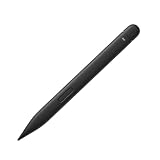
- New Design: A sharper tip design lets you approach the screen at the perfect angle for ultra-precise tilting. You can write and draw by tilting the tip of the slim pen 2.
- Please Note: No Charging Dock. Comfortable to Use: The stylus pen compatible with Surface pro 9 pen is lightweight, smooth and comfortable for all hands, easy to hold and control, and writes more smoothly.
- Low Latency: Slim pen compatible with surface pro 8 / 9 / 10 pen has a precision ink tip, and ink flows out of the tip as soon as it touches the screen with no delay.
- 4096 pressure points respond to the lightest of touches and control drawing for finer coloring and painting.
- After-sales Service: Package includes 1 × Slim Pen 2 compatible with microsoft surface. If you have any question, please feel free to contact us.
What should you do when the pen writes but haptics do not work?
When the Surface Slim Pen 2 writes normally but produces no tactile feedback, first verify that the Surface model supports tactile signals; ordinary inking does not prove haptic compatibility.
- Check the exact Surface model in Microsoft’s compatibility table.
- Install available Windows updates.
- Install Surface firmware and accessory updates.
- Pair the pen over Bluetooth.
- Open Pen & Windows Ink > Tactile signals.
- Turn the feature on and raise the intensity.
- Test a known-supported inking application.
- Restart the Surface and reconnect the pen.
- Repeat the test with a freshly charged pen.
- Remove and re-add the pen in Bluetooth settings if shortcut or tactile behavior remains unavailable.
Haptics depend on the pen, digitizer/display hardware, Windows, firmware, and application. A compatible pen alone is not enough.
What should you do if the pen is not detected?
If the Surface Slim Pen 2 is not detected, charge it briefly, enter pairing mode, and remove old Bluetooth records before pairing again.
- Charge the pen briefly to wake it.
- Confirm Bluetooth is enabled on the Surface.
- Hold the top button for 5–7 seconds until the LED flashes white.
- Remove any old Slim Pen 2 entry from Bluetooth settings.
- Pair the pen again.
- Try another compatible Surface if one is available.
If basic inking works but shortcut buttons do not, the likely problem is Bluetooth pairing rather than the display digitizer. If the pen charges nowhere, confirm that the device or keyboard actually has a Slim Pen charging area; a separate charger may be necessary.
Independent reader supportYour contribution helps us test, update, and keep practical guides available for everyone.How does the Surface Slim Pen 2 compare with alternatives?
| Option | Best for | Main advantage | Main limitation |
|---|---|---|---|
| Surface Slim Pen 2 | Modern compatible Surface Pro and Surface Laptop Studio owners | Strongest Microsoft integration, flat storage, charging, tilt, pressure sensitivity, and tactile signals where supported | Feature support varies, and the flat shape or separate charger may reduce its value |
| Standard Surface Pen | Users who want ordinary Surface writing at a lower cost | Conventional cylindrical grip and basic Surface inking | No Slim Pen 2 flat-storage experience or signature tactile feature |
| First-generation Surface Slim Pen | Buyers finding a discounted or used compatible pen | Flat form factor and older Surface integration | Older generation; compatibility and advanced features require careful checking |
| Third-party MPP stylus | Budget-conscious Windows pen users | Potentially lower purchase cost | Charging, buttons, tilt, pressure behavior, haptics, warranty, and protocol support can differ |
| No dedicated pen | Users who only need occasional touch input | No pen or charger cost | Not suitable for handwritten notes, drawing, or precise annotation |
Third-party MPP pens can be sensible alternatives, but lower price does not guarantee equivalent behavior. The third-party Surface pen comparison from Windows Central highlights differences in protocol support, pressure behavior, haptics, charging, and Surface integration. Professional users who depend on keyboard charging or tactile feedback should verify those features for the exact pen model.
Free tools Windows power users keep installed
One-click scans. No signup required.
Is the Surface Slim Pen 2 worth buying in 2026?
The Surface Slim Pen 2 is worth buying when the reader already owns compatible modern Surface hardware and writes, draws, or annotates frequently. The haptic feature is a meaningful reason to choose it, but only when the reader’s device and software support tactile signals. Wireless storage and charging also make the pen substantially more convenient when paired with the correct keyboard or charging area.
Best Value
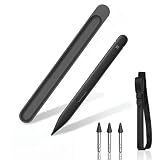
- Take notes naturally: The haptic motor in Surface Slim Pen 2 brings the feeling of writing and drawing on paper to your PC's screen.
- Haptic Signaling: Haptic feedback is only compatible with Surface Pro 11, Surface Laptop Studio 2, Surface Pro 8, Surface Pro 9 and Surface Laptop Studio with Windows 11
- Precise rendering: A sharper pen tip and an improved design let you approach the screen at a perfect angle for ultra-precise tilting, shading and an exceptional 4,096 points of pressure sensitivity.
- Smooth and comfortable: Designed with a minimalist woodworking style, it fits all hand sizes and provides a comfortable grip and easy control.
- After-sales service: This package includes one Slim Pen 2 & Charger, a Slim Pen 2 Tips replacement (3 Pack), and a pen holder. If you have any questions, please feel free to contact us.
The purchase is much less compelling for a person who already owns a working standard Surface Pen and only annotates occasionally. The upgrade is also a poor choice for Surface Laptop Go and other non-inking Surface Laptop owners, because the pen cannot add digitizer support. Owners of older Surface hardware should confirm advanced-feature support rather than paying for capabilities their device cannot use.
Budget calculations should include more than the pen. A buyer without an integrated charging bay may need a compatible Slim Pen charger or keyboard. A Microsoft UK product page showed a £90 price including VAT, reduced from £119.99, when crawled; that is a UK price signal, not a current US price. Windows Central reported a regular US price of $129.99 and a temporary Best Buy price of $106.99 on May 27, 2026. Those figures are dated market signals, not a guaranteed August 2026 price.
| Buy the Slim Pen 2 if… | Skip it or choose another pen if… |
|---|---|
| You own a compatible Surface Pro or Surface Laptop Studio. | You own Surface Laptop Go or another non-inking Surface Laptop. |
| You take handwritten notes, draw, or annotate PDFs regularly. | You only need occasional pointing or annotation. |
| You value keyboard storage and wireless charging. | You would need an expensive separate charger for infrequent use. |
| You want tactile feedback and your hardware supports it. | You expect haptics to work on every Surface and in every application. |
| You prefer a compact flat pen. | You prefer the grip of a conventional cylindrical pen. |
Microsoft lists the Slim Pen (2nd Edition) lifecycle as starting October 5, 2021, with accessory servicing through December 30, 2029, according to Microsoft’s Surface accessories lifecycle table. Servicing coverage does not guarantee retail availability, a particular sale price, or future feature updates.
Do these 3 things before closing this tab:
1Repair Windows errors before they cause bigger problems2Fix the driver behind crashes, sound loss and screen glitches3Clear out junk files and repair common Windows errorsFrequently Asked Questions
Does the Surface Slim Pen 2 work with every Surface device?
No. The Surface Slim Pen 2 supports different features on different Surface models, and some Surface Laptop models do not support inking at all. Check Microsoft’s compatibility table for the exact device before buying.
Why does my Surface Slim Pen 2 write but not vibrate?
The Surface Slim Pen 2 can write without supporting tactile signals. Confirm that the Surface model supports haptics, install Windows and firmware updates, pair the pen over Bluetooth, enable Pen & Windows Ink > Tactile signals, and increase the intensity.
Does the Surface Slim Pen 2 need Bluetooth to write?
Bluetooth is needed for shortcut-button functions, but basic electromagnetic inking can work without Bluetooth on compatible Surface displays. Pairing is still recommended for the complete feature set.
Can the Surface Slim Pen 2 charge on any Surface keyboard?
No. Charging requires a compatible Surface device, keyboard, Pen Cover, or standalone charger. Magnetic attachment alone does not prove that wireless charging is supported.
What’s actually slowing this PC down?
Pick the symptom - the matching free tool is one click away.
Is the Surface Slim Pen 2 better than the standard Surface Pen?
The Surface Slim Pen 2 is better for users who want a flat body, compatible keyboard charging, and tactile feedback. The standard Surface Pen may be the better value for basic inking and users who prefer a conventional round grip.
The Bottom Line
Bottom line: The Surface Slim Pen 2 is the best-integrated Surface stylus for compatible modern Surface hardware, especially for frequent handwriting, drawing, and annotation. Buy it for the combination of storage, charging, pressure sensitivity, tilt, and conditional tactile feedback—not simply because it says “Surface” on the box. Check the exact compatibility row, confirm how the pen will charge, and remember that the haptic experience depends on Windows, firmware, hardware, and app support.
Quick Recap
Product prices and availability are accurate as of the date/time indicated and are subject to change. Any price and availability information displayed on Amazon at the time of purchase will apply.

