
Do these 3 things before closing this tab:
1Fix the driver behind crashes, sound loss and screen glitches2Clear out junk files and repair common Windows errors3Scan for outdated or missing drivers - takes under a minuteiTechGuides is reader-supported. When you buy through links on our site, we may earn an affiliate commission. As an Amazon Associate I earn from qualifying purchases. Learn more
Neither category wins for every player. Choose a gaming headset when sound must stay private, you need dependable voice chat, or you play where room noise and speaker volume are problems. Choose a gaming soundbar when game audio should fill a shared room, you do not want to wear headphones, or one audio system must also serve a TV and other entertainment.
The right choice depends on your listening boundary, microphone needs, console or PC connection path, spatial-audio support, room layout, and—when a TV is involved—HDMI eARC and video pass-through specifications. The product label alone cannot answer those questions.
Start with the listening boundary
The most useful first question is whether audio belongs to one player or to everyone in the room. ASUS ROG describes a headset as personal listening and a soundbar as room-filling audio in its comparison guide. That is manufacturer guidance rather than a controlled study, but it is a practical way to frame the decision.
What’s actually slowing this PC down?
Pick the symptom - the matching free tool is one click away.
When a headset fits
- Private play: The earcups keep game sound with the wearer, which suits bedrooms, shared homes, late-night sessions, and environments where speaker volume would disturb someone else.
- Voice chat: A boom microphone sits close to the mouth. ASUS notes that this placement can avoid many pickup problems and give a headset an edge for consistent speech.
- Portable or changing setups: A headset can move between a desk, console, and mobile device without requiring a speaker position in each room.
- Room-independent listening: You do not need to arrange furniture or tune a room before playing.
When a soundbar fits
- Shared-room gaming: Everyone can hear the game, which is useful for party games, couch co-op, spectators, and a living-room console.
- No-wear comfort: You avoid clamping force, heat, and the physical feeling of wearing headphones for long sessions.
- One system for several sources: A soundbar can serve a console, PC, television, streaming box, or other device when its inputs support them.
- TV-style presentation: The sound comes from the display area instead of from two drivers attached to your head.
Privacy and room sharing are opposing goals. A soundbar cannot make loud game audio private, and a headset cannot fill a room for other listeners. Decide that boundary before comparing surround formats or wireless modes.
#1 Best Overall
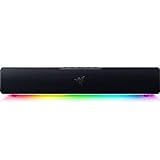
- PC Soundbar with Full-Range Drivers: Armed with two full-range drivers and two passive radiators, the Leviathan V2 X delivers a riveting audio experience across all your entertainment.Waterproof : No
- Compact Desktop Form Factor: The most compact soundbar in our Leviathan V2 range fits perfectly beneath your monitor for a clutter-free desktop
- USB Type C Power and Audio Delivery: Powered by a single USB Type C cable to deliver dynamic audio with a volume output of up to 90Db and enables for an easy setup
- Bluetooth 5.0: Enjoy smooth, stutter-free sound with a low-latency Bluetooth connection, as you switch seamlessly between your PC and your preferred mobile device that’s conveniently paired via the Razer Audio App
- Powered by Razer Chroma RGB: With 14 lighting zones, countless patterns, dynamic in-game lighting effects—experience full RGB customization and deeper immersion with the world’s largest lighting ecosystem for gaming devices
Microphones and voice chat
Do not assume that every gaming soundbar includes a microphone. Microphone hardware and chat routing are model-specific.
Headset microphone behavior
A boom mic is positioned inches from your mouth, so your voice reaches it directly. That short distance is the reason ASUS ROG says a boom can sidestep common audio-pickup challenges. It does not guarantee perfect chat: the console or PC still has to select the headset as its input, and the game or chat service must be configured to use it.
Soundbar microphone behavior
The ASUS ROG Gjallar gaming soundbar lists built-in acoustic echo-cancellation microphones. Echo cancellation is intended to help a far-field microphone distinguish speech from the sound coming through the speakers, but the microphone is still across the room rather than beside your mouth. Room reflections, television volume, and other people talking can therefore affect pickup more than they would with a boom mic. Treat the Gjallar specification as a feature of that model, not proof that all soundbars support voice chat.
The Tool Desk
Outbyte Driver Updater FREEFix the driver behind crashes, sound loss and screen glitchesFind Drivers →Outbyte PC Repair FREERepair Windows errors before they cause bigger problemsFix Now →Chat checklist
- Confirm that the chosen device actually has a microphone. Look for a boom mic on a headset or a published microphone specification on a soundbar.
- Connect the device using the mode you intend to use for chat. A headset may expose separate playback and microphone endpoints over USB, while a soundbar may depend on a console, TV, or its own USB path.
- In the console or PC audio settings, select the intended input and output instead of leaving both on automatic selection.
- Run the platform’s microphone test and listen for echo, clipping, or a low level before launching a multiplayer game.
- If room audio leaks into the microphone, lower speaker volume, move the bar or microphone away from reflective surfaces, or use a headset for sessions where chat clarity matters most.
Connections and platform compatibility
Compatibility is determined by the complete chain—source, cable or wireless link, display, and audio device—not by the words gaming soundbar or gaming headset on the box.
Soundbar connection paths
The Gjallar product page lists USB-C, HDMI 2.1 eARC, optical, AUX, and Bluetooth 5.3. Those options cover several common arrangements, but they do not mean every console exposes every feature through every port. For example, a TV may pass audio to a bar through eARC while a PC may connect directly over USB-C or optical.
For a console connected to a TV, map the signal before buying:
Rank #2

- Surge Stereo Sound - 4 large amplifier IC horns! Computer speakers achieved Distortion Free and Noiseless in stunning sound. Immersive cinema effect for movies, videos, games and music.
- Touch Angular Game Lights - Unique Dynamic Angular Game Atmosphere design! Desktop speaker with latest One Touch to turn on/off lights, avoid the traditional cumbersome button design.
- All In One Compact - Fits any desktop computer! Perfectly under the monitor without taking up any extra desktop space. Cables are glued together to avoid desktop clutter.
- Plug And Play - No need for any driver! Must Plug in the USB powered cable and 3.5mm audio cable to enjoy now! Top volume knob for easier volume adjustment.
- Type C Adapter Included & Compatibility - USB speakers match computers, desktops, PCs, laptops. Suitable for windows(Vista/7/8/10), Mac OS, Chrome OS, etc.
- Identify where the console’s video and audio leave the console.
- Check whether the TV has an HDMI eARC port, not merely a standard HDMI input.
- Verify that the soundbar accepts the same return-audio format and that the TV can pass the console’s chosen audio mode.
- Decide whether the console plugs into the TV or into an HDMI input on the bar. If the bar handles video, check its refresh-rate and resolution pass-through limits.
- Set the TV’s audio output to the eARC or external-speaker option and confirm that the bar reports an audio signal.
Headset connection paths
The JBL Quantum 520X is listed as compatible with Windows, Mac, mobile devices, Xbox, PlayStation, and Switch. JBL also lists USB-C audio, a 2.4 GHz wireless mode, Bluetooth 5.4, and a boom microphone. These are capabilities of that headset; platform support and available features can change with the selected connection mode, so check the exact console and mode you plan to use.
Windows Errors? Fix Them Before They Spread
Repair common Windows errors and clear accumulated junk for a smoother, more stable PC - no reinstall needed.Free scan · no reinstallCrashes, No Sound, or Screen Glitches?
Random freezes, missing sound and display glitches usually trace back to one bad driver. Find and replace yours safely.Free scan · under a minuteA wireless headset may use a USB transmitter for a console or PC and Bluetooth for a phone. Bluetooth availability does not by itself establish that a console supports Bluetooth game audio or microphone access. Confirm the platform’s supported wireless method before purchase.
Connection comparison
| Requirement | Headset consideration | Soundbar consideration |
|---|---|---|
| Private listening | Designed for one wearer | Audio is audible in the room |
| Voice input | Boom microphone is close to the mouth | Microphone presence and echo handling vary by model |
| Typical direct links | USB, 2.4 GHz wireless, Bluetooth, or an analog connection depending on model | HDMI eARC, optical, USB-C, AUX, or Bluetooth depending on model |
| Platform coverage | Must be checked for the specific console, PC, mobile device, and wireless mode | Must be checked for the source, TV, eARC path, and audio formats |
| Display pass-through | Normally outside the headset’s signal path | Important when the console or PC connects through the bar |
Spatial audio and latency are implementation-specific
There is no evidence here that one category always provides better positional cues or lower latency. Driver layout, signal processing, the game, the operating system, and the connection mode all matter.
Soundbar spatial formats
ASUS lists the Gjallar as a 2.1.2 soundbar with Dolby Atmos support. The “2.1.2” designation describes two main channels, a subwoofer channel, and two height channels in the product’s design; Dolby Atmos support describes a format the bar can decode. Neither specification is an independent measurement of positional accuracy in a particular game.
Headset latency claims
JBL describes USB-C audio on the Quantum 520X as low latency and lists both 2.4 GHz and Bluetooth 5.4 modes. “Low latency” is a manufacturer claim, not a published head-to-head measurement against a soundbar. If timing is critical, use the connection mode identified by the manufacturer for gaming and avoid assuming that Bluetooth and USB-C behave identically.
Game and platform support
Spatial audio only helps when the game and platform output a compatible signal and the device is configured to receive it. Check the game’s audio menu, the console or PC spatial-audio setting, and the soundbar or headset mode. If several layers apply processing at once, compare them carefully rather than enabling every virtual-surround option automatically.
Rank #3
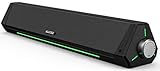
- 【Hi-Fi Sound Quality】Featuring dual drivers and dual diaphragms, these computer speakers deliver a harmonious blend of high-pitched notes and deep bass. With anti-magnetic technology eliminating static interference, you'll enjoy a crisper, more immersive audio journey.
- 【2 Ways to Connect】No need to worry about this computer soundbar not being compatible with your existing devices. Featuring both a 3.5mm headphone plug and Bluetooth 5.0 function, connects effortlessly with your preferred device.
- 【Relaxing Ambiance Lights】Gentle light strips complement the avant-garde design of the computer speaker, elevating your auditory experience, and adding a touch of elegance to your desk.
- 【Simple USB-powered】Simply plug into a USB port - be it from a laptop, PC, power bank, or adapter, and the computer soundbar powers on instantly. No additional drivers or software required, just plug and play.
- 【Compact Profile Design】Slim and futuristic design, which allows the Bluedee computer soundbar to fit neatly below your computer monitor without taking up much desk space; The speaker measures 16.4" W x 2.6" D x 2.6" H.
TV gaming, eARC, and 120 Hz pass-through
An HDMI-connected TV setup adds a video requirement that a desk headset usually avoids. If the console plugs into the soundbar, the bar must pass the required resolution and refresh rate to the display. If the console plugs into the TV, the TV must return audio to the bar through a compatible eARC connection.
Samsung’s UK product page for the 2026 Q990H states that its HDMI 2.1 eARC connection supports Dolby Atmos or DTS:X and 120 Hz pass-through. Those specifications apply to that regional model and should not be generalized to other soundbars.
Questions to answer before buying a bar for a high-refresh TV
- Does the bar have HDMI 2.1 eARC, and does the television have an eARC port?
- Does the bar’s pass-through support the console’s target resolution, HDR mode, and refresh rate?
- Will using the bar add an input-switching step or limit the number of full-bandwidth HDMI ports available?
- Can the TV pass the required audio format back to the bar when the console is connected directly to the TV?
If any answer is unclear, connect the console directly to the TV and use eARC for audio only, provided the TV and bar support the required format. This avoids assuming that an unverified pass-through specification will preserve your display settings.
Quick wins for a faster PC:
Repair Windows errors before they cause bigger problemsFix Now →Scan for outdated or missing drivers - takes under a minuteDriver Scan →Placement and room acoustics
Headset placement
A headset is largely independent of furniture and speaker position. Adjust the headband and earcup seal, place the boom consistently near your mouth, and keep the microphone from rubbing against clothing. Wireless models also need a clear path for their transmitter or a charged battery; the exact range and battery behavior are model-specific and should be checked in the product documentation.
Soundbar placement
Place a bar below or directly in front of the display with its drivers unobstructed. Do not hide it inside a cabinet if the cabinet blocks the front or upward-firing channels. Keep the bar stable, leave room for its power and signal cables, and position any separate subwoofer where it does not create a trip hazard or excessive vibration.
Room surfaces change what you hear. Hard walls and bare floors can produce stronger reflections, while soft furnishings absorb some energy. If dialogue or effects sound vague, first check placement, listening position, and the bar’s available calibration or sound modes before concluding that the category is unsuitable.
Rank #4
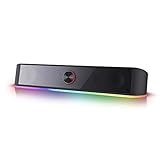
- Rich Sounds & Look - The first Redragon RGB sound bar has the upgraded driver that delivers clear and crystal sound quality combined with rich bass. 4 different backlit modes includes both dynamic and static glowing LED illumination.
- Lightshow Projection - What's better than play your favorite music while gaming or working? An illuminating backlight show sync to the playing music. Classic with RGB, you can sit and watch this all day.
- Bounce to Daylight - Easy to place it underneath any device you have, about 16 inches compact size suits perfect for your audio system. Whether you’re feeling Wave, Disco, Rain, or something in-between, start bouncing with your music today.
- Handy Volume Knob - Delicate and compact volume knob combined with on/off switch offers you a convenient and precise volume adjustment.
- Plug & Play for Broad Compatibility - USB powered with 3.5mm audio cables allows this rockstar to party on wide type of stages for PC, TV, Laptop and Smartphone. Get it all connected well on your device and spice up your next party.
Step-by-step setup workflows
Headset on a PC
- Connect the headset through the gaming-oriented mode specified by its manufacturer, such as USB-C or a 2.4 GHz transmitter.
- Open the operating system’s sound settings and select the headset for both output and microphone input.
- Set the game’s output device to the system default or the named headset, depending on how your PC is configured.
- Run a voice recording or platform microphone test, then adjust input level so normal speech is clear without clipping.
- Enable a spatial-audio mode only after confirming that the game and headset support the same processing path. Compare it with the game’s unprocessed mode using a familiar scene.
Headset on a console
- Confirm whether the console supports the headset through its USB transmitter, USB-C cable, controller jack, or another listed method.
- Connect the selected interface and wait for the console to identify the headset.
- In the console’s audio and chat settings, choose the headset for game output and microphone input.
- Use the console’s chat mixer to balance game sound and voices, then ask a party member to check for echo or dropouts.
- For a multiplatform headset, repeat the check with each console rather than assuming that one platform’s wireless mode applies to another.
Soundbar with a TV and console
- Decide whether the console will connect to the TV or to an HDMI input on the soundbar.
- Use the TV’s eARC port for the return-audio connection when the bar and TV support eARC.
- Verify the bar’s pass-through specifications if the console’s video travels through the bar, including refresh rate and resolution.
- On the TV, select the external-speaker or eARC output and choose the appropriate digital-audio format.
- On the console, select the output format supported by the TV-to-bar chain. Start with a compatible setting before enabling Dolby Atmos, DTS:X, or another spatial option.
- Play a known game and check dialogue, effects, and channel behavior from your normal seat. If audio disappears when changing inputs or refresh rates, test the console connected directly to the TV and use eARC for audio.
Soundbar with a PC
- Choose a direct USB-C, optical, AUX, or HDMI route based on the PC’s available outputs and the bar’s inputs.
- Set the bar as the PC’s playback device and disable unused outputs that could capture audio automatically.
- If the PC connects through a monitor or TV, verify that the display can pass audio to the bar and preserve the desired refresh rate.
- Test a game at the display’s normal resolution and refresh rate before rearranging cables permanently.
Examples of what the specifications do—and do not—tell you
| Product example | Published specifications | What you still need to verify |
|---|---|---|
| ASUS ROG Gjallar gaming soundbar | 2.1.2 sound, Dolby Atmos support, USB-C, HDMI 2.1 eARC, optical, AUX, Bluetooth 5.3, built-in acoustic echo-cancellation microphones, and up to 4K/120 Hz pass-through | Whether your console, TV, and chosen cable expose those features together; these are manufacturer-published claims rather than independent measurements |
| JBL Quantum 520X headset | Windows, Mac, mobile, Xbox, PlayStation, and Switch compatibility; USB-C audio; 2.4 GHz and Bluetooth 5.4 modes; boom microphone | The supported connection mode and feature set for your specific platform |
| Samsung Q990H soundbar | UK page lists HDMI 2.1 eARC, Dolby Atmos and DTS:X support, and 120 Hz pass-through | Whether the same specification applies to the regional model you can buy and to your display’s exact video modes |
These examples illustrate why category-level comparisons are limited. The ASUS bar’s microphone and pass-through features are not universal soundbar properties, and the JBL headset’s platform list does not guarantee identical behavior over every connection.
Choose by scenario
Bedroom or shared home
Pick a headset if other people need quiet, if you play late, or if microphone clarity is important. A soundbar is sensible only when room volume is acceptable and privacy is not a requirement.
Living-room console with several listeners
Pick a soundbar when spectators or co-op players need to hear the game. Confirm the TV’s eARC path and any 120 Hz requirement before connecting the console through the bar.
Competitive multiplayer with frequent chat
A headset is the lower-risk choice because the boom is near your mouth and the audio does not need to compete with room reflections. A soundbar can work when its microphone and chat routing are explicitly supported, but verify them before relying on it.
One device for gaming and TV entertainment
A soundbar can reduce the number of devices in the room, provided its inputs and formats match every source. A headset remains better when entertainment must remain private or when you move between several locations.
Desk setup with a high-refresh monitor
Start with a headset if you want to avoid placing speakers around the monitor or routing video through an audio device. Choose a soundbar only after confirming its input path preserves the monitor’s resolution and refresh rate.
Best Value

- Multi-Driver PC Soundbar & Subwoofer: Packed with 2 full-range drivers, a down-firing subwoofer, and more, this all-in-one sound system is designed to provide full-range, high-fidelity sound that elevates your audio experience.Waterproof : No
- THX Spatial Audio: Advanced 7.1 surround sound delivers audio with pinpoint accuracy, allowing for a more realistic and detailed soundstage that makes movies, games, and music truly come alive
- Compact Desktop Form Factor: Fits perfectly beneath a monitor to keep desktops clutter-free, while detachable rubber feet keep it angled towards you for minimal audio obstruction
- Bluetooth 5.2: Enjoy smooth, stutter-free sound with a low-latency Bluetooth connection, as you switch from your PC to as many as 8 other devices conveniently paired via the Razer Audio App
- Powered by Razer Chroma: With 18 lighting zones, countless patterns, dynamic in-game lighting effects—experience full RGB customization and deeper immersion with the world’s largest lighting ecosystem for gaming devices
Common mistakes and fixes
Buying by channel count alone
A number such as 2.1.2 describes a product’s channel arrangement, not how accurately it will place sounds in your game. Check the game’s spatial-audio support and your connection path instead.
Assuming Bluetooth is suitable for every console
Bluetooth 5.3 or 5.4 identifies a radio version, not universal console support or guaranteed gaming latency. Use the platform-specific USB or 2.4 GHz method when the manufacturer identifies one for gaming.
Ignoring the microphone
Some bars have no microphone, and a far-field microphone behaves differently from a boom. Confirm the hardware and test chat before discarding a headset.
Routing a 120 Hz signal through an unverified bar
If the bar’s pass-through limit is lower than the console or display mode, connect the console directly to the TV and return audio over eARC, or choose a bar whose published specification covers the mode.
Enabling multiple spatial processors
Running a game’s spatial mix, an operating-system effect, and a bar or headset virtual-surround mode at the same time can change the sound unpredictably. Compare one processing path at a time and keep the setting that gives you the clearest result.
Placing a soundbar where its drivers are blocked
A cabinet, monitor stand, or decorative object can obstruct the bar. Move it into the open, keep it aimed toward the listening position, and retest before changing advanced audio settings.
Quick Recap
Final buying checklist
- Decide whether audio must be private or shared.
- List every source: console, PC, TV, mobile device, and streaming hardware.
- Map the complete cable or wireless path before ordering.
- Confirm microphone hardware and chat support for the exact platform.
- Check the game and platform’s spatial-audio requirements.
- For a TV, verify eARC, audio-format support, resolution, HDR, and refresh-rate pass-through.
- Allow for placement, room reflections, cable reach, and power near the chosen position.
- Test the setup at your normal seat with the games and chat services you actually use.
Product prices and availability are accurate as of the date/time indicated and are subject to change. Any price and availability information displayed on Amazon at the time of purchase will apply.
Recommended Free Tools

