
iTechGuides is reader-supported. When you buy through links on our site, we may earn an affiliate commission. As an Amazon Associate I earn from qualifying purchases. Learn more
If Lighthouse reports slow mobile Largest Contentful Paint (LCP), first confirm that the hero image is the LCP element. Then check when the browser discovers it, how it is prioritized, and what else is competing for bandwidth. Compression can reduce image transfer time, but it cannot fix delayed discovery, render delay, or a slow server response on its own.
What LCP measures—and why the hero may not be the cause
LCP records when the largest visible image, text block, or video has rendered relative to navigation. A hero image is a common candidate, but the candidate can change while the page loads. Use Lighthouse to identify the actual element before changing its markup.


Web.dev defines a good LCP as 2.5 seconds or less at the 75th percentile, assessed separately for mobile and desktop. Field LCP includes delays such as time to first byte (TTFB) and connection setup, so improving an image request may not bring the overall metric below that threshold. Read web.dev’s LCP guidance.
Quick wins for a faster PC:
Scan for outdated or missing drivers - takes under a minuteDriver Scan →Clear out junk files and repair common Windows errorsFree Scan →How do I find the LCP element in Lighthouse?
- Run Lighthouse with the mobile configuration for the page you want to diagnose.
- Open the Largest Contentful Paint element audit and note the element it identifies.
- Check whether that element is the hero image. If it is text or another element, focus your investigation there rather than assuming the image is responsible.
- Inspect the network waterfall to see when the LCP resource request begins, its priority, and whether other early requests compete with it.
After changes, repeat the audit and compare both the LCP element and waterfall. Where field data is available, review it separately from the lab result; one Lighthouse run cannot establish what users experience across devices and connections. Chrome’s Lighthouse documentation explains the LCP audit.
#1 Best Overall

- EXPAND YOUR HORIZONS: 3440 x1440 UltraWide QHD (WQHD) resolution with 21:9 aspect ratio for efficient productivity
- CURVED IMMERSION: The 1500R radius curved VA panel allows for more immersion and better color accuracy. It can also help alleviate eye strain during long hours of working
- RICH COLORS FOR WORK AND PLAY: Ultra Wide-Color technology produces true-to-life images and a wider spectrum of colors with sRBG 123.24 percent , NTSC 99.25 percent color gamut area coverage
- WINDOWS HELLO WEBCAM WITH NOISE-CANCELING MIC: Comes with built-in 5MP webcam, noise canceling microphone, and speakers, perfect for remote working. The webcam is equipped with advanced sensors for Windows Hello facial recognition, which conveniently logs you into your Windows devices in less than 2 seconds
- ONE CABLE IS ALL YOU NEED: USB-C docking transfers high-speed data, high-resolution video signal, and power to your laptop (up to 65W of Power Delivery support) via a single USB-C cable. Play and work in high resolution while simultaneously charging your notebook
How do I improve LCP on mobile?
1. Make the image discoverable in the initial HTML
When the LCP is an image, include its URL in the initial markup with src or srcset where possible. If the browser only learns the URL after running JavaScript, reading a hidden data-src, or processing CSS, the request may start later than it needs to.
For example, an initial-HTML hero can use responsive candidates and a selective high-priority hint:
Rank #2
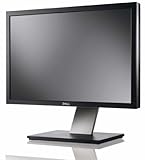
- Dell UltraSharp U2410 - LCD display - IPS- 24" - widescreen - 1920 x 1200 / 60 Hz
<img
  src="/images/hero.webp"
  srcset="/images/hero-640.webp 640w, /images/hero-1280.webp 1280w"
  sizes="100vw"
  width="1280"
  height="720"
  fetchpriority="high"
  alt="Descriptive image text"
>
The browser chooses the request and controls its scheduling. Ensure the candidates, dimensions, and sizing match the image’s actual presentation so a small mobile viewport does not needlessly download an oversized asset. Web.dev’s LCP optimization guidance covers image discovery and prioritization.
The Tool Desk
Outbyte PC Repair FREERepair Windows errors before they cause bigger problemsFix Now →Outbyte Driver Updater FREEScan for outdated or missing drivers - takes under a minuteDriver Scan →2. Do not lazy-load an above-the-fold LCP image
Remove loading="lazy" from the image if it is the LCP element. Web.dev states: “Never lazy-load your LCP image, as that will always lead to unnecessary resource load delay, and will have a negative impact on LCP.” If a site-wide rule applies lazy loading automatically, loading="eager" can counter it for this image. Keep lazy loading for offscreen images where it is appropriate.
3. Use fetchpriority selectively
fetchpriority="high" is a hint for a resource the browser should treat as important; it is not a directive and does not guarantee a faster LCP. Apply it to the confirmed critical image, not every image. Raising several resources can make them compete for the same scarce early bandwidth. Web.dev explains fetch priority and its trade-offs.
4. Consider preload only when discovery is late
Preload can help the browser discover an image that is otherwise hidden until CSS processing, such as a critical CSS background. It complements fetch priority: preload addresses discovery, while fetchpriority provides a priority hint. Do not preload an image already discovered promptly from initial HTML without evidence that doing so helps.
Rank #4
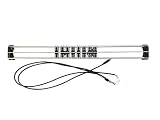
- Exclusively compatible with N scale locomotives, this test stand works with most standard N gauge models, making it a flexible and practical addition to any hobbyist’s collection.
- With a straightforward structure and simple connection design, the rolling test stand can be assembled and put into use quickly without complicated tools or procedures.
- Manufactured from premium metal materials, the test bench offers excellent stability and wear resistance, ensuring reliable performance even with frequent daily use.
- This dedicated test treadmill lets you safely debug, test speed and inspect locomotive performance, greatly upgrading the fun and professionalism of your model train hobby.
- This is not a toy. Not intended for use by children under 14.
For a non-responsive critical image, a head preload could look like this:
Do these 3 things before closing this tab:
1Repair Windows errors before they cause bigger problems2Scan for outdated or missing drivers - takes under a minute3Clear out junk files and repair common Windows errors<link rel="preload" as="image" href="/images/hero.webp" fetchpriority="high">For responsive images, align imagesrcset and imagesizes on the preload with the rendered image’s srcset and sizes. Otherwise the preload may fetch a different file from the one the image element uses, wasting bandwidth. Avoid preloading multiple formats or candidates indiscriminately: unsupported selection behavior can result in duplicate downloads, and excessive preloads can delay CSS, scripts, or fonts. Web.dev’s responsive image preload guidance describes the selection attributes.
Best Value
Should I preload my hero image?
Preload it when the waterfall shows that the browser discovers the image too late—for example, because CSS must be processed before the background URL is known. If the image is already in the initial HTML and requested early, first investigate its selected size, priority, transfer duration, and other bottlenecks. A preload is useful only if it improves discovery without delaying a more important request.
Does fetchpriority=”high” improve LCP?
It can when a critical image is not getting appropriate scheduling, but results depend on the page and its request competition. Web.dev reports a Google Flights experiment in which Fetch Priority improved LCP from 2.6 seconds to 1.9 seconds, a 0.7-second decrease. That is an experiment result, not a guaranteed gain for another site. See the Fetch Priority article.
How to tell whether the change worked
- Discovery delay: Did the image request begin earlier after moving its URL into initial HTML or adding a justified preload?
- Priority: Does the critical image have an appropriate priority, without promoting multiple competing images?
- Image selection: Is the browser fetching a responsive candidate suited to the mobile viewport rather than an unnecessarily large file?
- Bandwidth competition: Did a preload help the image without pushing back CSS, scripts, or fonts needed for rendering?
- Remaining LCP time: Does the waterfall indicate image load delay or duration, render delay, or TTFB? These are different parts of the problem and need different fixes.
Re-run Lighthouse after each meaningful change and compare the LCP element and request waterfall. Check field LCP as well when data is available, segmented by mobile and desktop. If the image now loads early but LCP remains slow, continue investigating server response and render delay rather than repeatedly increasing image priority or adding more preloads. Web.dev’s LCP guidance discusses the distinct delays that contribute to the metric.
What’s actually slowing this PC down?
Pick the symptom - the matching free tool is one click away.
Quick Recap
Product prices and availability are accurate as of the date/time indicated and are subject to change. Any price and availability information displayed on Amazon at the time of purchase will apply.

