
iTechGuides is reader-supported. When you buy through links on our site, we may earn an affiliate commission. As an Amazon Associate I earn from qualifying purchases. Learn more
Before launching a new FINAL FANTASY XIV expansion, protect your HUD and controls, verify the updated hardware requirements, cap frame rate, update graphics drivers, and tune performance settings in a deliberate order. The steps below cover Windows, Mac, PlayStation and Xbox differences, including the PS4-to-PS5 transfer trap.
Use this pre-expansion order
- Back up character configuration, HUD layouts, hotbars, keybinds and controller mappings.
- Confirm that your operating system, memory, storage, graphics card and display meet the current requirements.
- Install the latest graphics driver before opening the updated client.
- Choose a frame-rate limit your system can sustain rather than leaving the game uncapped by default.
- Adjust upscaling, dynamic resolution, shadows, textures, anti-aliasing and ambient occlusion in that order.
- Test your controller, accessibility aids and overlay shortcuts in a quiet area and in a crowded combat scene.
These changes prevent the most avoidable problems: missing settings after a platform move, shader or driver stutter, unstable frame times, unreadable effects and keybind conflicts.


Protect your HUD and character configuration first
PS4 settings do not automatically move to PS5
Square Enix’s Patch 5.5 documentation states that PS4 HUD and game-configuration settings are not carried over automatically when moving to PS5. On the PS4, run FINAL FANTASY XIV’s Server Backup Function before changing consoles, then restore the data on the PS5. Do this before deleting the old installation or signing out of the PS4.
The Tool Desk
Outbyte Driver Updater FREEFix the driver behind crashes, sound loss and screen glitchesFind Drivers →Outbyte PC Repair FREEClear out junk files and repair common Windows errorsFree Scan →The backup is particularly important for players with custom hotbars, cross-hotbars, gear-set macros, HUD layouts, chat tabs or targeting rules. As an additional safeguard, capture screenshots of each HUD layout and write down any unusual controller assignments. Screenshots cannot restore a configuration automatically, but they give you a reference if a restore is incomplete.
#1 Best Overall
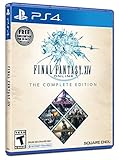
- A new adventure awaits in Norvrandt
- New jobs, including gun breaker and dancer
- New playable races: Viera and Hrothgar
- Level cap increase from 70 to 80
- New cities to explore: The Crystarium and Eulmore
Export or record the settings that are easiest to forget
- Hotbars and cross-hotbars, including shared bars and job-specific layouts.
- HUD Layout entries, element sizes, opacity and positioning.
- Keyboard shortcuts, mouse bindings and gamepad mappings.
- Gear-set macros, focus-target commands and targeting filters.
- Chat tabs, log filters, battle-effect preferences and system settings.
Keep this record until you have logged in, changed jobs and verified combat controls on the new client.
Allow a restart for high-resolution UI assets
On Windows and Mac, Patch 5.5 says the high-resolution UI setting takes effect after restarting the game. Enable it only when you have enough graphics memory and want sharper interface elements; close and relaunch the client before judging whether the change worked.
Check the current PC requirements before downloading an expansion
Square Enix’s 2026 system-requirements page lists the following Windows specifications. “Minimum” describes the listed floor, not a promise of high settings or a fixed frame rate. The recommended figures are a better target for a new expansion at 1920×1080.
| Component | Minimum listed | Recommended listed |
|---|---|---|
| Operating system | Windows 11 64-bit | Windows 11 64-bit |
| Memory | 8 GB RAM | 16 GB RAM |
| Storage | 140 GB available space | 140 GB SSD |
| Display resolution | 1280×720 | 1920×1080 |
| Graphics API | DirectX 11 | DirectX 11 |
| Windows GPU class | GeForce GTX 970 (4 GB) or Radeon RX 480 (4 GB) | GeForce RTX 2060 (6 GB) or Radeon RX 5600 XT (6 GB) |
The storage line means you need at least 140 GB free to install the software; Square Enix specifically identifies an SSD as the recommended storage type. Leave additional headroom for the operating system, temporary patch files and screenshots rather than filling the drive to its limit.
Rank #2
Square Enix’s requirement is explicit: “Graphics card drivers must be updated to the latest version to run the software.” Download the current driver directly from your GPU manufacturer, install it, restart Windows and then launch the game. A driver update is a prerequisite, not merely an optional optimization.
Choose a frame-rate cap before changing image quality
Patch 7.0 documents these Windows and Mac frame-rate choices: None, Main Display Refresh Rate, 60 fps and 30 fps. On PS5, PS4 and Xbox Series X|S, Patch 7.0 adds a 30-fps cap option.
Start with 60 fps if your system can hold it in a busy city and during effect-heavy combat. If frame time repeatedly falls below that target, use 30 fps rather than an uncapped rate that oscillates between speeds. A consistent cap usually feels smoother than a higher but unstable peak. Players with a high-refresh display can try the main-display option only after confirming that crowded areas remain stable.
Tune graphics in an order that preserves clarity
Do not select the highest preset and assume the result is optimal. Make one change at a time, test the same location and reverse the last change if frame pacing worsens. Use a populated hub for CPU and draw-call load, then an effect-heavy duty for GPU load.
Rank #3
1. Set display resolution and frame cap
Use your monitor’s native resolution when performance allows. Set the cap chosen in the previous section before changing quality options; otherwise you cannot tell whether a setting improved frame-time stability.
2. Enable an upscaler or dynamic resolution when frame time is unstable
Patch 7.0 lists AMD FSR and NVIDIA DLSS on supported Windows graphics cards. These render internally at a lower resolution and reconstruct the image, trading some fine detail for more consistent performance. Choose the option supported by your GPU and inspect text, thin geometry and distant character outlines before keeping it enabled.
The same patch documents dynamic resolution with three thresholds: below 30 fps, below 60 fps or always enabled. Use the 60-fps threshold when you want the game to protect a 60-fps target; use the 30-fps threshold when preserving native image quality is more important and occasional dips are acceptable. “Always enabled” gives the system the most freedom to trade resolution for frame time.
3. Reduce shadows before textures
Shadow quality, distant-object level of detail, shadow softening and cast shadows can consume substantial GPU time, especially in outdoor zones with many characters. Lower these settings one step at a time before reducing texture detail or texture resolution. Textures generally affect surface sharpness more than frame pacing when the graphics card has adequate video memory.
Rank #4

- Access to all expansion content from Heavensward and Stormblood, unlocking additional jobs, areas, story quests and more ways to explore: flying, swimming and diving
- A flexible class system that allows players to switch freely between a variety of classes and jobs, including new additions red mage and samurai, and reach the new level cap of level 70
- All the hallmarks of the FINAL FANTASY franchise, including an engaging storyline, genre-leading graphics, and HD real time cut scenes.
- Robust gameplay features such as player-managed Free Companies, diverse party finder features to group up with other players with ease, and a variety of fun activities in the Gold Saucer area, all designed to accommodate a dynamic player community.
- Challenging trials, dungeons and raids for groups of up to 24, and exciting player-vs-player (PvP) content for groups of up to 72 players
4. Select anti-aliasing deliberately
Patch 7.0 provides TSCMAA and TSCMAA plus Camera Jitter. TSCMAA plus Camera Jitter can reduce some shimmering, but the extra temporal processing may look different during movement. Compare both options while rotating the camera around railings, foliage and hair; keep the one that gives you the clearest moving image at your chosen cap.
5. Adjust GTAO after shadows
GTAO, or ground-truth ambient occlusion, controls contact shading around characters and scenery. The documented choices include quality and standard modes. If the scene is still missing your frame target after lowering shadows, switch GTAO from quality to standard before sacrificing texture resolution.
| Priority | Change | Typical trade-off |
|---|---|---|
| 1 | Frame cap | Limits peaks in exchange for steadier frame time. |
| 2 | FSR or DLSS | Improves performance with some reconstruction artifacts. |
| 3 | Dynamic-resolution threshold | Protects frame rate by lowering internal resolution. |
| 4 | Shadows and distant-object detail | Reduces depth and long-range detail. |
| 5 | GTAO | Reduces contact shading while preserving textures. |
| 6 | Texture detail or resolution | Improves memory headroom but makes surfaces softer. |
Review controller, mouse and accessibility settings
Gamepad Customization
Patch 7.4 adds Gamepad Customization on supported platforms, with configurable L3 and R3 assignments, including Command Panel shortcuts. Open the gamepad settings, verify every stick-click action and test the Command Panel before entering a duty. Expansion patches can add commands or alter defaults, so do not assume an old mapping still matches your muscle memory.
PC Slower Than It Used to Be?
A free scan shows the junk files, broken settings and background clutter dragging Windows down - then fixes them in one click.Free scan · Windows 10 & 11Outdated Drivers Are Slowing You Down
One free scan finds every outdated or missing driver and matches the right update for your exact hardware.Free scan · exact hardware matchVisual alerts and color filtering
Patch 7.4 adds an Accessibility Settings tab on PS4, PS5 and Xbox Series X|S, including visual alerts and color filtering. Use these tools to reduce reliance on audio cues or distinguish mechanics more reliably. Test the filter with party-member markers, enemy telegraphs and your own ability effects; a filter that helps one mechanic can reduce contrast elsewhere.
Best Value

- Customer must have Final Fantasy XIV: A Realm Reborn to play Stormblood
- Increased level cap up to level 70
- New Jobs – Red Mage and Samurai
- New Beast Tribe and Primal
- New Alliance Raid
Mouse sonar and cursor controls
Patch 2.5 documents mouse sonar, cursor tracking, expanded mouse functionality and Normal, Large and Maximum cursor sizes on supported platforms. Mouse sonar can make the pointer easier to locate, while cursor tracking keeps it visible during fast camera movement. Choose the smallest cursor that remains easy to see so it does not obscure cast bars or party frames.
Independent reader supportYour contribution helps us test, update, and keep practical guides available for everyone.Resolve overlay and keybind conflicts before launch night
Patch 6.2 identifies a specific conflict: Steam’s overlay shortcut Shift+Tab overlaps with FINAL FANTASY XIV’s default command for cycling to the previous enemy. Change the Steam overlay shortcut or assign a different in-game key before the expansion launch window. After changing it, test target cycling with several enemies and open the overlay once to confirm that the two commands no longer fire together.
The same principle applies to capture tools, chat overlays and accessibility utilities. If a key stops working only when an overlay is active, temporarily disable overlays one at a time to identify the owner, then reassign the conflicting shortcut rather than rebuilding your entire keybind layout.
Recommended Free Tools
What to do if the expansion update causes stutter
Separate shader or driver stutter from an overly demanding preset
- Install the latest graphics driver and restart the computer.
- Set a 30- or 60-fps cap and reproduce the hitch in the same location.
- Enable FSR or DLSS, or set dynamic resolution to trigger below your target frame rate.
- Lower shadows, distant-object detail and GTAO before touching texture quality.
- Retest in a crowded city and an effect-heavy duty; note whether the hitch follows camera movement, new effects or player density.
If the cap stabilizes ordinary movement but a brief hitch remains when new areas or effects appear, keep the stable cap and avoid repeatedly changing every setting. If stutter occurs continuously even at 30 fps with reduced shadows and an upscaler enabled, recheck available storage, background overlays and driver installation before raising quality again.
Platform-specific starting points
| Platform | Start with | Important limitation |
|---|---|---|
| Windows PC | Latest GPU driver, 60-fps cap, then FSR or DLSS and manual shadow/GTAO tuning. | DLSS requires a supported Windows graphics card; the listed requirements are for Windows 11 64-bit. |
| Mac | Choose a stable cap, test dynamic resolution and verify the high-resolution UI restart requirement. | Patch 7.0’s listed FSR/DLSS availability is not stated for Mac. |
| PS5 | Restore the PS4 backup, verify HUD and gamepad mappings, then test the 30-fps option if needed. | PS4 settings do not transfer automatically. |
| PS4 | Check the new accessibility tab and confirm existing HUD and controller settings after patching. | Hardware headroom is lower than on newer consoles; use the available cap options. |
| Xbox Series X|S | Review the accessibility tab, visual alerts, color filtering and gamepad assignments. | Use the documented 30-fps cap when a steadier presentation is preferable. |
Final pre-expansion verification
Log in before the expansion launch rush and verify one job, one combat rotation and one crowded hub. Confirm that your hotbars, target cycling, L3/R3 actions, cursor visibility and visual alerts behave as expected. Check free storage again after the patch completes, and keep your configuration screenshots until you have finished that test. This short rehearsal catches transfer errors and keybind conflicts while there is still time to correct them.
Quick Recap
Product prices and availability are accurate as of the date/time indicated and are subject to change. Any price and availability information displayed on Amazon at the time of purchase will apply.

