
What’s actually slowing this PC down?
Pick the symptom - the matching free tool is one click away.
iTechGuides is reader-supported. When you buy through links on our site, we may earn an affiliate commission. As an Amazon Associate I earn from qualifying purchases. Learn more
To convert an MP4 to HEVC on a Windows PC, decode the existing video and re-encode it with an HEVC (also called H.265) encoder. HandBrake is the practical graphical route; FFmpeg is better for repeatable commands and batch jobs. Choose software x265 when compression control matters most, or a detected NVENC, QSV, VCN, or Windows Media Foundation encoder when speed and low CPU use are more important.
What converting MP4 to HEVC actually does
MP4 is a container, not a video codec. The source file may contain H.264 video, AAC audio, subtitles, and metadata. An HEVC conversion replaces the video stream with H.265/HEVC. The audio and subtitle streams can often be copied, but they still must be supported by the target player.
Because the video is decoded and encoded again, this is a lossy-generation step unless you use unusual lossless settings. A smaller file is not guaranteed: the result depends on the source codec, resolution, frame rate, grain, motion, encoder, quality setting, and hardware generation. Keep the original until the new file has been checked.
Choose the right Windows method
| Route | Best for | Encoder choices | Main trade-off |
|---|---|---|---|
| HandBrake | One-off conversions and users who prefer a graphical interface | Software H.265 plus H.265 NVENC, H.265 QSV, and H.265 VCN hardware presets when detected | Simple controls, but fewer automation options than a command line |
| FFmpeg | Repeatable settings, scripts, and batch conversion | libx265 software encoding, Windows Media Foundation hevc_mf, and hardware encoders exposed by the installed build |
More control, but you must select and verify every option yourself |
Use hardware encoding if a supported GPU or integrated-graphics engine is available and the job needs to finish quickly with low CPU use. Use software x265 when compression efficiency, predictable controls, or the encoder’s full option set is more important. Hardware quality and feature support vary with the graphics generation and installed driver.
#1 Best Overall
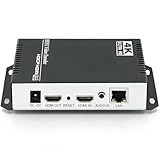
- 【Innovative Product with Leading Technology】- Equipped with an advanced H.265 /H.264 dual encoding chip, supports 4K UHD (3840x2160) video input and output, with a maximum frame rate of 30fps at 4K resolution and up to 120fps at 2K and lower resolutions, delivering a smooth and detailed visual experience. It also supports HDCP 1.4 decryption, easily decoding various HDMI ultra HD video sources, delivering a cinematic visual experience for both professional live streaming and 4K ultra HD content transmission.
- 【Multi-protocol and Multi-platform Compatibility】- Fully compatible with streaming protocols such as HTTP, RTSP, RTMP(S), SRT, HLS(M3U8), MP4, Multicast(UDP, RTP, PTL), ONVIF, FLV, WebRTC, TRTC, ICECAST, it can simultaneously output 4 video streams with different protocols and push them to live streaming platforms such as YouTube, Facebook, Twitch, and Vimeo with one click. Simultaneous live streaming across multiple platforms can be achieved without additional equipment.
- 【Highly Customizable Settings to Meet Individual Needs】- It supports adding static text, scrolling captions, brand logos, and timestamps. Users can freely adjust core parameters such as video resolution, frame rate, and bitrate, and also perform personalized editing functions such as video cropping, rotation, flipping, and mirroring. It supports dual input of HDMI embedded audio and line-in audio, with adjustable sound quality, making your live stream content more distinctive and allowing you to create a unique brand live stream style.
- 【Stable and Efficient Transmission, Easy Operation】- Employing HDMI to Ethernet core connection technology, it ensures stable and reliable network transmission with low latency and no lag, adapting to various network environments. Equipped with an intuitive user interface and detailed instruction manual, no professional technical background is required; setup can be completed quickly after connecting the device. It is also compatible with multiple terminals such as computers and mobile phones for management, and the video stream status can be viewed in real time via a URL.
- 【Lifetime Free Warranty and Technical Supports】- All URayCoder video codecs come with a lifetime free warranty and technical supports, supporting secondary development and feature customization to meet enterprise-level personalized needs. Meanwhile, we providing many kinds of customization services such as shell pattern printing, logo addition, hardware and function development, ensuring reliable quality and worry-free after-sales service.
Before you start: compatibility checks
Decide where the converted file will play before choosing a profile. An MP4 extension alone does not ensure playback. H.265 support is device-dependent, and Windows may require the corresponding optional codec pack.
- Check whether the target device decodes HEVC in hardware or software.
- Confirm the required HEVC profile and whether it accepts 8-bit, 10-bit, or both.
- For HDR footage, verify the target’s HDR format and signaling requirements; an HEVC file can still fail to display correctly if the HDR path is unsupported.
- Check the audio codec accepted by the target. Copying an incompatible audio stream can make an otherwise valid video appear broken.
- Check subtitle support, including whether the device accepts the subtitle format as a separate track.
- For Windows playback, install the optional HEVC codec pack if the system reports that the codec is missing.
Windows 11’s D3D12 video-encoding framework supports H.264 and HEVC. Windows 10 also has a desktop Media Foundation H.265/HEVC encoder path. Those platform capabilities do not mean every PC exposes every profile, bit depth, or hardware encoder.
Convert MP4 to HEVC with HandBrake
1. Install and open the source
- Install HandBrake from the official HandBrake project distribution.
- Open HandBrake and select the source MP4.
- Choose an H.265/HEVC MP4 preset. HandBrake provides software presets and hardware presets for H.265 NVENC, H.265 QSV, and H.265 VCN when the associated hardware and drivers are available.
HandBrake describes its hardware presets as using “dedicated media engines provided by modern graphics hardware” and optimizing them “for maximum encoding speed.” It disables a hardware preset when the required hardware or software drivers are not detected or are outdated.
Rank #2

- 【Video to Digital Converter】Effortlessly convert and store analog video and audio signals into digital formats, Recording resolution up to 1080P 30Hz. Supports AV/RCA (CVBS+R/L), S-Video, and AUX inputs. Plug and play, No PC, Software, Driver Needed. NOTE: This is a Converter/Recorder/Capture box only, can NOT play with any tapes and DVDs independently.
- 【USB/SD Card for Storage】Equipped with a 3.0" preview LCD and built-in speaker. No capacity limitation for the USB drive or TF card (not included). Enables direct playback of recorded videos and audios, as well as preview snapshots on the capture box. For high-capacity USB storage devices, please ensure using its own power supply.
- 【Video & Audio Format】Store video in MP4 format or audio in MP3 format. Supports NTSC-M/J 3.58, NTSC 4.43, PAL B/G/H/I/D (PAL/N) standard TV formats input. Audio sampling rate up to 48KHz with uncompressed 2-channel LPCM digital audio output. Setup Reminders: Ensure either CVBS R/L (AV input) or AUX-IN (3.5mm) is properly connected. In settings (HOME -> Settings), verify Video-IN-Volume and AUX-IN-Volume are unmuted for the selected input.
- 【Broad Compatibility】Supports recording and digitizing video for VHS, VCR, DVR, DVD, Hi8, camcorders, Mini DV, Cassette Tape Player, and retro gaming consoles.
- 【What You Get】Video Recorder x1(Players Not included, Such as VHS, VCR, Camcorder, VHS, VCR, DVR, DVD, Cassette, Hi8, Mini DV Players, Camcorder, Gaming Consoles ), Power Adapter with USB type A to C Cable x1, Remote Control (2*AAA Batteries Not Included) x1, AV Cable x1, 3.5mm Audio Cable x1, User Manual x1 with a hassle-free 2-year warranty and lifetime technical support. Reach out to our friendly customer service for any questions.
2. Select the video encoder and quality mode
- Open the Video panel.
- Select the desired H.265 encoder. Pick the software encoder when you want x265’s compression controls; pick NVENC, QSV, or VCN when speed and lower CPU load are the priority.
- Set a constant-quality value rather than targeting a fixed bitrate when your goal is consistent visual quality. The correct value depends on the source and your tolerance for file size, so inspect the result and adjust rather than assuming one number fits every video.
- Keep the source frame rate. Change it only when a specific playback or delivery requirement calls for a different rate; unnecessary frame-rate conversion can alter motion and increase processing.
3. Handle audio and subtitles
- Open the Audio panel.
- Copy a compatible audio track when the destination device accepts it. This avoids an unnecessary audio-generation step.
- If the destination does not accept the source audio codec, choose a target codec supported by that device instead of copying.
- Review subtitle tracks and retain the ones the destination can read. If a device cannot handle the selected subtitle format, convert or burn subtitles only when that behavior is required.
4. Set the output and encode
- Choose an output filename ending in
.mp4. - Start the encode and wait for HandBrake to finish.
- Play the output on the intended device before deleting or replacing the source. Test normal playback, seeking, audio, subtitles, and any HDR behavior that matters to your workflow.
Convert MP4 to HEVC with FFmpeg
Software x265 command
Install a Windows FFmpeg build that includes the x265 library, open Command Prompt or PowerShell in the folder containing the source, and run:
ffmpeg -i input.mp4 -c:v libx265 -crf 24 -preset medium -c:a copy output-hevc.mp4This command decodes input.mp4, encodes video with software x265, uses CRF 24 as a starting quality value, applies the medium preset, copies the audio stream, and writes an HEVC MP4. CRF is not a universal quality guarantee: lower values generally produce larger files and higher visual quality, while higher values generally produce smaller files and lower quality. Compare the output with the source and adjust the CRF value for your material.
-preset medium is a speed-versus-compression setting. A slower preset can take longer while allowing more compression work; a faster preset finishes sooner with a different size/quality trade-off. The appropriate choice depends on whether encode time or storage efficiency is your limiting factor.
Rank #3
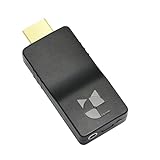
- 【Ultra-Compact & Mobile-Ready】Measuring just 2.95 x 1.26 x 0.59in (75x32x15mm) and weighing only 0.88oz (25g), this ultra-mini wireless HDMI video encoder offers a truly pocket-sized hardware solution for on-the-go broadcasting. Powered by USB with ultra-low 2.6W power consumption, it effortlessly connects to 4G/5G mobile hotspots, ensuring stable video transmission in outdoor or space-constrained environments.
- 【Pro-Grade 1080P HEVC Encoding】Supports up to 1080P 60Hz input and high-efficiency H.265 (HEVC) / H.264 hardware encoding. This professional coder provides dual-stream output, allowing you to broadcast to 4 different platforms simultaneously. Fully compatible with major web portals like YouTube, Facebook, and Twitch via secure RTMP/SRT protocols.
- 【One-Click Live & Cloud Management】Start or stop your live feed instantly with a single press of the physical button on the device. For advanced remote workflows, it supports DDMALL LinkCloud and your private cloud management, enabling secure remote control and real-time status monitoring of your encoder from any internet-connected location worldwide.
- 【Precision NTP Time Synchronization】Equipped with NTP (Network Time Protocol) support, this device ensures millisecond-level time alignment across multiple encoders. This is a critical professional feature for multi-camera setups, ensuring perfect timing consistency for complex live productions, monitoring, and post-event synchronization.
- 【Versatile Professional Applications】 Compatible with SRT, RTMP, RTMPS, RTSP, UDP, and HLS, this hardware encoder is the go-to solution for church services, outdoor sports, remote education, and drone video feeds. Featuring a Web-UI preview for instant signal verification and real-time OSD settings for custom branding, it allows you to monitor and adjust your feed on the fly, ensuring your broadcast is always professional and error-free.
Windows hardware encoding through Media Foundation
FFmpeg documents a Windows Media Foundation pattern using D3D11 acceleration:
The Tool Desk
Outbyte PC Repair FREEClear out junk files and repair common Windows errorsFree Scan →Outbyte Driver Updater FREEScan for outdated or missing drivers - takes under a minuteDriver Scan →ffmpeg -hwaccel d3d11va -hwaccel_output_format d3d11 -i input.mp4 -vf scale_d3d11=1920:1080 -c:v hevc_mf -hw_encoding 1 -quality 80 output.mp4The example uses D3D11 hardware acceleration, scales the video to 1920×1080, selects the hevc_mf encoder, enables hardware encoding, and sets a quality value of 80. Remove the -vf scale_d3d11=1920:1080 portion when the original resolution must be preserved. Scaling is an intentional change, not a requirement of HEVC conversion.
Hardware options are build- and driver-dependent. If FFmpeg says that hevc_mf, QSV, NVENC, or another requested encoder is unavailable, inspect the encoders exposed by that installed build and use libx265 as the fallback. A command copied from another PC is not proof that the same hardware path exists on yours.
Rank #4

- 【Multi-streaming Output】 - Support up to 4 video streams output simultaneously. You can push these 4 video streams to multi-platform at the same time.Remarks(Dec.13th, 2022): This encoder (model No.: ES901) adds a new function--flip. Now it supports horizontal, vertical, horizontal&vertical picture flipping. If buyer need to add this new flip function, please contact us to send you firmware for upgrading.
- 【High-definition】OLED real-time display to ensure uninterrupted video streaming.No need to access video, audio can be coded separately
- 【Multi-protocol Support 】Streaming by HTTP, RTSP, UDP /RTP, RTMP, RTMPS, SRT, HLS, FLV.The mainstream and side stream use the different network
- 【Innovative Product with Leading Technology】support live broadcast for Youtube, Facebook, Ustream, Livestream, Twitch, Meridix, Streamspot, Dacast, Tikilive, Netrmedi etc.
- 【Free Support and Service】Our products are backed with a 3-year limited warranty.Support remote technical service, free firmware upgrade.Please feel free to contact us(1,Find your order. 2,Click button "Contact Seller"), we will resolve your question within 24 hours.
Batch conversion pattern
Once a single file works, the same FFmpeg command can be placed in a Windows batch loop. Test one source first, then process a folder while writing outputs to a separate directory. Keep unique output names so a failed job cannot overwrite the originals. The exact loop syntax is less important than preserving the tested encoder, quality, audio, and output settings for every file.
Software x265 versus hardware HEVC encoding
| Decision factor | Software x265 | Hardware encoder |
|---|---|---|
| Speed | Usually prioritizes compression work over real-time speed | Designed for high encoding speed using a dedicated media engine |
| CPU use | Uses the CPU for video encoding | Moves encoding work to supported graphics hardware or an integrated media engine |
| Compression control | Predictable CRF and x265 preset controls | Controls and quality behavior vary by NVENC, QSV, VCN, or Media Foundation implementation |
| Availability | Available when the FFmpeg build includes libx265 |
Requires compatible hardware, drivers, and an encoder exposed by the software |
| Best fit | Archiving, storage reduction, and workflows where encoding efficiency matters | Large or time-sensitive jobs where completion speed and low CPU load matter |
Do not assume that a hardware encode will produce the same file size or visual result as a software encode at a similarly named quality value. Treat each encoder as its own quality scale and verify the output on the actual playback devices.
Quick wins for a faster PC:
Repair Windows errors before they cause bigger problemsFix Now →Fix the driver behind crashes, sound loss and screen glitchesFind Drivers →Clear out junk files and repair common Windows errorsFree Scan →How to make the HEVC file smaller without excessive quality loss
- Start with the source resolution. If the destination does not need 4K, deliberate downscaling can reduce storage and decoding demands. Do not downscale merely because HEVC is being used; preserve resolution when it is required.
- Use constant quality. In HandBrake, select constant quality. In FFmpeg x265, begin with CRF 24 and adjust after viewing representative scenes.
- Choose the encoder for your priority. Software x265 generally gives more predictable compression control; hardware encoding saves time and CPU resources.
- Keep the original frame rate. Lowering it may reduce data rate, but it also changes motion and should be done only for a defined delivery requirement.
- Avoid needless audio re-encoding. Copy compatible audio with
-c:a copyin FFmpeg or the copy option in HandBrake. Re-encode only when the target device requires another codec. - Inspect difficult scenes. Fast motion, film grain, dark gradients, text, and HDR highlights reveal quality loss sooner than simple scenes. Use those scenes when deciding whether to lower or raise quality.
There is no reliable universal percentage for file-size reduction. Two MP4 files with the same extension can respond very differently because their source codecs, bitrates, resolutions, and content are different.
Best Value
![ClearClick Video to Digital Converter 2.0 (Second Generation) - Record Video from VCR's, VHS Tapes, AV, RCA, Hi8, Camcorder, DVD, Gaming Systems [Requires Working VCR/Camcorder & Tapes]](https://m.media-amazon.com/images/I/41fMH9jM-+L._SL160_.jpg)
- Convert Your Old Video Tapes or Camcorder Tapes to Digital Format With The Touch of a Button (Recording Resolution: SD 640x480 or 720x480 Pixels. Does Not Upscale To HD. Does Not Record From Modern HDMI Sources.)
- Record and Digitalize Video From VHS, VCR's, DVD Players, DVR's, Camcorders, Hi8, & Retro Gaming Systems (IMPORTANT: A WORKING VCR/CAMCORDER AND WORKING VIDEO TAPES ARE REQUIRED; CONVERTER DOES NOT PLAY VIDEO TAPES BY ITSELF)
- No Computer or Software Required - Just Hook It Up & Start Recording - Records Videos Directly Onto USB Flash Drive or SD Card (REQUIRED, NOT INCLUDED; 512 GB or less)
- What's New In The Video2Digital Version 2.0 (Second Generation): Extra-Large 3.5" Preview Screen, Better Recording Quality, Improved Audio/Video Sync Protection, Auto Stop Feature (60, 90, 120, 150 Minutes), Mobile-Friendly MP4 Recording Format, & Pause/Resume While Recording
- Includes 1-Year Wty & Tech Support from ClearClick, a USA Small Business
Resolution, bit depth, HDR, audio, and subtitles
Resolution and frame rate
HEVC can carry the source resolution and frame rate, but the encoder does not automatically make a 4K source 1080p or vice versa. Preserve both unless the destination specification calls for a change. In the documented Media Foundation example, scaling is explicit through the D3D11 filter, which is why removing that filter preserves the original dimensions.
8-bit and 10-bit video
Check the target decoder before choosing an 8-bit or 10-bit workflow. Hardware and software support differs by device and graphics generation. A successful encode can still fail to play smoothly or display correctly when the target lacks the required bit-depth support.
HDR
HDR playback requires more than an HEVC video stream. The target must support the relevant HDR path, and the metadata and pixel format must survive the conversion. Test the output on the display and player that will actually be used.
Audio and subtitles
Video conversion does not make every accompanying stream compatible. Copy audio and subtitle tracks only when the destination accepts them. Otherwise choose a supported audio codec or subtitle handling mode in HandBrake, or specify a different FFmpeg stream operation instead of assuming the MP4 container will solve compatibility.
Troubleshoot missing encoders and failed playback
HandBrake has no H.265 hardware preset
- Update the graphics driver, then restart HandBrake.
- Confirm that the GPU or integrated graphics generation supports HEVC encoding.
- Check that the operating system exposes the required hardware path.
- If the preset remains unavailable, use software x265. HandBrake disables hardware presets when required hardware or drivers are missing or outdated.
FFmpeg reports an unavailable encoder
- Inspect the encoder list in the installed FFmpeg build.
- Confirm that the build includes
libx265if you intend to use software encoding. - Use the encoder name actually exposed by that build; an encoder available on another Windows PC may not be compiled or supported on yours.
- Fall back to
-c:v libx265when the requested hardware encoder is unavailable.
The output will not play
- Test the file with another known HEVC-capable player to separate a file problem from a device limitation.
- Check whether the target requires an optional Windows HEVC codec pack.
- Verify profile, bit depth, HDR, audio codec, and hardware-decoding support.
- Try a software x265 encode with a conservative, compatible output rather than assuming the hardware profile is accepted.
Video plays but audio, subtitles, or seeking fail
- Reopen the output in a player that exposes stream information and confirm that the expected tracks are present.
- Re-encode audio to a codec accepted by the target if copied audio is incompatible.
- Change subtitle handling to a format the device supports.
- Keep the source and create a new test encode; do not repeatedly overwrite the only copy while troubleshooting.
Verification checklist before deleting the source
- Open the HEVC file on the Windows PC that created it.
- Play it from beginning to end, including dark scenes, fast motion, and any HDR content.
- Seek forward and backward at several points.
- Confirm every required audio track, channel layout, and subtitle track.
- Test on each important target device, not only on the encoding PC.
- Compare the output’s resolution, frame rate, bit depth, and HDR behavior with the delivery requirement.
- Only after these checks pass should you archive or remove the original MP4.
Which workflow should you use?
Choose HandBrake when you want to open a file, select an H.265 preset, set constant quality, and start encoding without writing commands. Choose FFmpeg when you need the same settings applied repeatedly, want a scriptable batch process, or need explicit control over scaling, stream copying, and hardware acceleration.
For the encoder, choose software x265 for compression-focused work and detailed, repeatable controls. Choose NVENC, QSV, VCN, or Media Foundation hardware encoding when the required engine and driver are detected and finishing quickly matters more than matching software-encoder behavior. In every case, validate the resulting file on the intended playback hardware before treating the conversion as complete.
Quick Recap
Product prices and availability are accurate as of the date/time indicated and are subject to change. Any price and availability information displayed on Amazon at the time of purchase will apply.

