
Do these 3 things before closing this tab:
1Fix the driver behind crashes, sound loss and screen glitches2Repair Windows errors before they cause bigger problems3Scan for outdated or missing drivers - takes under a minuteiTechGuides is reader-supported. When you buy through links on our site, we may earn an affiliate commission. As an Amazon Associate I earn from qualifying purchases. Learn more
The Fujitsu fi-7160 is now supported through Ricoh/PFU’s fi Series Software Downloads site. The scanner is listed as compatible with Windows 11, Windows 11 Enterprise LTSC 2024, Windows 10, and Windows 10 Enterprise LTSC 2021—but it is not supported on Windows ARM-based PCs.
Use the download page to select the fi Series, fi-7160, and your installed Windows edition. Do not choose PaperStream IP (TWAIN x64) solely because Windows is 64-bit: the correct TWAIN package depends on whether your scanning application is 32-bit or 64-bit.
Before downloading the fi-7160 driver
Although the scanner is commonly called the Fujitsu fi-7160, the current vendor download site is hosted by PFU Ricoh and is branded fi Series Software Downloads. The old Fujitsu download interface is not the current download path.
Quick wins for a faster PC:
Scan for outdated or missing drivers - takes under a minuteDriver Scan →Clear out junk files and repair common Windows errorsFree Scan →Check these points first:
- The fi-7160 is supported on Windows 11 Home, Pro, Enterprise, and Education.
- Windows 11 Enterprise LTSC 2024 is supported separately.
- Windows 10 Home, Pro, Enterprise, Enterprise 2016 LTSB, Enterprise LTSC 2019, and Education are supported.
- Windows 10 Enterprise LTSC 2021 is listed separately.
- Windows 10 and Windows 11 ARM-based PCs are not supported.
- The scanner connects by USB 3.0, USB 2.0, or USB 1.1. USB 1.1 can reduce scanning speed.
To check your Windows version, press Windows+R, type winver, and press Enter. To check whether the computer uses an ARM processor, open Settings > System > About and inspect System type or Processor.
#1 Best Overall
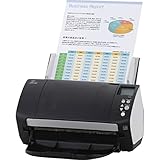
- Organizations of all types and sizes rely on the fi -7160 for its speed, reliability, and accuracy. Small enough to fit on your desk, and powerful enough to sail through all of your administrative nee
Download the fi-7160 driver
- Open the official fi Series Software Downloads page.
- Under Step 1. Select a series, choose fi Series.
- Under Step 2. Select a scanner, choose fi-7160.
- Under Step 3. Select the target OS, select the Windows edition installed on the computer.
- Review the available packages and download the driver or software you need.
The page is JavaScript-driven. If the series, scanner, or operating-system selectors do not appear, enable JavaScript and reload the page. If a download fails, PFU recommends updating the browser or trying another browser. The download page supports current versions of Chrome, Firefox, Microsoft Edge, and Safari.
If fi-7160 or your Windows version is not listed after making the selections, PFU states that the software is not supported for that combination. Do not substitute a driver for a different scanner model.
Which fi-7160 package should you install?
The download results may include more than the basic scanner driver. The fi-7160 product page lists PaperStream IP, the WIA Driver, PaperStream Capture, PaperStream ClickScan, Software Operation Panel, and Error Recovery Guide.
Free tools Windows power users keep installed
One-click scans. No signup required.
| Package | Use it for | Important detail |
|---|---|---|
| PaperStream IP (TWAIN) | Most 32-bit TWAIN scanning applications | Use this with PaperStream Capture and PaperStream Capture Pro. |
| PaperStream IP (TWAIN x64) | 64-bit TWAIN scanning applications | Choose it based on the scanning application’s architecture, not Windows’ architecture. |
| PaperStream IP (ISIS) | Applications that specifically use ISIS | Install it only when your capture software requires ISIS. |
| WIA Driver | Applications that specifically use Windows Image Acquisition | WIA does not provide all PaperStream IP functions. |
| PaperStream Capture or Capture Pro | Document capture workflows | These applications are 32-bit and use PaperStream IP (TWAIN). |
| Software Operation Panel | Scanner settings and maintenance controls | Useful for configuring device behavior after the driver is installed. |
| Error Recovery Guide | On-screen recovery instructions | Its supported version is listed separately from the scanner driver. |
TWAIN versus TWAIN x64
The statement “64-bit Windows requires PaperStream IP (TWAIN x64)” is incorrect. PFU identifies the driver according to the architecture of the application that calls the scanner.
- A 64-bit Windows installation can use regular PaperStream IP (TWAIN) with a 32-bit application.
- A 64-bit scanning application should use PaperStream IP (TWAIN x64).
- PaperStream Capture and PaperStream Capture Pro are 32-bit applications, so use PaperStream IP (TWAIN) with them.
If a scanning program cannot find the fi-7160, check its scanner-source list and confirm which TWAIN interface it expects. Installing both variants is not a substitute for selecting the interface supported by the application.
Rank #2

- High-Performance Document Scanner
- Fast and Precise Scanning Capabilities
- 80-Sheet Automatic Document Feeder
- Duplex Scanning For Two-Sided Documents
- Versatile for Various Document Types and Seamless Software Integration
Install the downloaded fi-7160 software
- Close the scanning application and disconnect any other scanner software that is running.
- Open the downloaded installer from your browser’s Downloads folder.
- If Windows displays a security prompt, confirm that the file came from the official PFU Ricoh download page, then allow the installer to run.
- Follow the setup wizard. Accept the license terms, keep the default installation location unless your organization requires another location, and select the components needed by your workflow.
- When the installer requests the scanner connection, connect the fi-7160 directly to the computer with a USB cable and turn the scanner on.
- Complete the wizard and restart Windows if the installer requests it.
- Open your scanning application and select the fi-7160 through the appropriate PaperStream IP or WIA source.
There is no vendor-documented command-line installation command in the current download process. The published method is browser-based: choose the series, scanner, and operating system, download the offered package, and run its installer.
Test the scanner after installation
- Place a test sheet in the automatic document feeder.
- Open your scanning application.
- Choose the fi-7160 as the scanner source.
- Scan one page at a low-risk setting such as 200 dpi, grayscale.
- Confirm that the application can preview or save the resulting image.
If you use Windows’ built-in scanning software or another WIA application, install and select the WIA Driver. For document enhancement features associated with PaperStream IP, use a compatible TWAIN or ISIS workflow instead; PFU warns that equivalent functions may not be available through WIA.
Windows Errors? Fix Them Before They Spread
Repair common Windows errors and clear accumulated junk for a smoother, more stable PC - no reinstall needed.Free scan · no reinstallOutdated Drivers Are Slowing You Down
One free scan finds every outdated or missing driver and matches the right update for your exact hardware.Free scan · exact hardware matchMinimum supported software versions
PFU’s compatibility table gives the following minimum supported versions for the fi-7160 family. These are not necessarily the newest versions available from the download page.
| Operating system | PaperStream IP | Error Recovery Guide | Capture / Capture Pro | ClickScan | fi Series Online Update |
|---|---|---|---|---|---|
| Windows 11 | 3.0.2 | 4.3.0.4 | 3.0 | 1.0 | 1.2.31.2 |
| Windows 10 | 1.60 | 4.3.0.4 | 2.5.8 | 1.0 | 1.2.16 |
| Windows 10 LTSC 2021 | 3.0.2 | 4.3.0.4 | 3.0.1 | 1.0.3 | 1.2.31.2 |
For a new installation, prefer the latest compatible package offered for the selected model and operating system rather than deliberately installing the minimum version.
Fix common fi-7160 driver problems
The fi-7160 is not listed
Return to the official download page and make the selections in order: fi Series > fi-7160 > target OS. If the model or operating system is absent, PFU says that the software is not supported for that selection. Confirm that you did not choose a similarly named fi Series model.
Rank #3

- Operating system, Windows
- Connectivity technology, USB
- Package Weight, 5.534 kilograms
- Package Dimensions, 22.098 L x 38.608 H x 26.162 W (centimeters)
The download controls are blank
Enable JavaScript, refresh the page, and try a current Chrome, Firefox, Edge, or Safari browser. Browser extensions that block scripts or downloads can also interfere; temporarily test in a private window or another supported browser.
Windows says the scanner is unavailable
- Turn the scanner off and on.
- Disconnect and reconnect the USB cable.
- Try a different USB port, preferably a USB 3.0 or USB 2.0 port.
- Avoid an unpowered hub while testing.
- Restart Windows and reopen the capture application.
The fi-7160 supports USB 3.0, 2.0, and 1.1, but USB 1.1 operation is slower. A cable or hub problem can therefore look like a driver problem.
The application cannot find a TWAIN source
Check whether the application is 32-bit or 64-bit. Use regular PaperStream IP (TWAIN) for a 32-bit application, including PaperStream Capture and PaperStream Capture Pro. Use TWAIN x64 only for a 64-bit application. The fact that Windows itself is 64-bit does not determine this choice.
The scanner works but image features are missing
You may be using the WIA Driver instead of PaperStream IP. WIA is not feature-equivalent to PaperStream IP. Select the PaperStream TWAIN or ISIS source if your application supports it, and install the matching PaperStream IP component.
Important notes about older Fujitsu software
The fi-7160 is categorized as a discontinued scanner, but it remains listed as supported for Windows 10 and Windows 11 on PFU’s current compatibility page. Discontinued status does not automatically mean that the current driver is unavailable.
Rank #4
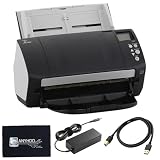
- High-Speed Document Scanning for Office & Business Use Designed for fast document handling, this scanner processes up to 60 pages per minute in both color and mono. Ideal for offices, businesses, and heavy daily scanning tasks.
- Simple Setup & Easy Operation for Daily Workflow Connect using the included USB 3.0 cable and power adaptor, install on your computer, and start scanning instantly. User-friendly controls make it easy to manage large batches of documents.
- Sharp Image Quality with 600 DPI Resolution Delivers clear and detailed scans with up to 600 DPI, ensuring accurate text and image reproduction. Suitable for documents, records, and professional file management.
- Reliable Performance with Smooth Paper Handling Built for continuous use with consistent feeding and reduced paper jams. Helps improve productivity by saving time during bulk scanning tasks.
- Complete Package with Power Cable, USB Cable & Cleaning Cloth Includes 24V power cable, USB 3.0 cable, and microfiber cleaning cloth for setup and maintenance. Everything required for operation and upkeep is provided in the box.
However, PFU says development for several legacy applications has ended and the download service for those applications has been discontinued. The fi-7160 family’s legacy list includes:
- ScanSnap Manager for fi Series
- ScandAll PRO V2
- ScandAll PRO V2 Premium
- ABBYY FineReader for ScanSnap
- 2D Barcode for PaperStream
- Scan to Microsoft SharePoint
Do not build a new installation around one of these discontinued applications. PFU also warns that old application versions may not support new models and recommends using the latest available application version.
Finally, Windows 10 remains technically listed as compatible with the fi-7160, but Microsoft ended support for Windows 10 Home and Pro on October 14, 2025. Windows 10 version 22H2 was the final release for those editions. An organization using Windows 10 LTSC should check the lifecycle for its specific LTSC release.
Independent reader supportYour contribution helps us test, update, and keep practical guides available for everyone.Official references
- fi Series Software Downloads
- fi-7160 family operating-system compatibility and version requirements
- PFU guidance on PaperStream IP and 64-bit applications
- fi-7160 product page
- Microsoft Windows 10 Home and Pro lifecycle
FAQ
Is the Fujitsu fi-7160 compatible with Windows 11?
Yes. PFU lists the fi-7160 as supported on Windows 11 Home, Pro, Enterprise, and Education, as well as Windows 11 Enterprise LTSC 2024. Windows 11 ARM-based PCs are not supported.
Where can I download the fi-7160 driver?
Use PFU Ricoh’s official fi Series Software Downloads page. Select fi Series, then fi-7160, then the installed Windows edition or operating system.
Best Value

- 60 ppm / 120 ipm in Color, Grayscale, and Monochrome @ 200/300 dpi
- 80-page Automatic Document Feeder (ADF)
- Dual color charge coupled device (CCD) image sensor
- Additional features: Ultrasonic double feed-detection, continuous hard card scanning (up to 3 cards), selectable white/black background, long document scanning
- STANDARD 1 Year
Do I need TWAIN x64 because my Windows installation is 64-bit?
No. Choose regular PaperStream IP (TWAIN) for a 32-bit scanning application and PaperStream IP (TWAIN x64) only for a 64-bit scanning application. PaperStream Capture and PaperStream Capture Pro are 32-bit applications.
Can I use the fi-7160 on a Windows ARM computer?
No. The fi-7160 is not supported on Windows 10 or Windows 11 ARM-based PCs.
Why does the fi-7160 not appear on the download page?
Make sure JavaScript is enabled and select fi Series before selecting fi-7160. If the model or your operating system still does not appear, PFU states that the software is not supported for that combination.
The Tool Desk
Outbyte Driver Updater FREEScan for outdated or missing drivers - takes under a minuteDriver Scan →Outbyte PC Repair FREEClear out junk files and repair common Windows errorsFree Scan →Can I install the fi-7160 with a command?
PFU does not document a command-line installation command in the current download flow. The supported published process is to download the package from the browser-based page and run its installer.
The Bottom Line
Download the fi-7160 software from PFU Ricoh’s fi Series Software Downloads page, using fi Series > fi-7160 > your Windows OS. Select PaperStream IP according to the scanning application’s bitness—not Windows’ bitness—and use WIA only when your application requires it. The scanner works on supported x86/x64 Windows 10 and Windows 11 editions, but not Windows ARM.
Quick Recap
Product prices and availability are accurate as of the date/time indicated and are subject to change. Any price and availability information displayed on Amazon at the time of purchase will apply.

