
Quick wins for a faster PC:
Clear out junk files and repair common Windows errorsFree Scan →Scan for outdated or missing drivers - takes under a minuteDriver Scan →iTechGuides is reader-supported. When you buy through links on our site, we may earn an affiliate commission. As an Amazon Associate I earn from qualifying purchases. Learn more
To download apps on an Element TV, first identify whether it runs Roku TV, Amazon Fire TV, Android TV, or Google TV. Each platform has its own app store, and some older Element models have only a limited built-in selection—or no app-installation platform at all. If you cannot find an app store, check your exact model before troubleshooting.
Identify your Element TV’s platform first
The Element name alone does not determine how apps are installed. Element support covers Roku TV, Fire TV, and Android TV, while its help center also lists Google TV models. Find the model number on the TV’s label or in its settings, then check the menus and model-specific support guidance. Element’s support center lists different platform families; the available interface and apps depend on the TV.
Install apps on Roku TV
- Connect the TV to Wi-Fi and complete Roku activation if you have not already done so. Roku features become available after activation, according to Element’s Roku setup guide.
- Open the Roku menu and select Streaming Channels.
- Find the channel you want and choose the on-screen option to add it.
Element’s general app installation instructions describe Roku apps as channels. If a channel does not appear, check the Roku store on the TV rather than assuming every app is offered.
The Tool Desk
Outbyte Driver Updater FREEScan for outdated or missing drivers - takes under a minuteDriver Scan →Outbyte PC Repair FREERepair Windows errors before they cause bigger problemsFix Now →Install apps on Amazon Fire TV
- From the Fire TV Home screen, open Apps.
- Browse or search the built-in Amazon app store, then follow the on-screen steps to add an app.
These are Element’s published general directions. Menu names and layouts can change with software updates, so follow the current on-screen interface if it differs.
#1 Best Overall
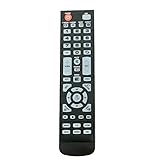
- New Remote Control Replacement for Element TV ELEFW195 ELEFT222 ELEFW247 ELEFW248 ELEFW328 ELEFT407 ELEFW504 ELEFW505 ELEFT506 ELEFW581
- ELEFW247 ELEFW505 ELEFW248 ELEFW247 Elefw504 Eleft326 Elefw195 ELEFW505 ELEFT506 ELEFW247 ELEFW504 ELEFW248 ELEFT195 ELEFW581 ELEFT222 ELEFW195 ELEFT326 ELEFT407
- No programming or paring needed. Install new batteries for the first time usage.
- Universal Replacement Remote Control for All Element LCD LED TV. It does NOT work for Element Roku & Fire TVs.
- The remote uses infrared (IR) technology, so make sure to point it at the TV’s IR sensor for it to work properly.
Install apps on Android TV or Google TV
Android TV
Open Google Play Store on the TV, find the app, and use its on-screen install option. Element’s general app guide identifies Google Play Store as the route for Android TV.
Google TV
App installation is available after completing setup in Google TV mode. Element’s Google TV quick-start guide says a Google Account is required for Google TV setup. Basic TV setup does not include app installation; the guide says owners can switch to Google TV later in settings.
Rank #2
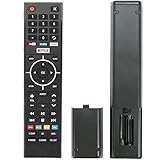
- Young Replacement remote for Element TV model:ELSW3917BF E4SFT5017 E4STA5017 ELSJ5017 ELST3216H ELST5016S E2SW5018. Support 2K 4K UHD Smart TV. Include NETOLIX button,YouTube button,VUDU button&pandora button
- Please pay attention to the TV model when purchasing. The correct TV model does not need programming or pairing,Put the batteries inside and it will be works,No other Settings are required
- This Item uses two AAA batteries(Batteries are not included). Please put new batteries inside
- High quality ABS material, wear-resistant and fall proof
- If you have any questions after receiving the remote control, please feel free to contact us, we will provide you with timely and high-quality service
Some channels may require a subscription or other payment. Availability can vary by country or region, so check the TV’s store for the app you want rather than assuming it is offered everywhere.
Recommended Free Tools
When the TV has no app store or only a few apps
Some Element televisions are standard TVs without a built-in app platform; some older smart models have only a few built-in apps. For the models below, Element recommends connecting a compatible streaming device to an HDMI port to add apps. These model-specific directions should not be assumed to apply to every Element TV.
Rank #3

- New Replacement Voice Remote Control Compatible with Element Xumo TV Stream Box, Including Element 65” 4K UHD HDR Xumo TV E500AC65C E500AC43C E500AC55C E500AC50C.
- The advanced voice remote lets you quickly search and access your favorites across every app. No more scrubbing different streaming platforms to find that one show your friend recommended. Switch between apps, discover new shows, change the volume, and more with the sound of your voice. More watching, less waiting. (Note: Voice control will not work until you pair your remote. Voice commands only work when your TV is connected to the internet.)
- How to Pairing with New Xumo TV: Before using your remote, you'll need to pair it with your TV. If you put batteries in your remote within 15 minutes of plugging in your TV for the first time, your remote will automatically pair to your TV. If unpaired, please follow the below instructions: Step1) Press the SETTING button. Step2) Select Remote > Pair your remote to your TV. Step3) Follow the on-screen instructions. ( Tips: If pairing fails, turn off your TV and unplug from the power source. Plug TV back in, power on, any try steps 1-3 again.)
- How to Pairing with Sound System: Step1) Press the SETTING button. Step2) Select Remote > Pair your remote and sound system. Step3) Follow the on-screen instructions.
- How To Reset Remote: Step1) Hold the ← and + buttons for 3 seconds until the light at the top of the remote turns solid green. Step2) Press 9, then 8, then 4(the light will blink red a few times). Step3) Hold the ← and + buttons for 3 seconds again. Step4) Press 9, then 8, then 1. Step5) Wait for the light at the top of the remote to flash red again. Step6) With your remote control pointed towards your TV, try pressing the HOME button then other keys to make suer your remote is working properly.
Standard TV models listed by Element
Element’s standard-TV guidance covers ELEFW328, ELEFJ322, ELFW195, ELEFW195, ELEFJ191, ELEFT2416, ELEFJ243, E1AA19N, E1AA24N, E1AA32N, E2T4019, E4AA43N, and E4AA50N. For these listed models, it directs owners to connect a Roku Stick, Fire Stick, or Google Chromecast to the TV’s HDMI port.
Older smart TV models listed by Element
Element says the following models have a few built-in applications and recommends an HDMI-connected Roku Stick, Fire Stick, or Google Chromecast for additional apps: ELSFT5517, E4SW5518, ELST3216H, ELST4017, ELST4316S, ELST5016S, E2SW5018, E4SFT5517H, and E4SJ6519. See Element’s older smart-TV guidance for that model list.
Rank #4

- As Long As This Remote Have the Same Appearance As Your Remote Control, It Can Be Used. Remote Control Replacement for Element TV Fit for ELEMENT ELEFW328 ELEFT426 ELEFT506 ELEFT426 ELEFT326 20343
- Need New 2x AAA Batteries; The Remote Carry One Year Warranty.
- NOT Support Bluetooth pairing and Initial setup for a new TV,This remote has NO Voice Control.
Before choosing an external device, check that it works with your TV and HDMI connection, offers the apps you need, and suits your preferred remote and setup. Element names these devices as options for the listed models; it does not establish one as universally best.
Quick Recap
Troubleshoot common app-installation problems
- No Apps menu or store: Check the exact model and platform. The TV may be a standard model or an older smart model with a limited built-in selection; use the model-specific guidance above to see whether Element recommends an HDMI streaming device.
- Google TV will not install apps: Check whether setup was completed in Google TV mode rather than Basic TV, and whether a Google Account is being used.
- Roku channels are unavailable: Verify the Wi-Fi connection and finish Roku activation before opening Streaming Channels.
- The app is missing from the store: App catalogs depend on platform, and availability may vary by region. Check the store on your TV for current availability.
Product prices and availability are accurate as of the date/time indicated and are subject to change. Any price and availability information displayed on Amazon at the time of purchase will apply.

