
Windows Errors? Fix Them Before They Spread
Repair common Windows errors and clear accumulated junk for a smoother, more stable PC - no reinstall needed.Free scan · no reinstallOutdated Drivers Are Slowing You Down
One free scan finds every outdated or missing driver and matches the right update for your exact hardware.Free scan · exact hardware matchiTechGuides is reader-supported. When you buy through links on our site, we may earn an affiliate commission. As an Amazon Associate I earn from qualifying purchases. Learn more
Some home projectors include a built-in speaker, while others provide no speaker and may not offer any direct speaker output. The reliable answer is model-specific: inspect the projector’s manual and port labels, then match the audio route to the device supplying your video. Depending on the equipment, sound can come from the projector’s internal speaker, a Bluetooth speaker, powered speakers on an Audio Out jack, an HDMI ARC soundbar or receiver, an optical connection, or the source device itself.
Why the answer varies by projector
“Home projector” describes a broad range of products, not one standard audio design. A compact portable projector may include a small internal speaker for occasional viewing. A larger home-theater model may expect a separate receiver and speakers. Some projectors have a speaker but no audio output for external equipment; others have audio outputs but no internal speaker.
Manufacturer documentation shows the variation clearly. Epson’s Home Cinema 2200 and 2250 setup guide says those models have a built-in speaker that can play audio from an HDMI-connected video source such as a DVD player or streaming device. Epson’s CO-W01 support documentation, by contrast, says that model has no direct speaker connection and recommends connecting speakers to the video equipment or computer feeding the projector. These are examples, not a census of every projector.
Free tools Windows power users keep installed
One-click scans. No signup required.
Even when two projectors have similar video ports, their audio behavior can differ. One may pass HDMI audio to its internal speaker, another may send it only through Bluetooth or an output jack, and a third may require the source device to handle audio separately. Check the exact model number, not just the product family or chassis appearance.
#1 Best Overall

- A Roku account and internet connection are required for activation (Creating an account is free). Note: Power Supply: 100-240V AC, 50/60Hz.
- America's #1 TV Streaming Platform, All Top Apps: With Roku as your entertainment guide, exploring popular apps like NetfIix, Prime Video, Hulu, YouTube, Roku Channel—plus free movies, shows, and live TV—is as easy as it is fun. No dongles or extra remotes. Enjoy 500+ TV channels with live news and weather, sports coverage, and more—totally free.
- A Simple and Fast Home Screen: Enjoy a simple projector interface with intuitive navigation, quick search, and personalized recommendations. No-nonsense remote keep it effortless, while the Roku mobile app lets you control with your phone, type easily, or use voice commands.
- 1080P Full HD Resolution: Enjoy your favorite movies and TV shows in stunning high-definition picture quality for enhanced clarity and detail. This projector is perfect for creating a massive 60 to 150-inch screen for your home theater and outdoor movie nights.
- Auto Focus & Keystone Zero-Fuss: Advanced auto focus and auto keystone correction instantly adjust for a sharp, aligned screen-just place, power on, and enjoy a big screen without manual setup.
How projector audio is routed
Every setup has an audio source and an audio destination. The source might be a projector’s built-in streaming platform, an HDMI streaming device, laptop, game console, disc player, or cable box. The destination might be the projector’s internal speaker, a soundbar, powered speakers, an AV receiver, headphones, or speakers connected directly to the source.
When video and audio travel over HDMI, the projector must support the relevant audio format and have a way to play or forward it. If the projector has no suitable speaker or output, the source may need to send audio elsewhere. This is why a projector can display an HDMI picture correctly while remaining silent.
Before buying a cable or speaker, identify both ends of the proposed connection. Look for labels such as Audio Out, HDMI ARC (often a particular HDMI input), and Optical Out. Also inspect the source device: it may have its own Bluetooth, headphone, optical, HDMI ARC/eARC, or analog output.
What’s actually slowing this PC down?
Pick the symptom - the matching free tool is one click away.
Audio options compared
| Audio route | What must be supported | Separate cable or pairing | Internal-speaker behavior | Where volume is usually controlled |
|---|---|---|---|---|
| Projector’s built-in speaker | The projector must include a speaker and support audio from the selected source. | No additional connection beyond the source connection. | Remains active unless the projector’s design disables it for another output. | Projector remote or source controls, depending on the model. |
| Bluetooth speaker or soundbar paired to the projector | The projector must support Bluetooth audio transmission and the speaker must support pairing. | Wireless pairing; keep the devices within the supported range. | May be muted or disabled when Bluetooth audio is selected; verify the manual. | Projector, speaker, or both, depending on implementation. |
| Bluetooth speaker paired to the source | The streaming device, laptop, phone, or other source must support Bluetooth audio. | Wireless pairing with the source rather than the projector. | The projector’s speaker is unrelated to the source’s Bluetooth selection. | Source and speaker controls. |
| Powered speaker through Audio Out | The projector needs an audio output compatible with the speaker or an amplifier input. | Usually an analog audio cable of the type specified by the manual. | Some models, including Epson’s Home Cinema 2200/2250 examples, disable the internal speaker when an external speaker is connected. | Projector, speaker, or source; check whether the output is variable or fixed. |
| HDMI ARC soundbar or AV receiver | Both projector and audio system need ARC-compatible HDMI ports, plus the correct settings. | An HDMI cable connected to the ARC-labeled ports. | May be disabled when ARC is enabled. Epson documents this behavior for the EF12 when HDMI2 ARC is enabled. | Usually the soundbar/receiver remote, with HDMI control sometimes allowing projector-remote control. |
| Optical output | The projector must have optical output and the audio system must have a matching optical input. | Optical audio cable. | Model-dependent; confirm whether selecting optical mutes the internal speaker. | For Epson’s LS650 documentation, digital-output volume is adjusted on the external audio device rather than the projector remote. |
| Source-device or AV-system output | The source or an intervening AV system must provide an audio output independent of the projector. | Depends on the source and speakers: Bluetooth, analog, optical, or another supported connection. | The projector may have no role in audio playback. | Source or external audio system. |
Check these details before purchasing anything
1. Confirm the exact projector model
Read the model-specific manual or support page and inspect the rear or side panel. Do not infer audio capability from a nearby model in the same series. Verify whether a listed HDMI port supports ARC, whether Bluetooth is for audio output or only for remote control/input, and whether an Audio Out jack is present.
Rank #2
![Outdoor-Projector-4K [VIDAA Live TV/40W Dolby/920 ISO] with WiFi6 and Bluetooth Compatible with Netflix, Smart Projector, AI Voice Control & Auto Focus, HDR10, Movie Proyector for Ceiling Home Theater](https://m.media-amazon.com/images/I/51R8227Xr5L._SL160_.jpg)
- 【2026 No.1 Fast VIDAA OS | Cloud Storage & Data Security】The upgraded X9 PRO 4k projector builds on the classic X9 proyector with superior speakers, higher brightness, and the exclusive VIDAA OS—designed to feel like a smart TV but perform even smoother. Unlike standard Android or Google TV projectors, VIDAA stays fast and stable over months of heavy use, with zero lag. It includes cloud storage to keep local memory free, and no data tracking, no targeted ads, and no personal collection. Kids mode with enhanced privacy protection. Whether at home, camping, or watching live sports, you get a secure, distraction‑free cinema experience every time
- 【Massive Apps | AI Recommendations | 1,000+ Live Channels】This smart projector delivers buttery‑smooth playback with popular streaming pre‑loaded—compatible with Netflix, YouTube, and Prime Video are ready with one tap. It also intelligently recommends region‑specific apps like Disney+, Hulu, Peacock, HBO MAX and TV Channels. With over 1,000 built‑in live TV channels, including Sky News (5507) and FIFA+ (5340), it becomes the complete entertainment hub for the whole family. No more switching devices—everything is personalized and easy to access on this feature‑packed outdoor projector
- 【True 920 ISO ANSI Brightness | 4K Decoding | HDR10】Delivering a real 920 ANSI lumens (ISO‑standard), the 4K projector outperforms many that inflate their "3500 brightness" claims. With native 1080P resolution, 4K video decoding, a 130% NTSC wide color gamut, and HDR10 support, images are vivid, rich, and deep. Even in moderately lit rooms, picture quality stays impressive—sports motion is crisp, and movie scenes transition naturally from light to shadow. Whether you're using this outdoor projector for blockbuster films or live matches, the visual experience is consistently stunning. Note: 4K‑labeled content plays at native 1080P, commonly known as "4K decoding," ensuring exceptional clarity
- 【2*20W Speakers | Dolby Audio | Bluetooth 5.4 | HDMI ARC & CEC】Equipped with 2×20W dual‑cavity speakers and Dolby Audio certification, this bluetooth projector brings cinematic sound to any space—from clear dialogue to powerful bass. Upgraded two‑way Bluetooth 5.4 gives you flexibility: connect an external soundbar wirelessly for a full theater setup, or switch to standalone speaker mode instantly. HDMI ARC and CEC support means a single cable links to your soundbar or external speakers, streamlining your gear while elevating every listening experience. It’s TV and audio combined, simplified
- 【Official AirPlay 2 & HomeKit | Smartphone Voice Control】Enjoy versatile casting with native AirPlay and screen mirroring—no third‑party apps required, unlike typical Google TV systems. It's simpler, faster, and more reliable on this AirPlay-compatible outdoor movie projector. Seamlessly integrated with Apple HomeKit, you can control power and menu navigation remotely from your iPhone, iPad, or Mac. The VIDAA app also turns your smartphone into a full remote, and both the remote and app support voice commands. Perfect for bedroom movies, outdoor camping, gym sessions, or hosting friends—this smart projector fits every occasion effortlessly
2. Identify the video source
Write down what will actually supply the picture and sound: an integrated app, HDMI streaming device, laptop, console, disc player, or another component. A projector’s internal apps may have different audio choices from an HDMI source. A source with its own Bluetooth or headphone output can solve the problem even when the projector has no audio jack.
3. Match the connector and signal type
- An Audio Out jack generally requires powered speakers or an amplifier input, not passive speakers by themselves.
- HDMI ARC requires the ARC-labeled port on both devices and compatible settings.
- Optical requires optical output on the projector and optical input on the sound system.
- Bluetooth requires audio-transmit capability on the projector or source and pairing mode on the speaker.
4. Check what happens when an output is selected
Some projectors automatically mute their internal speaker when an external path is active. Others let you choose between internal and external playback. Confirm this behavior so you do not mistake normal switching for a fault.
How to use the projector’s built-in speaker
- Connect the video source to the projector using the input specified by the manual, commonly HDMI.
- Turn on the projector and select that input.
- Start playback and raise the projector volume, checking that mute is off.
- If the source offers an audio-format setting and video works but sound does not, set HDMI audio to PCM as a compatibility test. Epson’s Home Cinema 2200/2250 guide specifically recommends PCM for missing HDMI audio.
A built-in speaker is the simplest option for presentations, casual viewing, or a temporary setup. The available loudness and sound quality are model-specific; there is no universal rating or industry performance figure that applies to all home projectors.
How to connect Bluetooth speakers
Pair the speaker with the projector
- Put the Bluetooth speaker or soundbar into pairing mode.
- Open the projector’s settings and locate its Bluetooth audio or audio-output menu.
- Scan for devices, select the speaker, and wait for the connected status.
- Play content and verify that the projector’s selected audio output is Bluetooth rather than internal speaker or another port.
Menu names differ by model, and some projectors do not transmit audio over Bluetooth at all. A projector may support Bluetooth for a remote or keyboard without supporting Bluetooth audio, so the manual must confirm the feature.
Rank #3

- 【The Latest WIFI 6 Technology And Bluetooth 5.3】This projector with Wi-Fi and Bluetooth is equipped with the latest Wi-Fi 6 technology, compatible with Wi-Fi 6, 5G and 2.4G, offering faster connection speed and stronger stability, eliminating buffering and disconnection issues, and ensuring smoother online content playback. Additionally, it is fitted with the latest Bluetooth 5.3 chip, allowing for easy connection to Bluetooth speakers, headphones or other Bluetooth audio devices, providing a more efficient and stable transmission channel, and enabling users to enjoy higher audio quality with ease
- 【Built-in Streaming Media APP】Without any additional equipment,The YGSKK Wi-Fi projector supports streaming apps such as Prime Video, YouTube, and Hulu.The built-in applications allow you to easily enjoy a wide variety of movies, popular TV series and millions of other contents. Moreover, it also has an app store where you can download more applications. Whether it's a shared movie night or personal entertainment, this smart projector is very suitable
- 【Native 1080P High Definition,Compatible 4K】The native 1080P resolution presents you with clear and sharp full HD picture quality, with a brightness of up to 300 ANSI lumens, offering you images that are 50% brighter than those of similar projectors on the market. Whether you are watching movies, TV series, playing games or browsing photos, it will bring you astonishing clarity. Moreover, this movie projector is compatible with 4K, allowing you to enjoy the perfect experience of 4K picture quality. Note: Please ensure to connect 4K devices (such as TV sticks or USB drives) via HDMI to play 4K videos
- 【Wirelessly Connect to a Smart Phone, 50-200‘’ Large Screens】This is an amazing projector for iPhone. It is equipped with the "J-Share" setting, which enables wireless connection with smartphones. Both the phone and the projector need to be in the same network environment. Android phones need to download a program to connect, while iPhones do not need to download any applications (connect through the iPhone's screen mirroring function). In addition, this portable projector can project a large screen of 50 to 200 inches. You can adjust the screen size according to your personal preference to better enjoy the perfect experience of a large screen
- 【Strong Compatibility And Built-in Speakers】YGSKK projector for bedroom is equipped with three interfaces: HDMI, USB and audio (with an HDMI cable included). It is compatible with TV sticks, TV boxes, DVD players, laptops, USB flash drives, Switch/PS5, PC and other devices. The projector is built with high-fidelity stereo speakers, providing excellent and clear audio quality for an outstanding audio experience. It is also an excellent mini projector suitable for both indoor and outdoor activities
Pair the speaker with the source instead
If the projector lacks Bluetooth audio but the HDMI streaming device, laptop, or other source supports it, pair the speaker in the source’s Bluetooth settings. This keeps video going to the projector while audio goes directly from the source to the speaker. The source’s volume and output selection then control playback.
How to connect powered speakers through Audio Out
- Confirm that the projector has an Audio Out jack and identify its connector type.
- Use a cable that matches the projector output and the powered speaker or amplifier input.
- Connect the cable with both devices powered down if the manuals recommend it.
- Turn on the projector and speaker, select the external or Audio Out path if a setting is provided, and test playback.
- Raise volume on the correct device. If the projector’s internal speaker stops playing, that may be expected behavior rather than a defect.
Do not connect bare passive speakers directly to a low-level projector output. Passive speakers need an amplifier or receiver. Also check whether the projector’s output level is fixed; in that case, the speaker or amplifier must handle volume.
How to use an HDMI ARC soundbar or receiver
- Verify that the projector has an HDMI port explicitly labeled ARC and that the soundbar or receiver has an ARC input/output.
- Connect the HDMI cable between those labeled ports. A regular HDMI connection that is not ARC-labeled may carry video without returning projector audio.
- Enable HDMI ARC in the projector’s settings and select the soundbar or ARC output as the audio destination.
- Enable ARC or HDMI control on the soundbar or receiver if its manual requires it.
- Play content from the projector or a connected source and test volume from the external audio system.
Epson’s EF12 instructions use HDMI2 (ARC) and note that enabling it disables the projector’s internal speakers. That behavior is specific to that model; other projectors may offer simultaneous playback or a different setting.
How to use optical audio
- Confirm that the projector lists Optical Out and that the sound system has Optical In.
- Remove protective caps from the optical cable, align the connector, and connect both ends without forcing them.
- Select optical or digital audio output in the projector menu if required.
- Choose the optical input on the soundbar or receiver and set its volume there.
Epson lists optical output among the LS650’s audio routes and says digital-output volume is adjusted on the external audio device, not with the projector remote. Optical does not automatically work on every projector simply because the projector has HDMI.
Rank #4
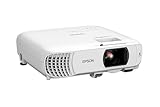
- HOME THEATER PROJECTOR — Bring your entertainment experience to the next level; With detailed 1080p images and fast data processing, the Epson Home Cinema projector is optimized for fast-action sports and more; Also an exciting casual gaming projector
- ULTRA BRIGHT IMAGES — 4,000 Lumens of Color Brightness (IDMS rated) and 4,000 Lumens of White Brightness (ISO Rated)¹; Wall projector for tv and movies delivers clear and crisp images in a variety of lighting conditions
- VIVID AND PRECISE COLOR — Advanced 3LCD technology displays 100% of RGB color signal for every frame, providing precision color accuracy while maintaining vivid color brightness, without distracting "rainbowing" or "color brightness" issues
- VERSATILE CONNECTIVITY — Streaming projector features two HDMI ports and a USB port that functions as a power source for streaming devices²; Connect laptops and devices, including Fire TV, Apple TV, Roku, and Chromecast; Seamless video conferencing
- QUICK AND SIMPLE SETUP — The built-in speaker means you can start using this projector immediately; Easy setup for video and audio right out of the box; Portable projector with speaker can also be easily repositioned
What to do when the projector has no Audio Out
A missing Audio Out jack does not necessarily prevent external sound. Route audio from the device that creates the content. For example, pair a Bluetooth speaker with a compatible streaming device, connect powered speakers to a laptop’s audio output, or send both video and audio through an AV receiver that can forward the picture to the projector.
The exact wiring depends on the source. A source with one HDMI output may need an audio extractor or an AV system designed to separate audio, but compatibility and format support must be confirmed before buying additional hardware. If the source already offers Bluetooth, analog, or optical output, using that output is usually simpler.
Independent reader supportYour contribution helps us test, update, and keep practical guides available for everyone.Troubleshooting: video works but there is no sound
Check mute, volume, and the selected output
- Make sure neither the projector nor the source is muted.
- Confirm that the projector is using the intended input and audio destination.
- For a soundbar or receiver, select the matching input rather than leaving it on another source.
- For Bluetooth, verify that the speaker shows connected and that no second device has taken the connection.
Set HDMI audio to PCM
Some sources send an audio format the projector cannot decode. With HDMI video working and audio silent, open the source’s audio settings and select PCM or stereo PCM. Epson documents this step for the Home Cinema 2200/2250 when HDMI audio is missing.
Recheck ARC settings and ports
ARC only works through the ARC-labeled HDMI ports. Confirm ARC is enabled on both devices, the projector’s sound output is set to ARC, and HDMI control or a similarly named setting is enabled if required. Power-cycle both devices after changing ARC settings so they can renegotiate the connection.
Best Value

- [ Built-in Google TV | 10,000+ Apps | Voice Control ] - VISSPL 4K projector brings your favorite entertainment together—no TV stick, no extra devices, and no complicated setup. This Google TV projector gives you instant access to YouTube, Prime Video, Disney+, Hulu, and 10,000+ apps from one easy-to-use home screen. Enjoy 800+ free live TV channels, personalized recommendations, and seamless access to movies, shows, sports. Simply press the voice button on the remote and ask Google Assistant to search movies, launch apps, adjust volume, or check the weather. From home theater nights to outdoor entertainment, this smart projector makes every viewing experience faster, smarter, and easier.
- [ 4K Decoding & 3500 ANSI: Stunning Visual ] - Experience a brighter, more immersive big-screen experience with this smart 4K projector. Featuring 3500 ANSI brightness, native 1080P resolution, 4K decoding support, HDR10 enhancement, and 99.8% wide color gamut, this projector 4K delivers vibrant colors, sharp details, and enhanced contrast for every scene. Whether you are watching blockbuster movies, streaming your favorite shows, gaming, or enjoying outdoor movie nights, every frame feels more vivid, detailed, and cinematic. Create a premium home theater experience with a powerful movie projector designed for immersive entertainment.
- [ Google Voice Assistant: Just Speak & Watch] – Simply press the voice button and speak naturally. Just say, "Play Stranger Things on Netflix," "Open YouTube," or "What's the weather like today?" and Google Voice Assistant does the rest. Find movies across your favorite apps, launch content, adjust the volume, and control your entertainment without typing or complicated navigation. Faster, smarter, and completely hands-free—whether you're relaxing at home or enjoying movie night outdoors.
- [ 25dB Whisper-Quiet – Sleep Friendly ] – With an advanced cooling system operating at just 25dB, enjoy immersive entertainment with minimal noise—perfect for late-night movies, bedrooms, and shared spaces. Enjoy immersive movies with crystal-clear dialogue and fewer distractions, whether you're relaxing in bed, watching late at night, or sharing a room with someone who's already asleep.
- [ WiFi 6 & Bluetooth 5.2 – Effortless Connectivity ] - Stream, mirror, and connect with ease. This projector with WiFi and Bluetooth features next-generation WiFi 6 for faster, more stable streaming, while wireless casting lets you share movies, photos, and presentations from your phone, tablet, or laptop. Bluetooth 5.2 allows easy connection to external speakers, making it a versatile WIFI projector for enhanced audio experiences. HDMI ARC/CEC and USB ports support gaming consoles, streaming devices, USB drives, and more, providing flexible compatibility with multiple devices.
Test the source and destination separately
Play a different source, try the speaker with a phone or another known-good device, and test the projector’s internal speaker if it has one. These tests identify whether the fault is in the source format, cable, projector output, or external speaker.
Remember automatic speaker disabling
If sound stops from the projector after connecting a speaker, check the manual for automatic muting. Epson documents internal-speaker disabling for external-speaker use on the Home Cinema 2200/2250 and for HDMI2 ARC on the EF12. Do not assume the same rule applies to another model.
Which audio route fits your setup?
- Fast, temporary viewing: Use the built-in speaker if the projector has one and the room is quiet enough.
- No projector Audio Out, but a Bluetooth-capable source: Pair the speaker with the source rather than the projector.
- Powered speakers already available: Use Audio Out if the projector provides a compatible jack and the speakers accept that signal.
- Permanent living-room installation: HDMI ARC is convenient when both projector and soundbar or receiver support it.
- Existing digital-audio system: Use optical output when both devices provide matching optical ports.
- Home-theater components already in place: Let the AV receiver handle audio and pass video to the projector, provided its inputs and outputs support the required resolution and signal.
Examples that illustrate the differences
Epson’s Home Cinema 2200/2250 documentation combines several options: a built-in speaker for HDMI sources, Audio Out for wired external audio, Bluetooth pairing, and PCM guidance for HDMI troubleshooting. It also warns that connecting an external speaker disables the internal speaker.
Epson’s EF12 documentation demonstrates an ARC-specific setup using HDMI2 and states that enabling ARC disables its internal speakers. Epson’s LS650 support information lists HDMI, HDMI ARC, Bluetooth, and optical routes, while placing digital-output volume control on the external audio device.
The CO-W01 documentation represents the opposite case: no direct speaker connection on the projector, with audio instead routed from the connected computer or video equipment. Together, these examples explain why a generic “yes” or “no” answer is unreliable.
Quick Recap
Buying checklist
- Record the exact projector model and read its audio section.
- Confirm whether a built-in speaker exists and which inputs can feed it.
- Identify Audio Out, ARC, optical, and Bluetooth capabilities separately; they are not interchangeable.
- Check the source device’s independent audio outputs.
- Verify whether selecting external audio disables the internal speaker.
- Match powered speakers, soundbars, receivers, and cables to the confirmed connector and signal type.
- Keep the manual available for output selection, PCM, ARC, and volume behavior.
Product prices and availability are accurate as of the date/time indicated and are subject to change. Any price and availability information displayed on Amazon at the time of purchase will apply.

