
Recommended Free Tools
iTechGuides is reader-supported. When you buy through links on our site, we may earn an affiliate commission. As an Amazon Associate I earn from qualifying purchases. Learn more
You can check your Steam Deck battery health instantly from Desktop Mode: hold the Power button, choose Switch to Desktop, click the battery icon in the lower-right system tray, and read the health percentage below the current charge level. The same workflow applies to Steam Deck LCD and OLED models, although SteamOS labels and panel layouts can vary.
The health figure is different from the battery percentage shown in Game Mode. Game Mode reports how much charge the battery has now; Desktop Mode estimates how much maximum capacity the battery retains compared with its original design capacity.
Key takeaways
- Steam Deck battery health is shown in Desktop Mode under the lower-right system-tray battery panel, not normally in the standard Game Mode battery indicator.
- Battery health is an estimated capacity percentage, while charge percentage describes the current charge and runtime depends on the game and power settings.
- A reading of 90–100% is generally healthy, 80–89% can indicate wear without automatically requiring replacement, and below 80% is a reason to investigate symptoms and calibration.
- Steam Deck LCD and OLED batteries have different designs and replacement parts: approximately 40 Wh for LCD and 50.08 Wh for OLED.
- Swelling, case separation, sudden shutdowns, failure to hold charge, or operation only while connected to power matter more than a single health percentage.
How do you check Steam Deck battery health instantly?
The fastest graphical method takes you from Game Mode to Desktop Mode and then to the KDE system-tray battery information:
Free tools Windows power users keep installed
One-click scans. No signup required.
- Hold the Power button.
- Select Switch to Desktop.
- Click the battery icon in the lower-right system tray.
- Read the Battery health percentage below the current charge level.
iFixit’s Steam Deck charging troubleshooting documentation identifies Desktop Mode and the system-tray battery icon as the direct route to the health reading.
#1 Best Overall

- PRECISE MODEL COMPATIBILITY: Engineered specifically as a direct replacement battery for handheld gaming consoles; fully compatible with OLED F7G and LCD F7A or F7GM models; restores original power levels for seamless gaming sessions
- UPGRADED ENERGY CAPACITY: Rated at 7.74 V 6880 mAh and 53 Wh to provide extended playtimes; high-density lithium-polymer cells deliver steady voltage and stable current output to keep your device powered during heavy processing loads
- COMPLETE DIY REPAIR TOOLKIT: Pack includes one replacement battery, a PH0 screwdriver, one anti-static nylon pry bar, one thin prying sheet, and two flexible disassembly cards; supplies all necessary elements to complete your installation
- IMPORTANT SAFE START NOTICES: Ensure your original battery is discharged below twenty-five percent before disassembly to prevent puncture risks; remove your microSD card before removing the back cover to avoid snapping or physical damage
- INTELLIGENT SYSTEM PROTECTIONS: Features built-in microchip to prevent overcharging, overheating, and short circuits; connects your original charger after installation to wake up the handheld console and ensure a safe power-on sequence
SteamOS and KDE desktop updates can change the precise wording, icon position, or panel arrangement. If the first click displays only the current charge, open the battery details or energy-information view. The stable workflow is Desktop Mode → system-tray battery icon → battery details or health.
What is the difference between Steam Deck charge level, battery health, and runtime?
Charge level is how full the battery is right now. A value such as 72% means the battery currently has an estimated 72% charge; it does not mean the battery retains 72% of its original capacity.
Battery health is an estimate of the battery’s present maximum charge capacity compared with its design capacity. A Steam Deck showing 90% health is estimated to hold about 90% of its original capacity when fully charged, although the displayed estimate can be imperfect.
Runtime is how long the Steam Deck operates before needing power. Runtime changes with display brightness, refresh rate, TDP, frame-rate limits, wireless radios, game engine, background processes, shader compilation, and whether the Deck is running Game Mode or Desktop Mode.
Battery health is therefore not a gaming-hours benchmark. A demanding game at high brightness, high TDP, uncapped frame rate, or 90 Hz on an OLED model can drain a healthy battery quickly. A lower-health battery can still provide acceptable runtime for lightweight games.
Does this method work on Steam Deck OLED?
Yes. The same Desktop Mode battery-panel workflow applies to Steam Deck LCD and Steam Deck OLED models. Both expose battery information through the Linux desktop power-management interface, but the exact SteamOS version and KDE layout can affect where the detailed health value appears.
The battery designs are not interchangeable. The LCD battery is listed at approximately 40 Wh / 5,200 mAh, while the OLED battery is listed at approximately 50.08 Wh / 6,470 mAh. The specifications come from iFixit’s LCD battery listing and iFixit’s OLED battery listing. Compare health percentages rather than raw watt-hours when evaluating wear, and use a model-specific replacement part if a battery eventually needs service.
| Model | Approximate design capacity | Replacement-part guidance |
|---|---|---|
| Steam Deck LCD | 40 Wh / 5,200 mAh | Use an LCD-specific battery and LCD replacement procedure. |
| Steam Deck OLED | 50.08 Wh / 6,470 mAh | Use an OLED-specific battery and OLED replacement procedure. |
How should you interpret the Steam Deck battery-health percentage?
The percentage is most useful as a starting point, not as an automatic replacement order. These practical bands can help you decide what to investigate:
Rank #2

- Specifications: Battery type: Li-Polymer. Color: Black. Voltage: 7.7V. Capacity: 53Wh/6880mAh
- Compatible Part Number: F7A F7G F7GM
- Compatible with Models: Replacement for Replacement for Steam Deck LCD/OLED Handheld Gaming PC Series Battery Upgrade 2(ICP6/47/36+ICP6/57/80)-2
- Security: All ZTHY products are Certified by CE, UL for safety. Strict guidelines for compatibility, and standards compliance for environment safety
- Note: If the new battery is not recognized during the initial installation, please reinstall and check if the interface is fully connected. Discharge the new battery to 10-20% (not 0%), then charge and cycle 3-4 times to wake up the new battery
| Displayed health | Practical interpretation | What to do |
|---|---|---|
| 90–100% | Generally healthy if charging and runtime are normal. | Keep using the Deck; investigate real-world symptoms separately. |
| 80–89% | Noticeable wear may be present. | Compare the result with runtime and charging behavior; replacement is not automatically necessary. |
| Below 80% | Significant degradation is possible. | Check for short runtime, percentage jumps, and unexpected shutdowns before deciding on service or replacement. |
| Any percentage with rapid drops, shutdowns, swelling, or charging abnormalities | The symptom may be more important than the estimate. | Stop treating the percentage as the only diagnostic and pursue troubleshooting or support. |
The 80% point is a practical diagnostic convention, not an official universal Valve replacement cutoff. A Steam Deck with 82% health and acceptable runtime may be perfectly usable. A Steam Deck with a higher displayed value but sudden shutdowns may need attention sooner.
What if Steam Deck battery health says 100% but the battery drains quickly?
A 100% reading does not prove that runtime is normal. The estimate may be stale or inaccurate, the wrong panel may be showing charge level rather than health, or a demanding workload may explain the drain.
Check the following before assuming the battery is defective:
What’s actually slowing this PC down?
Pick the symptom - the matching free tool is one click away.
- Confirm that the number came from the Desktop Mode battery details, not the current-charge indicator in Game Mode.
- Test whether the drain occurs in one demanding game or across several lighter workloads.
- Reduce brightness, cap the frame rate, lower TDP where appropriate, and check whether an OLED Deck is using 90 Hz.
- Close unusually demanding background processes in Desktop Mode.
- Reboot the Deck and check the health value again.
- Install pending SteamOS updates through Game Mode if updates are available.
A battery gauge may also need a calibration-related troubleshooting cycle. Calibration can improve the accuracy of the reported gauge; calibration cannot restore capacity that the battery has chemically lost.
Can recalibration improve an incorrect battery reading?
A full charge and discharge cycle may help the battery controller refine its estimate, but recalibration is troubleshooting rather than routine battery maintenance. Do not repeatedly deep-discharge a healthy lithium-ion battery just to chase a particular percentage.
If the battery is not swollen, hot, damaged, or unstable, one cautious troubleshooting cycle can be:
- Charge the Steam Deck to 100%.
- Leave the Deck connected for a while so charging can finish.
- Use the Deck until it reaches a genuine low-battery shutdown.
- Charge it uninterrupted back to 100%.
- Recheck battery health in Desktop Mode.
iFixit’s Steam Deck battery documentation discusses charging and calibration in the context of a newly installed battery. The available documentation does not establish a universal Valve-approved calibration procedure for every Steam Deck, so treat the cycle as a diagnostic experiment, not a guaranteed fix. Never perform it with a visibly damaged or swollen battery, and do not leave a damaged battery unattended while charging.
The Tool Desk
Outbyte Driver Updater FREEScan for outdated or missing drivers - takes under a minuteDriver Scan →Outbyte PC Repair FREEClear out junk files and repair common Windows errorsFree Scan →What should you do if the health reading is unexpectedly low?
An unexpectedly low number should be checked against the Deck’s behavior before a battery is replaced. Follow this sequence:
Rank #3
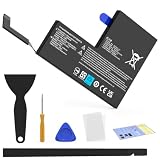
- Compatible with SteamDeck LCD & OLED Handheld Gaming Console.(Replacement Battery Model: F7A,F7G,F7GM)
- Replacement battery for Steamdeck internal battery, 53Wh large capacity, no need charge frequently or plugging chareging cable or power bank for your old battery.
- This is the upgraded 53Wh battery, offering increased capacity compared to the original 40Wh battery in the LCD console. When compared to the original 50Wh battery in the OLED console, this 53Wh battery delivers at least equivalent battery life, injecting new vitality into your gaming console for a smoother gaming experience.
- Replacement the battery requires the open the console cover, which may affect the warranty after replacing the battery if the machine is still under warranty. Please give due consideration before replacement.
- Note that if the new battery is not recognized on initial installation, reinstall and check that the interface is fully connected. Discharge the new battery to 10-20% (not 0%), then charge and cycle 3-4 times to wake up the new battery
- Reboot the Steam Deck.
- Return to Desktop Mode and open the battery details again.
- Install pending SteamOS updates through Game Mode if available.
- Fully charge the Deck and observe whether the reported health changes.
- Compare the percentage with actual symptoms such as short runtime, sudden shutdowns, charge jumps, or failure to charge.
- Contact Steam Support if the number remains implausible, the Deck is under warranty, or the battery presents a safety concern.
Do not open the Deck merely to confirm a software reading. A low estimate without matching symptoms can be a gauge or reporting issue; a low estimate combined with severe runtime or charging problems deserves service evaluation.
What if the battery icon or health percentage is missing?
A missing health value does not necessarily mean that the battery has no health data. Work through these checks:
- Confirm that the Deck is in Desktop Mode, not Game Mode.
- Click the system-tray battery icon rather than the Game Mode battery indicator.
- Open the battery’s detailed or energy-information panel if the first pop-up shows only charge percentage.
- Restart Desktop Mode or reboot the Deck.
- Check whether the battery is detected at all.
- Test with the official charger or a sufficiently powerful, Deck-compatible USB-C charger.
If the Steam Deck works only while connected to power, or the battery is not detected, suspect a battery, connector, charging, or power-management problem rather than merely a hidden percentage. iFixit’s charging troubleshooting guide covers battery-detection and charging symptoms.
How can advanced users check battery health with UPower?
UPower provides a terminal-based alternative from Desktop Mode. The graphical method is safer and easier for most owners, but UPower can expose raw capacity fields and sometimes the battery’s charge-cycle count.
Open Konsole in Desktop Mode and enumerate battery devices:
upower -e | grep BATThe command returns a device path. Inspect the path that your Deck returns rather than assuming that every system uses battery_BAT0:
upower -i /org/freedesktop/UPower/devices/battery_BAT0Replace the example path with the exact path printed by the first command. Look for:
Windows Errors? Fix Them Before They Spread
Repair common Windows errors and clear accumulated junk for a smoother, more stable PC - no reinstall needed.Free scan · no reinstallOutdated Drivers Are Slowing You Down
One free scan finds every outdated or missing driver and matches the right update for your exact hardware.Free scan · exact hardware matchenergy-full: the battery’s currently estimated full energy capacity.energy-full-design: the original design energy capacity reported by the battery system.percentage: the current charge percentage.capacity: a health-style capacity percentage, when the field is exposed.charge-cycles: cycle count, when the battery hardware or firmware reports it.
When capacity is absent, an approximate health calculation is:
Rank #4

- Compatible Models: Fit for Steam Deck OLED (F7G) and LCD (F7A / F7GM) handheld gaming consoles
- Replace Part Number: Fit for F7A F7G
- Specification: Voltage: 11.55V. Capacity: 41.9Wh/3630mAh. Battery Type: Li-Polymer. Condition: Brand new, from durable materials, top circuit boards and smart chip
- Easy to install: Includes one replacement battery, one user manual, and a full set of installation tools such as three screwdrivers, an anti-static nylon pry bar, one prying sheet, and one flexible disassembly cards. No additional tools required
- Enhanced performance: Each products has undergone rigorous testing to ensure the correct voltage, circuit protection, stable current, low self-discharge and CE / FCC / RoHS Certified for safety. About 500 recharge cycles over the life
battery health ≈ energy-full ÷ energy-full-design × 100iFixit’s Linux battery-health guide describes UPower enumeration and these battery fields. Device paths and available fields vary, and UPower still depends on what the battery controller and firmware report. Do not treat missing cycle data or an unusual value as proof that the battery is failing.
What are the signs of a real Steam Deck battery problem?
Real-world behavior can be more diagnostic than the health number. Arrange troubleshooting or service when the Steam Deck unexpectedly shuts down despite a nonzero charge reading, cannot hold a charge, refuses to charge normally, or operates only while connected to external power.
A charger or USB-C problem can resemble battery failure. iFixit’s troubleshooting material refers to a 15-watt charger as a minimum test condition when checking whether a Deck can operate with the battery disconnected; that does not make a 15-watt charger suitable for normal Deck gaming. Normal use should rely on an appropriate Deck-compatible charger.
Battery storage mode is unrelated to battery health. Storage mode is intended for storage or repair, and the Power button may not wake the Deck until external power is connected. iFixit’s Steam Deck power troubleshooting documentation describes that behavior.
What should you do if the Steam Deck battery is swollen?
Stop normal use and do not attempt an ordinary battery replacement on a visibly swollen pack. Do not press, puncture, bend, heat, or continue charging a swollen lithium-ion battery. Possible signs include case separation, unexplained housing bowing, a raised section of the enclosure, or localized screen discoloration.
Shut the Steam Deck down and disconnect power if doing so is safe. Contact Steam Support or a qualified repair provider for a battery that is swollen, hot, visibly damaged, or physically forcing the case apart. iFixit’s LCD battery replacement guide warns about lithium-ion battery puncture and heat hazards. A health percentage cannot make a physically unsafe battery safe.
Independent reader supportYour contribution helps us test, update, and keep practical guides available for everyone.Should you replace the Steam Deck battery?
Battery replacement is reasonable when substantial degradation makes runtime unacceptable, the Deck shuts down unexpectedly, the battery will not hold a charge, or the Deck works only on external power. The health percentage alone should not force replacement.
LCD and OLED repairs require different batteries and different procedures. The LCD battery is adhered and the replacement is difficult; use the LCD-specific replacement guide. OLED owners must use the separate OLED-specific replacement guide rather than following an LCD teardown blindly.
Best Value

- Battery Type:Li-ion Voltage:7.74V Capacity: 50.08Wh 6470mAh
- Compatible Part Number: F7G F7A 2(ICP6/47/36+ICP6/57/80)-2
- Fits Model: for Steam Deck LCD / OLED Handheld Gaming PC Series
- New from manufacturer. CE/FCC/RoHS certified for safety.
- 12 Months After Sales, 30 Days REFUND Promise, 24 x 7 Email Support.
During the research check on August 16, 2026, iFixit’s product pages showed a price signal of $134.99 for an LCD fix kit and $84.99 for an OLED fix kit. Prices, stock, shipping, and regional availability can change. The listed approximate specifications were 40 Wh, 5,200 mAh, and 7.7 V for LCD, and 50.08 Wh, 6,470 mAh, and 7.74 V for OLED. Confirm model compatibility before buying any part.
A toolkit can make sense only after confirming that the battery is the problem and deciding to perform the repair. The iFixit Steam Deck toolkit was listed at $19.99 during the same research check, but a reader who is not carrying out a repair does not need to buy tools. Professional or official support is the safer choice for swelling, damaged connectors, uncertain model identification, warranty questions, or anyone unwilling to handle an adhered lithium-ion pack.
Do not use Windows-only instructions such as powercfg /batteryreport as the normal Steam Deck method. Microsoft documents powercfg as a Windows command; Steam Deck owners running SteamOS should use Desktop Mode’s battery panel or UPower instead.
Quick wins for a faster PC:
Fix the driver behind crashes, sound loss and screen glitchesFind Drivers →Clear out junk files and repair common Windows errorsFree Scan →Scan for outdated or missing drivers - takes under a minuteDriver Scan →Frequently Asked Questions
Can I check Steam Deck battery health in Game Mode?
The documented quick method for Steam Deck battery health uses Desktop Mode: hold Power, choose Switch to Desktop, click the lower-right battery icon, and open the battery details. The ordinary Game Mode indicator primarily shows current charge, not the battery’s remaining maximum capacity.
Does 100% Steam Deck battery health mean the battery is new?
No. A 100% health reading means the power-management system estimates that the battery can hold its design capacity; the estimate can be inaccurate or stale, and the reading does not prove that the battery is new.
Can calibration restore lost Steam Deck battery health?
Calibration may improve the accuracy of the battery gauge, but calibration cannot restore capacity lost through chemical aging. A full charge/discharge/recharge cycle should be an occasional troubleshooting step only, never routine maintenance, and it should not be attempted with a swollen or damaged battery.
Is 80% Steam Deck battery health bad?
Below 80% is a practical reason to investigate degradation, but 80% is not a universal official Valve replacement cutoff. Replace the battery based on unacceptable runtime, shutdowns, charging failure, or other symptoms rather than the percentage alone.
Do these 3 things before closing this tab:
1Repair Windows errors before they cause bigger problems2Fix the driver behind crashes, sound loss and screen glitches3Clear out junk files and repair common Windows errorsDoes the Steam Deck OLED use the same battery as the LCD model?
No. Steam Deck LCD and OLED models require different replacement batteries and procedures. The approximate design capacities are 40 Wh for LCD and 50.08 Wh for OLED, so owners should verify the model before buying a replacement part.
What should I do if my Steam Deck battery is swollen?
Shut the Steam Deck down, disconnect power if safe, and contact Steam Support or a qualified repair provider. Do not press, puncture, bend, heat, or continue charging a swollen lithium-ion battery, and do not treat a normal DIY replacement guide as suitable for a visibly swollen pack.
The Bottom Line
For the quickest Steam Deck battery-health check, switch to Desktop Mode and open the lower-right system-tray battery details. Use the percentage as an estimate, then compare it with runtime, charging behavior, shutdowns, and physical battery condition. A low number may justify investigation; swelling or dangerous symptoms justify stopping use and seeking service.
Quick Recap
Product prices and availability are accurate as of the date/time indicated and are subject to change. Any price and availability information displayed on Amazon at the time of purchase will apply.

