
Quick wins for a faster PC:
Fix the driver behind crashes, sound loss and screen glitchesFind Drivers →Clear out junk files and repair common Windows errorsFree Scan →iTechGuides is reader-supported. When you buy through links on our site, we may earn an affiliate commission. As an Amazon Associate I earn from qualifying purchases. Learn more
Usually, yes—but a completely lossless move is not guaranteed. Your result depends on the source app, destination app, export format, device, account type, and features such as attachments, audio, tables, checklists, labels, sharing, and notebook hierarchy. The safest approach is to export a backup, confirm the destination’s supported formats, test a small but representative batch, and inspect the imported notes before deleting anything.
Think of a migration as a controlled data conversion, not a simple sign-in. Plain text often transfers cleanly; rich content and metadata may be changed, flattened, or omitted.
What determines whether your notes survive?
No single “move notes” standard works across every app. Four questions determine the likely result.
What can the source app export?
Some apps produce open files such as TXT, HTML, RTF, Markdown, PDF, CSV, or DOCX. Others create a proprietary package that only certain destinations understand. Export options can also vary by device: Evernote, for example, documents ENEX and HTML export in its Mac and Windows desktop apps, while its web version does not provide export.
#1 Best Overall

- New and Improved Core: Features premium reusable paper, with improved pen to paper feel, spiral binding and sleekly re-designed, scratch-resistant cover. College-ruled sheets now include Smart Titles and Smart Tags to name and organize files efficiently.
- App-Enabled for Digital Organization: Scan and upload your written work directly to cloud platforms like Google Drive, Dropbox, OneNote, etc. and access your notes from anywhere. Use Smart Titles and Smart Tags to name and organize files efficiently.
- Write, Digitize, Erase, and Re-Write: Write notes with the included Pilot Frixion Pen, digitize effortlessly using the Rocketbook app, store in your preferred cloud service. When done, simply wipe the pages clean with a damp cloth and start fresh.
- Portable and Versatile Sizes: Available in two sizes—Letter (8.5 x 11 inches) and Executive (6 x 8.8 inches)—the Rocketbook Core is compact enough to fit into backpacks, purses, or briefcases. This notebook offers portability and versatility.
- Eco-Friendly Reusability: Designed with sustainability in mind, Rocketbook notebooks help reduce paper waste with a reusable alternative. Enjoy a paper-like notebook that can be used repeatedly, allowing you to save work and erase everything else.
What can the destination import?
A destination may accept a file but handle it only as an attachment. It may convert the file into editable notes, import only text, or omit unsupported objects. A format appearing in an app’s import list therefore does not mean every field will be recreated.
Which features do your notes use?
Simple paragraphs are easier to move than notes containing scanned documents, handwriting, audio, drawings, embedded files, tables, checklists, labels, collaborators, dates, internal links, or nested notebooks. The more structure a note has, the more important a test migration becomes.
What platform and account are involved?
Import tools may exist only on desktop or web, not mobile. Cloud accounts can also behave differently from local notebooks. Google says some data in work or school Keep accounts may not be available for download, and Microsoft distinguishes among OneNote versions when describing export routes.
Free tools Windows power users keep installed
One-click scans. No signup required.
Prepare before you export
Make an inventory
Write down what must be preserved before choosing a route. Include:
- Note and notebook/folder counts.
- Attachments, images, PDFs, scans, recordings, drawings, and other files.
- Headings, links, tables, checklists, code, and formatting.
- Tags or labels, pinned and archived states, dates, reminders, and locations.
- Shared notes, collaborators, permissions, and links to other notes.
- Any encrypted, offline, or very large notes.
This inventory is a success checklist, not a promise that the source can export every field or that the destination can reproduce it.
Rank #2

- New and Improved Core: Features premium reusable paper, with improved pen to paper feel, spiral binding and sleekly re-designed, scratch-resistant cover. Grid layout pages now include Smart Titles and Smart Tags to name and organize files efficiently.Create, Digitize, Erase, Re-Create: Capture ideas with the included Pilot Frixion Pen, digitize effortlessly using the Rocketbook app, store in your preferred cloud service. When done, simply wipe the pages clean with a damp cloth and start fresh.
- App-Enabled for Digital Organization: Scan and upload your written work directly to cloud platforms like Google Drive, Dropbox, OneNote, etc. and access your notes from anywhere. Use Smart Titles and Smart Tags to name and organize files efficiently.
- Write, Digitize, Erase, and Re-Write: Write notes with the included Pilot Frixion Pen, digitize effortlessly using the Rocketbook app, store in your preferred cloud service. When done, simply wipe the pages clean with a damp cloth and start fresh.
- Portable and Versatile Sizes: Available in two sizes—Letter (8.5 x 11 inches) and Executive (6 x 8.8 inches)—the Rocketbook Core is compact enough to fit into backpacks, purses, or briefcases. This notebook offers portability and versatility.
- Reusability: Designed with sustainability in mind, Rocketbook notebooks help reduce paper waste with a reusable alternative. Enjoy a paper-like notebook that can be used repeatedly, allowing you to save work and erase everything else.
Create an independent backup
Export a copy to storage you control, separate from the source account. Keep the original account active while you verify the new library. If the app offers more than one export format, create the format the destination specifically recommends and, when practical, a second archival copy such as HTML or PDF.
Record the source state
Capture the source app’s notebook list and total note count. For important projects, save a few screenshots showing formatting, checklists, tables, and attachments. These references make it easier to identify omissions after import.
What’s actually slowing this PC down?
Pick the symptom - the matching free tool is one click away.
The safest migration workflow
- Choose a representative test batch. Select ordinary text notes plus examples containing your richest features: an image, a PDF, a checklist, a table, labels, a shared note, and a nested notebook if you use them.
- Confirm the destination route. Read the destination’s current import instructions and verify the required device. Check whether the route is a native importer, a standard file import, or an intermediate conversion.
- Export the test batch. Do not move or delete the source originals. Give the export a clear folder name and note the format and date.
- Import using the documented workflow. If the destination has an Import command, use it rather than dragging files into a note list. A direct drag can create an attachment instead of editable content.
- Inspect the result. Open every test note and check text, headings, links, dates, attachments, lists, labels, and hierarchy. Open files such as PDFs and recordings rather than relying on a thumbnail.
- Decide whether the result is acceptable. If a required feature is missing, stop and try another format, an intermediate app, or a manual export for that feature.
- Migrate the remaining library. Import in batches if the destination has limits or the library is large. Keep a record of each batch.
- Audit counts and samples. Compare source and destination totals, then inspect notes from every notebook or folder, including older and rarely used material.
- Retain the originals. Keep the source account and exported files until the audit is complete and you have opened the destination copy on the devices you actually use.
What common app routes support
The following routes are documented by the vendors. They describe available formats and limitations, not a universal guarantee that every field will survive.
| Route or app | Documented method | Important limitations |
|---|---|---|
| Evernote to an archive | Use the Mac or Windows desktop app to export selected notes or notebooks as ENEX or HTML. | Evernote’s help page says export is unavailable on the web version. |
| Files into Evernote | In Evernote, use Settings → Import for PDF, TXT, HTML, Markdown, or DOCX. These files are converted into editable notes. | Mobile import is unavailable according to the help documentation. Dragging a non-ENEX file into the note list creates an attachment rather than editable note content. |
| Files into Apple Notes on Mac | Apple lists TXT, RTF, RTFD, HTML, and ENEX as import formats. | Apple warns that unsupported Evernote attachments or features are not imported. |
| Evernote into Apple Notes | Export from Evernote, then use Apple Notes’ Mac import route. | Review every rich note; unsupported Evernote content can be omitted. |
| Files into Notion | Notion lists PDF, HTML, Markdown, DOCX, TXT, CSV, and ZIP imports, plus third-party importers including Evernote. | Imports are available on desktop and web, not mobile. Notion advises checking its “What imports, What doesn’t import, and Limitations” guidance first. |
| Notion to an archive | Export workspace content, with options such as including subpages and an index or sitemap in the downloaded export. | Large workspace exports can take a long time. An export package is not automatically a one-click import for another app. |
| Google Keep to an archive | Google’s export can include text and list items, voice recordings, drawings, images, note color, pinned and archived state, collaborators, and labels. | The export describes what is supplied, not how another app will map each field. Some work or school account data may be unavailable for download. |
| OneNote to a computer | Microsoft documents downloading or importing a copy of a notebook to a PC or Mac and provides separate PDF-export guidance for OneNote 2016 for Windows. | Confirm the exact OneNote edition and platform before selecting a method. |
App-specific guidance
Moving out of Evernote
Use the desktop application on Mac or Windows. Select the notes or notebooks, choose the export command, and select ENEX or HTML. ENEX is useful when the destination explicitly supports Evernote exports; HTML is a readable archive and can be useful when you need to inspect notes independently. Because web export is not available, install or open the desktop app before planning the move.
Moving into Evernote
Open Settings and use Import for PDF, TXT, HTML, Markdown, or DOCX. Evernote converts these files into editable notes through that workflow. Do not drag a non-ENEX document directly into the note list when you expect conversion: the documented behavior is to add it as an attachment. The import tool is not available on mobile, so perform this step on desktop.
Rank #3

- New and Improved Core: Features premium reusable paper, with improved pen to paper feel, spiral binding and sleekly re-designed, scratch-resistant cover. College-ruled sheets now include Smart Titles and Smart Tags to name and organize files efficiently.
- App-Enabled for Digital Organization: Scan and upload your written work directly to cloud platforms like Google Drive, Dropbox, OneNote, etc. and access your notes from anywhere. Use Smart Titles and Smart Tags to name and organize files efficiently.
- Write, Digitize, Erase, and Re-Write: Write notes with the included Pilot Frixion Pen, digitize effortlessly using the Rocketbook app, store in your preferred cloud service. When done, simply wipe the pages clean with a damp cloth and start fresh.
- Portable and Versatile Sizes: Available in two sizes—Letter (8.5 x 11 inches) and Executive (6 x 8.8 inches)—the Rocketbook Core is compact enough to fit into backpacks, purses, or briefcases. This notebook offers portability and versatility.
- Eco-Friendly Reusability: Designed with sustainability in mind, Rocketbook notebooks help reduce paper waste with a reusable alternative. Enjoy a paper-like notebook that can be used repeatedly, allowing you to save work and erase everything else.
Moving into Apple Notes on Mac
Apple Notes on Mac lists TXT, RTF, RTFD, HTML, and ENEX as import formats. If your notes already live in an internet account such as iCloud, Google, Yahoo, or AOL, adding that account in Notes may expose the existing notes without a one-by-one file migration. That shortcut applies to supported account synchronization; it does not establish that every third-party app’s rich content will map perfectly.
Recommended Free Tools
For Evernote imports, treat Apple’s warning as a hard check: an attachment or feature that Notes does not support is not imported. Open imported notes containing files, tables, scans, or unusual formatting and compare them with the source.
Moving into Notion
Notion supports imports from PDF, HTML, Markdown, DOCX, TXT, CSV, and ZIP, and documents third-party importers including Evernote. Start the import on desktop or the web version, not mobile. Before a large run, read Notion’s “What imports, What doesn’t import, and Limitations” information and test pages with the database, file, and hierarchy features you depend on.
Moving out of Notion
Use Notion’s workspace export options and choose whether to include subpages and an index or sitemap. A large export may take a long time to prepare. Save the downloaded package as an archive, then verify whether your chosen destination can actually parse its contents; having an export does not imply a compatible one-click importer.
Moving out of Google Keep
Google’s Takeout-style export can include more than note text: list items, voice recordings, drawings, images, colors, pinned and archived state, collaborators, and labels are included in the described export. Check the downloaded files and metadata, then test how your destination represents each field. If the account is managed by work or school, verify that the administrator’s policies do not restrict downloads.
Outdated Drivers Are Slowing You Down
One free scan finds every outdated or missing driver and matches the right update for your exact hardware.Free scan · exact hardware matchPC Slower Than It Used to Be?
A free scan shows the junk files, broken settings and background clutter dragging Windows down - then fixes them in one click.Free scan · Windows 10 & 11Rank #4

- New and Improved Core: Features premium reusable paper, with improved pen to paper feel, spiral binding and sleekly re-designed, scratch-resistant cover. College-ruled sheets now include Smart Titles and Smart Tags to name and organize files efficiently.
- App-Enabled for Digital Organization: Scan and upload your written work directly to cloud platforms like Google Drive, Dropbox, OneNote, etc. and access your notes from anywhere. Use Smart Titles and Smart Tags to name and organize files efficiently.
- Write, Digitize, Erase, and Re-Write: Write notes with the included Pilot Frixion Pen, digitize effortlessly using the Rocketbook app, store in your preferred cloud service. When done, simply wipe the pages clean with a damp cloth and start fresh.
- Portable and Versatile Sizes: Available in two sizes—Letter (8.5 x 11 inches) and Executive (6 x 8.8 inches)—the Rocketbook Core is compact enough to fit into backpacks, purses, or briefcases. This notebook offers portability and versatility.
- Eco-Friendly Reusability: Designed with sustainability in mind, Rocketbook notebooks help reduce paper waste with a reusable alternative. Enjoy a paper-like notebook that can be used repeatedly, allowing you to save work and erase everything else.
Moving OneNote notebooks
Microsoft describes downloading or importing a notebook copy to a PC or Mac. OneNote 2016 for Windows has separate PDF-export guidance, so identify the exact application before exporting. A PDF preserves visual appearance well but is generally an archive rather than an editable notebook structure; test whether your destination can use the format you select.
Independent reader supportYour contribution helps us test, update, and keep practical guides available for everyone.How to audit an imported library
Check completeness
- Compare the number of notebooks, folders, sections, and notes where the apps expose those counts.
- Search for several distinctive phrases from the source and confirm that they appear in the destination.
- Open the oldest, newest, largest, and most recently edited notes.
Check fidelity
- Verify headings, bold or italic text, links, bullets, numbered lists, checkboxes, tables, and code formatting.
- Open every attachment type used in your test batch, including recordings and scans.
- Check labels, tags, dates, pinned or archived state, collaborators, and permissions separately; these fields often have no direct equivalent.
- Follow internal and external links and confirm that they point to the intended place.
Check usability on real devices
Sign in on the phone, tablet, and computer where you work. Confirm that imported notes synchronize, attachments download, and search returns expected results. A successful desktop import is not enough if the destination’s mobile app handles the imported content differently.
Common failure modes and what to do
Rich formatting becomes plain text
Try a destination-supported HTML, RTF, or native export instead of TXT. If the destination has no equivalent for a table or checklist, keep the original export as the authoritative archive and decide whether a manual rebuild is worth the time.
Attachments are missing
Recheck the source export itself. If the files are present there but absent after import, the destination may not support that attachment type. Preserve the export and consider importing the files separately into a clearly named folder.
Everything appears as one attachment
You may have used a file-drop route instead of the app’s importer. Repeat the test with the documented Import command. This is specifically relevant when bringing PDF, TXT, HTML, Markdown, or DOCX into Evernote.
Best Value
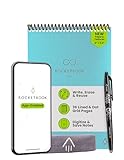
- New and Improved Flip: Features premium reusable paper, with improved pen to paper feel, spiral binding and sleekly re-designed, scratch-resistant cover. Lined and dot grid pages include Smart Titles and Smart Tags to name and organize files efficiently
- Write, Digitize, Erase, and Re-Write: Write notes efficiently with the included pen, digitize effortlessly using the Rocketbook app, and store in your preferred cloud service. When done, simply wipe the pages clean with a towel & water and start fresh
- Personalized note-taking: Designed for lefties and righties alike, this resuable steno style notepad features a top-bound spiral design. Write notes, lists or big ideas on reusable paper, lined on the front and dotted on the back for endless creativity
- Digital Organization: The Rocketbook app allows you to scan and upload your written work to cloud platforms like Google Drive, Dropbox, OneNote, etc., ensuring your notes are accessible from anywhere. Use smart titles and tags for easy organization
- High-Quality & Durable Materials: Crafted from premium reusable paper, Rocketbook Flip has a legal pad design, with top-bound spiral binding and waterproof cover. Lined and dot grid pages offer flexibility perfect for note-taking, ideation and brainstorming
Notebook hierarchy is flattened
Look for destination options that include subpages, sections, or an index. If none exists, create a mapping spreadsheet or folder scheme before importing so you can reconstruct the hierarchy consistently.
Counts do not match
Check whether archived, trashed, shared, or unsupported notes were excluded from the export. Compare batch by batch rather than assuming a single total identifies the missing items.
The export cannot be opened
Confirm that you are using the application and platform required by the source. Evernote export requires its desktop app, and OneNote instructions vary by edition. Re-export a small batch to determine whether the problem is the file or the destination importer.
How to choose a destination that will remain portable
Evaluate a destination before importing your entire history. Use these five questions:
- Does it accept the source app’s native export or a well-documented standard format?
- Which structure and metadata does it preserve, and which does it flatten?
- Can it store every attachment and rich-content type you use?
- Is import available on the platform you have, or only on desktop or web?
- Can you export your notes again later in a usable, documented format?
The last question matters because portability is an ongoing property. A destination that imports today but offers no practical export route can make the next switch harder.
When is it safe to delete the old app or account?
Only after the destination passes your inventory and audit. Keep at least one independent export even after you are satisfied, especially for legal, financial, research, or work records. If the source account contains shared notes or links used by other people, notify them before changing or removing access. A migration is complete when you can find, open, and use the notes you need—not merely when an import progress bar reaches 100 percent.
Quick Recap
Product prices and availability are accurate as of the date/time indicated and are subject to change. Any price and availability information displayed on Amazon at the time of purchase will apply.
Do these 3 things before closing this tab:
1Repair Windows errors before they cause bigger problems2Fix the driver behind crashes, sound loss and screen glitches3Clear out junk files and repair common Windows errors
