
Quick wins for a faster PC:
Clear out junk files and repair common Windows errorsFree Scan →Fix the driver behind crashes, sound loss and screen glitchesFind Drivers →iTechGuides is reader-supported. When you buy through links on our site, we may earn an affiliate commission. As an Amazon Associate I earn from qualifying purchases. Learn more
Yes. Nintendo Switch Sports tennis supports remote matches through Play with Friends. Every player who joins an internet session needs an active Nintendo Switch Online membership. Without that membership, Nintendo’s Play Globally option is limited to a trial competition against computer-controlled opponents, not a private match with friends.
What you need for an online tennis match
Each participant needs a copy of Nintendo Switch Sports, a Nintendo Switch family console, a compatible Joy-Con controller and internet access. The online session is created from the game’s Play with Friends menu rather than from Play Globally. Nintendo’s FAQ specifically states that an active Nintendo Switch Online membership is required to play Nintendo Switch Sports online.
| # | Preview | Product | Price | |
|---|---|---|---|---|
| 1 |
|
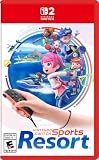
Nintendo Switch™ Sports Resort - Nintendo Switch 2 | Buy on Amazon | |
| 2 |
![Nintendo Switch Sports Standard - Nintendo Switch [Digital Code]](https://m.media-amazon.com/images/I/513dxGiaPIL._SL160_.jpg)
|
Nintendo Switch Sports Standard - Nintendo Switch [Digital Code] | $39.99 | Buy on Amazon |
- Game: Nintendo Switch Sports installed on every console that will join.
- Membership: An active Nintendo Switch Online subscription for each person playing online.
- Console mode: TV Mode is required; Nintendo Switch Sports does not support Handheld Mode.
- Controllers: Compatible Joy-Con controllers. Nintendo says supported controller types vary by sport, and Nintendo Switch Pro Controllers are not compatible.
- Connection: A stable internet connection for each remote console.
TV Mode works with the original Nintendo Switch, Nintendo Switch OLED Model and Nintendo Switch 2. If someone is trying to play with the console detached and using its built-in screen, that is the wrong setup for this game: Nintendo lists Handheld Mode as unsupported.
Crashes, No Sound, or Screen Glitches?
Random freezes, missing sound and display glitches usually trace back to one bad driver. Find and replace yours safely.Free scan · under a minuteWindows Errors? Fix Them Before They Spread
Repair common Windows errors and clear accumulated junk for a smoother, more stable PC - no reinstall needed.Free scan · no reinstallHow to play tennis online with friends
Use these steps on every console. The exact room prompts can vary slightly by console software version, but the route begins in the same place.
#1 Best Overall
- Swing your racket, pull back and aim like an archer, and more in 12 sports with intuitive motion controls
- Move together with friends and family** in sports like Boxing, Archery, Bowling, and Basketball, battle with one thumb to hand your opponent a defeat in Thumb Wrestling, and more
- Explore the island getaway using Joy-Con 2 mouse controls in Skateboarding, steer across the waves in Power Cruising, and tilt the controller to fly around freely in Prop Plane
- Enjoy all kinds of sports on Nintendo Switch 2 as either a Sportsmate or a Mii character you create
- Nintendo Switch 2 Exclusive Games: This game is only playable on the Nintendo Switch 2 system.
- Connect the console to a TV. Dock the Nintendo Switch, Nintendo Switch OLED Model or Nintendo Switch 2 and switch the television to the correct input.
- Attach or pair compatible Joy-Con controllers. Charge them before starting. Do not substitute a Nintendo Switch Pro Controller; Nintendo lists it as unsupported for Nintendo Switch Sports.
- Launch Nintendo Switch Sports. Wait for the title screen and confirm that each player has selected the intended user profile.
- Select Play with Friends. This is the mode for arranging a private online session with people on your friends list.
- Create or join the session. One player follows the on-screen prompts to create a room. The other players choose the friend session and join it from their own consoles.
- Choose tennis. Once everyone is in the room, select tennis and confirm the match settings shown on screen.
- Start play after everyone is ready. The host begins the match when all expected players have joined.
The game may ask players to complete controller checks or motion-calibration prompts before the match. Keep a clear area around each player, use the wrist straps supplied with Joy-Con controllers and follow the safety notice shown by the game.
Do you need Nintendo Switch Online?
Yes, for an internet match with friends. Nintendo’s FAQ uses the requirement directly: an active Nintendo Switch Online membership is required to play Nintendo Switch Sports online. This applies to the players joining a Play with Friends session, not just the person who creates the room.
A console can still open Play Globally without the membership, but Nintendo describes that access as a trial competition against computer competitors. It is not a workaround for inviting friends into a private online tennis room. If a friend cannot join your room, check the membership on that player’s Nintendo Account and console before troubleshooting the game itself.
Membership status is separate from owning the game. Buying Nintendo Switch Sports gives you the game, while Nintendo Switch Online supplies the subscription access needed for internet multiplayer. Nintendo’s documentation in the supplied material does not establish a specific price, plan length or regional availability, so check the membership screen for the account’s country before purchasing.
Voice chat while playing
Nintendo Switch and Nintendo Switch OLED Model
Nintendo says voice chat is available in Play with Friends through the Nintendo Switch Online smartphone app. Players must have Nintendo Switch Online access to use the app, and Nintendo states that accounts belonging to children under 13 cannot use voice chat. The app is therefore an additional setup step: the game runs on the console, while voice communication is handled through the phone.
Before the match, install and sign in to the Nintendo Switch Online smartphone app, use the same Nintendo Account associated with the console session and allow the phone’s microphone permission when requested. Use headphones connected to the phone if the television sound causes an echo. Keep the phone near the player, because a weak mobile or Wi-Fi connection can make speech cut out even when the game itself remains playable.
Nintendo Switch 2
Nintendo also says Nintendo Switch 2 supports chatting through GameChat. That gives Switch 2 players a console-based option in addition to the smartphone-app method described for Play with Friends. Availability still depends on the account’s age settings and the communication controls enabled on the console.
Free tools Windows power users keep installed
One-click scans. No signup required.
Rank #2
- Swing, kick, spike, and bowl your way to victory in 7 sports
- Play Golf, Soccer, Volleyball, Bowling, Tennis, Badminton and Chambara (swordplay)
- Motion controls will get you moving and help turn your real-world actions into in-game movements
- Use the Leg Strap accessory to kick the ball in Soccer
- Play with friends and family locally or online—in some sports, you and a friend can even team up on the same system to take on other teams online
If voice chat does not work
- Confirm that every speaker is in the same Play with Friends session; voice chat is not described for the computer-opponent trial in Play Globally.
- Check that the Nintendo Switch Online membership is active on the account being used.
- On a phone, verify microphone permission for the Nintendo Switch Online app and make sure the app is signed in to the correct Nintendo Account.
- For an account under 13, use another approved communication method; Nintendo says those accounts cannot use voice chat.
- On Nintendo Switch 2, check GameChat settings and the console’s microphone, volume and communication restrictions.
Online friend play versus LAN Play
Nintendo also documents LAN Play, which links multiple consoles on the same wired local network. It is useful when players are in one location but want separate screens and consoles. It is not the same as online friend play over the internet: everyone must be on the same local network, and the host changes the game to LAN mode from the title screen.
| Feature | Play with Friends over the internet | LAN Play |
|---|---|---|
| Where players can be | Different homes or other remote locations, provided each console has internet access | Same local wired network; players are normally in one location |
| Nintendo Switch Online | Required for online play | Nintendo’s LAN instructions do not state that a Nintendo Switch Online membership is required |
| How to enter | Title screen > Play with Friends, then create or join a friend session | At the title screen, highlight Play with Friends, hold L and R, and simultaneously click and hold the Left Stick; the menu changes to LAN Play |
| Voice chat | Nintendo Switch Online smartphone app; Nintendo Switch 2 also supports GameChat | Nintendo’s LAN instructions do not specify a built-in voice-chat method |
| Console limit | Not stated in the supplied Nintendo FAQ | Up to four consoles; up to two players can play on each console where the sport allows it |
| Network equipment | Each console uses its own internet connection | Consoles connect to the same wired local network |
Starting a LAN room
- Put all consoles on the same wired local network.
- On each console’s title screen, highlight Play with Friends.
- Hold L and R, then click and hold the Left Stick at the same time. The menu changes to LAN Play.
- Choose LAN Play. One console creates a room.
- Have the other consoles select the host’s room and join.
- After the group is assembled, the host starts play and selects the sport.
Nintendo’s limit is expressed per console and depends on the sport: the LAN arrangement supports up to four consoles, with up to two players on each console where that sport permits two local players. Do not assume that every Nintendo Switch Sports event accepts the maximum combination.
Independent reader supportYour contribution helps us test, update, and keep practical guides available for everyone.Controller and room requirements that commonly block tennis
Using Handheld Mode
Nintendo Switch Sports does not support Handheld Mode. A player who launches the game while holding the console should dock it and switch to TV Mode before attempting to create or join the tennis session.
Using the wrong controller
Tennis relies on motion input, and Nintendo’s FAQ says controller support varies by sport. Use the compatible Joy-Con configuration shown by the game. A Nintendo Switch Pro Controller is not compatible, so it will not provide a reliable replacement even if it is paired with the console.
Recommended Free Tools
Trying to mix local and remote players
The supplied Nintendo documentation establishes internet friend play and local LAN play as separate arrangements. If two people are sharing one console, follow the player-count prompt for that sport; if people are on separate consoles in different homes, have each person join the same Play with Friends room. For a group in one building, LAN Play is the documented local-network route.
Not seeing a friend’s room
- Confirm both players selected Play with Friends, not Play Globally or LAN Play.
- Check that both consoles are online and that the intended Nintendo Account profiles are active.
- Verify Nintendo Switch Online membership on every account that is joining the internet session.
- Leave and recreate the room if the host started it before the other player finished loading.
- For LAN Play, verify that all consoles are connected to the same wired network; an internet connection alone does not put them on the same LAN.
Which option should you choose?
- Choose Play with Friends when your group is in different homes or otherwise separated by distance. It is the correct mode for private online tennis, but every online player needs Nintendo Switch Online.
- Choose LAN Play when everyone is together and you have a compatible wired local network. Nintendo documents up to four consoles, with up to two players per console where supported, and the special button-and-stick shortcut is required to reveal the LAN menu.
- Use Play Globally when you want to test the game without arranging a friend session. Without Nintendo Switch Online, Nintendo limits this to a trial against computer competitors, so it does not replace online tennis with friends.
Bottom line for a tennis night
For friends playing from separate locations, open Nintendo Switch Sports in TV Mode, use compatible Joy-Con controllers, select Play with Friends and make sure every participant has an active Nintendo Switch Online membership. Set up voice chat through the Nintendo Switch Online smartphone app, or use GameChat on Nintendo Switch 2. If everyone is in the same place, LAN Play is the alternative: reveal it from Play with Friends with the L-and-R-plus-Left-Stick shortcut, connect up to four consoles to the same wired network and let the host start the room.
Quick Recap
Product prices and availability are accurate as of the date/time indicated and are subject to change. Any price and availability information displayed on Amazon at the time of purchase will apply.

