
iTechGuides is reader-supported. When you buy through links on our site, we may earn an affiliate commission. As an Amazon Associate I earn from qualifying purchases. Learn more
Yes. Neon White can be played with a keyboard and mouse, a game controller, or a Steam Deck. The Steam edition is listed with full controller support, and its current Steam Deck rating is Verified. Your best choice depends on whether you value rapid mouse aiming, analog movement and couch comfort, or portable play.
This guide explains what each setup is good at, how to configure it, what Valve’s Deck rating actually covers, and what to check if inputs or on-screen prompts do not behave as expected. Exact bindings can change with game updates, so confirm the current mapping in Neon White’s controls menu rather than relying on an old button chart.
The short answer
Neon White supports all three setups on its Steam version:
Quick wins for a faster PC:
Fix the driver behind crashes, sound loss and screen glitchesFind Drivers →Repair Windows errors before they cause bigger problemsFix Now →Scan for outdated or missing drivers - takes under a minuteDriver Scan →- Keyboard and mouse: a natural desktop arrangement for quick digital movement, rapid camera turns, aiming and frequent key presses.
- Controller: officially supported on Steam and suited to analog movement, living-room play and players who prefer a console-style layout.
- Steam Deck: currently rated Verified, combining built-in controls with portability.
None of those choices is universally “best.” Neon White is a fast first-person action game, so comfort, sensitivity and the location of your most-used buttons can matter more than the input device’s label. The Steam listing and Valve’s compatibility rating establish support; they do not provide a performance ranking between mouse, controller and Deck.
#1 Best Overall

- TMR Joysticks - Offering higher sensitivity, greater precision, and enhanced durability.
- 8BitDo Exclusive Wireless Technology - “8Speed”, it delivers an exceptionally stable 2.4G connection with ultra-low latency under 1ms. Engineered for rock-solid reliability, it features strong anti-interference and a 10m range with virtually no lag.
- Trigger Mode Switch - Easily switch between linear Hall Effect triggers and non-linear tactile triggers for optimal control across different gaming scenarios.
- 1000Hz Polling Rate (for 2.4G and wired connection). Customizable 6-Axis Motion Control. Turbo function. Rumble vibration. Support 8BitDo Ultimate Software V2.
- 2 Pro back paddle buttons, extra R4/L4 bumpers, and tactile bumpers & D-pad for enhanced control and faster response. Includes a multifunctional charging dock and USB-C adapter for seamless connectivity.
Controller, keyboard and mouse, or Steam Deck: comparison
| Setup | Most useful when you want | Strengths | Things to check |
|---|---|---|---|
| Keyboard and mouse | Desktop precision and fast camera control | Independent movement and camera inputs; easy access to many keys | Current key bindings, mouse sensitivity and a comfortable keyboard position |
| Compatible controller | Analog movement and relaxed couch play | Familiar hand position, variable stick movement and vibration-capable gamepad support where available | Button layout, stick sensitivity, connection mode and whether the game shows the correct prompts |
| Steam Deck | Portable play with no separate controller | Built-in sticks, buttons and screen; Steam’s current Verified status | Text size, screen visibility, battery expectations and any control changes after updates |
Playing Neon White with a keyboard and mouse
Why this setup suits the game
Keyboard and mouse are the conventional PC controls for a first-person game built around movement, camera turns, aiming and quick actions. A mouse lets you turn the view directly, while separate keyboard keys can keep movement, jumping and card-related actions within reach. That separation can feel efficient when you are switching rapidly between looking and moving.
These are control characteristics, not a promise of faster times or higher scores. Your desk height, mouse grip, sensitivity and familiarity with first-person controls will affect how precise the setup feels. Neon White does not have a published benchmark showing that keyboard and mouse outperform a controller.
How to configure the desktop controls
- Launch Neon White from Steam and reach the title screen or pause menu.
- Open Settings or Options, then choose Controls, Keyboard or Key Bindings. The wording can change between updates.
- Review every movement, camera, jump, interact and weapon/card action. Do not assume a guide written for an earlier version uses the same keys.
- Set mouse sensitivity and any available inversion or acceleration options to a level you can control consistently. Change one setting at a time so you know which adjustment helped.
- Start a low-pressure stage and test movement, camera turns and each frequently used action before attempting a difficult run.
When keyboard and mouse are the practical choice
- You already play first-person games on PC and want the same muscle memory.
- You use a monitor and desk rather than a television across the room.
- You prefer a direct mouse turn and many individually addressable keys.
- You need to keep one hand on movement keys while using the other for camera and action inputs.
If your hand position makes repeated actions uncomfortable, move the relevant bindings closer to the movement cluster instead of increasing sensitivity to compensate. Keep a written note or screenshot of your final layout so you can restore it after experimenting.
The Tool Desk
Outbyte Driver Updater FREEScan for outdated or missing drivers - takes under a minuteDriver Scan →Outbyte PC Repair FREERepair Windows errors before they cause bigger problemsFix Now →Playing with a controller
What official support tells you
The Steam listing identifies Neon White as having Full Controller Support. That means a controller is an intended input method for the Steam release, rather than an unofficial workaround that depends on keyboard emulation. It does not guarantee that every third-party gamepad has identical button labels, wireless behavior or vibration features.
Rank #2

- Platform Compatibility: This PC controller is designed for Windows PC, Steam, Switch, Android, and iOS. Xbox-style asymmetric stick layout for PC gamers. Three modes cover all your devices. Please check your device compatibility before purchase
- Three Connection Modes: 2.4G wireless, Bluetooth, wired USB-C. PC gets native XInput/DirectInput. Switch pairs via Bluetooth, no adapter. This gaming PC controller switches devices seamlessly. Stable wireless minimizes random disconnects during gaming
- Hall Effect Precision: Hall effect joysticks and triggers eliminate stick drift. This gaming controller for PC delivers smooth, responsive input with no dead zones. Built for FPS, racing, and action games. Long-term precision for competitive PC gaming
- Back Buttons & Battery: Two programmable back buttons map combos and shortcuts. Textured grips with dual vibration. 1000mAh battery delivers up to 20H playtime. RGB can be turned off. A solid PC controller for gaming with custom back buttons
- ABXY Layout Switch: Press B + Minus + Plus to swap between PC and Switch modes. Features: 1000Hz polling rate, RGB lighting, turbo. Note: designed without mic jack or gyro sensor
Controller play is a good fit if you prefer analog movement, a familiar console-style arrangement or a sofa setup. A stick allows variable movement instead of the keyboard’s on/off direction, and a gamepad keeps both hands on one compact device. Camera precision, sensitivity and the position of individual buttons remain personal preferences.
Connect and verify a gamepad
- Connect the controller by USB or pair it through your computer’s supported wireless method before launching the game. If it was already connected, disconnect and reconnect it once if Steam does not see it.
- In Steam, open the controller settings page and confirm that the device appears. Steam’s labels and layout can change, so use the current Controller section in the client.
- Start Neon White and open its controls menu. Move a stick and press several buttons to confirm that the game is receiving gamepad input.
- Check whether prompts show the symbols printed on your controller. If the prompts do not match, look for an in-game controller layout option and then review Steam’s per-game controller configuration.
- Adjust stick or camera sensitivity in the game, if offered, and test the result in a short stage. A comfortable setting for menus may feel too slow or too fast during rapid turns.
Controller trade-offs
A gamepad can reduce desk clutter and make handheld or television play straightforward, but a stick does not provide the same direct, high-resolution pointing motion as a mouse. Some players prefer the gradual movement of an analog stick; others find rapid camera corrections easier with a mouse. Button placement also matters: if an action is difficult to reach without releasing the movement stick, try another supported layout before deciding that the controller is unsuitable.
When shopping for a PC game controller, focus on reliable input, a layout you recognize and compatibility with your operating system. A wired model avoids pairing and battery variables; a wireless gamepad can be more comfortable at a distance but adds charging and connection checks.
Playing Neon White on Steam Deck
What “Verified” means
Neon White is currently shown as Steam Deck Verified. Valve uses Verified for games that work well on Deck out of the box. Its review criteria include full controller support, correct controller icons, support for the Deck’s display resolutions, suitable default settings and text that is legible on the handheld screen.
Rank #3

- 【Multi-Platform PC Controller Compatibility】 This wireless pc controller is designed for Windows PC, Nintendo Switch / Switch Pro / Switch 2, Android, iPhone, and iPad. A reliable controller for pc gaming, it supports Windows 7 and above, Android 8.0 and above, iOS 13.4 and above, and iPadOS 13.4 and above. [Note: Not compatible with Xbox, PlayStation consoles, or Fire TV.]
- 【Hall Effect Joysticks & 1000Hz Polling Rate】 Built with Hall Effect joysticks, this pc game controller delivers smooth, precise control while helping prevent stick drift over long-term use. In wired and 2.4G receiver modes, this gaming controller for pc supports up to 1000Hz polling rate for faster response and low-latency gameplay.
- 【Smart Charging Dock & Long Battery Life】 The included charging dock keeps this game controller for pc charged, displayed, and ready to play. Simply place the wireless pc controller back on the dock after gaming for easy charging and a cleaner setup. Built-in 1000mAh battery supports long gaming sessions without frequent recharging.
- 【Dual-Mode Triggers & Dual-Mode Back Buttons】 This controller for pc features dual-mode triggers, letting you switch between mouse-click trigger mode and linear trigger mode for different games. Mouse-click mode offers short, crisp actuation for shooting and action games, while linear mode provides smooth travel control for racing and throttle input. Dual-mode back buttons can be activated for extra commands or locked to prevent accidental presses.
- 【Adjustable Turbo, Vibration & Steam Gaming Ready】 As one of the practical pc controllers for gaming, this pc controller supports adjustable Turbo with 3 speed levels — 5/s, 12/s, and 25/s — plus adjustable vibration feedback for a more immersive experience. It is also a great steam controller option for PC players, and a comfortable gaming controller for pc alternative for users who prefer a familiar gamepad layout.
Verified is a compatibility assessment, not a guarantee that every player will prefer the Deck’s ergonomics or that the rating can never change. Valve and the developer can revise compatibility information as the game or SteamOS changes. Check the live Steam page before buying if the rating is important to your decision.
First-launch checklist
- Install Neon White through your Steam Library and let the download finish before starting a stage.
- Launch it with the Deck’s built-in controls. Confirm that the game displays Deck-appropriate button prompts rather than keyboard symbols.
- Open the game’s settings and inspect display, text and control options. Read a menu at your normal handheld distance; if text is hard to read, look for a size or display adjustment.
- Play a short section while holding the Deck the way you normally will. Check that stick placement, triggers and frequently used buttons are comfortable before settling into a long session.
- After a game update, revisit the controls and compatibility notes. A changed mapping or prompt can require a new preference adjustment even when the game remains Verified.
Why Deck can be the strongest all-in-one option
The Deck combines the game, screen and controls in one device, so there is no separate gamepad, monitor or wireless pairing step. That makes it the most convenient option for travel and short sessions. Its trade-off is the smaller display and fixed control layout. A desktop monitor can make distant visual details easier to inspect, while a full-size keyboard and mouse may feel less cramped for players accustomed to a desk.
Use the Deck’s built-in controls first when evaluating compatibility. External controllers, docks and displays introduce additional variables that are not required for the Verified rating. If you connect accessories, verify that the game is still receiving the intended device and that the on-screen prompts remain understandable.
What’s actually slowing this PC down?
Pick the symptom - the matching free tool is one click away.
Which setup should you choose?
Choose keyboard and mouse if…
- Your priority is direct mouse camera control.
- You are already comfortable with PC first-person controls.
- You want many separate keys for actions and do not mind playing at a desk.
Choose a controller if…
- Analog movement feels more natural to you than digital keys.
- You play from a couch or television and want a familiar gamepad shape.
- You value a compact setup and are willing to tune camera sensitivity.
Choose Steam Deck if…
- You want to play away from your desk with controls and screen built in.
- You prefer a handheld over carrying a separate laptop controller.
- You want the reassurance of Valve’s current Verified compatibility label.
If you own more than one setup, begin with the one you use comfortably in other first-person games. Then run the same short Neon White stage on the alternatives. Compare fatigue, camera control and how easy it is to reach frequent actions, not only the first few minutes of unfamiliarity.
Rank #4
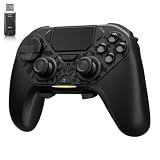
- ❗Note: This device is equipped with a lock mode,you must charge it via a wired connection the first time you use it to unlock it.The P4 cannot be connected using a 2.4G receiver, it supports wireless connections.
- 🎮 【Multi-Platform Compatibility】 AceGamer wireless controller works with PS4, Switch,PC,iOS, Android, and Steam Deck. Connect via Bluetooth, wired, 2.4G receiver .❗Note: Not compatible with Xbox. Switch 2 Wake-up: After the initial pairing is successful, simply remove the original Joy-Con from the console.
- 🎮 【Custom TMR Joystick 】— An upgraded tunnel magnetoresistance joystick that eliminates drift for precise, controllable performance. With 4,096-level sampling, it delivers a smooth and responsive feel, while the spring-back damping provides firm and stable feedback. Its low-power design effectively extends battery life, and it boasts a lifespan of up to 5 million operations—Enjoy crisp, responsive control in every match.
- 🎮 【Dual-Mode Trigger & Micro-Switch Shoulder Buttons】 In micro-switch mode, the trigger offers a short, snappy travel—perfect for rapid-fire in shooting games. In Hall-effect linear mode, you get a longer, smoother travel—allowing for precise throttle control in racing games. Micro-switch shoulder buttons—enable quick execution of combo moves with responsive feedback"
- 🎮 【Micro-Switch ABXY + 4 Macro Back Buttons + Turbo 】 ABXY buttons feature micro-switches rated for 5 million presses, with a metal snap disc delivering crisp, tactile feedback and shorter travel for faster triggering—no mushy rubber that wears out. Four back buttons (M1-M4) each support up to 24 inputs per macro: hold M + back button, tap your combo (triggers, bumpers, ABXY, or stick clicks), and one press fires your full sequence instantly. Two Turbo modes: manual (hold to repeat) or auto (tap once for continuous fire), with adjustable speed (slow/medium/fast). Perfect for fighting games, shooters, and fast-paced action. All settings save after power-off.
Troubleshooting input and prompt problems
The controller is not detected
- Reconnect it before launching the game, then restart Neon White.
- Check the Steam client’s Controller page to confirm that the operating system sees the device.
- Close other remapping or virtual-controller utilities temporarily; two input layers can compete for the same buttons.
- If using wireless, charge the controller and test a wired connection to separate pairing problems from game problems.
The game shows keyboard prompts while you are using a controller
Press a controller button once, then avoid touching the keyboard or mouse while checking the menu. Some games switch prompt sets to match the most recent device input. If prompts still do not match, inspect the game’s control settings and Steam’s per-game controller configuration, then restart the title after changing the layout.
A Deck update changed the controls
Open the live Steam listing and the in-game controls menu again. Compatibility labels and bindings can change with updates, so treat an old screenshot or guide as historical information rather than a current map. Restore your preferred layout, test every essential action and only then return to timed or high-difficulty stages.
Text or icons are difficult to read on the Deck
Recheck display and interface settings, increase text size if the game offers that option and adjust your viewing distance or screen angle. Valve’s Verified criteria include legible text at default settings, but individual eyesight, lighting and preferences vary. If you connect an external display, reassess readability because the original handheld presentation no longer describes your setup.
Do these 3 things before closing this tab:
1Repair Windows errors before they cause bigger problems2Scan for outdated or missing drivers - takes under a minute3Clear out junk files and repair common Windows errorsWhat the official status does not tell you
Full controller support and a Verified Deck label answer the compatibility question, not every comfort or performance question. The available official information does not establish a benchmark comparing input devices, a universal sensitivity setting, a preferred button layout or a battery-runtime figure. Those outcomes depend on hardware, settings, software updates and personal preference.
For the most reliable decision, use the current Steam listing for support and Deck status, then verify your own bindings in the game. That approach avoids treating a changed control map, a different controller layout or an old compatibility note as permanent.
Quick Recap
Product prices and availability are accurate as of the date/time indicated and are subject to change. Any price and availability information displayed on Amazon at the time of purchase will apply.

