
The Tool Desk
Outbyte Driver Updater FREEScan for outdated or missing drivers - takes under a minuteDriver Scan →Outbyte PC Repair FREERepair Windows errors before they cause bigger problemsFix Now →iTechGuides is reader-supported. When you buy through links on our site, we may earn an affiliate commission. As an Amazon Associate I earn from qualifying purchases. Learn more
OLED burn-in cannot be guaranteed to be prevented. You can, however, substantially reduce the risk by avoiding long, bright sessions with unchanged graphics, varying what appears on screen, leaving the panel’s protection features enabled, and following the maintenance instructions for your exact model.
Burn-in is persistent uneven wear. Temporary image retention can fade after the image changes, while permanent burn-in remains visible over other content. The practical goal is risk reduction, not a promise that a panel will never develop uneven wear.
What OLED burn-in is—and what it is not
Every OLED pixel emits its own light. When one area repeatedly displays a bright, unchanging element, its organic emitters can age differently from pixels that show varied content. The result is a darker, tinted, or otherwise uneven area that remains visible when the picture changes.
Recommended Free Tools
Temporary image retention looks similar but is not the same condition. It may fade after displaying different content or turning the panel off for a while. LG describes burn-in as image retention that lasts much longer and is usually visible while other content is playing. A fading after-image is therefore not proof of permanent damage, and a refresh cycle should not be treated as a guaranteed cure.
#1 Best Overall

- BRIGHTNESS BOOSTER: Brighter visuals and vivid detail with Brightness Booster powered by the a11 AI Processor Gen 3
- PERFECT BLACK AND PERFECT COLOR: Over 8.3 million self-lit smart pixels with Perfect Black and Perfect Color technology¹.
- A11 AI PROCESSOR: Find and choose what to watch fast, without lag, and enjoy optimized picture with AI Director Processing powered by the LG a9 AI Processor Gen8, delivering 5.6x greater AI processing, 50% faster performance, and 70% improved graphics
- DOLBY VISION, DOLBY ATMOS AND FILMMAKER MODE: Loaded with Dolby Vision for extraordinary color, contrast and brightness, plus Dolby Atmos² for sound you can feel all around you. Land in the center of the action with FILMMAKER MODE with Ambient Light Technology, allowing you to see films just as the director intended.
- ULTIMATE GAMEPLAY: Delivers smooth, responsive gaming with a 0.1ms response time, up to 165Hz⁵ refresh rate, NVIDIA G-Sync, AMD FreeSync Premium and VRR.
The exposure pattern that matters most
Risk rises when three factors combine: a static image, high luminance, and long exposure. Examples include a television channel logo, a news ticker, a paused game with a fixed HUD, a desktop taskbar, or a menu left open while you are away. The colors and size of the fixed area also matter; a vivid, high-contrast logo stresses its pixels differently from a dim gray interface.
Normal viewing with varied films, shows, photographs, and games is a different pattern. It still contributes to cumulative panel use, but it does not repeatedly load the same pixels in the same way.
What long-duration testing shows
Accelerated tests demonstrate that permanent burn-in is possible, but their hour counts are not a forecast of how many years your display will last. Test content, brightness, room conditions, panel generation, and operating schedule all differ from household use.
| Test or checkpoint | What was done | Result reported | How to interpret it |
|---|---|---|---|
| RTINGS six-TV test update (2018) | Six 2017 OLED televisions ran repetitive content for more than 5,000 hours. | The sets showing long-running CNN content developed some permanent burn-in; varied-content sets did not yet show noticeable uniformity problems during normal content. | Static, repetitive programming can create uneven wear. The result is from one accelerated design, not a household lifespan estimate. |
| RTINGS final update (2019) | The same test reached 9,064 hours. | Uniformity issues appeared on the football and FIFA sets, with early signs on the live NBC set. | Different static graphics and colors produce different patterns of wear over time. |
| RTINGS comparison reviewed in 2026 | 2020–2023 OLED models were compared with a 2017 LG C7 at a 10,500-hour CNN checkpoint, with each television running at its maximum SDR brightness. | The newer models did not consistently show less permanent retention. RTINGS noted that maximum brightness was not matched by luminance between models. | The comparison cannot isolate panel durability at equal brightness. Static-heavy use remains a consideration, while varied viewing is unlikely to be a burn-in issue for most viewers. |
That 2026 comparison also found that the average 2023 OLED in its dataset measured 28% brighter than the 2017 OLED average in a sustained 10% SDR window and 52% brighter in a sustained full-screen SDR test. Those are brightness comparisons, not probabilities of burn-in. A brighter panel can deliver more intense highlights, but using maximum output for static interfaces increases the stress on fixed areas.
Settings and habits that reduce risk
1. Vary the picture instead of leaving static elements up
Change channels, content, windows, or game scenes periodically when a bright logo or interface stays in one place. If you pause a game or video, resume it, switch to another input, or let the display enter its screen saver rather than leaving the paused frame indefinitely.
For computer work, hide or auto-hide a taskbar when practical, use a moving screen saver, and let the monitor sleep when you step away. These measures reduce the time that one row of pixels displays an unchanged desktop element.
2. Use moderate brightness for static work
Choose the lowest brightness that remains comfortable and usable, especially for spreadsheets, coding, dashboards, news channels, or games with fixed HUDs. High brightness is most consequential when the same graphics stay on screen for a long time. Lowering it does not eliminate risk, but it reduces the intensity of each static exposure.
Rank #2

- OUR MOST ADVANCED 4K AI PROCESSOR: Powered by 128 neural networks to deliver AI-enhanced picture and optimized sound, resulting in an exceptional 4K experience for streaming, gaming, live sports and more.*
- TRANSFORMS EVERYTHING ON SCREEN TO IMPRESSIVE 4K RESOLUTION*: See impressive details on screen. Our AI processor upscales everything you watch to 4K using 128 AI neural networks and ensures incredibly sharp and smooth picture quality.*
- POWERFUL BRIGHTNESS AND DEEPER CONTRAST IN EVERY PIXEL**:Experience powerful brightness and deeper contrast revealing nuanced detail in each scene. The NQ4 AI Gen3 processor analyzes each scene and boost brightness to illuminate even the smallest details.**
- BRINGS SMOOTH MOTION TO SPORTS AND TEAR-FREE GAMING: Experience smooth visuals and elite speeds for VRR gaming at up to 4K 144Hz.***
- KEEP YOUR EYE ON THE BALL: The AI processor smooths the motion of fast-moving balls and text, reducing blur and flickering, so you don't lose sight of the action.*
Google’s Pixel guidance recommends default brightness or lower. It also advises keeping the phone out of direct sun and allowing it to cool if it becomes hot, because heat adds another strain to the display and battery system.
3. Set short inactivity timers
Use the display-sleep or screen-saver timer rather than relying on memory. Google recommends the default timer on Pixel phones or a setting of two minutes or less. On a television, use the built-in screen saver for paused video and no-signal states. LG says its screen saver starts after approximately two minutes without user activity in specified paused-video or no-signal situations, although behavior can differ by model and built-in app.
4. Keep logo and pixel-shifting protections enabled
Manufacturers use different names for similar protections. Leave them on unless a specific workflow requires otherwise.
| Protection | What it does | Practical trade-off |
|---|---|---|
| Logo dimming or logo brightness adjustment | Detects persistent logos, program names, or news captions and lowers their luminance. LG describes a High setting that reduces logo brightness the most; Samsung calls its feature Auto Logo Brightness. | A logo may look dimmer than the surrounding picture, which is intentional protection. |
| Pixel Shift or Screen Shift | Moves the image by small amounts so a static feature does not always use exactly the same subpixels. Samsung notes that edges can move slightly beyond the visible screen border. | Movement may be barely noticeable, but a thin edge can be clipped temporarily. |
| Screen saver or no-signal protection | Replaces a paused or idle image with a moving or blanking state after inactivity. | The exact trigger and delay depend on the model and application. |
| Taskbar, static-image, or panel-care protection on monitors | Dims or shifts fixed desktop elements and manages maintenance cycles. | Names, controls, and available options vary widely by monitor. |
Do not disable a protection feature merely because you cannot see it working. Many operate only after the firmware detects a persistent element or an idle state.
Crashes, No Sound, or Screen Glitches?
Random freezes, missing sound and display glitches usually trace back to one bad driver. Find and replace yours safely.Free scan · under a minuteWindows Errors? Fix Them Before They Spread
Repair common Windows errors and clear accumulated junk for a smoother, more stable PC - no reinstall needed.Free scan · no reinstall5. Let automatic maintenance finish
OLED televisions and monitors may perform a short compensation or pixel-cleaning cycle after use and a longer cycle after much more cumulative use. Keep the device connected to power or in standby when the manual says it must be available for maintenance.
LG support guidance describes one automatic cycle after four cumulative hours and a longer Pixel Refresher after 2,000 cumulative hours. Those intervals are LG guidance details, not universal standards for every LG model or other manufacturers. Samsung says its manual Pixel Refresh can take more than an hour and is not supported on every model.
Do not start a manual refresh routinely as a preventive ritual. Use it when the television prompts you or when the manufacturer’s troubleshooting instructions specifically direct you to do so. Repeatedly forcing a long cycle adds operating time and is not established as a way to reverse permanent burn-in.
Rank #3
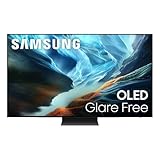
- OLED HDR+ WITH GLARE FREE*: Experience incredible brightness and deep contrast. Advanced AI enhances details, while Glare Free technology eliminates distracting reflections.*
- NQ4 AI GEN3 PROCESSOR: Powered by 128 neural networks to deliver AI-enhanced picture and sound, resulting in an exceptional 4K experience for streaming, gaming, live sports and more.*
- ULTIMATE GAMING PACK*: Conquer the competition with ultra-smooth, tear-free, low-latency gameplay and real-time responsiveness. Unlock the ultimate gaming experience with the powerful combination of Motion Xcelerator 165Hz with NVIDIA G-SYNC or AMD FreeSync Premium Pro.*
- 4K AI UPSCALING PRO: See impressive details on screen. Our AI processor upscales everything you watch to 4K using 128 AI neural networks and ensures incredibly sharp and smooth picture quality.*
- AI MOTION ENHANCER PRO: The AI processor smooths the motion of fast-moving balls and text, reducing blur and flickering, so you don't lose sight of the action.*
Device-specific routines
Televisions
- Open the picture, general, or system settings and confirm that Screen Saver, Logo Dimming, and Pixel Shift (or similarly named options) are enabled.
- Set the television to enter its screen saver when a video is paused or no signal is detected. Do not assume that a streaming app’s pause screen follows the television’s normal timeout; test the apps you actually use.
- When watching a channel with a fixed logo or ticker for hours, reduce brightness to a comfortable level and change content periodically.
- After viewing, use standby rather than cutting power at a switch if the manual says maintenance runs in standby.
- Read the model-specific support page before selecting a manual Pixel Refresh. Note the expected duration and whether the process disables viewing until it completes.
A fixed logo is not automatically dangerous after a few minutes. The concern is repeated, bright exposure over long sessions and across many days. The safest routine is to let the television manage idle protection instead of leaving a paused frame on screen.
Computer monitors
- Enable the operating system’s screen saver and display-sleep timers; use sleep rather than a static desktop when you leave the desk.
- Turn on the monitor’s Pixel Orbiting, pixel shift, logo protection, taskbar dimming, or static-image detection if offered.
- For long office sessions, keep brightness at a comfortable moderate level and use dark or neutral interface themes only if they help your work. A dark theme is not a guarantee, because bright fixed icons and windows can still remain static.
- Check the manual for the panel-care schedule. A Philips Evnia QD-OLED manual, for example, lists model-specific controls and recommends keeping Pixel Orbiting on; its timing instructions apply to that monitor, not to all QD-OLED products.
- When the monitor requests a refresh or compensation cycle, allow it to complete. Do not interrupt it by unplugging the display unless the manufacturer tells you to.
There is no single brightness number that every monitor owner should use. The right setting depends on room light, color-critical work, and whether static elements remain visible for hours.
Phones
- On a Pixel phone, keep the display-sleep timer at the default or set it to two minutes or less.
- Use default brightness or lower for ordinary use, and avoid leaving a bright app open while the phone is unattended.
- Keep the phone out of direct sun. If it becomes hot, move it to a cooler place and let it return to a normal temperature.
- Install system updates through normal channels, but do not install apps that claim to remove or prevent burn-in. Google specifically advises against those apps.
Other phone brands may use different labels and timers. Consult the exact model’s manual rather than copying Pixel menu names to another device.
What does not reliably prevent or repair burn-in?
- A manual refresh is not a guaranteed repair. It can be a maintenance or troubleshooting step, but the cited manufacturer guidance does not establish that it reverses permanent uneven wear.
- One short static session is not the whole story. Risk is cumulative and depends on brightness, duration, and the content’s fixed colors and area.
- Brightness set to maximum is not a useful durability test. RTINGS’ comparison used each model’s maximum SDR brightness without matching luminance, so its hours cannot be converted into a universal failure threshold.
- Third-party apps, screen protectors, cleaners, and accessories are not established safeguards. The practical controls supported by the guidance are the display’s own timers and panel-care features, plus sensible viewing habits.
- Turning protection features off for a cleaner image trades away a safety margin. Pixel shifting may move edges slightly, and logo dimming may alter a logo’s brightness, but those effects are part of the protection mechanism.
Choose the right response to your viewing pattern
| Your pattern | Priority actions | Why |
|---|---|---|
| Mostly films, varied shows, and changing games | Leave panel-care features enabled; use normal sleep behavior; avoid unnecessary maximum brightness. | Varied imagery distributes wear across the panel. |
| News, sports, or channels with fixed logos and tickers | Use moderate brightness, switch content during long sessions, and keep logo dimming active. | Persistent high-contrast graphics repeatedly load the same area. |
| Competitive games with a fixed HUD | Take breaks, vary games, avoid leaving a paused screen up, and enable pixel shift. | The HUD can remain in the same location for many hours. |
| Desktop productivity or monitoring dashboards | Use short sleep timers, auto-hide static bars when practical, and allow the monitor’s screen saver or orbiting feature to operate. | Desktop chrome can remain unchanged even when the underlying work changes. |
| Phone used outdoors or in hot conditions | Use default brightness or lower, keep it out of direct sun, and cool it when hot. | High brightness and heat increase stress during static use. |
How to tell retention from possible burn-in
First, display varied full-screen content rather than the image that produced the mark. If the shape fades after the panel has had time to show other material or complete its normal maintenance cycle, it may have been temporary retention. If the same uneven area remains visible across multiple types of content and over a longer period, permanent burn-in becomes more plausible.
Do not repeatedly run manual refreshes while investigating. Photograph the screen with neutral gray and ordinary content, note the model and usage pattern, and contact the manufacturer if the mark persists. Support staff can identify the correct diagnostic or panel-care procedure for that model.
Free tools Windows power users keep installed
One-click scans. No signup required.
Bottom line
You cannot guarantee that an OLED panel will never burn in, but you can make the common risk pattern far less likely. Keep brightness reasonable, prevent idle static images with short sleep or screen-saver timers, vary long viewing sessions, and leave logo-dimming, pixel-shift, and other built-in protections enabled. Let automatic maintenance cycles run as directed, and treat any manual refresh as a model-specific troubleshooting step—not a promise to erase permanent wear.
Quick Recap
Product prices and availability are accurate as of the date/time indicated and are subject to change. Any price and availability information displayed on Amazon at the time of purchase will apply.

